School Information fields are fundamental data points about the school like City, State, Zip, etc. as well as names, numbers and emails of Administrators. School Information fields may be used in reports as well as emails, and they function much like a “mail merge,” where the information acts as a data source to be used in customized documents. For example, in the header of your Report Card or the template for an email. Therefore, it is critical that this information get reviewed for accuracy each year.
Setup Center> Libraries > School Information is used to define School Information fields and their values. The same screen can also be accessed by expanding the School Information tile on School > Demographics. Users with All rights to Demographics can Add New Fields and Edit existing fields if the school has selected to edit Demographics in AdminPlus.com.
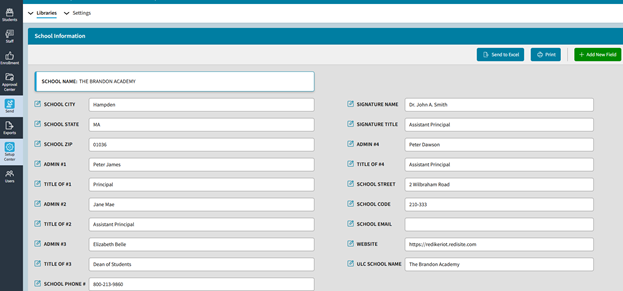
On this screen you can:
- Send to Excel to export the field names and values to Excel.
- Click the Edit icon next to field name to rename the field. You can also just click into the Field Value to edit.
- Add New Field to enter a New Field Name. All School information fields are saved as text.
- Type in the value field to update the value. Note when field values are being edited a Cancel and Save button will appear instead of the Add New Field button (upper right corner)
School Name
Please note that the "School Name" in the upper left is set by Rediker when setting up the school database. Also, since it is in all caps, it is recommended that you set up a ULC School Name Field (Upper Lower Case) for use on reports and emails.
Making Edits
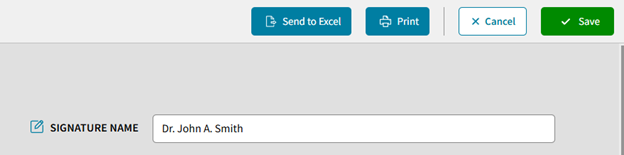
Be sure to click Save (in the upper right) if any edits are made. As noted above when making an edit, Cancel and Save will appear instead of the Add New Field option.
Example
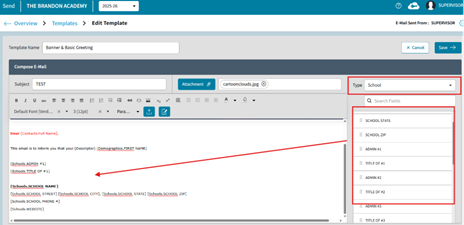
This example demonstrates how the School Information fields can be used in an email template. The fields are placed as macros on to the email or template and then the value is rendered from the table.