Setup Center > Settings > Household Fields can be used by the AdminPlus Supervisor to select Student Demographic fields that should be the same for all students in the household. Fields can also be mapped to Contact Global fields so all members of the same household have the same values.
Schools that share Households must maintain the same edit setting for Enrollment, Demographics, and Contacts.
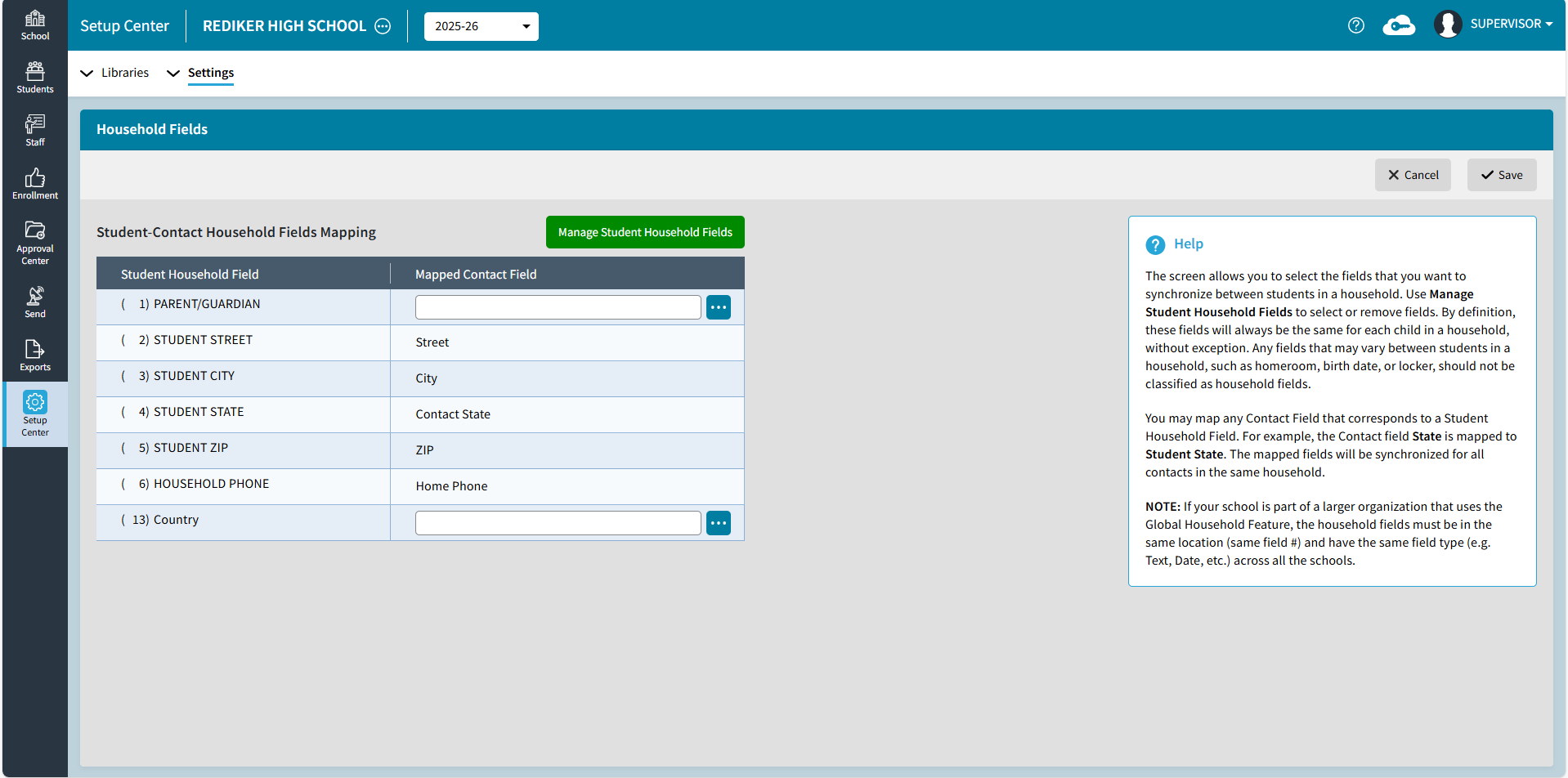
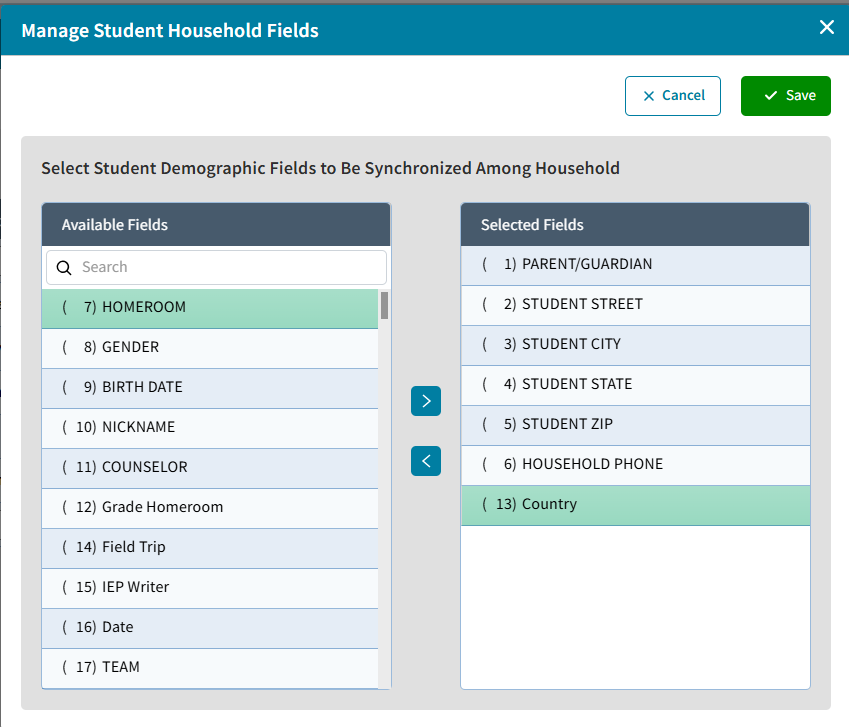
Manage Student Household Fields
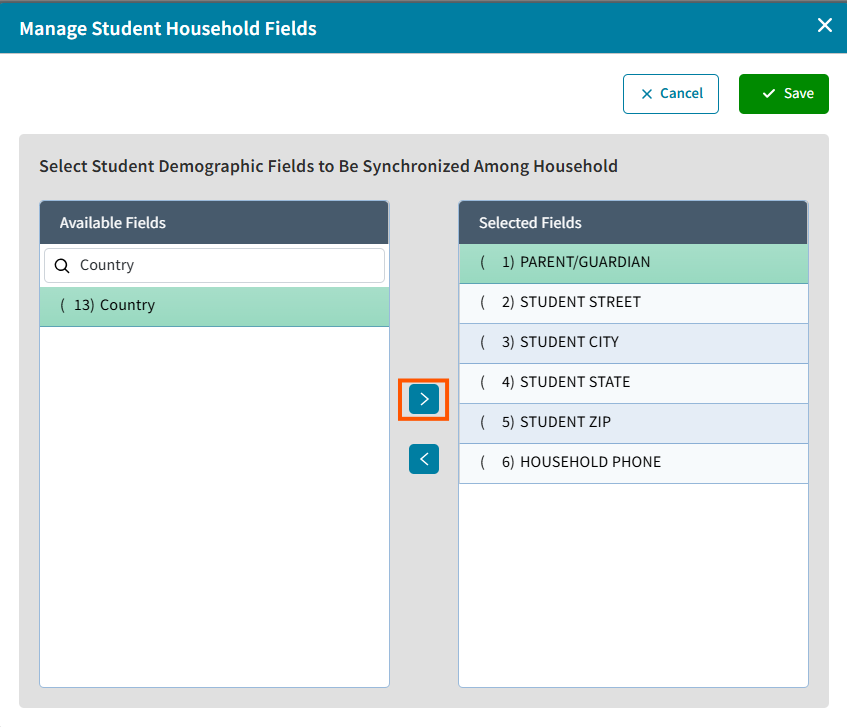
Add a Student Household Field
- Click Manage Student Household Fields
- Search for the field under Available Fields
- Click the right arrow to move to Selected Fields
- Save
If your school is part of a larger organization that uses the Global Household feature, the household fields must be in the same location (same field #) and have the same field type (e.g. Text, Date, etc.) across all the schools.
Remove a Student Household Field
- If the Student Household Field is mapped to a contact field, first update the Mapped Contact Field to Not Selected and Save the Student-Contact Household Fields Mapping.
- Click Manage Student Household Fields highlight and click the left arrow to move to Available Fields
- Save the change in Manage Student Household Fields, then Save the Household Fields
Mapped Contact Household Field
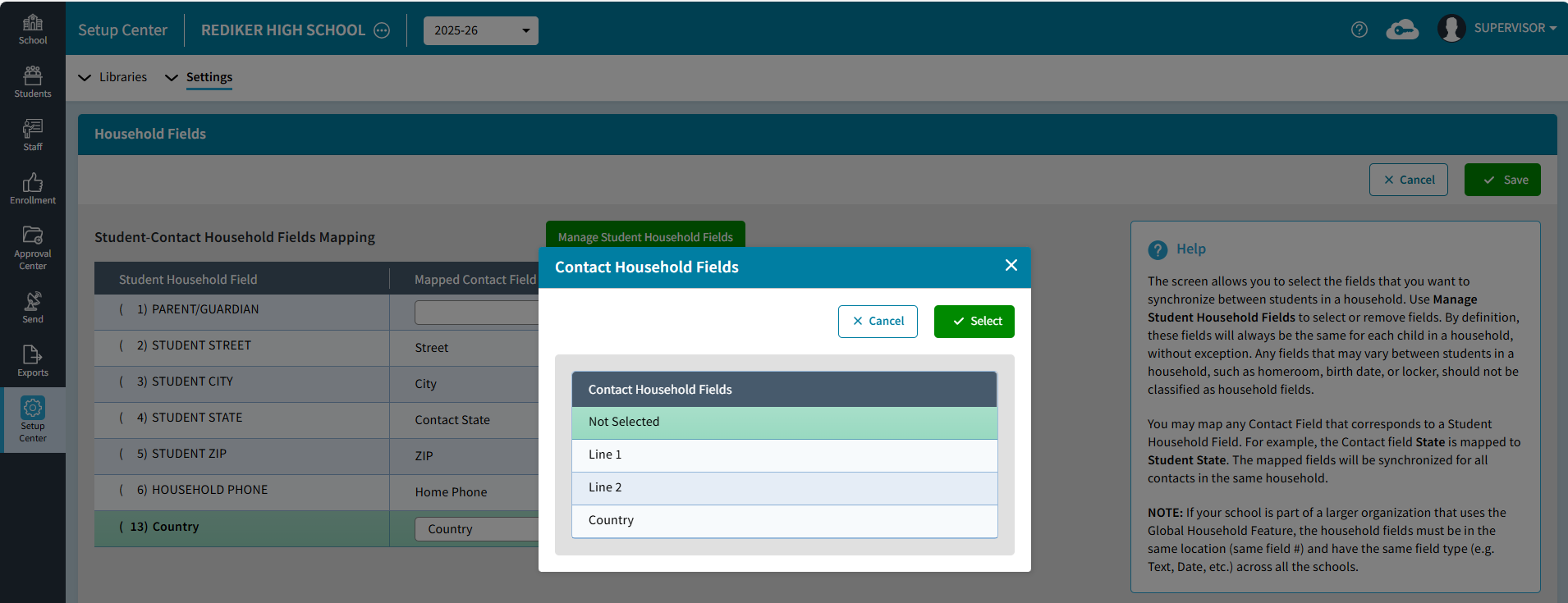
You may map any Contact Field that corresponds to a Student Household Field. For example, the Contact field State is mapped to Student State. The mapped fields will be synchronized for all contacts in the same Household.
- Click on the
 ellipsis icon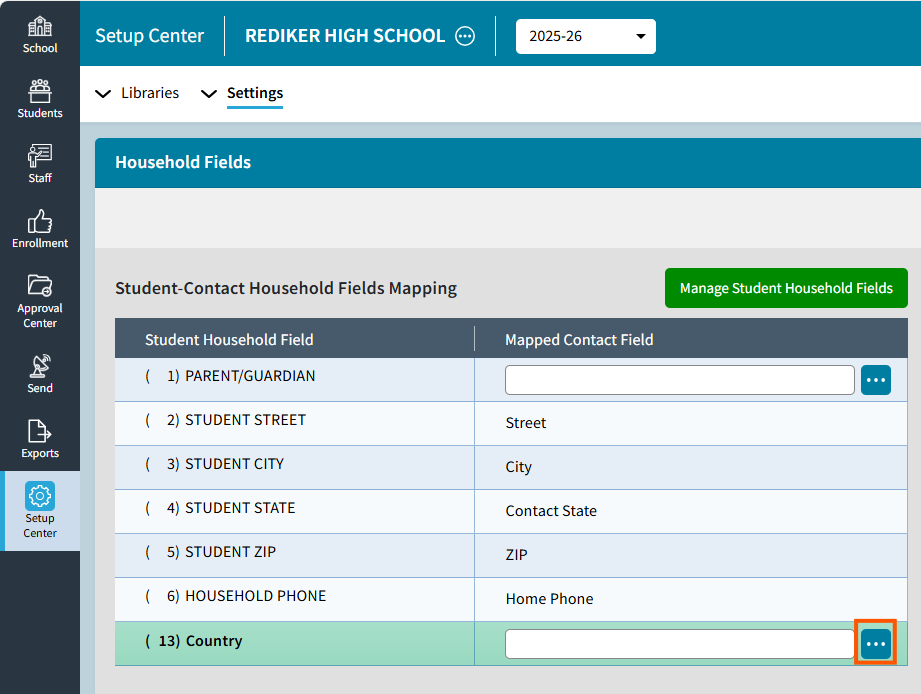
- Select the Contact Household Field
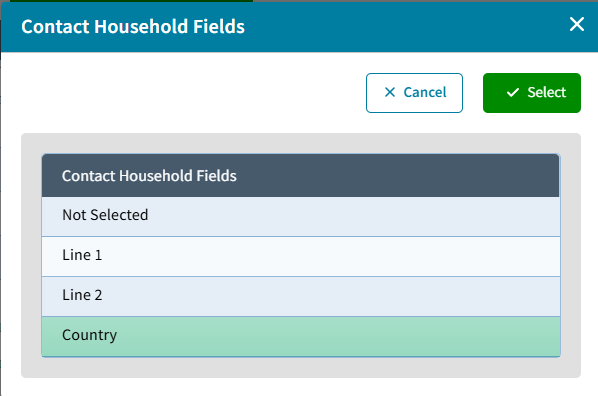
- Click Select to map the Contact field to the Student Household field then click Save to save the mapping
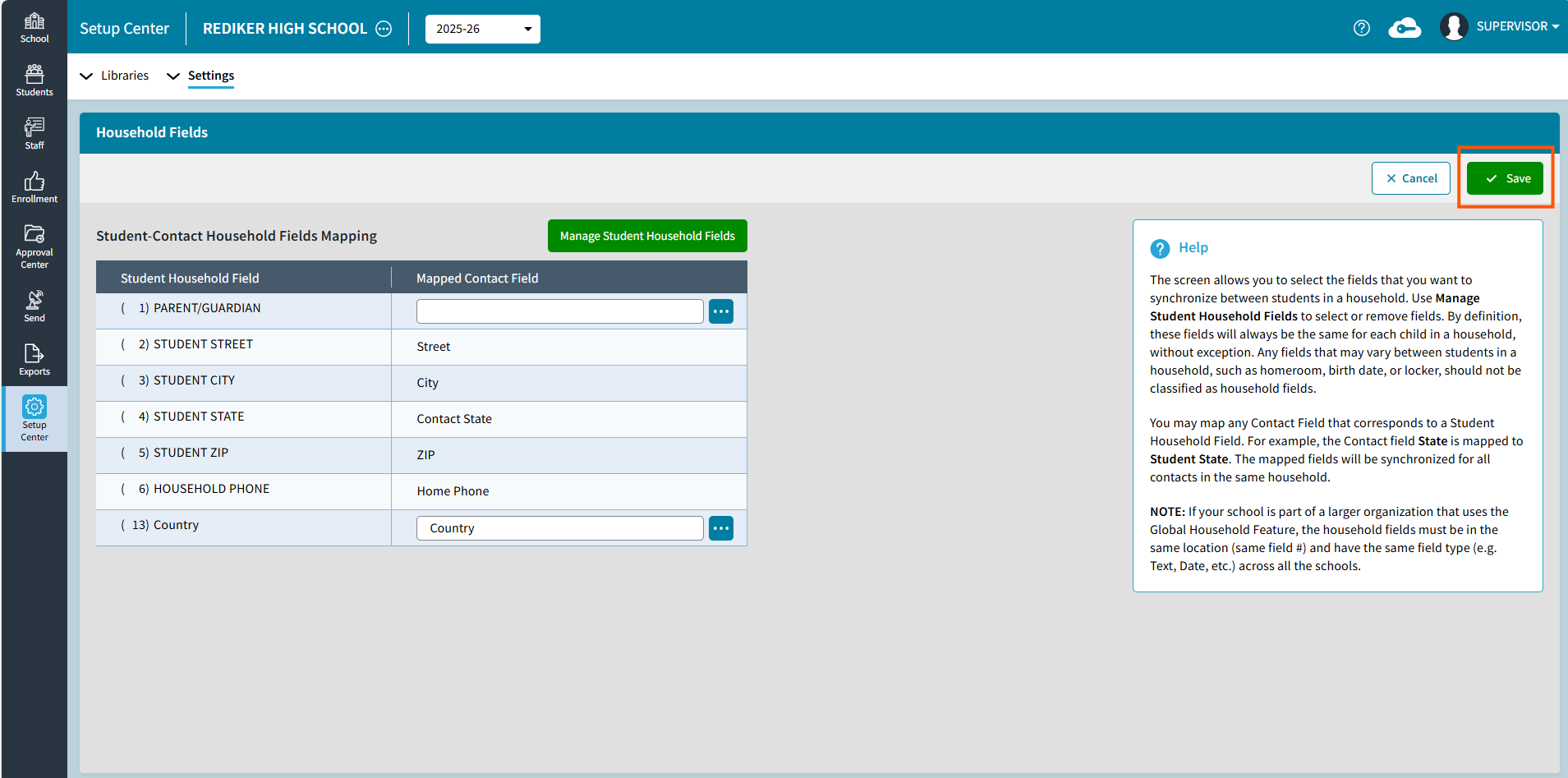
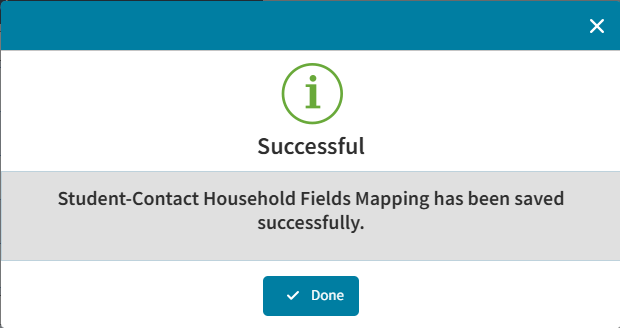
- A confirmation message will appear.