
TABLE OF CONTENTS
A SuperDB table functions similarly to an Excel spreadsheet and is designed to store information that may require multiple entries. They are not year-specific, allowing data to remain available and accessible across school years. SuperDB tables can be created for both Students and Staff to track information such as community service hours, standardized test scores, or staff certifications. Generic tables can also be created to store information such as locker numbers and combinations. SuperDB tables allow multiple records to be stored within a single table, providing a flexible way to organize and maintain ongoing data.
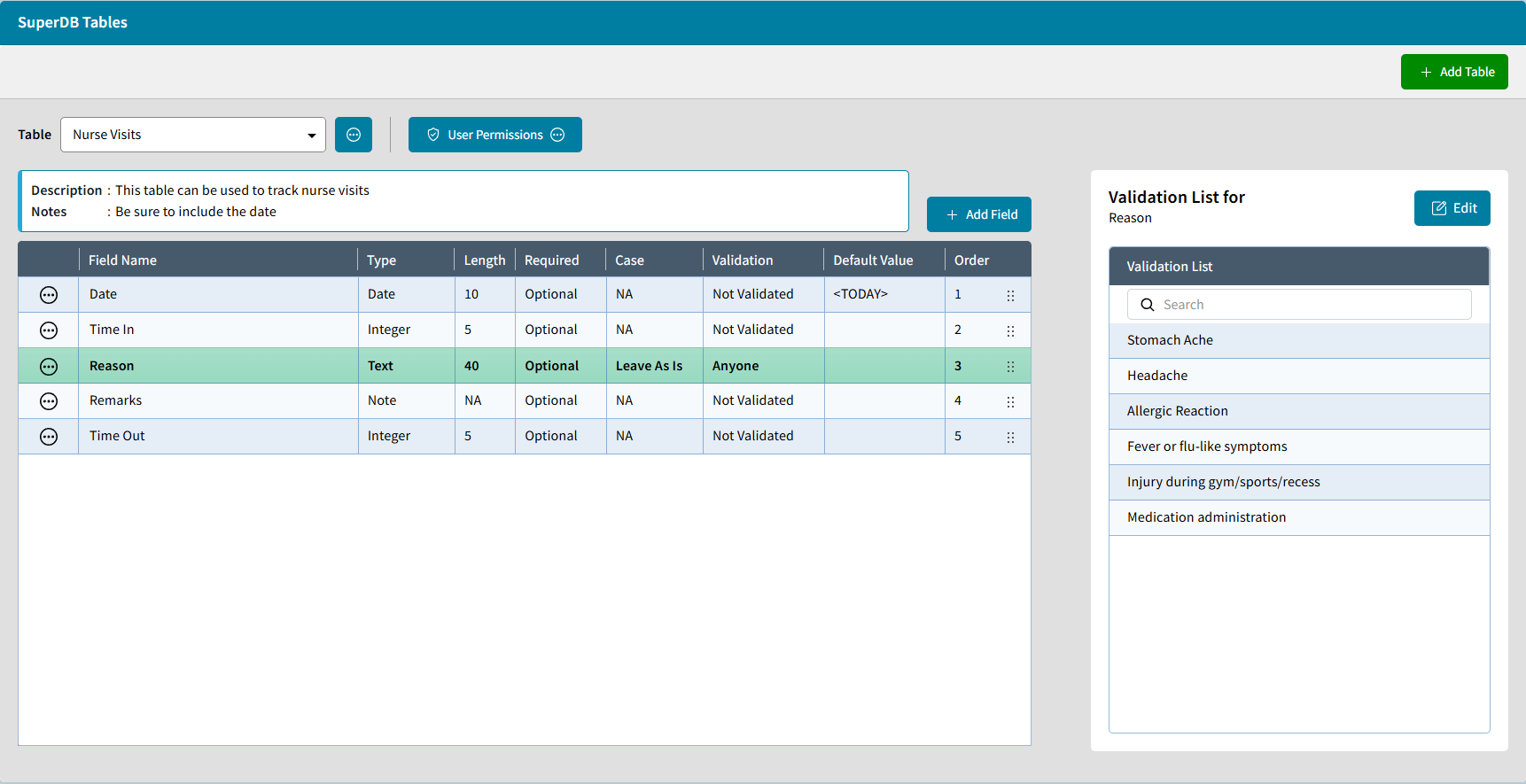
Add Table
- To add a new table, go to Setup Center > Libraries > Add Table. The add a table window opens:
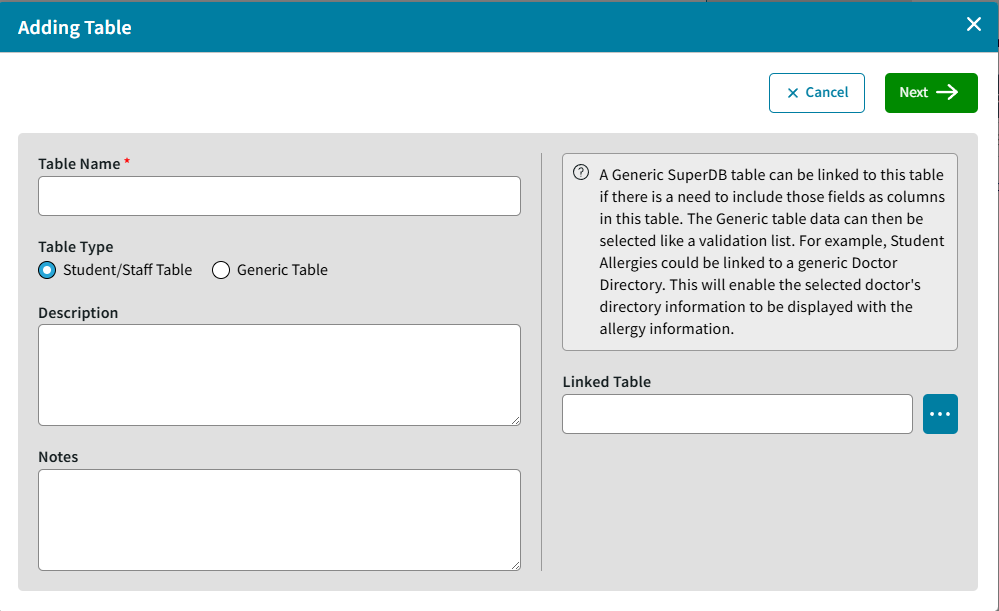
- Table Name: Up to 20-characters max can be entered for the table name. This is mandatory.
- Table Type: This determines if the table is used for specific Student/Staff information or if it is Generic.
A generic SuperDB table isn't linked to any students, and the information isn't populated with student demographic information. Generic tables can hold information such as a list of doctors in town, a list of all school lockers and combinations, or a list of departments in the school. - Description: Up to 50-characters max can be entered.
- Note: Characters can be entered in any format.
- Linked Table: Select the ellipsis to link a Generic Table to a Student or Staff Super DB Table.
A Generic Table cannot be linked to another Generic Table. This option will only be visible if you choose the Student/Staff Table Table Type option.
A Generic SuperDB table can be linked to a Student/Staff table if there is a need to include those fields as columns within the table. The Generic table data can then be selected like a validation list. For example, Student Allergies could be linked to a generic Doctor Directory. This will enable the selected doctor's directory information to be displayed with the allergy information. - Click Next. The Add a Field window will open. You must add at least one (1) field in order to save the table. For information on this, see Add a Field.
Edit Table
To Edit a SuperDB Table go to Setup Center > Libraries select the Table then click the ellipsis to Edit Table to Edit the Table name, Table Type, Linked Table, Description, or Notes.
Add Field
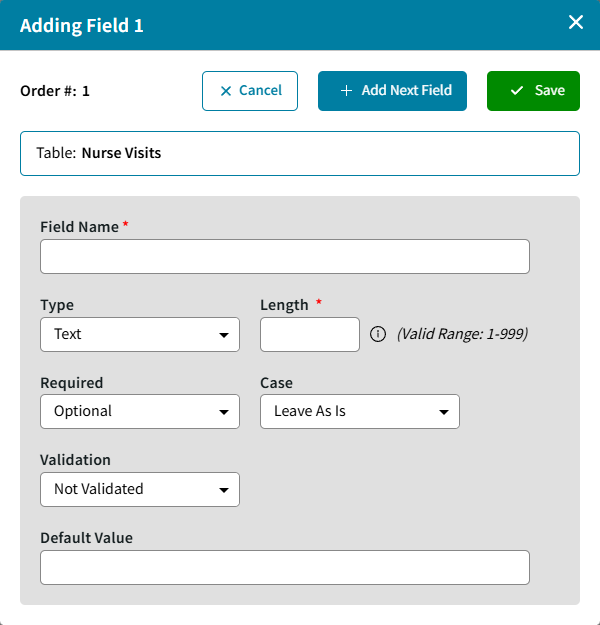
To Add a new Field to an existing table, do the following:
- Click Add Field.
- The Add new Field window opens.
- Field Name: Enter a field name in the Item Name column.
- Type: Select one of the following from the drop-down list:
- Text: Characters can be entered in any format.
- Integer: Whole numbers can be entered.
- Decimal: Numbers can be entered with a decimal point.
- Date: Dates in mm-dd-yyyy format, or any date format you've chosen for your Administrator's Plus, can be entered.
- Note: Characters can be entered in any format.
- Length: Enter the field length limit for the field.
- Required: Choose Optional or Mandatory.
- Case: Choose one of the following options:
- Leave as Is: No formatting is applied to this entry.
- Sentence Case: The first word of the entry is capitalized, and the rest are left lower case.
- Lower Case: Entries are converted to lower case.
- Upper Case: Entries are converted to upper case.
- Title Case: The first letter of each word is capitalized.
- Validation: Select Not Validated, Supervisor Only, or Anyone from the drop-down list, depending on whether or not the field needs to be validated and by whom. Validations List entries can be added once the table setup has been completed by selecting Edit on the right:
Users can choose to enter multiple line items at once by selecting Allow Multiline Entry. - Default Value: Enter a value in the Default Value column if you want each entry of this field to be the same.
Edit Field
To edit the properties of the field such as the Field Name, Type or the Field Validation (Anyone to Supervisor), update the validation list, or delete the field, click the ellipsis icon next to the Field Name.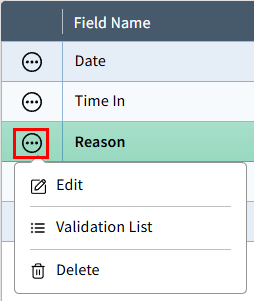
Validation
The Validation List can be updated by clicking the ellipsis icon next the Field Name or by highlighting the field, then selecting Edit in the Validation List on the right. to Enter List Items or select Edit on the right for the highlighted field.
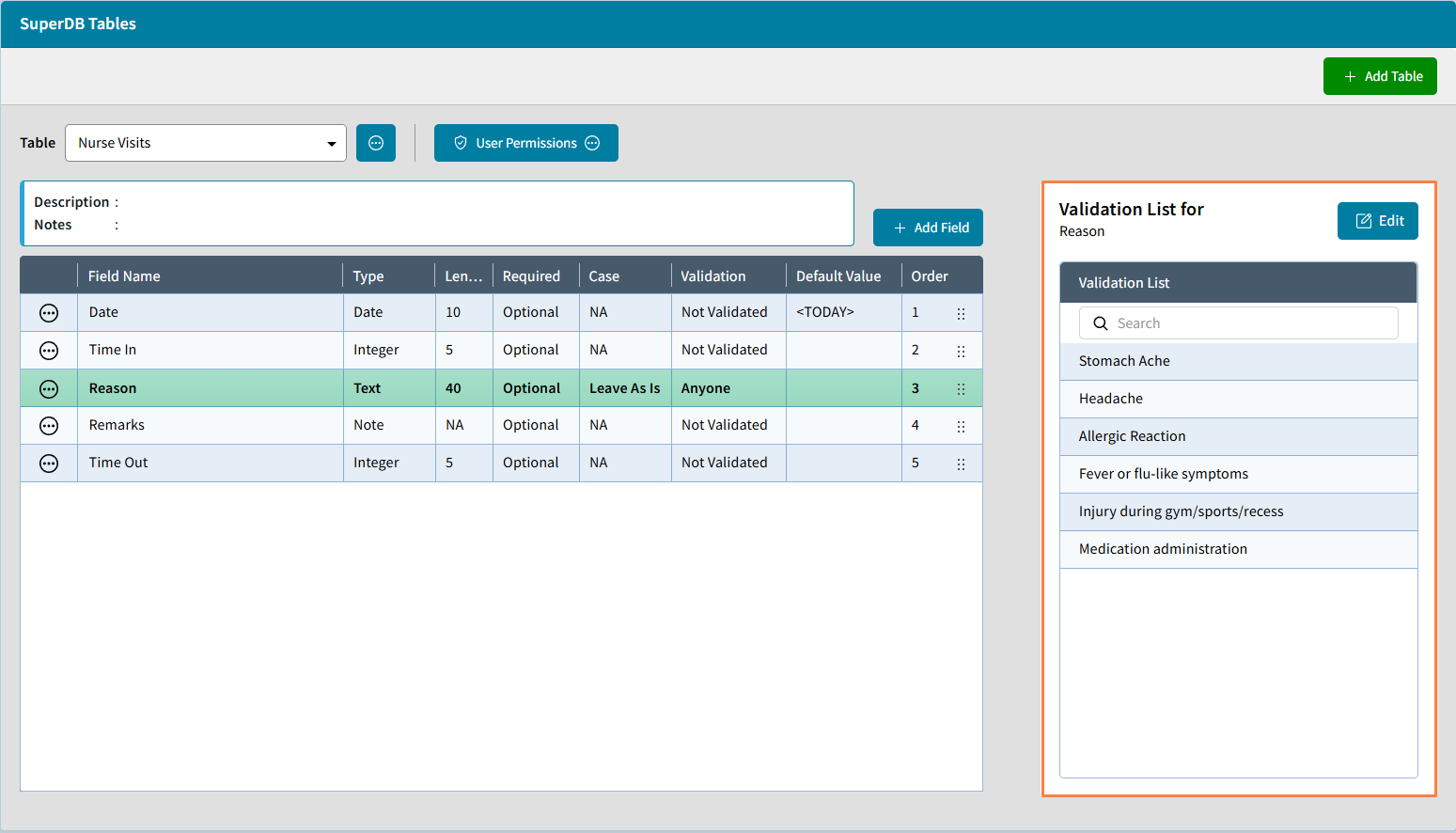
The Update List window will open.
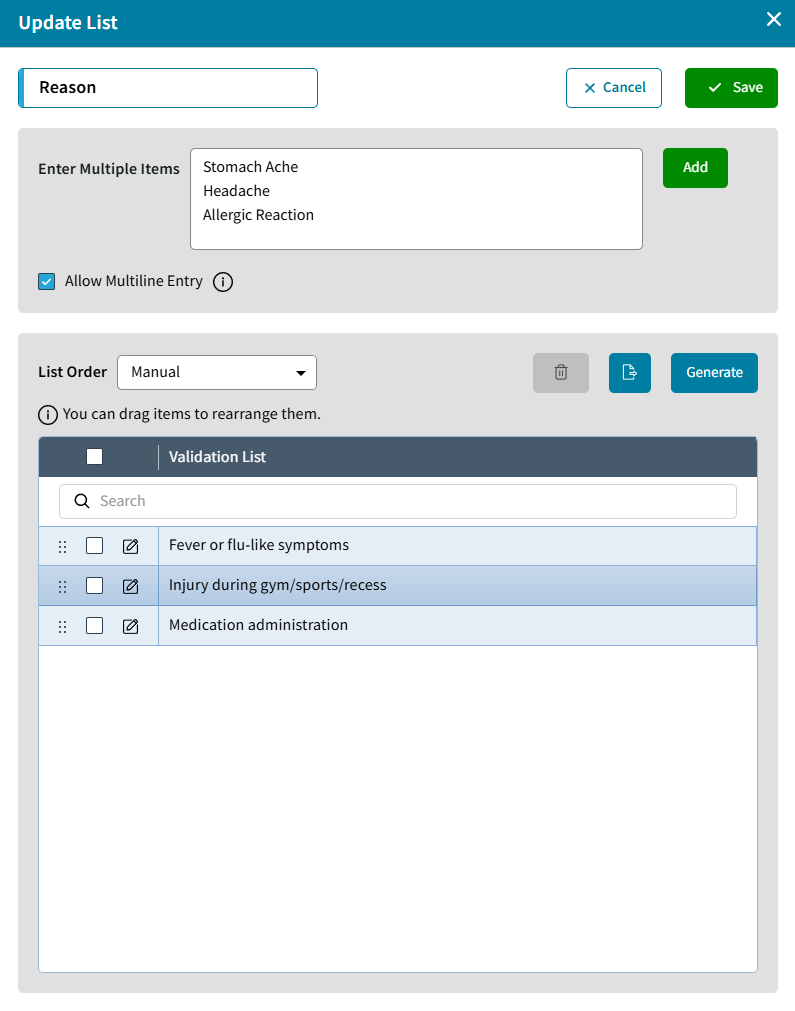
- Check Allow Multiline Entry to enter multiple list items at once when you are creating your list.
- List Order Manual enables you to drag the items to rearrange them or pick Ascending or Descending.
- Generate will populate the list from existing SuperDB values in that field.
- Select
 to send the list to Excel.
 - Select the checkbox to choose items to Delete from the list.
- Click the Edit icon to edit the name of the validation.
Delete Table
In Setup Center > Libraries > SuperDB Tables, select the Table then click the ellipsis to Delete Table. If the table has already been linked to any students or staff and populated with data, you cannot delete the table. You will receive the following message: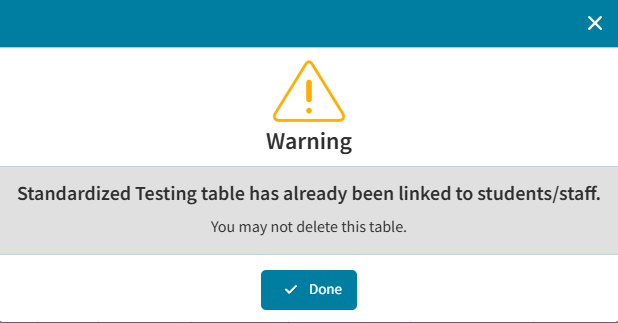
User Permissions
In Setup Center > Libraries > SuperDB Tables, User Permissions can be updated for Existing Users for already created tables, as well as Default Permissions for New Users.
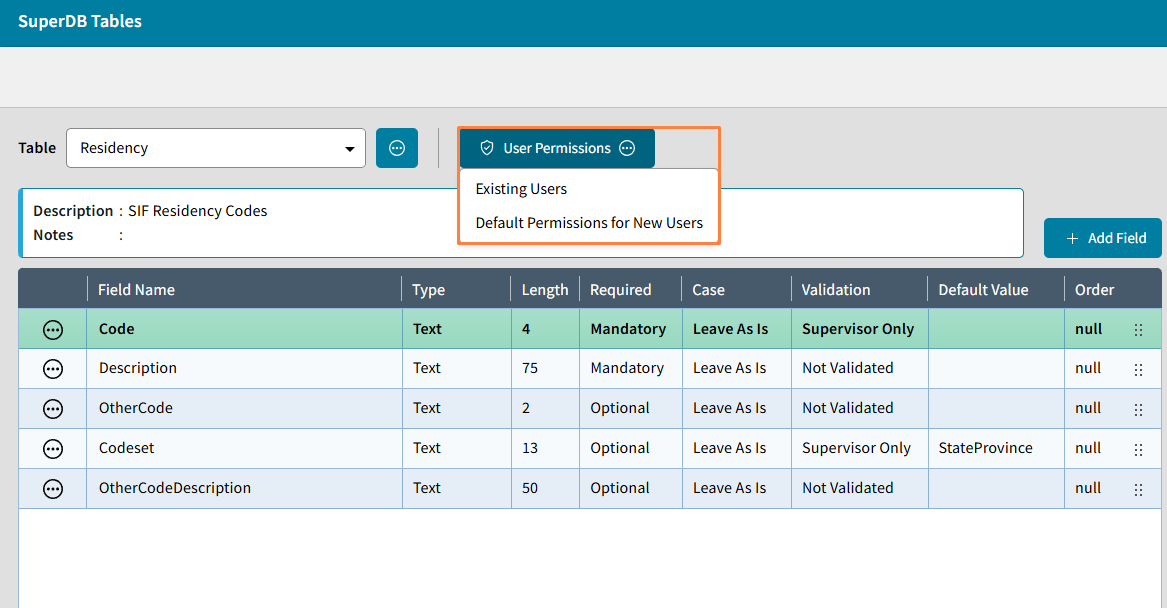
Existing Users
To update permissions for Existing Users, do the following:
- Select the table in the Table dropdown that you want to update the permissions for.
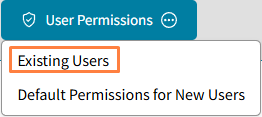
- Click User Permissions > Existing Users.
- The User Permissions window opens.
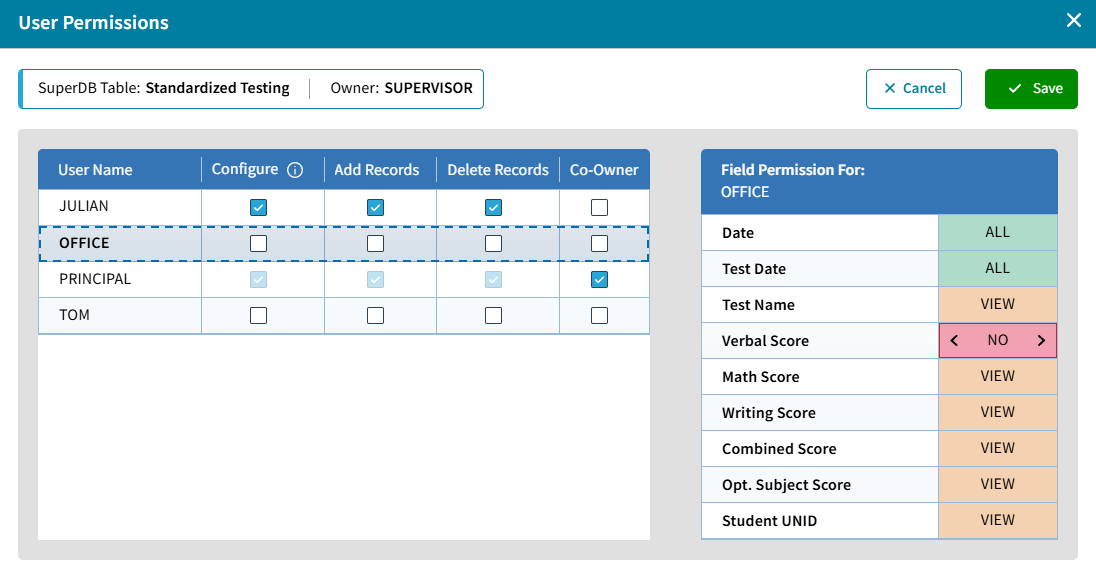
- Highlight the user you wish to edit.
- Configure: Allows the users to edit the table properties.
- Add Records: Allows the users to add records to the selected table.
- Delete Records: Allows the users to delete records from the selected table.
- Co-owner: Allows users to Configure Table properties, add and delete records.
- Field Permissions: Each field can be configured separately. If a user should not have full configure rights, they can be given either All, View only, or No rights to the field. Select the arrow in each field to change the rights.
- Highlight the user you wish to edit.
Default Permissions for New Users
To update Default Permissions for New Users, do the following:
- Select the table in the Table dropdown that you want to update the permissions for.
- Click User Permissions > Default Permissions for New Users.

- The Default Permissions window opens. The selected rights will apply to all new users of AdminPlus. Once the permissions are configured, these permissions can be shares with existing users for the selected table by clicking Apply to All Current Users.
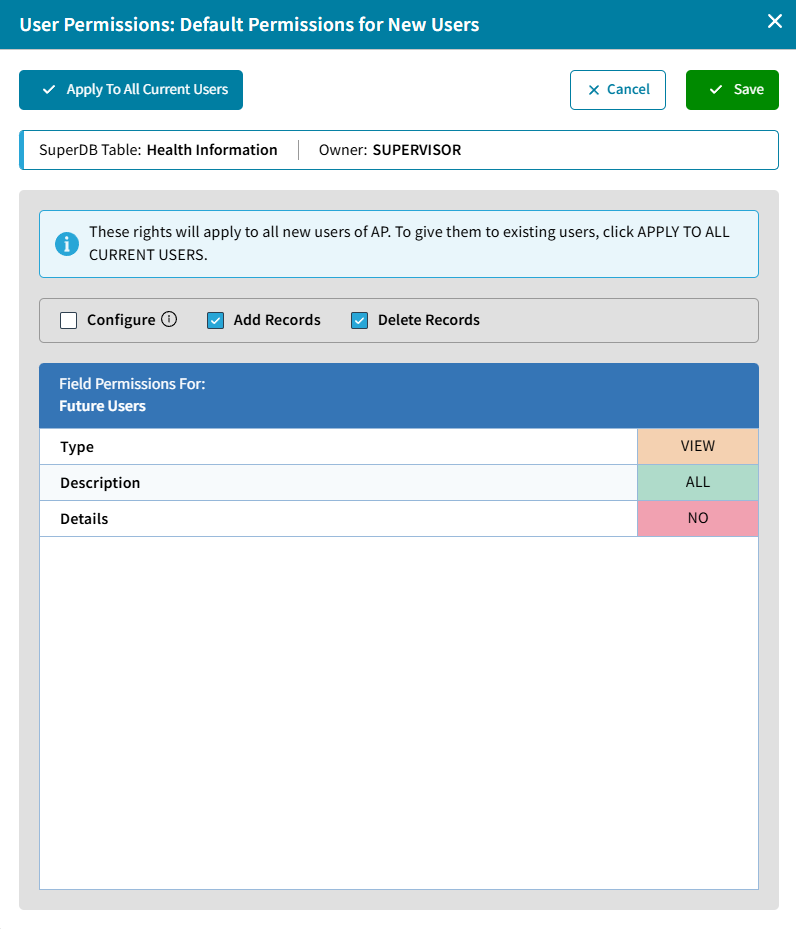
- Configure: Allows the users to edit the table properties.
- Add Records: Allows the users to add records to the selected table.
- Delete Records: Allows the users to delete records from the selected table.
- Field Permissions: Each field can be configured separately. If a user should not have full configure rights, they can be given either All, View only, or No rights to the field. Select the arrow in each field to change the rights.
- Click Save.