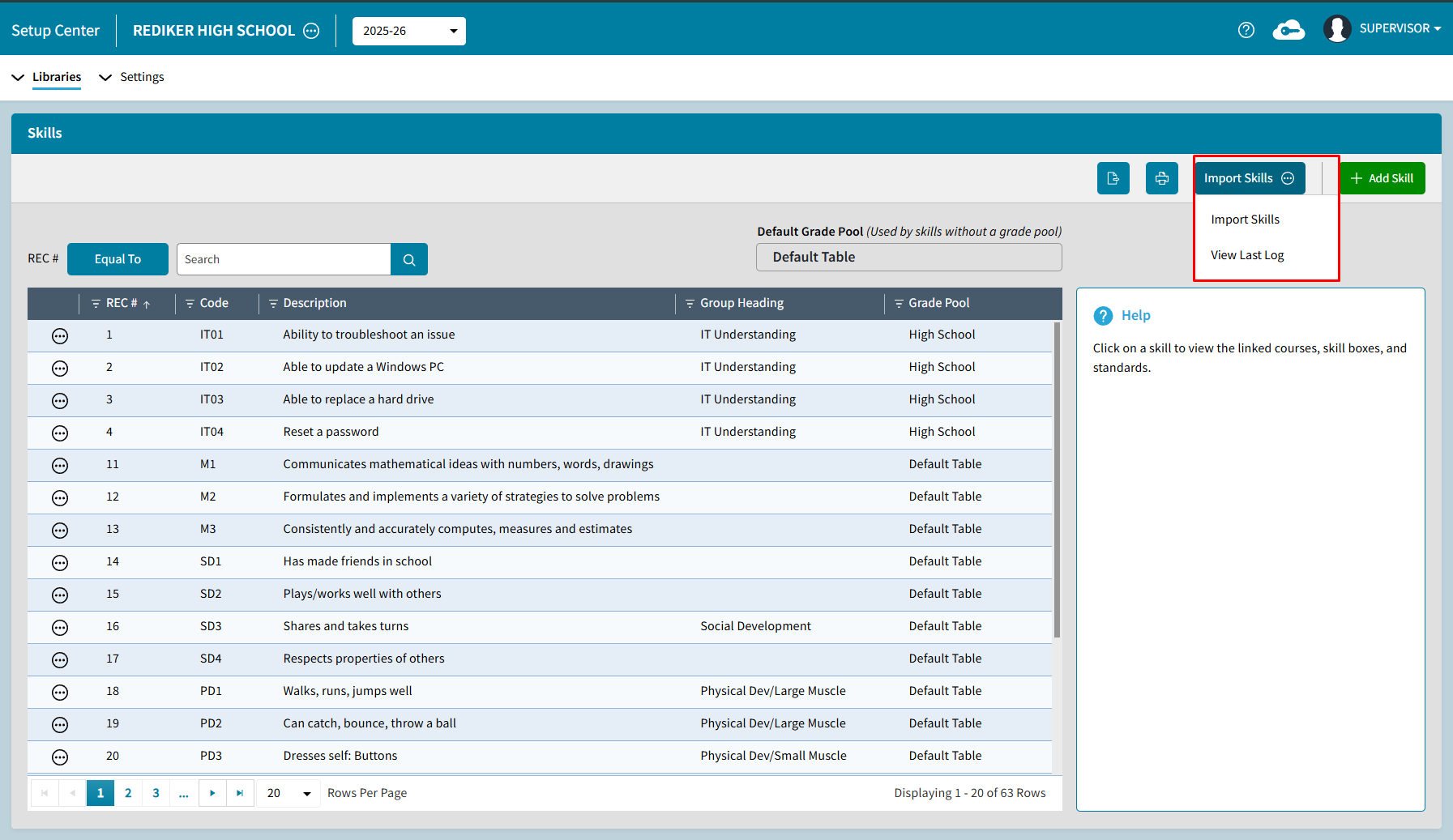
To import skills, do the following:
- Go to Setup Center > Libraries > Skills.
- Select Import Skills. The Import Skills window opens.
- To view a sample file, select Download a Sample File. The sample file includes:
- Code (mandatory)
- Description (mandatory)
- Group Heading (optional)
- Grade Pool (optional)
- After the file has been set up, save as a CSV file, select the 3 dots to select for import.
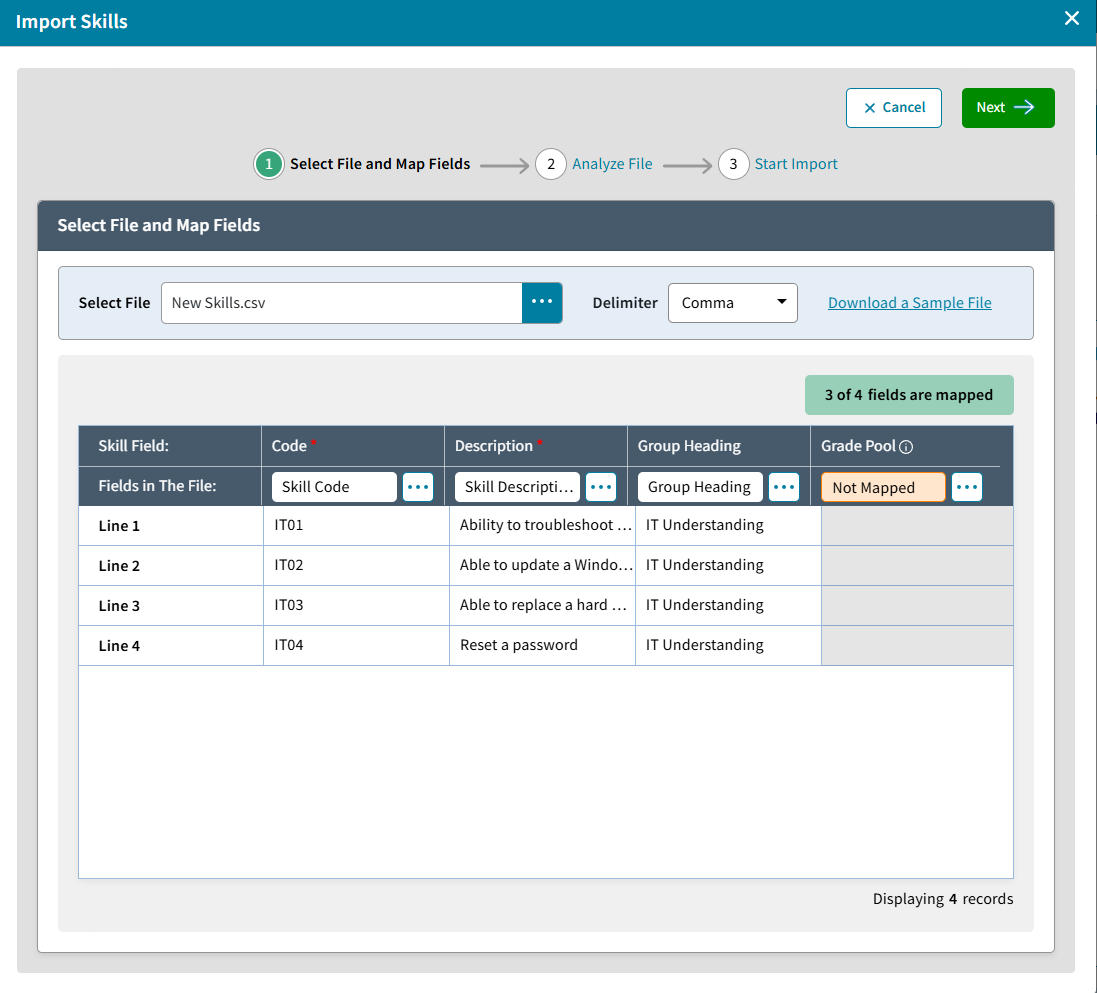
- Map the data from the file to the corresponding skill field. Be sure to map each field accurately to ensure the data is imported into the correct data base fields. The name of the Fields in the File are listed along the top. Below on the Map To line, select
 to map the data column to the correct AdminPlus Data Base field. The Select a Field dialog box will open.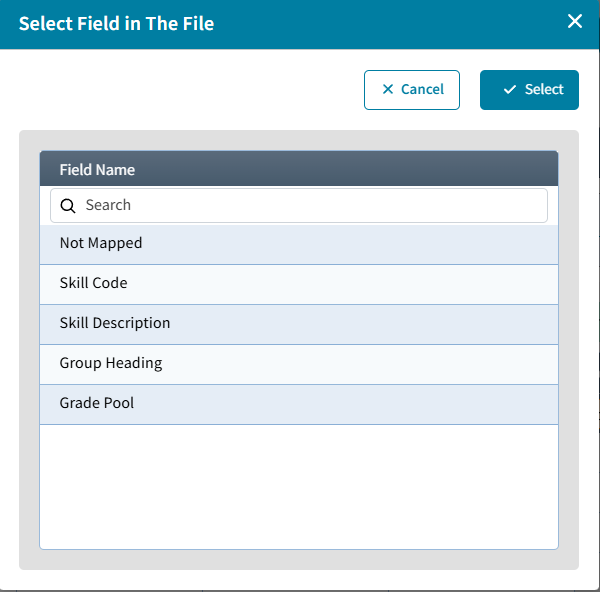
- After all fields have been mapped, select Next.
- AdminPlus will analyze the file. If any errors are found, they will be displayed here. Here is an example of a file that has already previously been imported. Select View Results to view additional details.
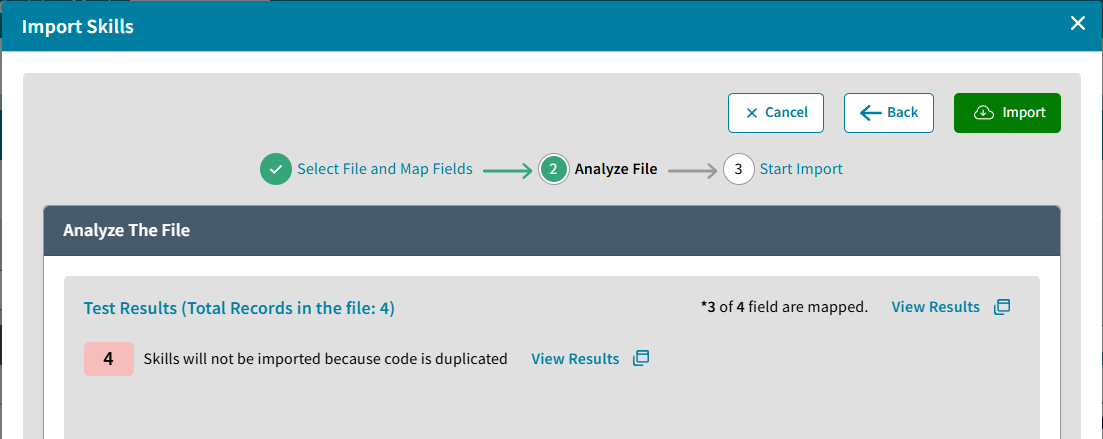
- If no errors are found, select Import.
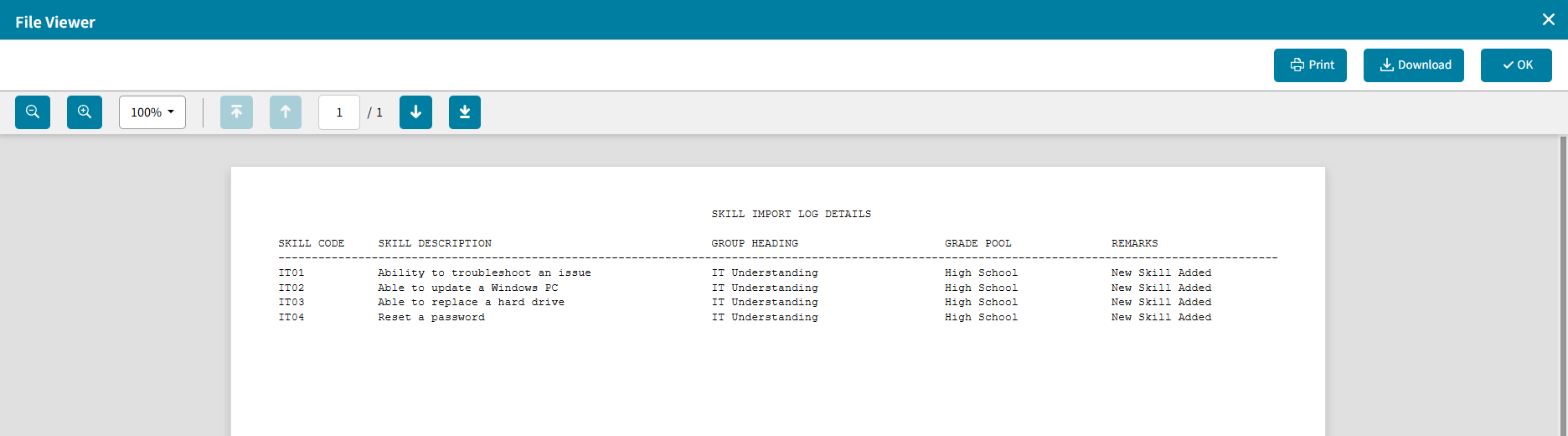
The last log can be viewed under Import Skills > View Last Import: