
Adding Student Photographs (1 at a time)
Overview
Every student and staff member in AdminPlus.com can have a photograph connected to them.
In this article, we will show you how to add a student's (or staff - it is the same process) photograph to their profile.
For directions on batch uploading photographs - multiple students (or staff) all at once, refer to the help article: Batch Adding Student Photographs
To go directly to the video, click this link: Video: Student Photos - 1 at a time
Step One - Take the Photograph of the Student / Staff
- Take each student's (or staff member's) photograph.
- Save each photo as a .jpg image file.
- Photos should be 172 x 228 pixels, with a dpi of 72, and 24-bit color.
Please note: photos larger than preferred specifications may not display properly, slow your AP.com user experience, or possibly they will not display at all. If the preferred dimensions are not possible, any dimensions with a 3:4 (width:height) aspect ratio can be used.
Step Two - Link Photograph to the Student / Staff
- In AP.com, go to Student -> Single Student, and select the student whose photograph you wish to link.
- Right-click on the plus sign (+) where their photo should be.
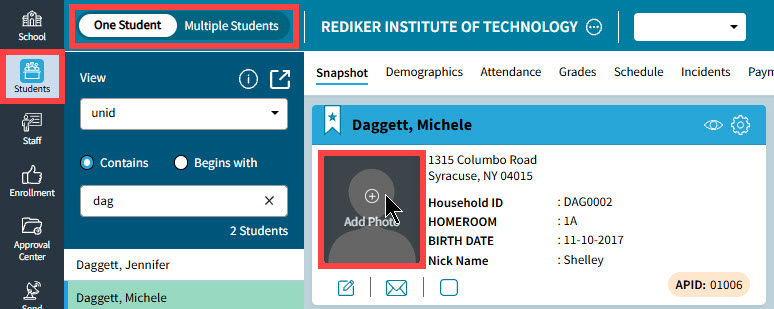
- Select the image to link, centering if necessary, click save.
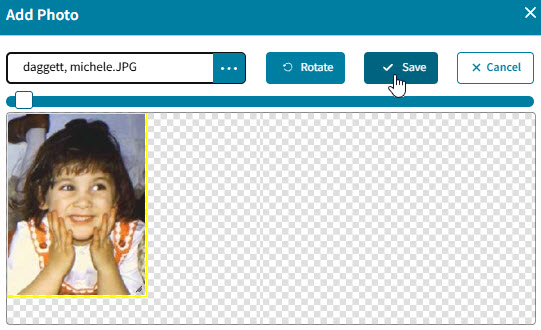
- Click Video Link below for step by step instruction on this.
Video: Student Photos - 1 at a time