How to Merge 2 Prospect Records into 1 Record
Sometimes, a prospect will end up in Admissions twice, with 2 records.
This process will help you merge the 2 records into 1, so that the prospect only appears once.
To complete the merge, do the following:
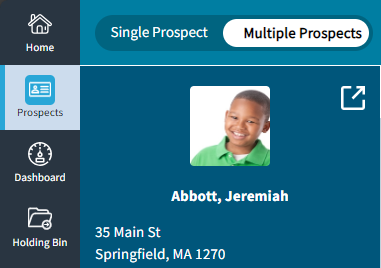
- On the main navigation bar, select Prospects > Multiple Prospects.
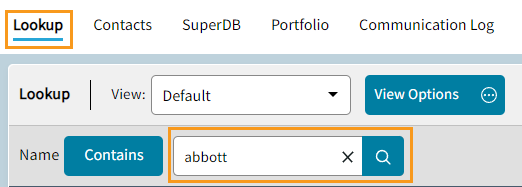
- Under Lookup, enter the prospects name in the search bar.
- Select
 > Merge Prospects for the prospect you would like to merge.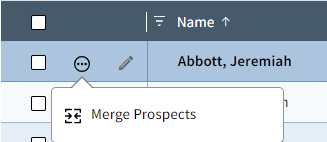
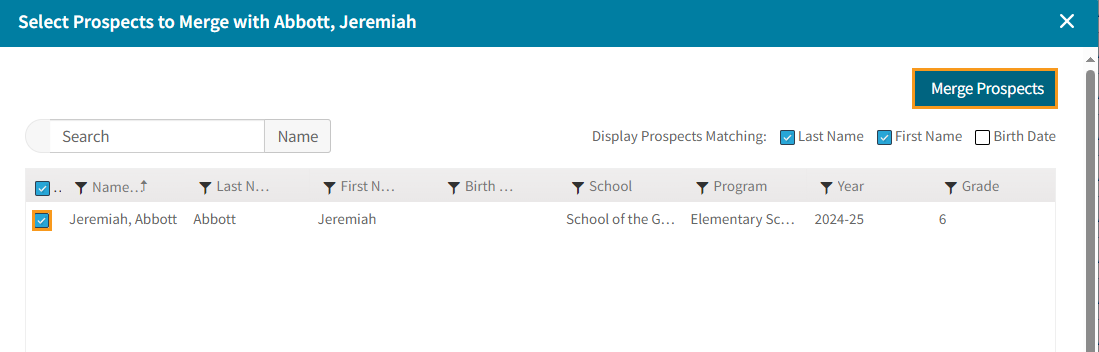
- In the Select Prospects to Merge with dialogue box, check off the duplicate prospect.
You can choose which Prospects to display.
For Display Prospects Matching: you can select Last Name, First Name and/or Birthdate.
This will help you find the duplicate prospect.
Make sure you select a duplicate prospect, or you will merge 2 records that should not be merged. - Select Merge Prospects.
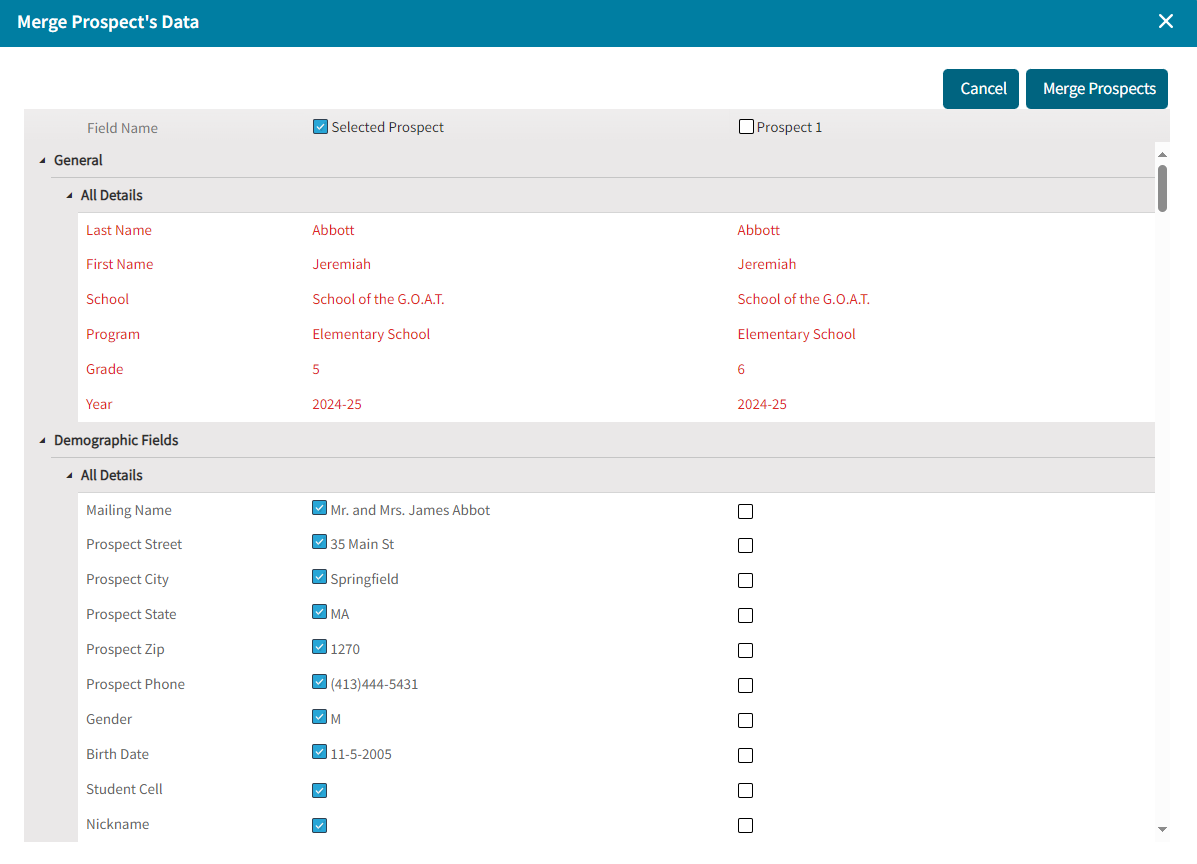
- The Merge Prospects Data dialogue box will open. Select which fields you would like to copy from each prospect. This allows you to select the correct or most up to date data from each version of the prospect.