How do I create a recommendation form for parents to send to the recommender then recommender sends it back to your school.
Step 1:
Create the name of the form, choose Recommendation and select who sends the recommendation email.

Step 2:
Click on Create Edit Form under Forms Management
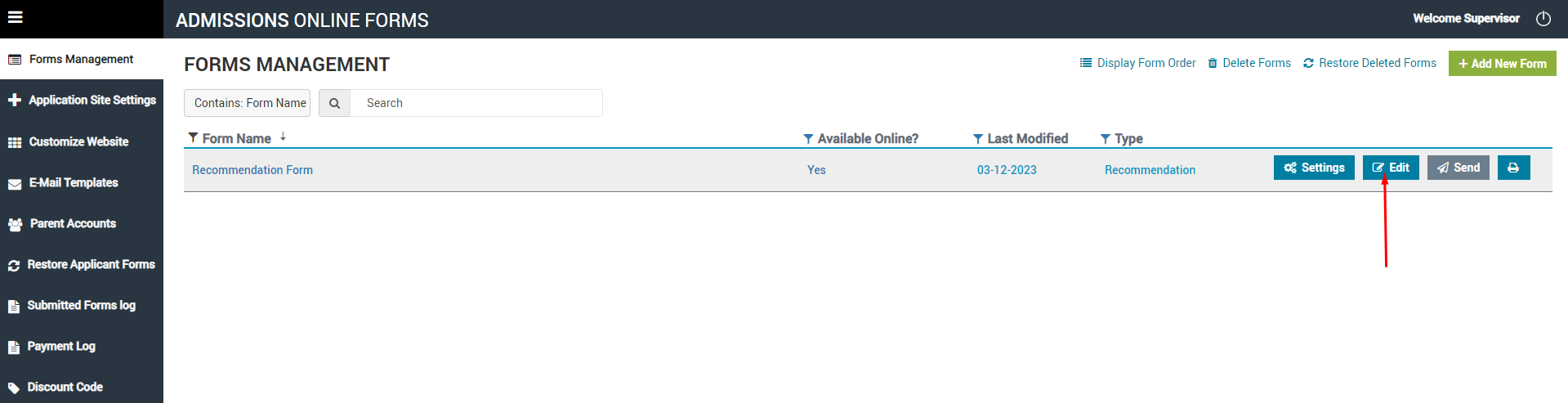
Step 3:
You will see the default form setting
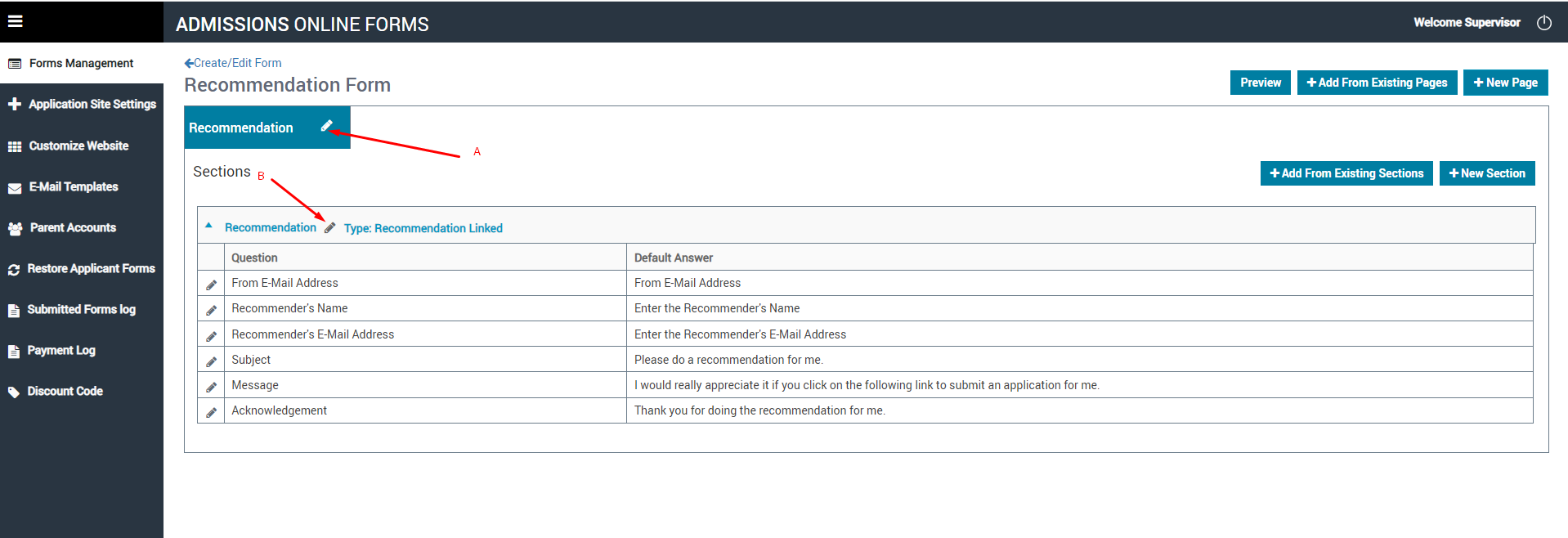
Step 4
Create an introduction
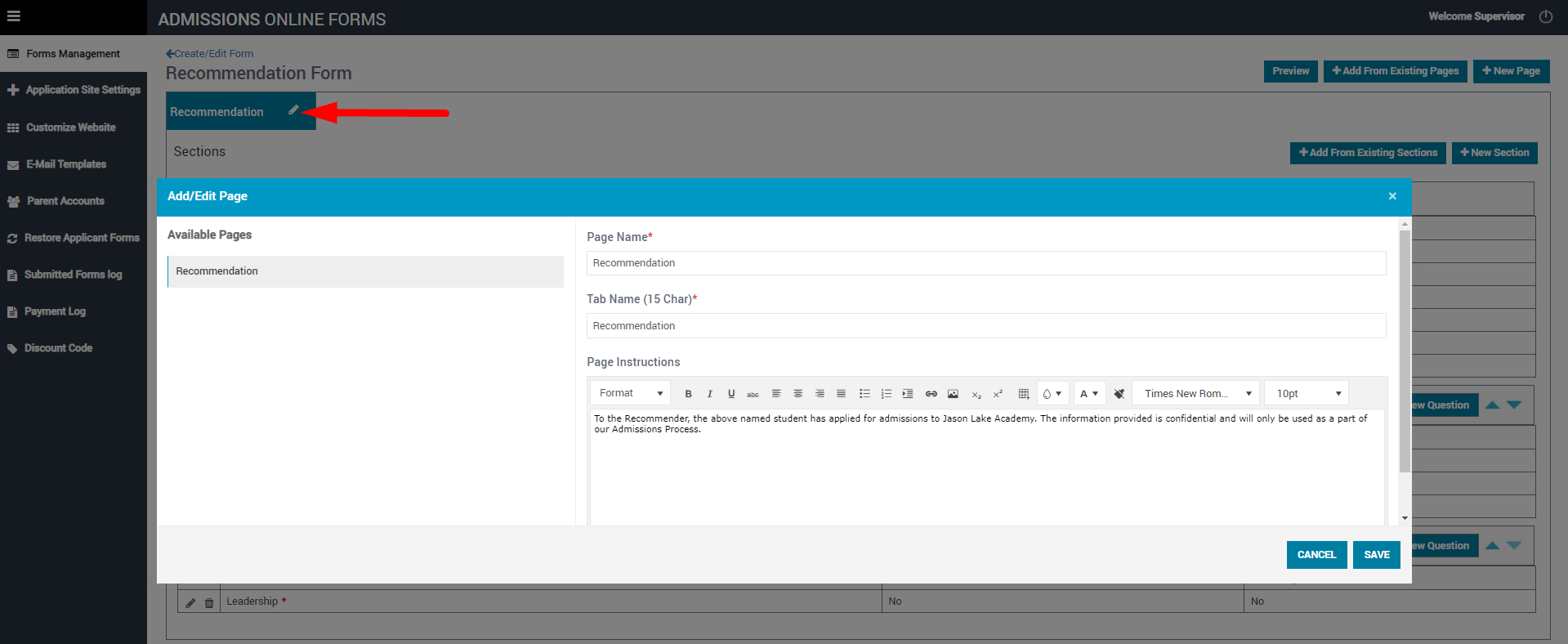
Step 5
There is a section under Recommendation - this allows you to add additional instructions
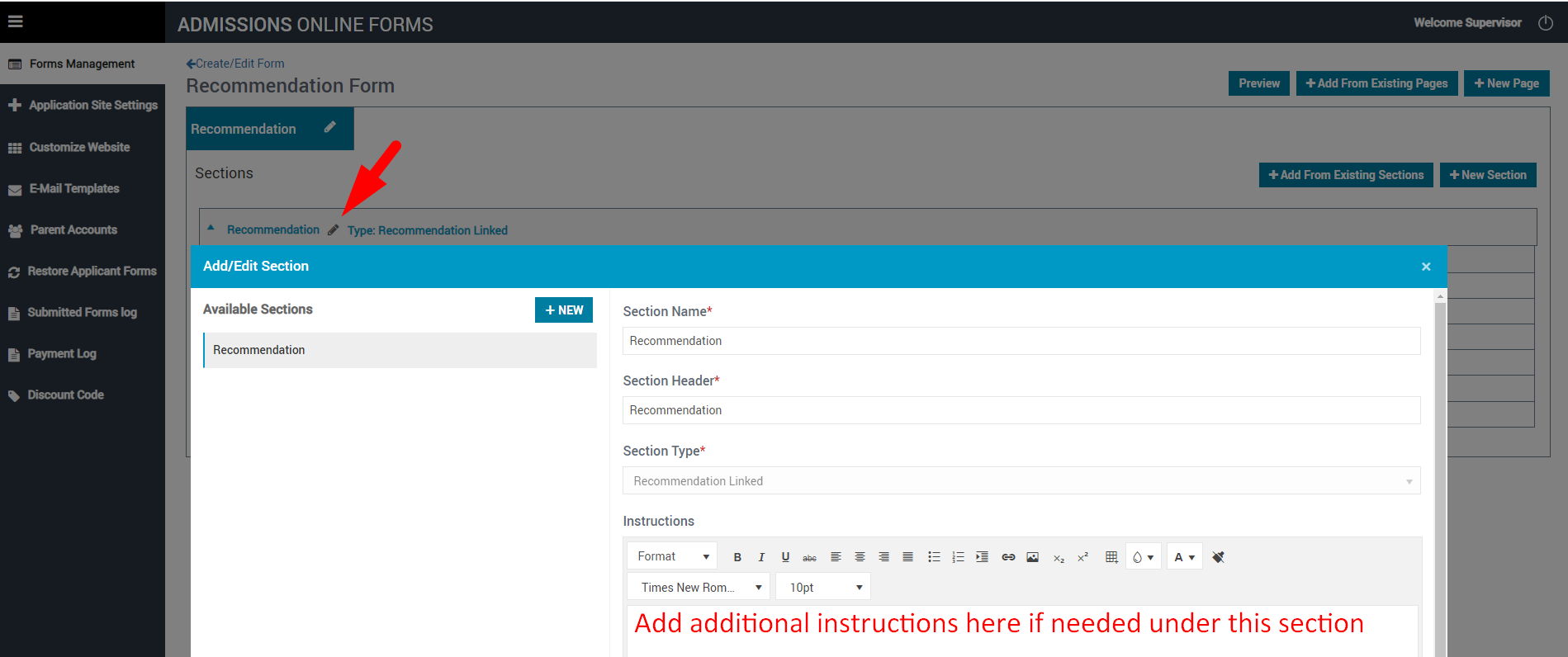
Step 6
Once the instructions are added, to add a new section of this form, click on + New Section
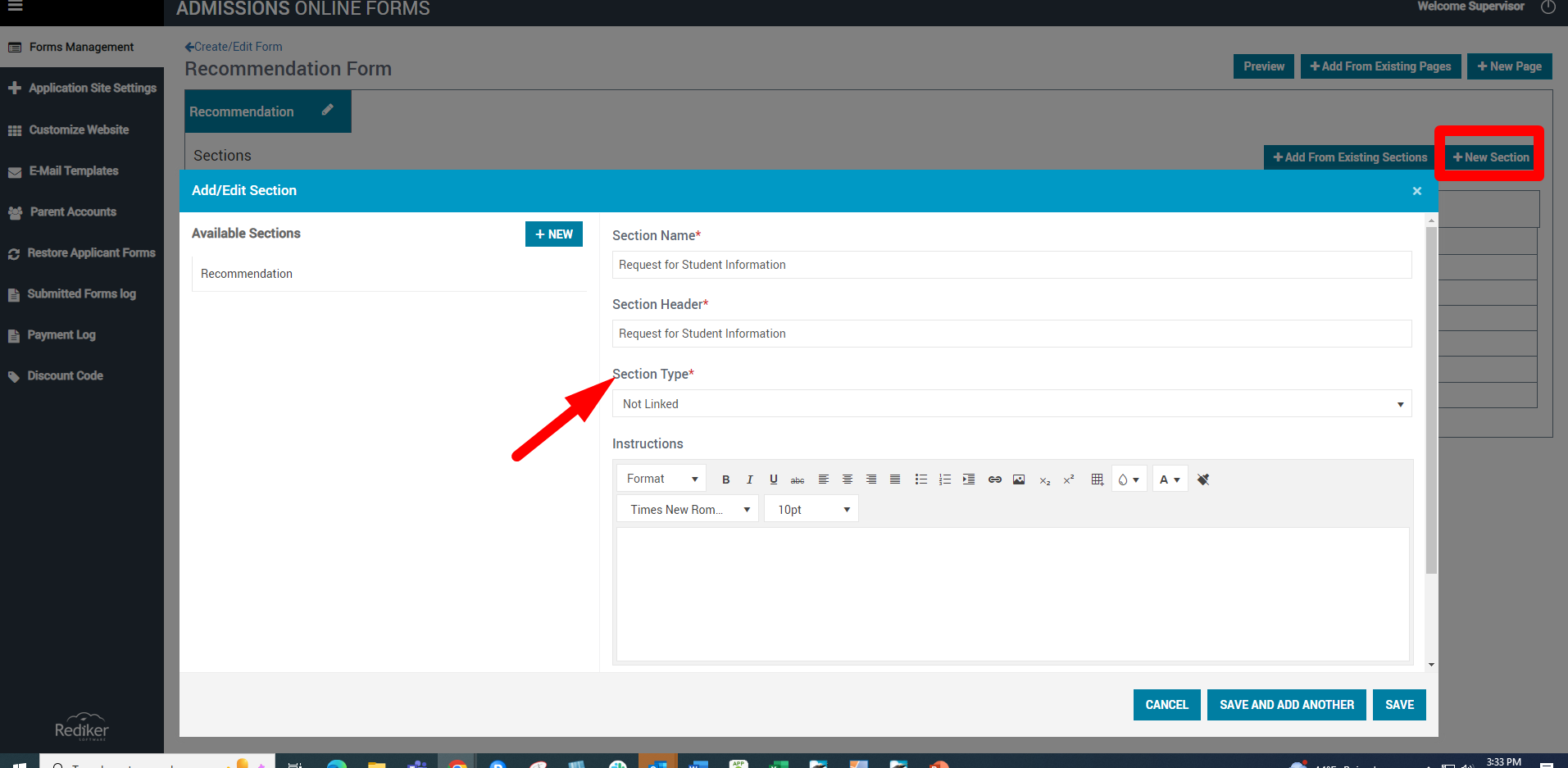
Step 7
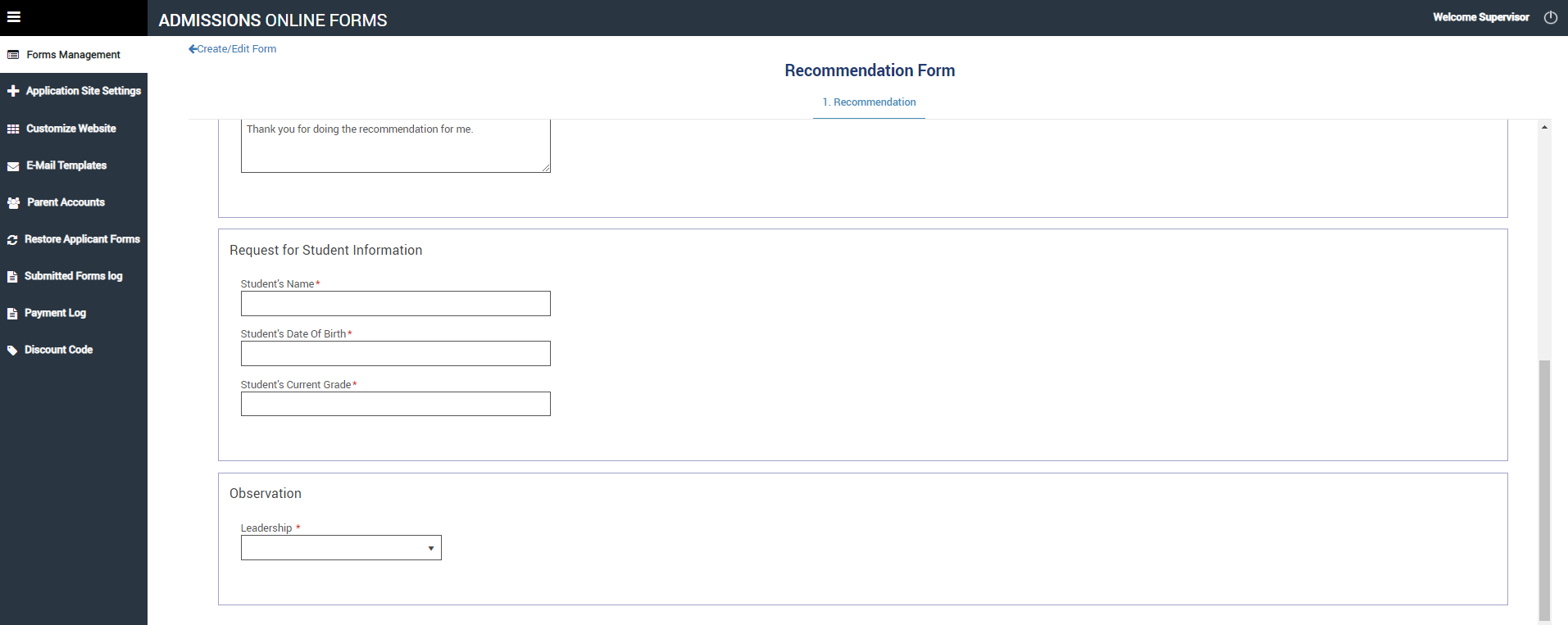
Once the new section is created. In this example: Request for Student Information

Step 8
In this section you can start adding questions. You will need to create a section for Parents, this allows them to provide details on their child. You can create additional sections for parents if needed.
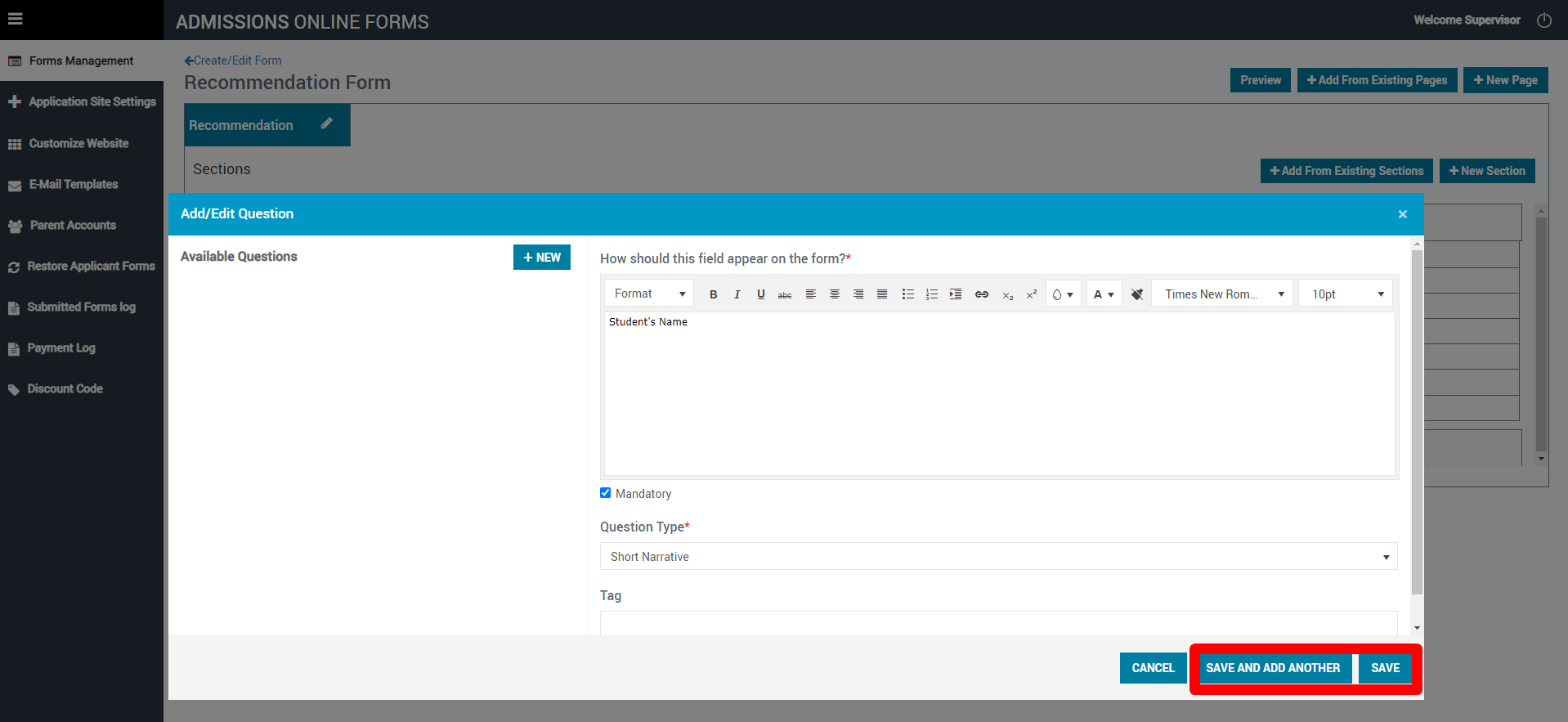
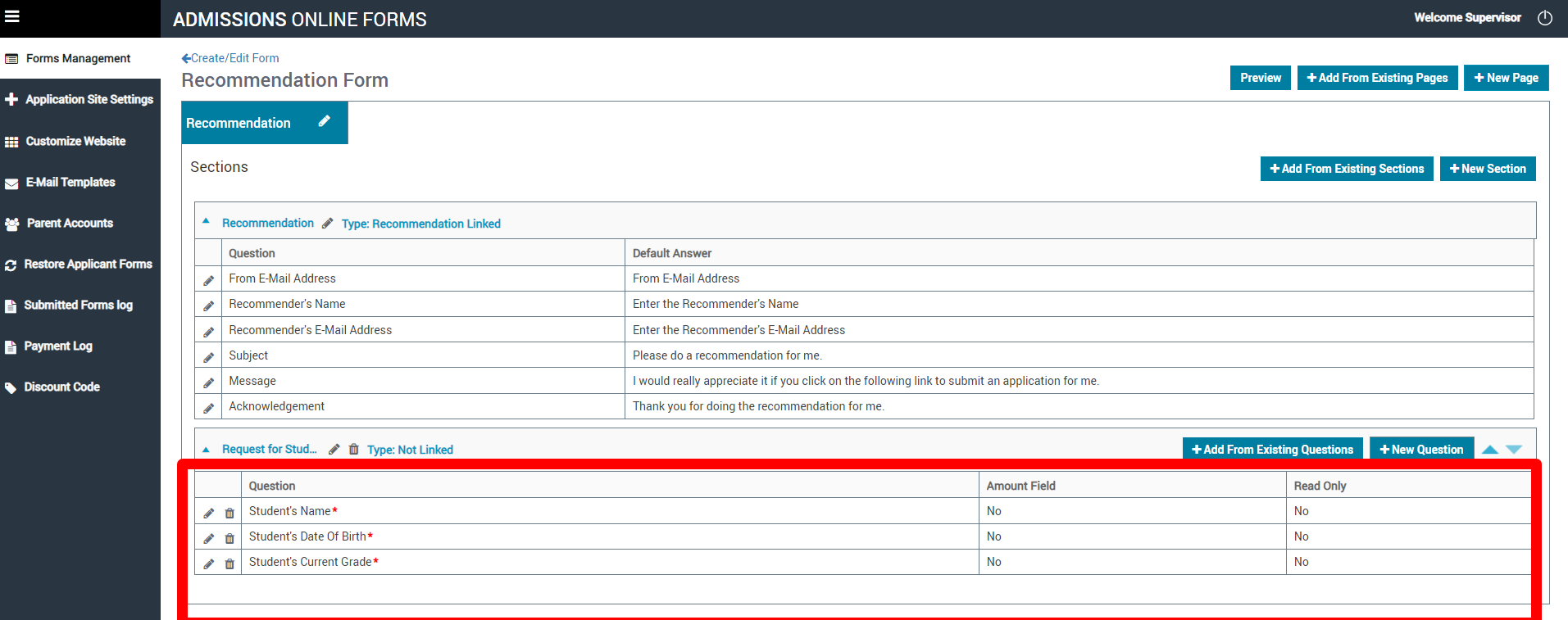
Step 9
After the Parent section is created. You can create a section for the Recommender. You can create a question with an answer pool and/or create any answer type in the drop down section.
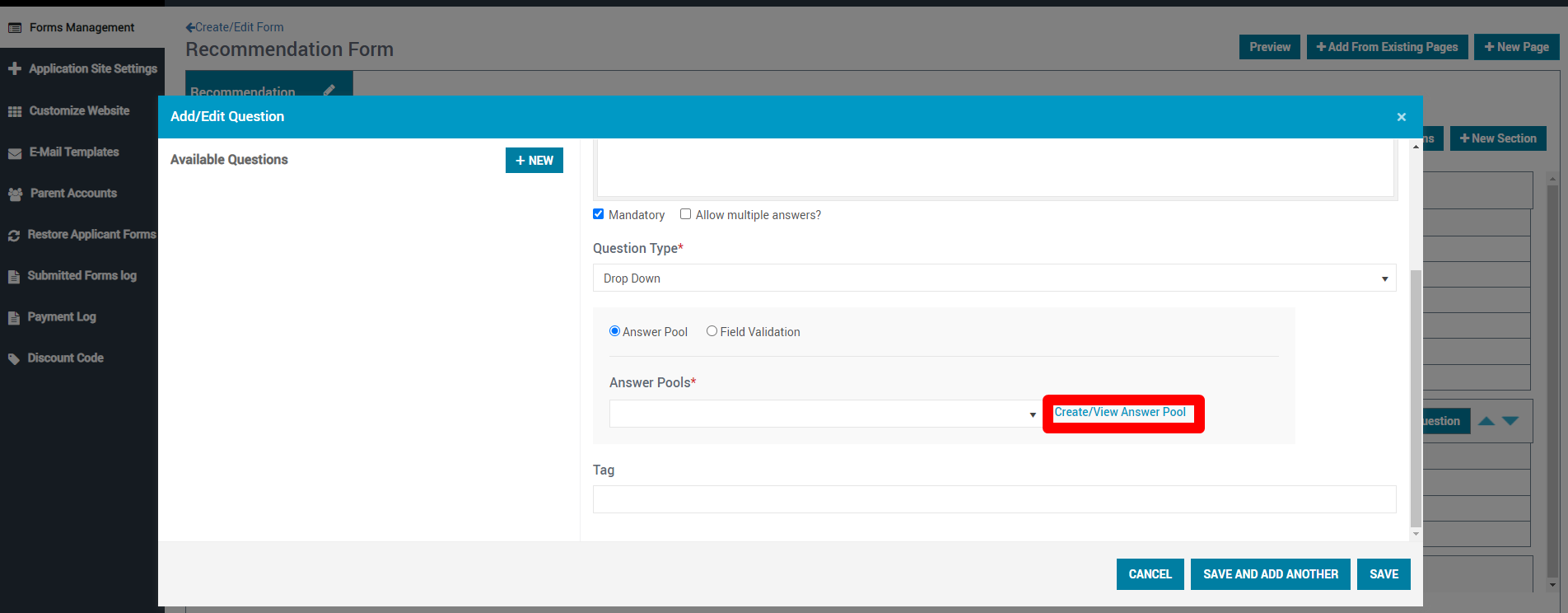
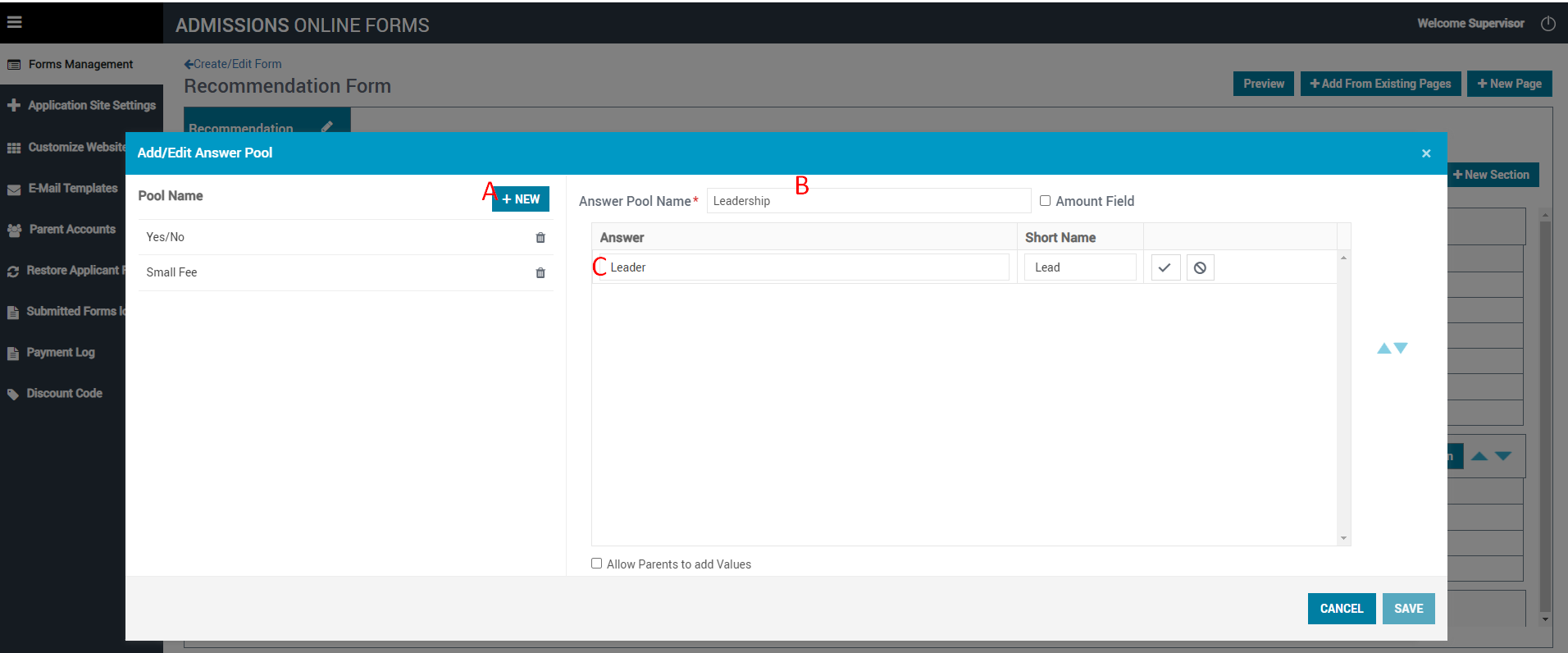
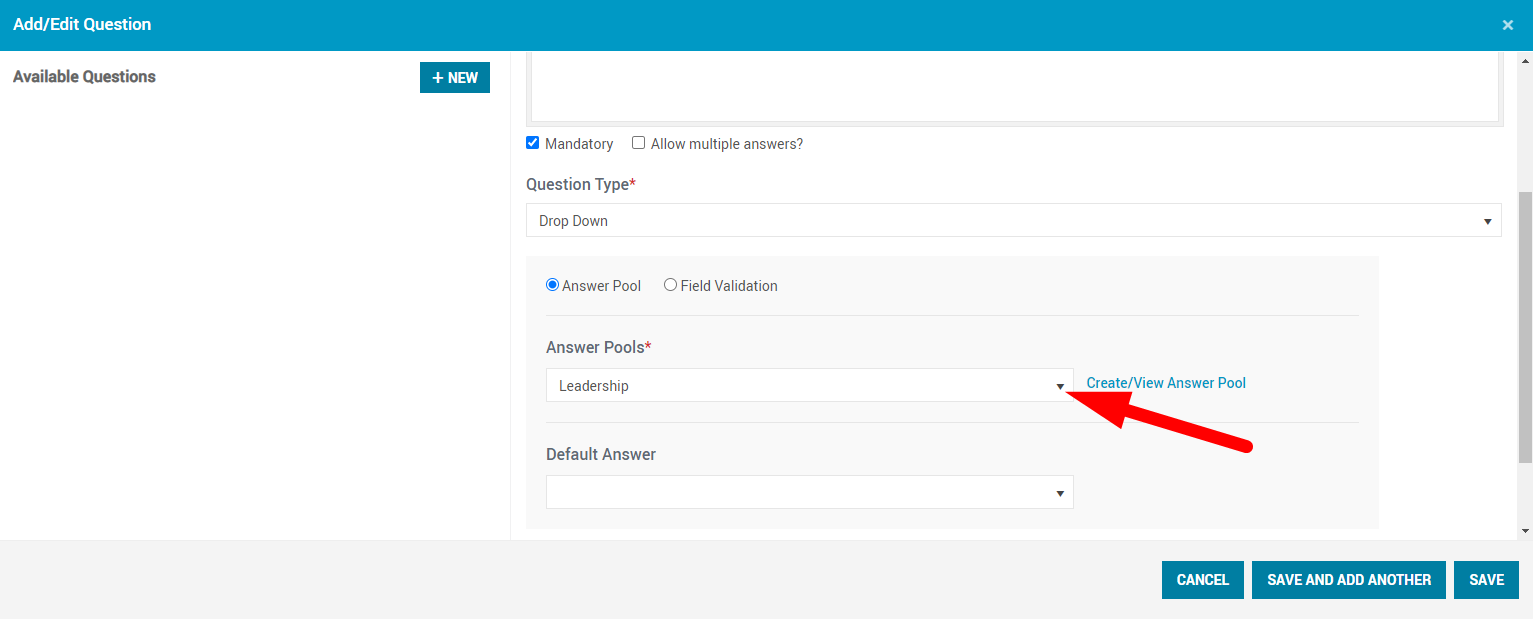
Step 10
After creating the Recommendation Form you can choose the preview option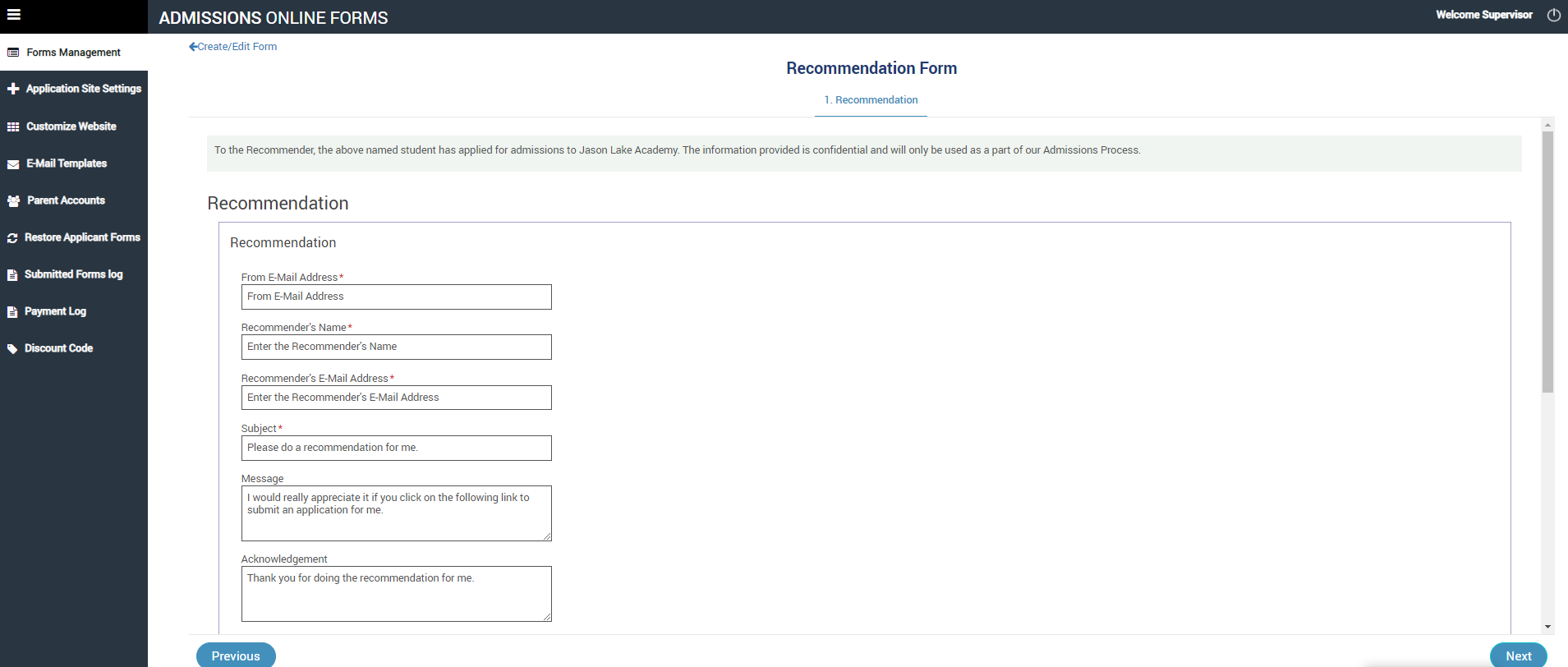
Once the Form is sent you can see what the Recommender sees.



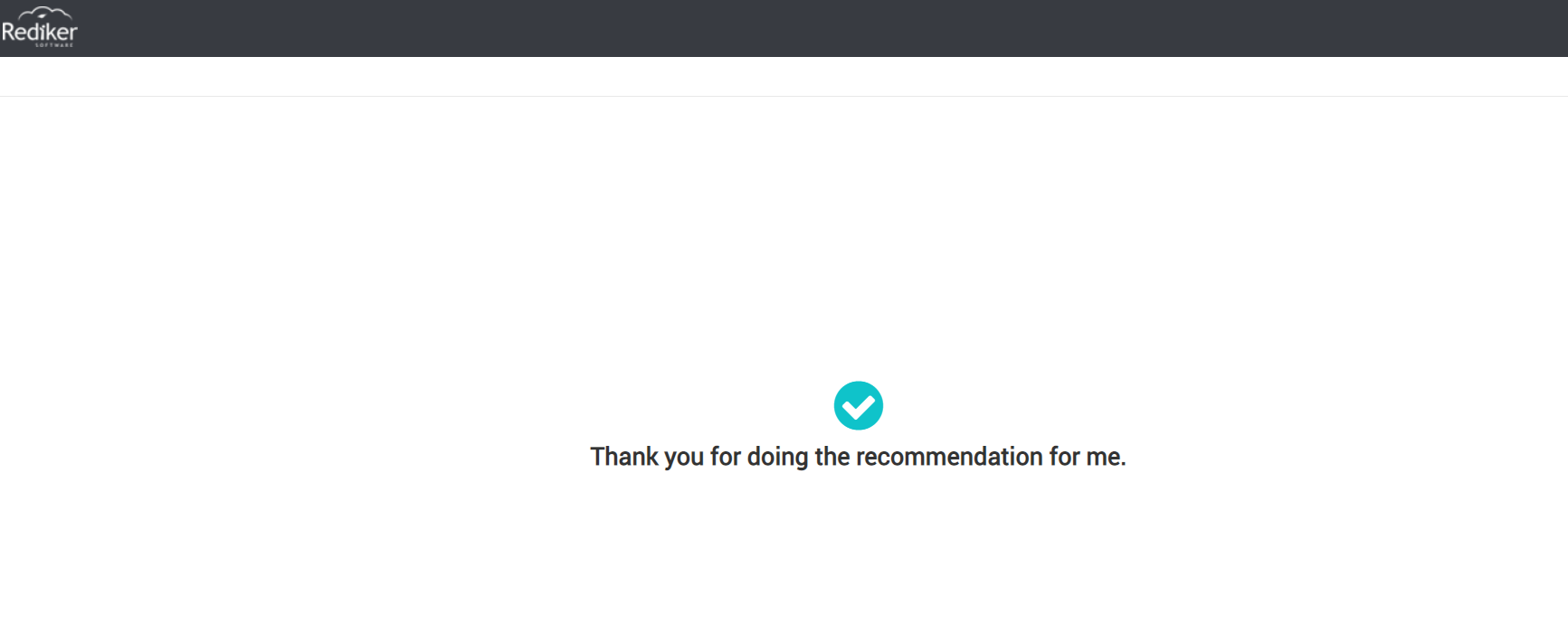
After the recommender submits the Recommendation Form, they receive a confirmation