The Single Prospect Screen displays an overview of a single prospect's information.
To access the Single Prospect Screen, on the left navigation menu, click Prospects and toggle to Single Prospect.
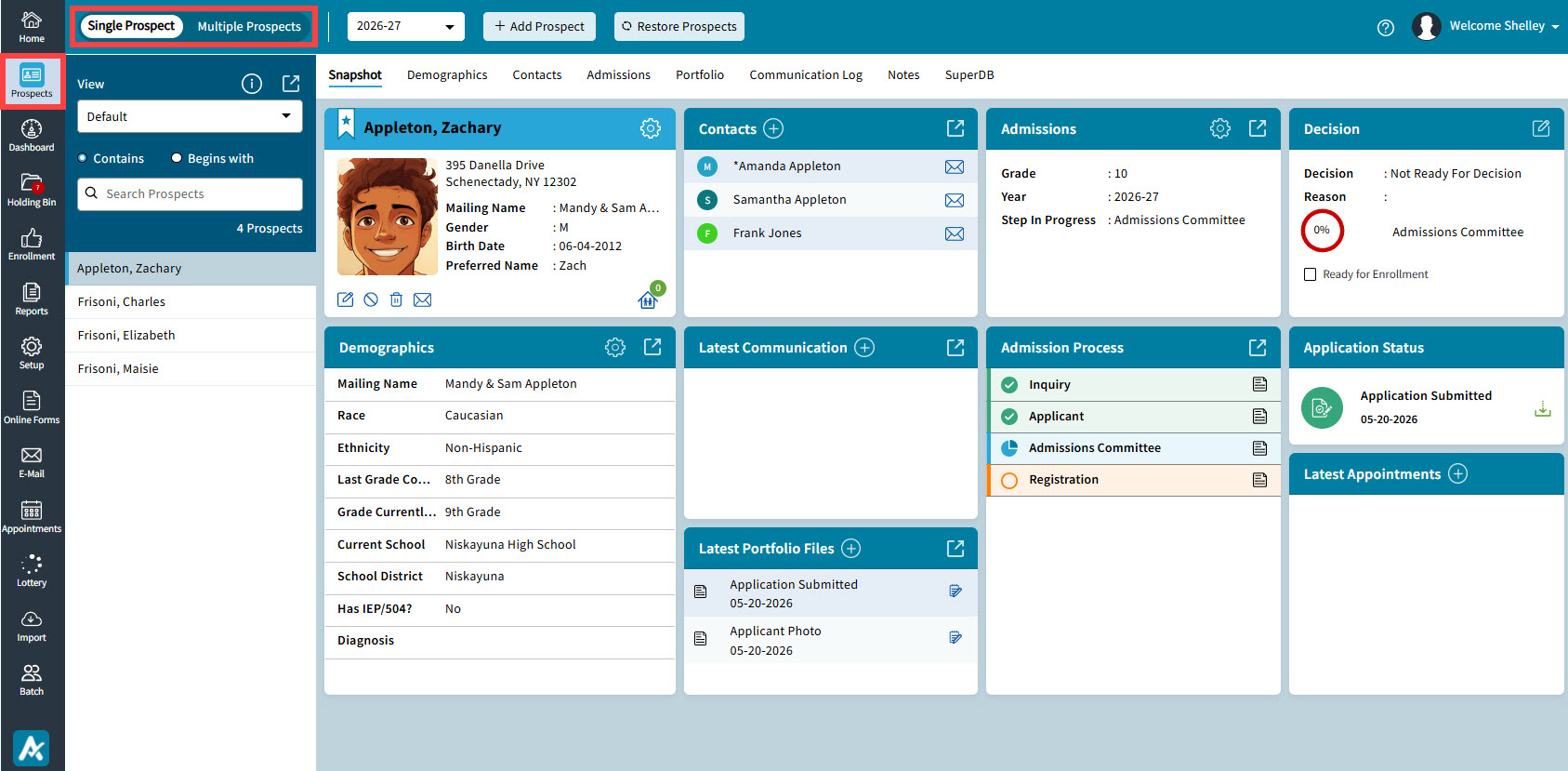
The tiles have some common options:
| Icon | Description |
|---|---|
 | The settings gear wheel (on the Prospect, Admissions and Demographics tiles) allows you to set up what is displayed on that tile. |
 | The plus sign icon (on the Contacts, Communication and Portfolio tiles) will allow you to add a new item. |
 | The expand button (on the Contacts, Admissions, Demographics, Communication, Portfolio and Admissions Process tiles) will open that window below the top row of tiles. |
 | The edit pencil icon (on the Decision tile) will allow you to edit the Admissions Decision for the Prospect. |
The Prospect tile has icons which allow you to edit, inactivate, delete and email the prospect.

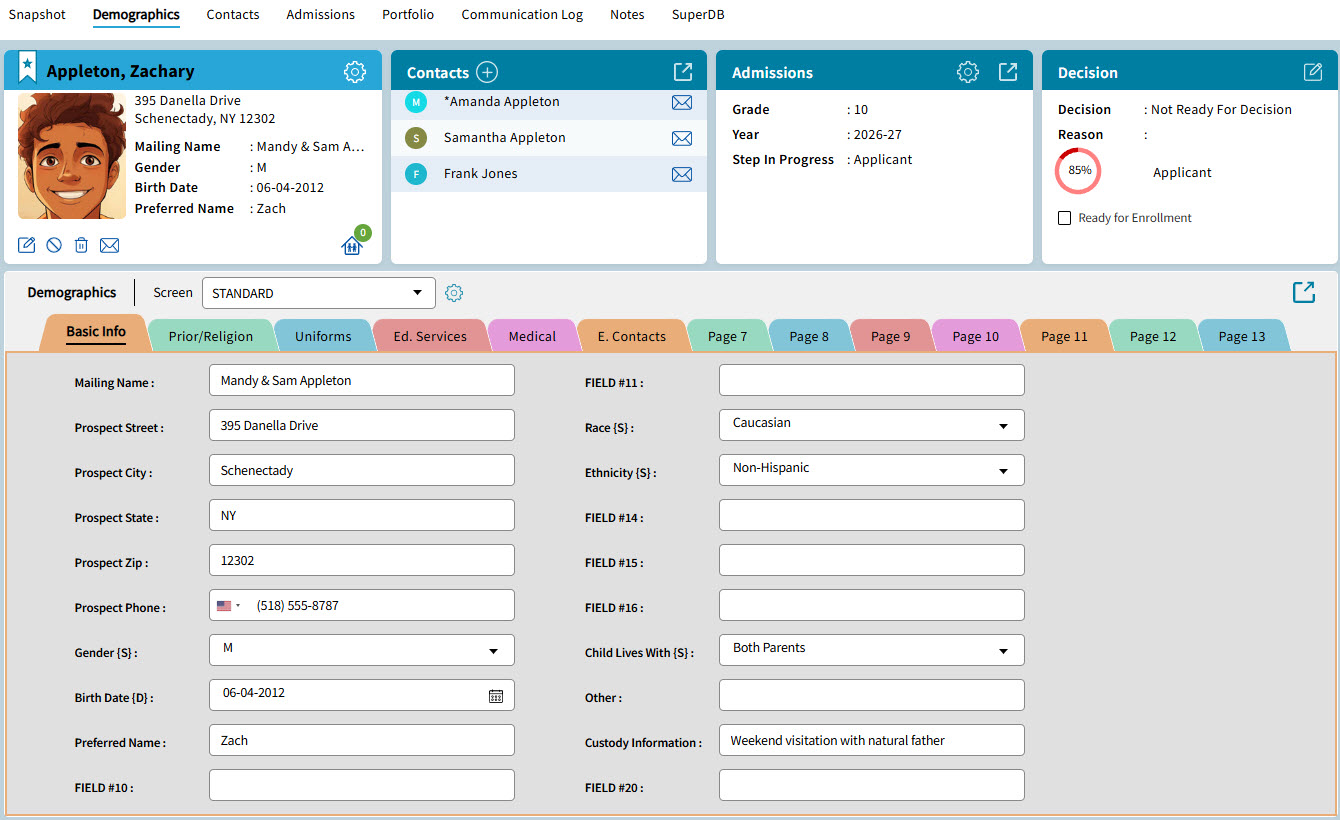
The top toolbar can be used to switch between the Snapshot, Demographics, Contacts, Admissions, Portfolio, Communication Log, Notes and Super DB screens.
The selected screen will open up below the top row of tiles.
You can also open any tile by clicking on the expand button.