
Overview
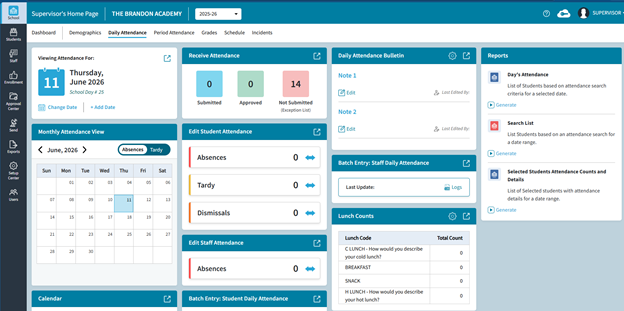
The Daily Attendance Dashboard is available under School > Daily Attendance. It includes several tiles with daily attendance information, such as the selected date and a monthly snapshot. From this screen, users can open related pages to receive and edit attendance, update the calendar, and run reports.
Fig 1: Overview
IMPORTANT: Schools that use Receive Attendance from File should continue to edit in classic until this feature is added in AdminPlus.com.
On this screen there are tiles for
- Viewing Attendance For
- Monthly Attendance View
- Calendar
- Receive Attendance
- Edit Student Attendance
- Edit Staff Attendance
- Batch Entry: Student Daily Attendance
- Daily Attendance Bulletin
- Batch Entry Staff Daily Attendance
- Lunch Counts
- Reports
NOTE: Period Attendance can be used to bring in Daily Attendance if the school does not use Homeroom sections for attendance.
Viewing Attendance For
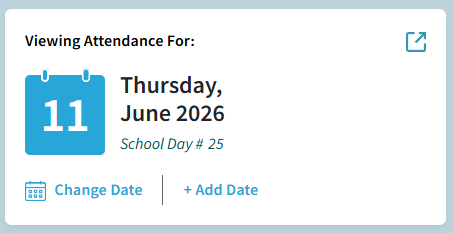
This tile opens with today's date by default.
Click Change Date to view/edit attendance for another date. Changing the date also impacts the data displayed in other tiles like the Receive Attendance and Edit Student Attendance.
Click the Navigate icon (upper right) to view the Master Calendar.
Fig 2: Viewing Attendance For
Add Date
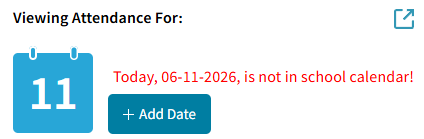
If you have not yet created today’s date as an Attendance Day on the calendar, the tile will display a warning in red that today “is not in the school calendar” (this also impacts data on other tiles).
If needed, click + Add Date to add today to the calendar (only if today is an attendance date). See separate article (Add a Day to the Calendar) for more details.
Fig 3: Viewing Attendance For – Add Date
Monthly Attendance View
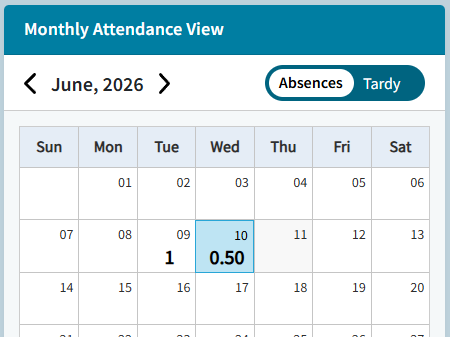
The Monthly Attendance View tile displays number of Absences or Tardies by day for the current month. It will open to the current month by default. Use the left or right arrows to view a different month. Toggle between Absences and Tardy to see the daily totals for the month. Today’s date will be highlighted in blue.
Fig 4: Monthly Attendance View
Calendar
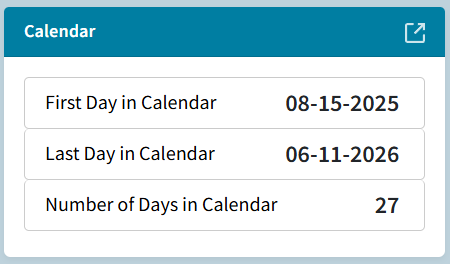
Calendar Tile displays the following:
- First day in the Calendar
- Last day in the Calendar
- Number of Days in the Calendar
Click the Navigate icon to open the School Calendar. This is the same as when clicking Navigate from the Viewing Attendance For: tile. See separate article (Add a Day to the Calendar) for more details.
Fig 5: Calendar
Receive Attendance
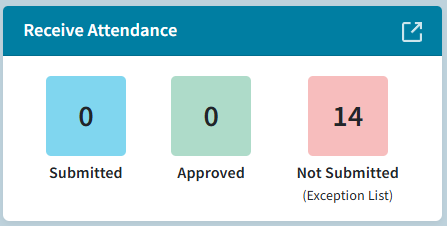
The Receive Attendance tile displays the counts for Homeroom attendance Submitted from TeacherPlus Gradebook, the number Approved for the day, and the number Not Submitted.
Click on the Navigate icon to go to the Receive Attendance screen, where you can review and approve submitted attendance or view the Exception list.
Fig 6: Receive Attendance
NOTE: Receive Attendance on the Daily Attendance Dashboard is the same as Approval Center Daily Attendance. The School > Daily Attendance dashboard is used to receive Daily Attendance from Teacher Plus, edit Daily Attendance, and view Daily Absent and Tardy totals.
Please see School: Receive Attendance (Daily) for more details.
Edit Student Attendance
Edit Student Attendance displays the student totals for Absences, Tardy, and Dismissals for the selected date and indicates the trend.
- Red up arrow if the total is more than the last attendance day
- Green down arrow if less
- Blue side to side arrow if the total is the same.
Fig 7: Edit Student Attendance
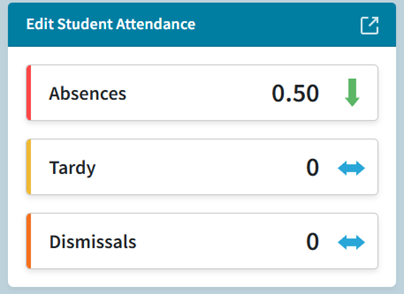
Click the Navigate icon to open the Edit Student Daily Attendance screen where you can enter/edit student attendance. For more information, see Edit Student Attendance (Daily).
Edit Staff Attendance
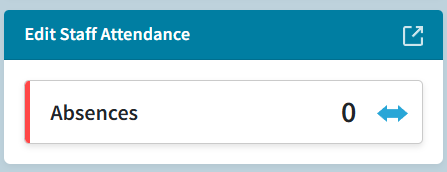
Edit Staff Attendance displays the number of Staff Absences for the day. Click the Navigate icon to enter/edit staff attendance.
Fig 8: Edit Staff Attendance
Batch Entry: Student Daily Attendance
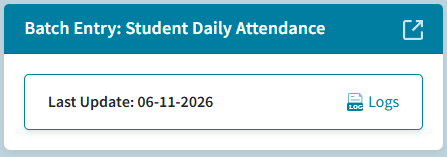
This tile displays the last date when batch entry was used. You can click on Logs open a popup displayed the batch entry usage history.
Selecting the Navigate icon takes you to the Enter Student Daily Attendance screen (same as the Edit Student Daily Attendance tile).
Fig 9: Batch Entry: Student Daily Attendance
There you can Select Batch Entry to batch enter attendance data. For more information on how to enter Batch attendance, please see Batch Entry article.
Daily Attendance Bulletin
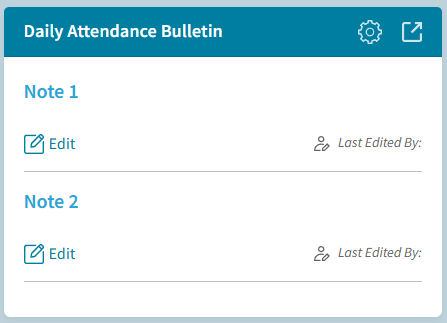
Daily Attendance Bulletin allows a user to enter notes about the current day under Note 1 and Note 2.
Select the gear icon to update the settings.
Select the Navigate icon to view the Daily Attendance Bulletin. For more information about the daily attendance bulletin, see School: Daily Attendance Bulletin.
Fig 10: Daily Attendance Bulletin
Batch Entry Staff Daily Attendance
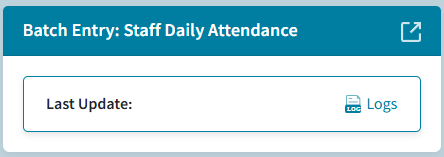
Displays the last batch entry update.
Select the Navigate icon to go to the Enter Staff Daily Attendance screen. Once there you Select Batch Entry to batch enter attendance data. For more information on how to batch enter attendance, please see Batch Entry.
Fig 11: Daily Attendance Bulletin
Lunch Counts
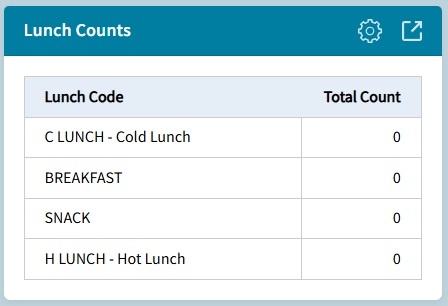
This tile displays the selected Lunch Codes with Description and Total Count received for the selected date (Viewing Attendance For:)
Clicking the gear opens the Select Lunch Codes popup.
The Navigate icons opens the Lunch Counts Screen.
Lunch Codes can be setup under Setup Center.
Fig 12: Lunch Counts
Reports
Reports: Users can generate reports for Daily Attendance.
Fig 13: Reports
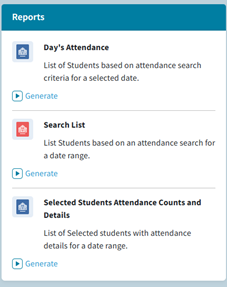
The following reports can be run:
- Day's Attendance: Generate a report with a list of students base on attendance search criteria for a selected date.
- Search List: Generate a report with a list of students based on an attendance search for a selected date range.
- Selected Students Attendance Counts and Details: Generate a list of selected students with attendance details for a date range.
For more information about reports, see School: Daily Attendance Reports.