
Overview
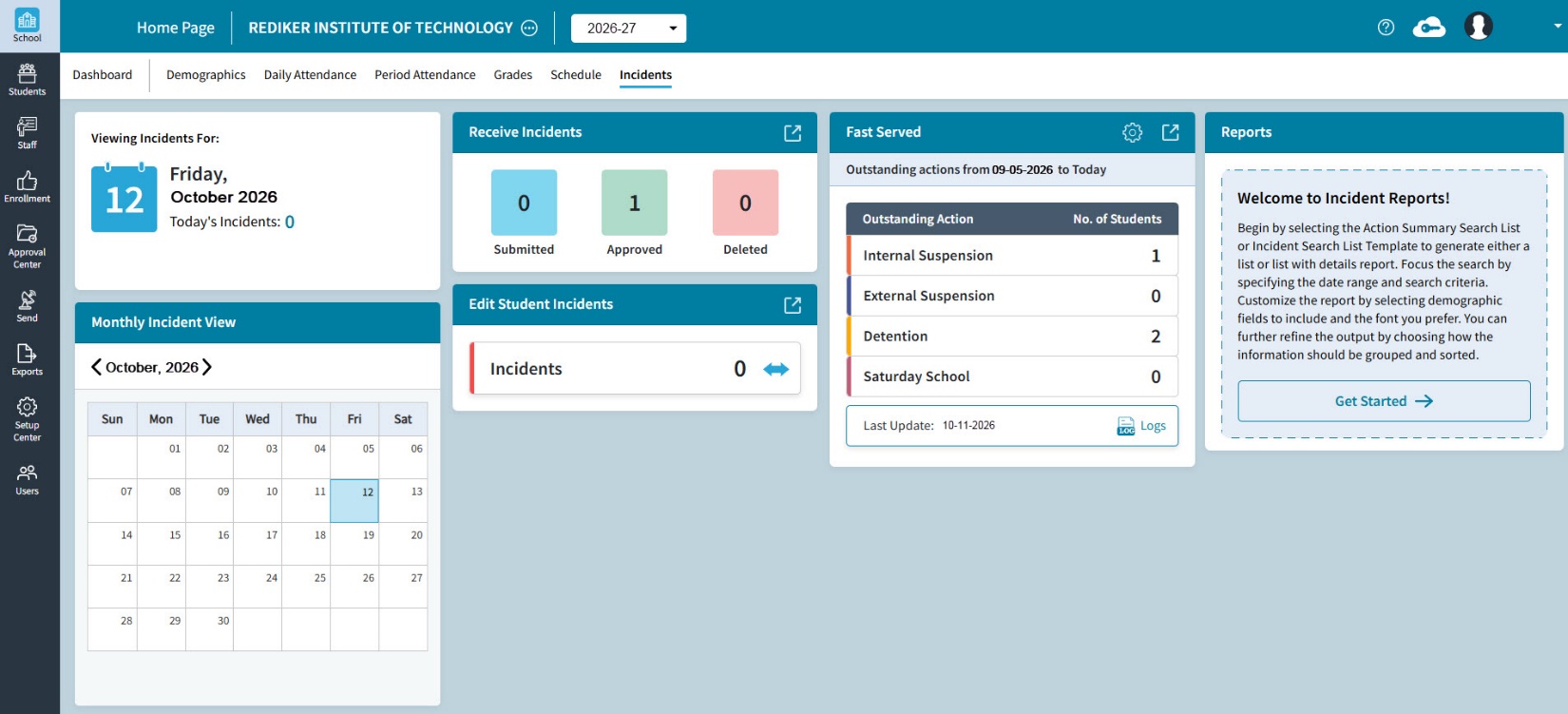
The School > Incidents Dashboard displays behavioral incidents related data. For example, Today's Incidents count, as well as a Monthly Incident View of Incident counts per date. Users with edit rights can Receive Incidents, Edit Student Incidents and use the Fast Served option to automatically enter time served for an action.
Please note that Incidents data is entered and tracked via the use of codes. For more information, refer to the support article: Incident Codes.
Edit features are only available if the AdminPlus Supervisor has emailed apcom@rediker.com to request editing, and has selected to edit Incidents in AdminPlus.com.
Selecting School on the Left hand menu, and Incidents from the top menu brings up this screen, which shows school-level information about incidents at your school.
Fig 1: Overview
Viewing Incidents Tile
This tile, found in the top left corner of the Incidents screen, opens by default to today’s date and displays today’s incident count.
Fig 2: Viewing Incidents Tile
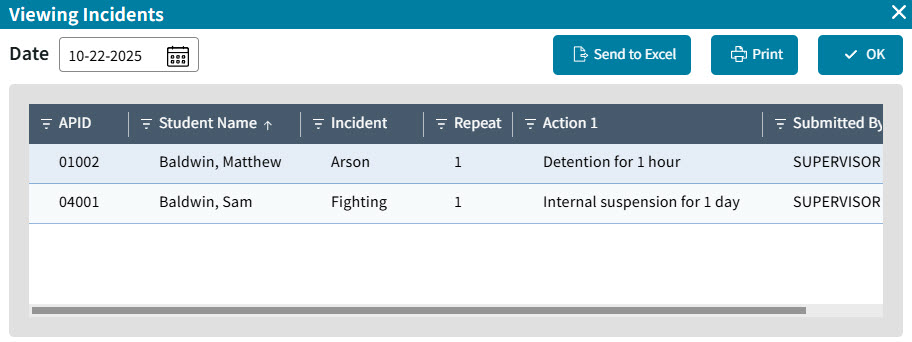
Clicking on the Blue Number of Incidents, will open a window where the details of that day’s incidents are displayed. Incidents from any date can be seen on this window, but using the date selector in the top left. The list of incidents can be printed or sent to Excel by using the Send to Excel or Print buttons.
Fig 3: Viewing Incidents window
Monthly Incident View Tile
This tile is located directly below the Viewing Incidents Tile. It opens by default to the current month. Use the left or right arrows at the top to view a different month.
Fig 4: Monthly Incident View Tile
Receive Incidents Tile
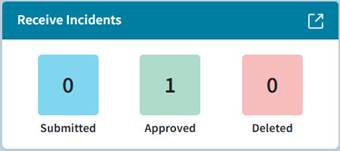
This tile shows the number of incidents Submitted, Approved, and Deleted.
Use the Navigate icon in the top right corner to open the Receive Incidents Window, where incidents submitted by your teachers can be approved. For more information on receiving incidents, refer to the Approval Center help article: Incidents.
Fig 5: Receive Incidents Tile
Edit Student Incidents Tile
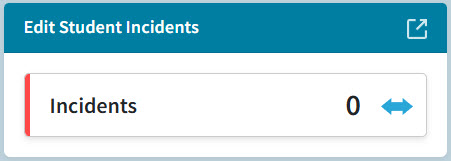
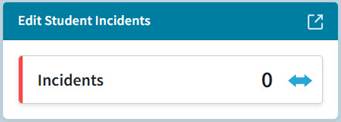
This tile is directly below the Receive Incidents tile. It shows the incident count for today, with a red “up arrow” if today’s total is more than the previous day’s, a green “down arrow” if today’s total is less than the previous day's, and a blue horizontal double arrow if today's total is the same as the previous day’s.
Use the Navigate icon in the top right corner to open the Edit Student Incidents window. For more information on editing student incidents, refer to the help article: Edit Student Incidents.
Fig 6: Edit Student Incidents Tile
Fast Served Tile
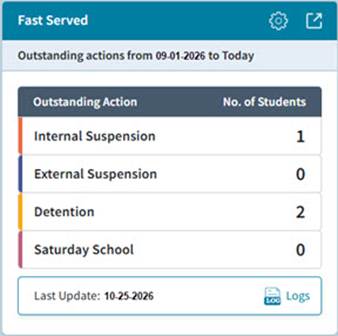
This tile is in the third column of tiles. It shows up to 4 Outstanding Actions, and the number of students.
Click the gear wheel to edit the date range, and select the Actions to display.
Use the Navigate icon in the top right corner to open Fast Served. For more information on fast serving actions, refer to the help article: Incidents Fast Served.
Fig 7: Fast Served Tile
Reports Tile
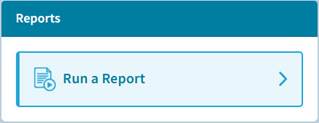
This tile is in the fourth column of tiles. Clicking Run a Report will take you to the reports window where incident reports can be created, generated, and managed. For more information on running incident reports, refer to the help article: Incident Reports.
Fig 8: Reports
For more information on adding or editing incidents, refer to the help articles: Edit Student Incidents and Incidents – One Student.