
External content is website content that is not directly added to or maintained on the website itself. This could be just a PDF or it could be a whole folder full of files. For example, linking content to your PlusPortals or a Google Document, Folder, or Sheet. The RediSite platform offers multiple options to manage content externally, from a button that links to your PDF hosted in Google or a collection of items contained in a Google Sheet.
The advantages of this would be:
- Less files collected on the website
- Less content for the website editor to maintain
- Allows the updating of content without granting website access to more people
- Maintaining a cleaner more consistent website
- Centralized organization of documents
- Web hosts often set limits to the number of files
- And more.
The options of using Google Drive or MS OneDrive to share or embed content may be restricted or limited by the school's organizational policies dictating sharing in products like Google and Microsoft. If you have issues connecting to external content, please contact your internal IT department. You do still have the ability to directly upload files to be hosted on the website. These options are presented as a convenient alternative.
TABLE OF CONTENTS
- Examples
- PlusPortals
- Document Links: Google Drive and MS OneDrive
- Google Sheets via Collections
- Embedding a Document
Examples
School Board Meeting Agendas/Minutes: This represents a body of documents that will accumulate large volumes over time, not to mention a potentially large archive of historical documents. Constantly uploading them directly to any webhost would be tedious at best. Creating a Google Drive Folder for your School Board Meeting agendas or minutes is a better solution. You can then make it publicly shared and or embed it on the site. This means you can now share the direct link to that folder or even embed a view of the documents in that folder on your website. This also allows you to grant someone else rights to manage, add, and edit those files in Google without them accessing or editing the website, and without collecting a large number of files on the website content manager itself. This also lets you archive those older files in a proper place (not on your website) for safe keeping.
Student/Parent Handbook: This common document is one that will change every year and likely have multiple updates in a given year. Placing the PDF of your handbook into Google Drive or MS OneDrive and sharing it with a link means that regardless of the numerous updates and edits, the single shared link remains valid. No more publishing/communicating dozens of new PDF copies out to your community, nor trying to track down and edit all of the places the PDF may have been uploaded to.
School Improvement Plan: These documents are often lengthy and authored specifically for print. It would be difficult or impossible to recreate the content directly on the website. Sharing the PDF via Google or MS OneDrive is a more efficient approach. Optionally, those platforms also offer an embed code that could be placed on the RediSite.
PlusPortals
Data contained in your PlusPortals is integrated into your website as an External Collection. Your Rediker PlusPortals conveniently integrates with your RediSite school website, allowing you to post communication and content items that can also be publicly shared. For example, your calendar of events, daily announcements, and school resources (links and files). This means an item like your School Handbook could be placed within your portal and then set to also be synced to your RediSite. Eliminating the need to even access and post it separatelyately to your website.
See these articles for more details.
Document Links: Google Drive and MS OneDrive
The simplest method would be to share the document from the file hosting platform and paste the share link on the website into to a particular widget like a button or as a Page URL in the pages panel
We recommend a "low" file approach. It is recommended that you only upload minimal and necessary files to the website like image and video assets. For items like PDFs, schools should use external file hosting options like Google Drive or MS OneDrive as the primary method of gathering, organizing, and sharing files especially files prone to change or be updated every year. This will also minimize the work needed to update your website as shared links would remain valid (if managed properly). Using shared links means you should never need to update the website or other places like PlusPortals with new copies of the document or folder. The link would never change, instead you simply manage the file version in Google or MS OneDrive, and upload new versions as you get them. This helps to keep your website clean and uncluttered of outdated information or files, making a better user experience for both your visitors and editors.
Google Drive
The first step is to organize your files in Google Drive and share them to get the share links that can be used on your website and or PlusPortals. When using Google Drive, it is recommended that your school create an organizational "Shared Drive"(not just a shared folder), then give access to subfolders in that drive as needed to those responsible for the content. Then have your team place necessary files into the shared drive and folder, then share them.
- In Google, right click the file or folder, and choose Share (be sure to set it to ANYONE with Link)


- Then copy the link and place the link anywhere on the site where you want it displayed and to be a clickable link (like in a button widget, a text widget, etc.)
- Links that go directly to shared Documents or Folders can be placed in any widget where a link is used like a Button widget (and many others). Just place the link in the Web Address option.

- Google Folder IDs can be used to embed a live view of documents using the Google Drive iFrame widget.

- We recommend placing such links on a Resource page of your website and or in the School Resource section of your Rediker PlusPortals (under Communication).
- Links that go directly to shared Documents or Folders can be placed in any widget where a link is used like a Button widget (and many others). Just place the link in the Web Address option.
- To manage the active version of a file in Google Drive right click the File, choose file information, and Manage Versions. This allows you to upload an updated file without changing the shared link to the file.

MS OneDrive
Very similar to using Google Drive, you first obtain a share link.
- Select the file to share, and choose the share icon. You can also right click and choose share.

- Choose the Link Settings option (gear icon)
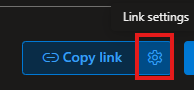
- Bs sure to choose Anyone Can view and apply the settings


- Copy the link and now you can paste into the Web Address/URL of any corresponding widget on the website.
However, to overwrite an MS OneDrive document with a new version, you would simply:
- Upload the same document (with the same exact name) into the folder in MS OneDrive.
- It will then ask if you want to "Replace" it as the latest version.
- This ensures that the existing shared link continues to work.

Google Sheets via Collections
It is also possible to organize content into a Google Sheet and connect it to the website to be displayed. This is known as an "External Collection." This would allow you to have someone else manage the data in the sheet without having them to have direct access to the website editor.
EXAMPLES: This could be a simple table or directory of people and contacts. It could be content like titles and descriptions for job openings. It could even be used for athletic team rosters.
It is recommended that you first setup your sheet with the necessary rows or columns before creating the collection.
To create an External Collection based on a Google Sheet:
- In the Left Panel click on Content
- Choose Collections
- Click the blue +Add Collection button
- Choose Google Sheets
- Sign in with Google
- Select a File, the selection screen will show you all available sheets in your Google Drive (most recent first)
- Be sure to set data type for the fields (if not sure leave it as rich text).
- To connect a widget to the collection right click the widget and choose Connect Data and select your external collection and map the fields


Embedding a Document
Both MS Word Documents (Office 365) and Google Docs offer an option to share a document via an embed code, allowing you to place the document on your RediSite via copying some code and pasting it the HTML widget. This can be optimal if your document is not something you want to recreate as content on the website, and prefer to maintain and edit the document in its original format. This is also great for documents that will be updated frequently, as it removes the need to constantly replace a PDF file on locations like the website. The downside however is that embed code is not always optimal for Mobile users.
Google: Docs, Sheets, and Slides
You must have full edit rights to the document to do these steps. Learn more here- Make Google Docs, Sheets, Slides & Forms public - Computer - Google Docs Editors Help
- In the Google Document, choose File, then Share, and Publish to Web
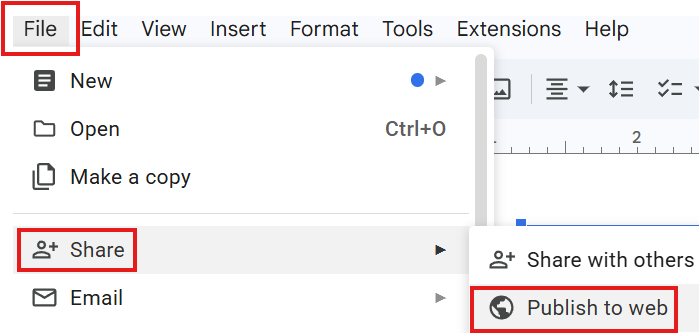
- In the popup choose Embed and then Publish
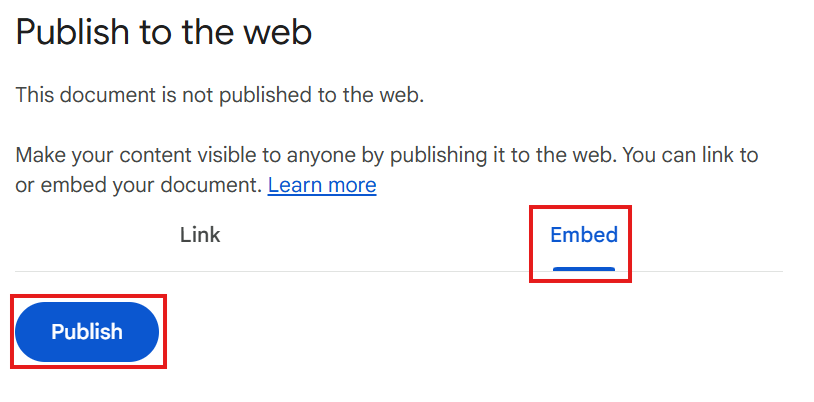
- It will then display an iFrame code for you to copy. As the tip shows, you can Press Ctrl+C on your keyboard to copy or right click on copy.
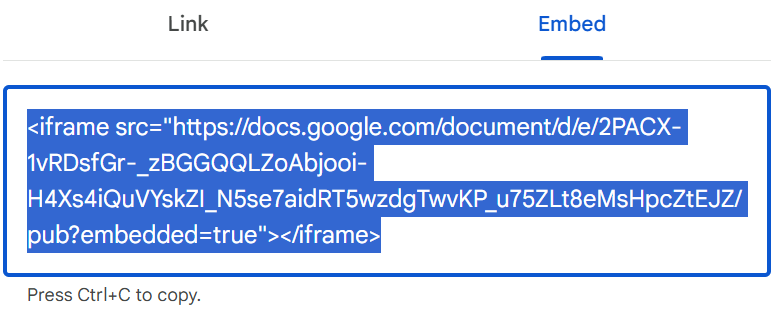
- On the RediSite place a HTML Widget and paste the embed code provide from Google into the widget, then click Update in the lower right.
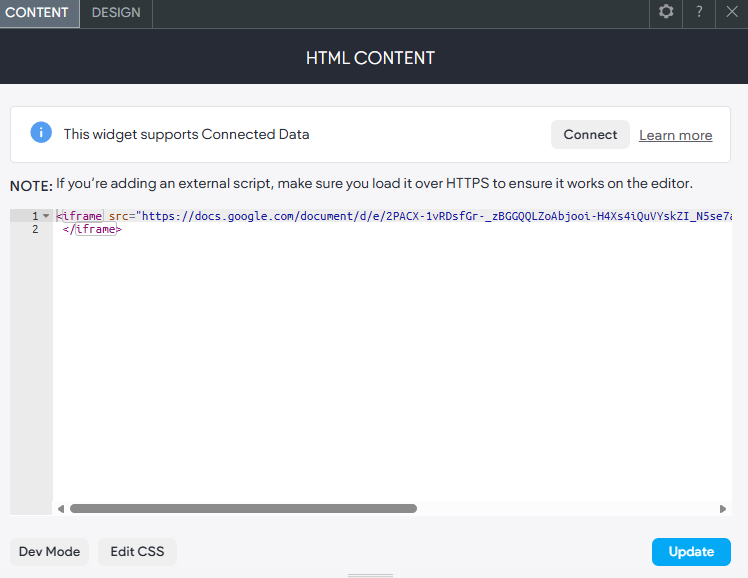
- As is the case with most 3rd Party code it may not be optimized and may require some additional styling. In this case, adding a width and a height style improves the code provided. Example adding style="width:100%; height:700px; added to the iFrame helps make more responsive.
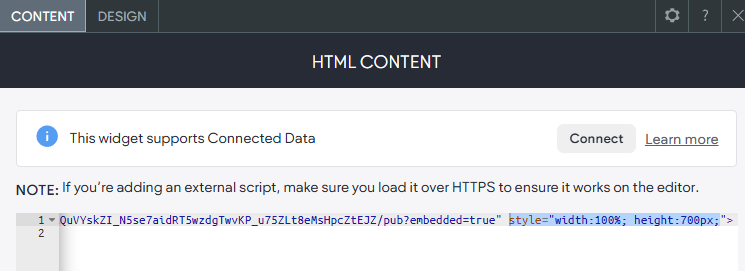
- When changes are made to the code be sure to update the widget.
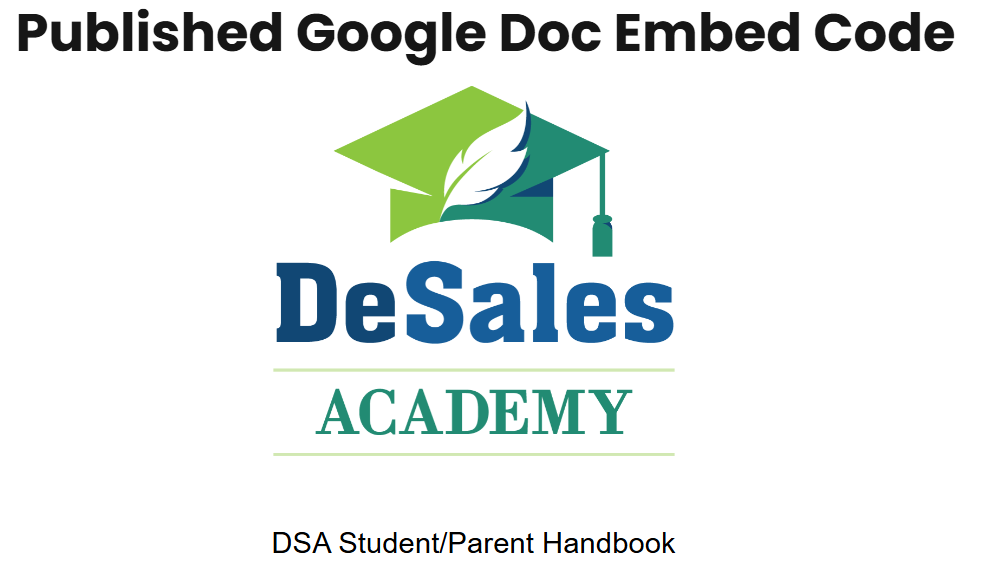
- Be sure to preview your content on the page
- Republish the site to make it live.
MS OneDrive
In in order for this to work you first have
- Choose File, Share, and Select Embed this document
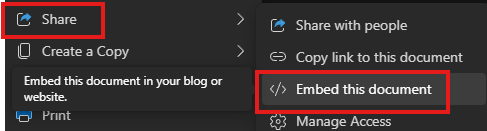
- You will get a popup allowing specify some settings.
- Copy the embed code
- Paste in on your site into an HTML Widget.
- We recommended updating the width option to 100% (instead of the set pixels).
- Preview the page.
- Republish the Site.
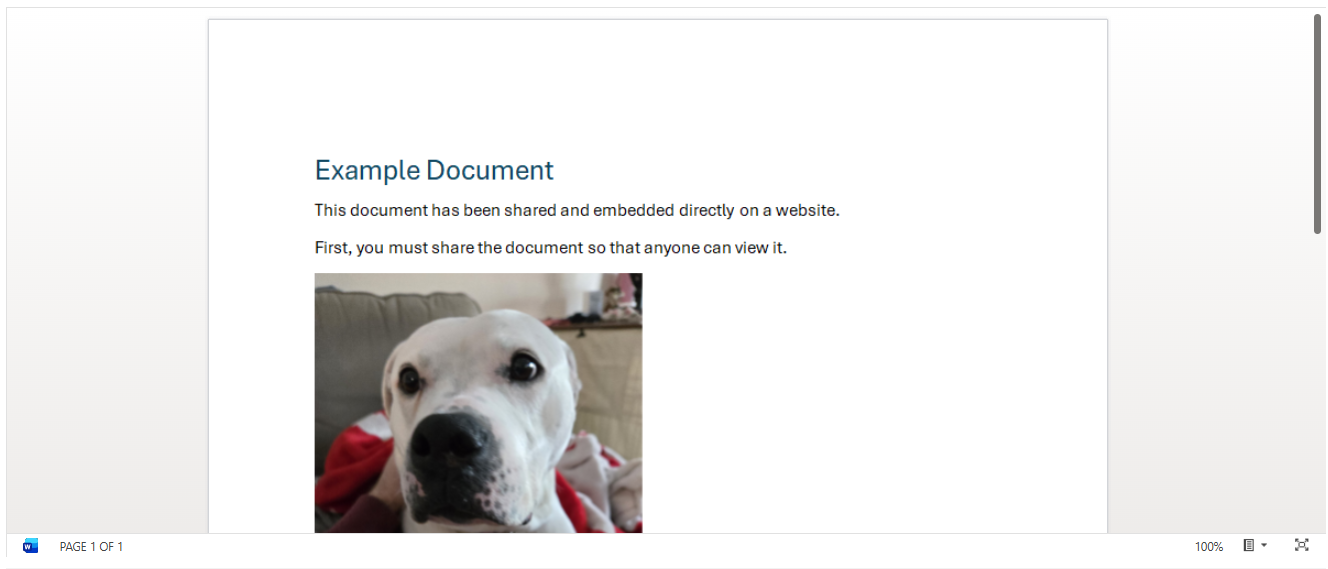
Note, if your visitors see theMS 365 Sign In, instead of the document, it may be you have not properly shared the document OR that your organization does not allow such sharing. Be sure to test in a private/incognito window where you are not logged into any Microsoft account.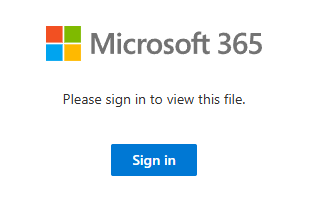
This can still happen even when the sharing link is set to “Anyone can view.” This is most common with OneDrive for Business (work/school accounts), as organizational security policies can block anonymous embedding. The requirement to sign in is often enforced by Microsoft 365 tenant controls (IE your school IT). You could ask your organization to review these restrictions. Another solution would be to place (move or copy) the document into a Personal MS O365 account.