
Read Only users or schools who are View Only on AdminPlus.com can access the Receive Grades Approval Center to view what has been submitted. Although you can view, approving grades and making changes to settings have been disabled.
Edit features are only available if the AdminPlus Supervisor has requested edit from apcom@rediker.com and has selected to edit Grades in AdminPlus.com. Schools that use Receive Grades from File should continue to edit in classic until this feature is added in AdminPlus.com.
Grades
School > Grades dashboard displays Current Marking Period for today's date. Click the i icon to display the Marking Period Start dates that are set on the TeacherPlus Gradebook Managment Site. On the School > Grades tab, you can Receive Grades as well as use Reports to run Report Cards.
Report Cards, Statistical reports and Honor Rolls can still be run in classic even if Grades edit is set to AdminPlus.com.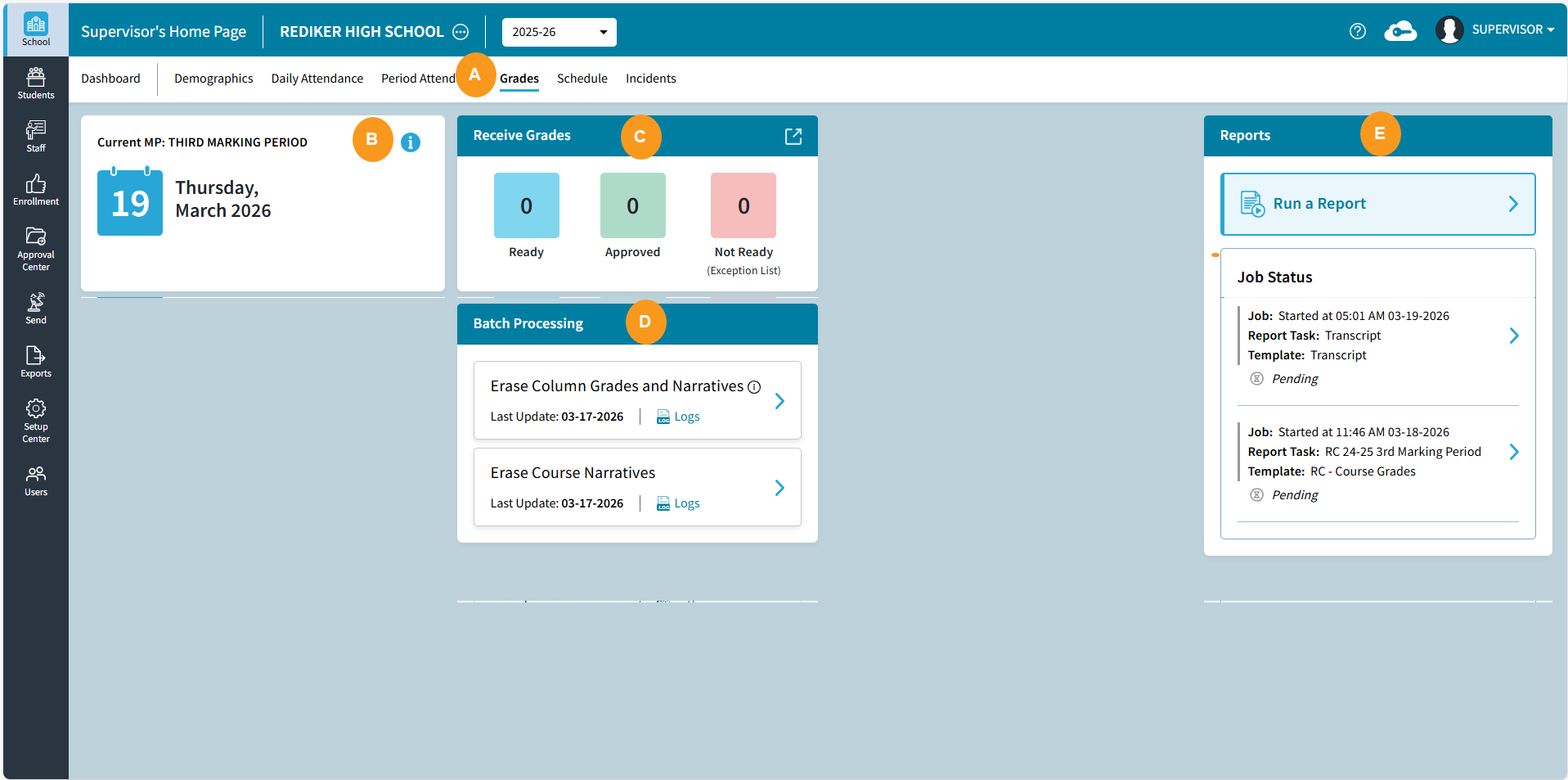
| School: Grades | |
|---|---|
A | Grades tab. |
B | The Date tile displays the Current MP (Marking Period) based on the Marking Period Start Dates set in the TeacherPlus GBManager.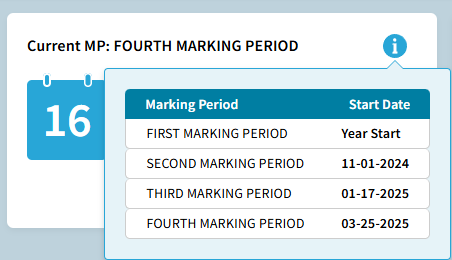 |
C | Receive Grades: displays the number of TeacherPlus Gradebook sections that are Ready, Approved, and Not Ready (Exception List). Select the expand icon  to open the Approval Center. to open the Approval Center.See Approval Center: Grades for more information about receiving Grades. |
D | Batch Processing:
|
E | Reports click Get Started to select the Report Card Template to customize. Once a report has been run select Run a Report, the tile will display the Job Status. 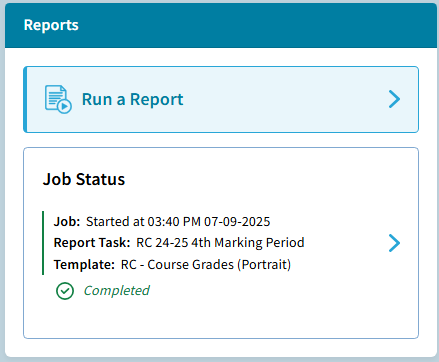 |