
Reset Password
If a user forgets their password, they can choose to reset it by doing the following:
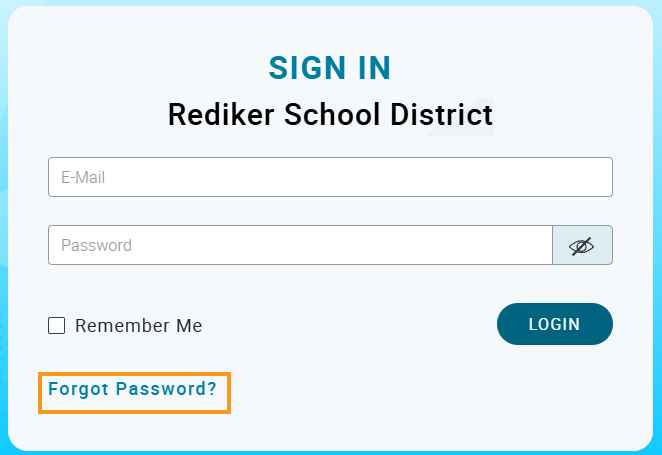
- From the login page, select Forgot Password?
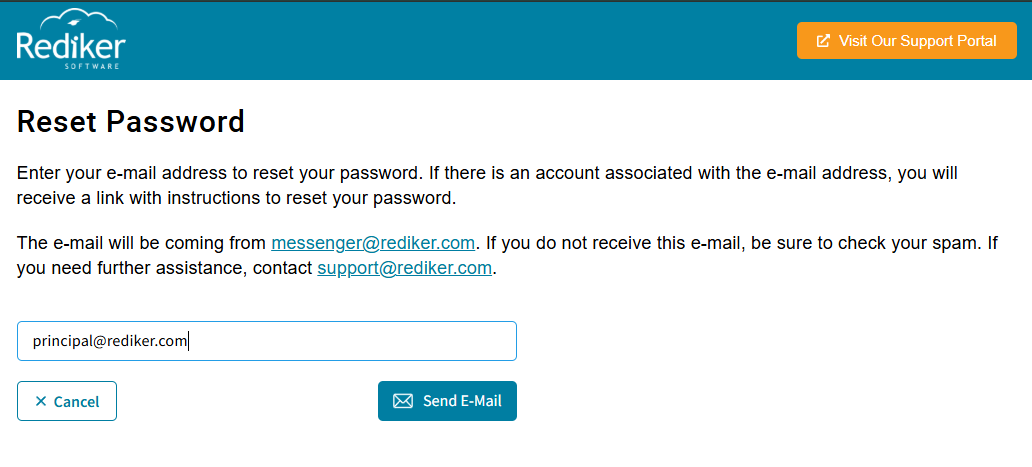
- The Reset Password page opens. Enter in your Login E-Mail.
- Click Send E-Mail.
- The following message will be displayed:

- Once the E-Mail is received, click on the link, or copy and paste the link in the browser to reset your password. The new password must contain:
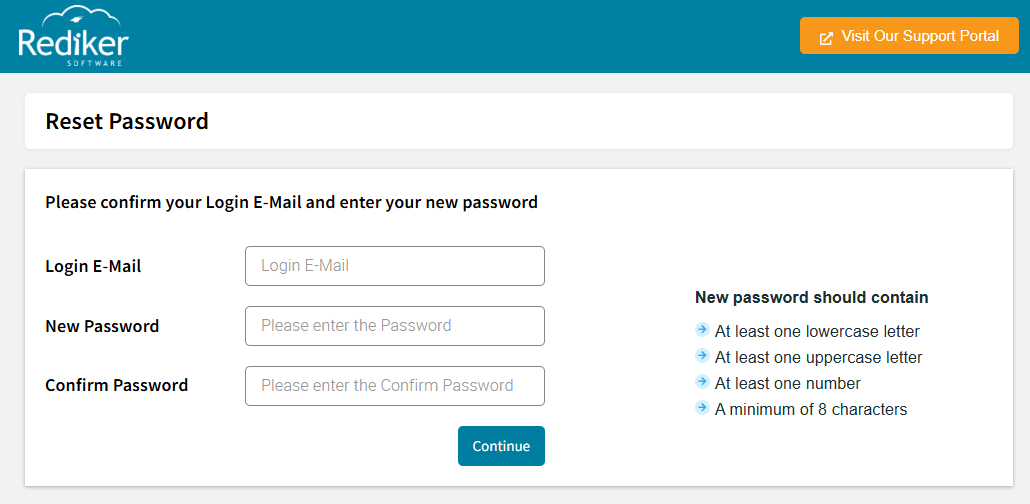
- At least one lowercase letter
- At least one uppercase letter
- At least one number
- A minimum of 8 characters
Change Password
If a user would like to change their existing password while logged into Organization Manager, this can be completed by doing the following:
- Select the down arrow next to your username in the upper right > select User Settings:
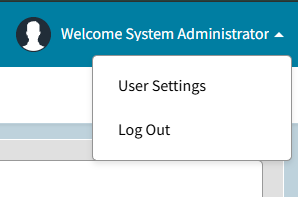
- The User Settings screen opens.
- Enter in your current password as well as the new password. The new password should contain the following:
- At least one lowercase letter
- At least one uppercase letter
- At least one number
- A minimum of 8 characters
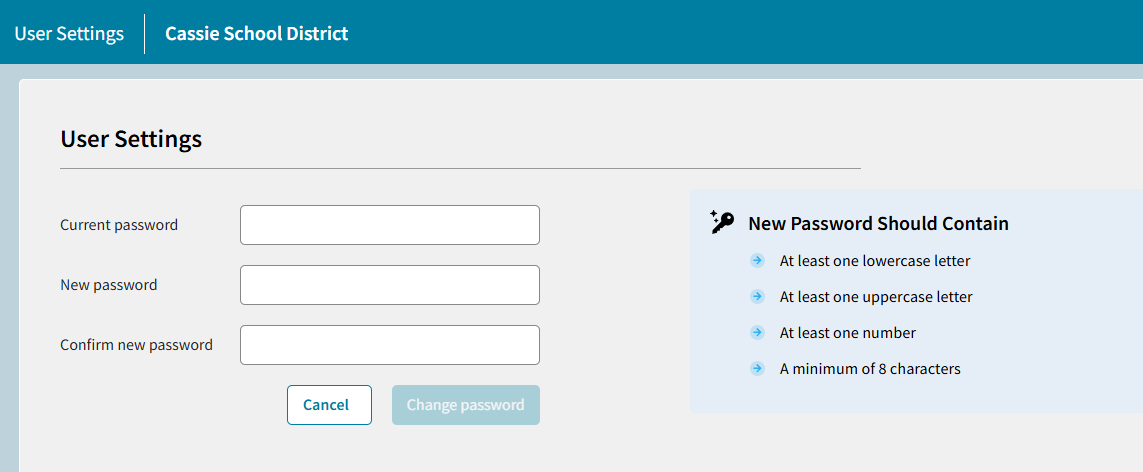
- Select Change Password.