
This guide provides instructions for creating and editing user accounts in the Organization Manager (ORM), with a focus on the new Visibility and Module security permissions.
Adding or Editing a User
From the main ORM dashboard, navigate to the Users screen.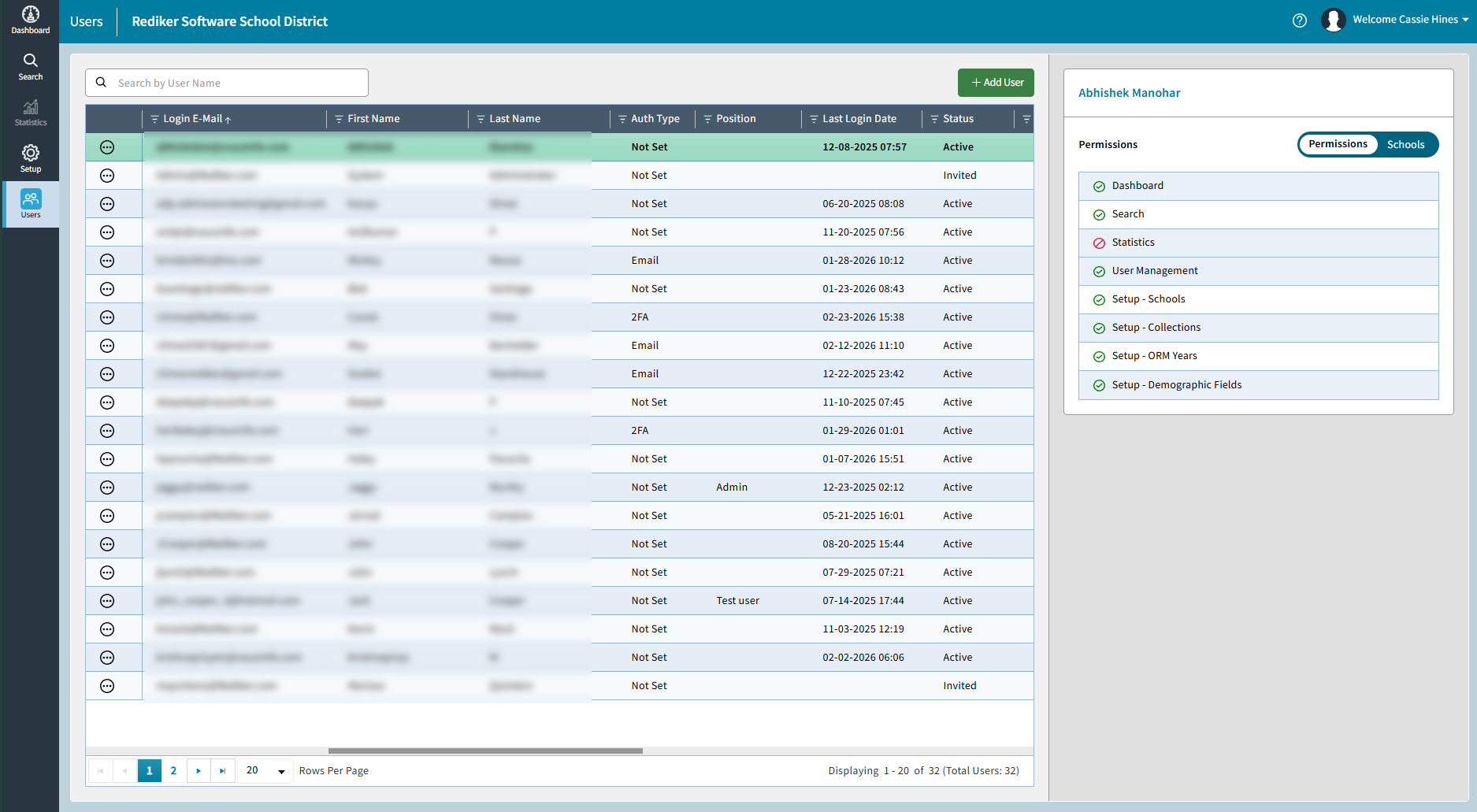
- To add a new user, click Add User.
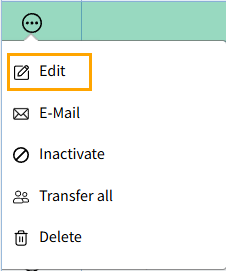
- To modify an existing user, locate the User > Select the 3 dots > select Edit.
- On the Basic Details section, enter or update the user's First Name, Last Name, and Login Email (required).
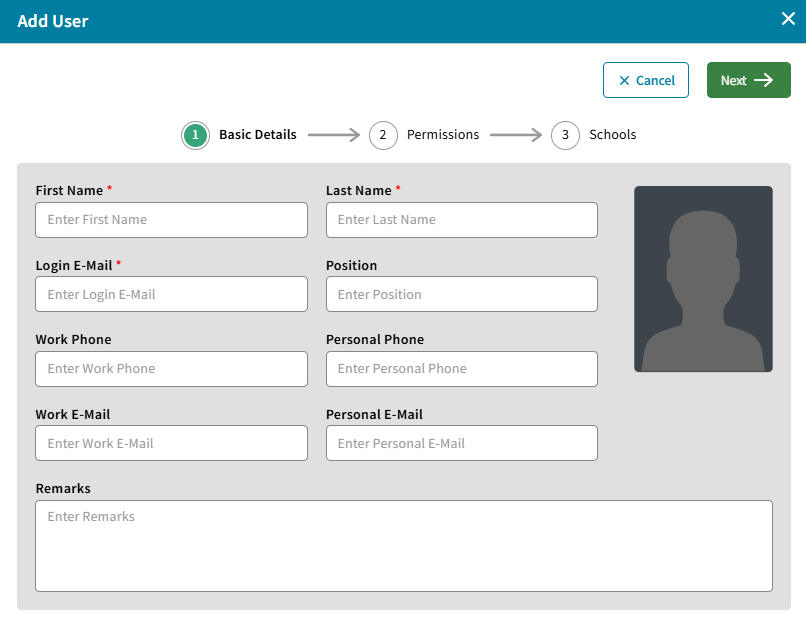
- Click Next to navigate to the Permissions tab.
- The Permissions step now includes two sub-tabs: Modules and Visibility.
- Modules Tab: Use this to configure which areas of the System the user can access
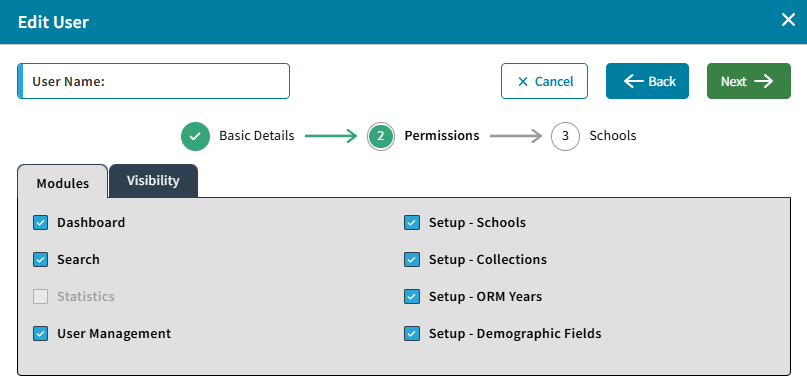
- Dashboard: Give users access to the Dashboard Module
- Search: Grant user rights to the Search Module
- Users: Allows users access to User Management to add new users or edit existing users
- Setup-Schools: Grants visibility to the Schools tab.
- Setup-Collections: Allows the user to view the Collections tab to manage specific data groupings.
- Setup-ORM Years: Gives users rights to manage Organization Years.
- Setup-Demographic Fields: Enables access to the Demographic Fields tab.
- Visibility Tab: Use this tab to control how the user interacts with Private, Shared, and System data objects (Saved Searches, Queries, and Layouts).
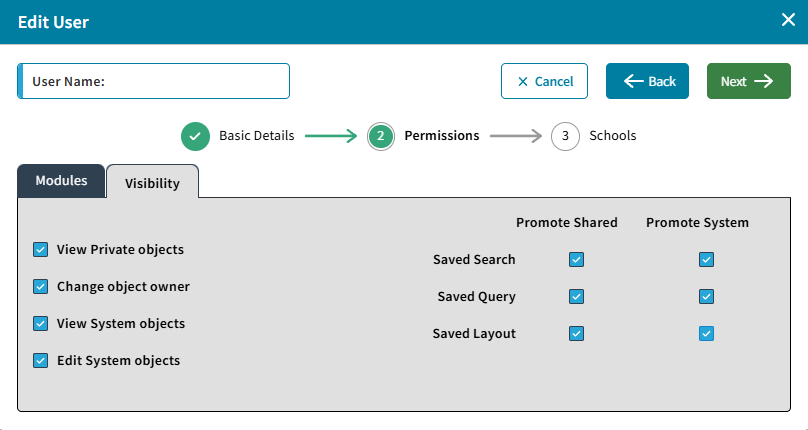
- View Private objects: Select this to allow the user to see and interact with private data objects belonging to all users.
- Change object owner: Enable this to allow the user to reassign objects (Searches, Queries, or Layouts) from one user to another.
- View System objects: Allows the user to see objects used for automated background processes.
- Edit System objects: Grant this for users who need to modify System data objects.
Promote & Demote Rights
- On the right side of the Visibility tab, you can independently set "Promote" rights for each object type:
- Promote Shared: Check these boxes for Saved Search, Saved Query, and/or Saved Layout to allow the user to move their own or others items between Private and Shared status.
- Promote System: Check these boxes for Saved Search, Saved Query, and/or Saved Layout to allow the user to move owned items between Private/Public and System status.
- Click Next to navigate to the Schools tab.
- Select the specific schools the user is authorized to access.
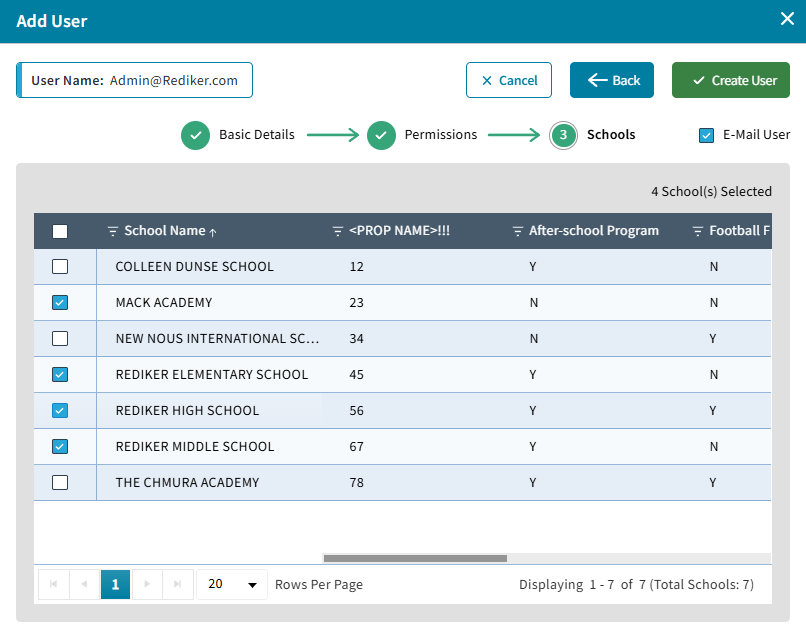
- Finally, ensure the Email User option is checked to send login instructions to a new user.
- Click Create User or Update User to apply all changes.