
Users with permission to manage accounts can add new and edit existing users from the Users screen.
Add a New User
To add a new user, do the following: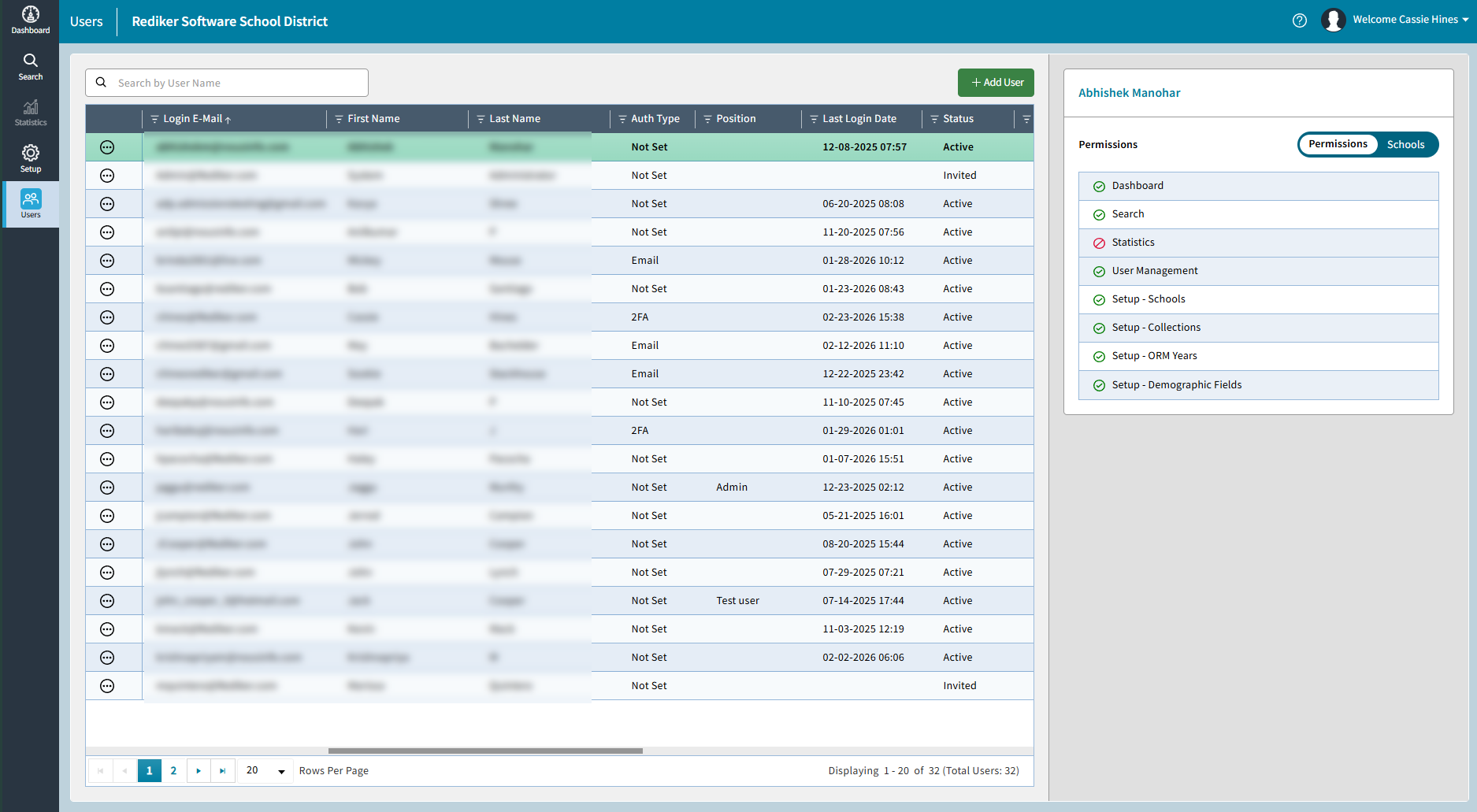
On the Users screen, click Add User.
The Add User window will open.Enter the user’s information.
First Name, Last Name, and Login Email are required fields.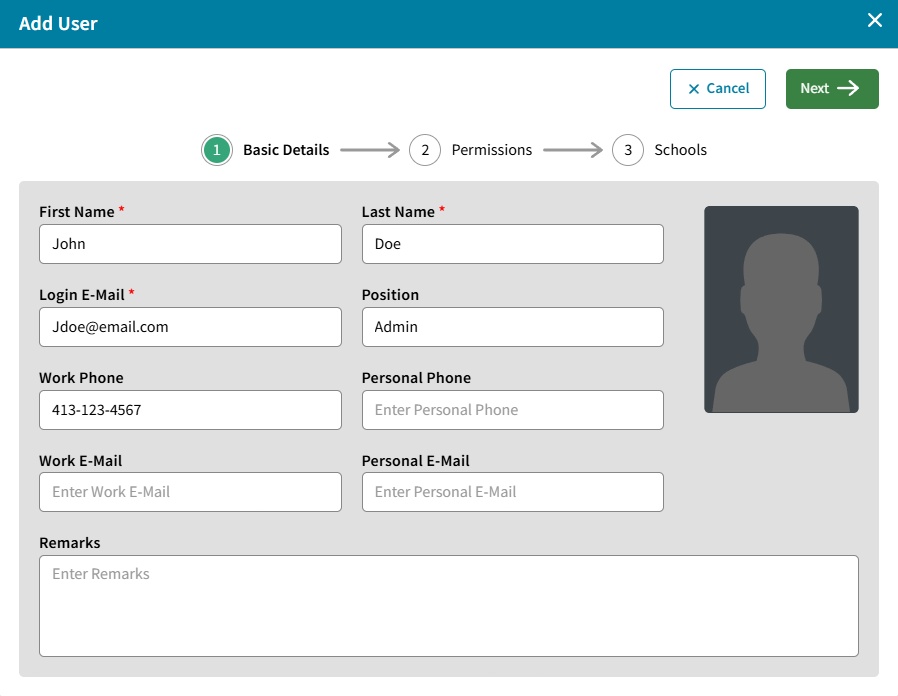
Click Next.
Select the permissions you would like to assign to the user.
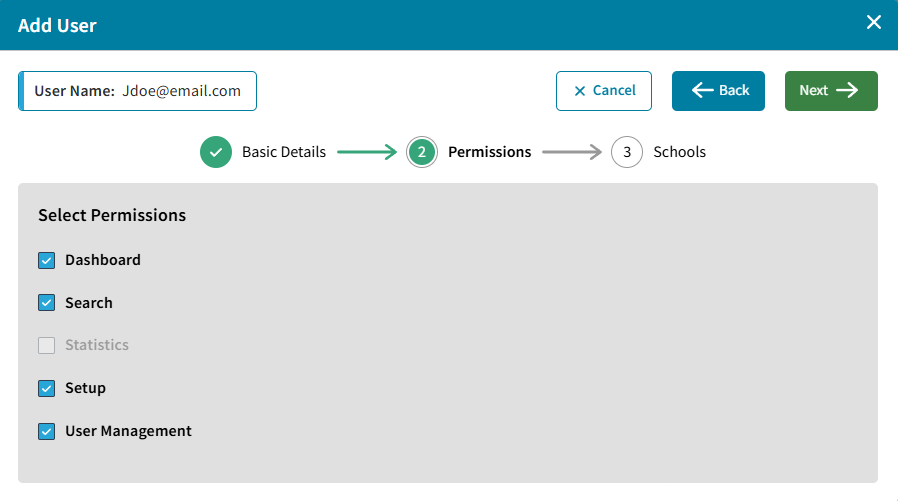
Click Next.
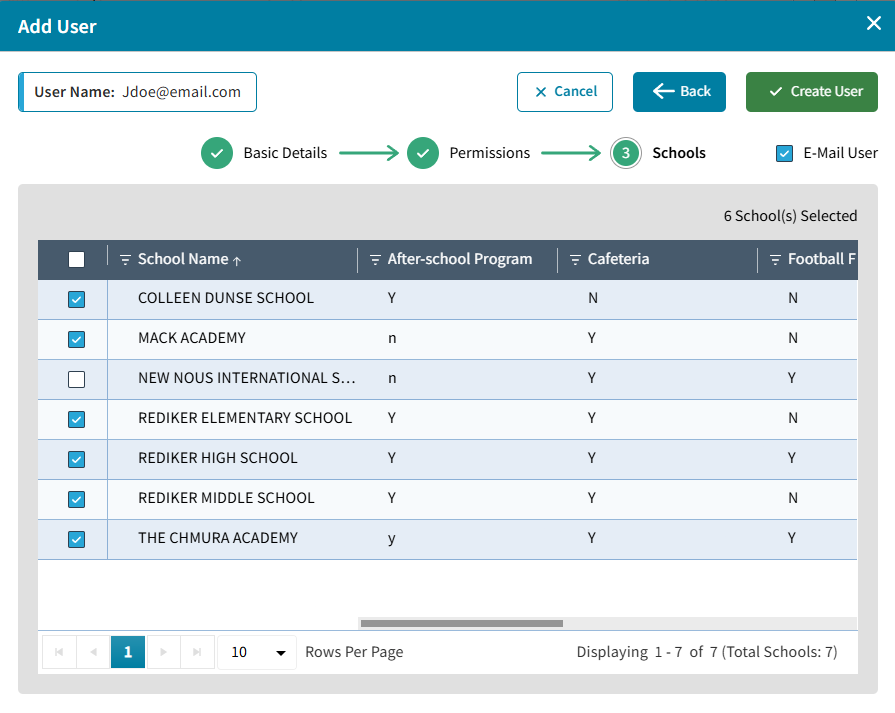
Choose which schools the user will have access to.
If the user should only have access to certain schools, select only those schools.Ensure the Email User option is checked. This will send an email to the new user with instructions to set a password and log in.
Users will be prompted to select a Two-Factor Authentication (2FA) Method when setting up their account. For more information about this, please see Get Started: Enable Two-Factor Authentication.
Edit an Existing User
To Edit an existing user, do the following:
- Select the 3 dots next to the user name > Select Edit
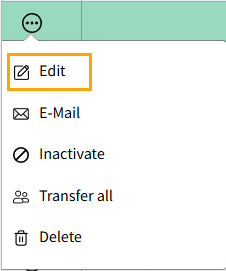
- The Edit User window opens. You can follow the same steps as listed above for Adding a New User to update the existing user.