Overview
AdminPlus stores staff information in demographic fields, the same way it does with student information. These fields are organized across 13 pages, with 20 fields per page, for a total of 260 fields. Of these, 253 staff fields can be configured by the school. The first 7 are required system fields and their name cannot be changed.
You can access and review Staff Demographic Fields in AdminPlus.com while logged in Supervisor under Setup Center > Libraries > Student Demographic Fields.
Fig 1: Overview
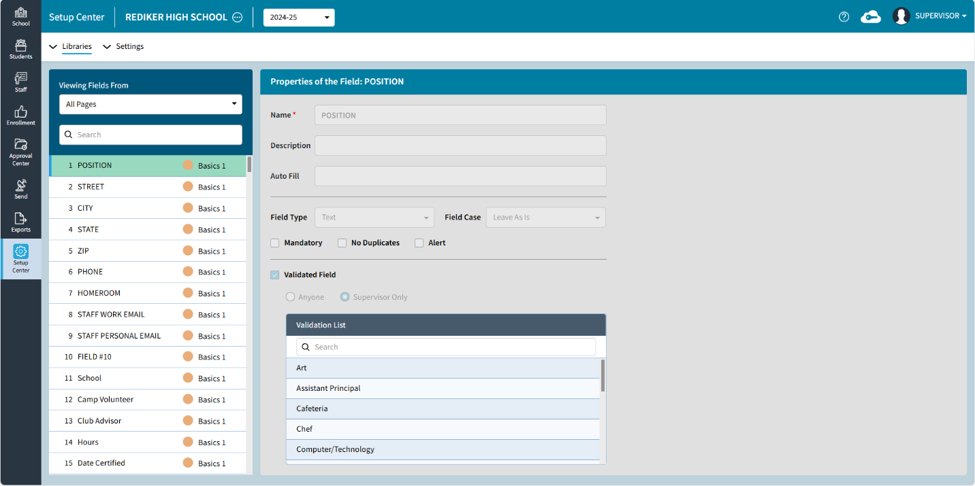
On this screen:
- Select a Page using dropdown menu, which will filter the fields by the selected page.
- Search and find a field by name. Typing into the search will return all fields meeting the search criteria (regardless of page or order). This allows you to quickly find and jump to any field in your data.
- The Field items list indicates field number and page name. The Selected field appears with a green highlight
- Field properties, displays the properties for the currently selected.
NOTE: Field properties are currently view-only and cannot yet be edited. Support for editing field properties will be added in a future release. If you are editing your Demographics in AdminPlus.com you can still access and update Field Names and Field Type in AdminPlus Classic under Setup > Data Base > Field Names for Staff (without switching edit mode).
Pages
Pages provide a structured way to organize and display demographic fields.
By default, the Setup Center displays fields from all 13 pages. The page name and associated color appear to the right of each field. To filter the display by page, use the Page drop-down menu (A) in the upper-left corner.
Fig 2: Pages
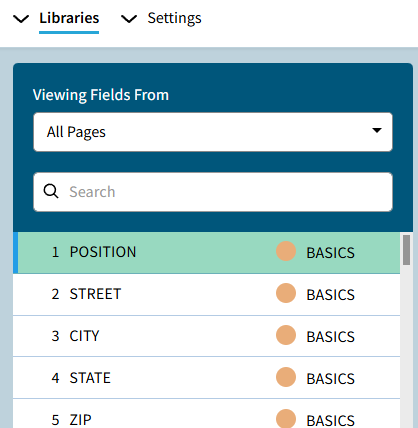
When a page is selected, only the 20 fields assigned to that page are displayed.
NOTE: It is recommended that pages be organized by topic, since permissions can be used to control page access for individual users, including both viewing and editing. For example, if certain information is sensitive, such as medical or billing data, create separate pages for Medical and Billing so access to those fields can be managed through user permissions.
Fields
In your database, a field represents a single basic unit of data, for example, the student's email or birth date.
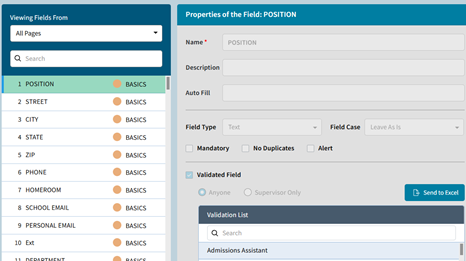
On the Setup Center screen the fields will be listed on the left of the screen, in the default linear field order (1 to 260). When you select a field number on the left panel you will see the field properties displayed on the right.
Fig 3: Fields
Search
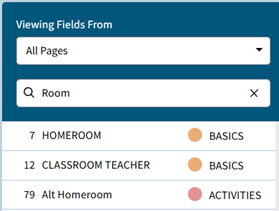
The Search can be used to find a field by name. Typing into the search will return all fields meeting the search criteria (regardless of page or order). This allows you to quickly find and jump to any field in your data.
Fig 4: Search