Overview
In the Contact Data Base, there are 2 main types of information that are stored: Global Fields and Local Fields. For more information about Global Fields, refer to the help article: Contact Global Fields.
Contact Local Fields are pieces of information about each contact that are specific to the relationship of that contact to a particular student. If a contact is linked to multiple students, the contact’s Global Fields will always be the same, but the Local Fields could be different for each student. Examples of a Contact Local Field are: Relationship, Parent Portal Access, which are default fields, and Custody Information, or Pick Up, which are custom defined fields.
To create, edit or delete Contact Local Fields, go to Setup Center > Libraries > Contact Local Fields.
Fig 1: Overview
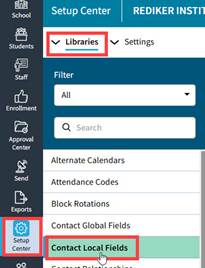
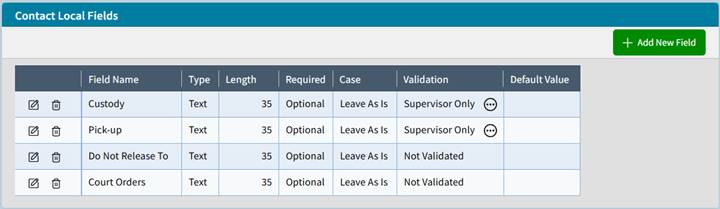
Fig 2: Contact Local Fields
Add a New Contact Local Field
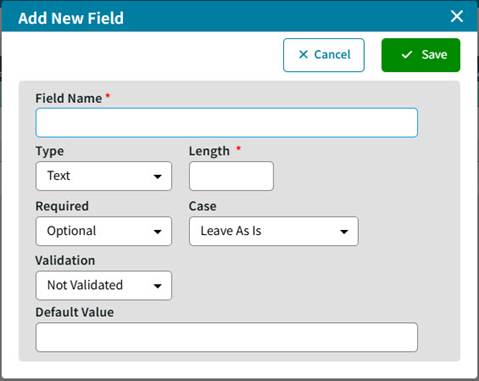
To add a new Contact Local Field, click the Add New Field button. Field Name and Length are mandatory. If desired, a validated list of entries can be set up.
Fig 3: Add New Field
Edit a Field
Click the Edit icon to open the window shown in figure 3, with that field’s information. Edit the details of the field as desired.
Fig 4: Edit a Field

Delete a Field
Click the Delete icon to delete the Local Field. If the field is being used (at least 1 contact has data in that field), then it cannot be deleted, and a warning will pop up that the field cannot be deleted. Otherwise, a confirmation will pop up to confirm deletion.
Validated Lists
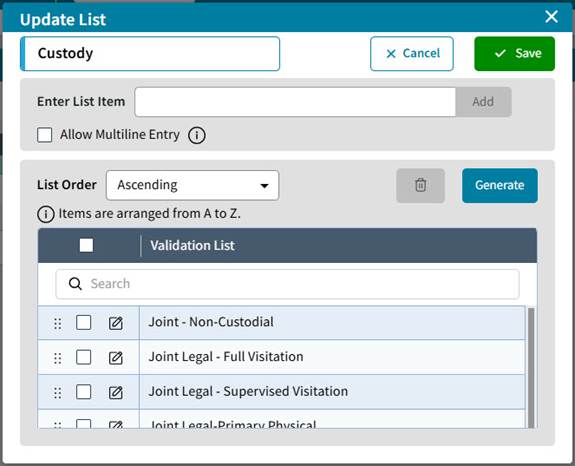
Click the Ellipse icon to open the Update List window. Here, the list can be added to, existing entries can be edited or deleted. The list can also be initially generated with existing entries in that field. Click Save.
Fig 5: Click the ellipse icon

Allow Multiline Entry can be checked to enter multiple items to the list at once.
List Order can be manually set or Ascending / Descending order can be selected.
The Generate button can be used to populate the list from existing data values.
Check items to select them for deletion, click the Trash Can button to delete them.
Fig 6: Update List Window