
In the top right of the Admissions screen, you will see your user name and a drop down menu.
Click the Question Mark icon to open a new window where all the Admissions support articles can be found.
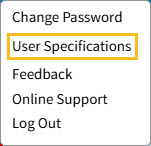
To the right of your user name is a drop down menu.
The second item is User Specifications.
User Specifications are user specific, so each user must set them.
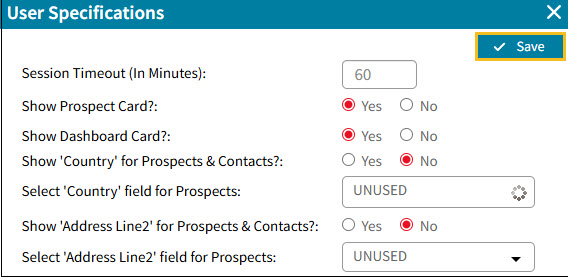
- Session Timeout (In Minutes): use this specification to set how long APW can be idle before you are automatically logged out.
- Show Prospect Card?: use this specification to show or not show the Prospect Card.
- Show Dashboard Card?: use this specification to show or not show the Dashboard Card.
- Show Country for Prospects & Contacts?: use this specification to show or not show a Demographic field for the Prospect's Country.
If you are receiving prospects from only one country, you would probably set this specification to No.
If you set this specification to Yes, use the next specification Select Country field for Prospects to select the field where the Prospect's Country is stored. - Show Address Line2 for Prospects & Contacts?: use this specification to show or not show a Demographic field for a second address line.
This is typically used if you have a separate Demographic field for an apartment number.
If you set this specification to Yes, use the next specification Select Address Line2 field for Prospects to select the field where the second address line is stored.