
TABLE OF CONTENTS
The Incident Report Creator is a guided process to build custom incident reports. Start by selecting a template, then refine your results using date ranges and search criteria. Choose which fields to display, adjust column widths, organize data using Group By and Sort By settings, and select your preferred page layout before generating the report.
Create Report: Action Summary Search List
- Create Report select the Action Summary Search List template.
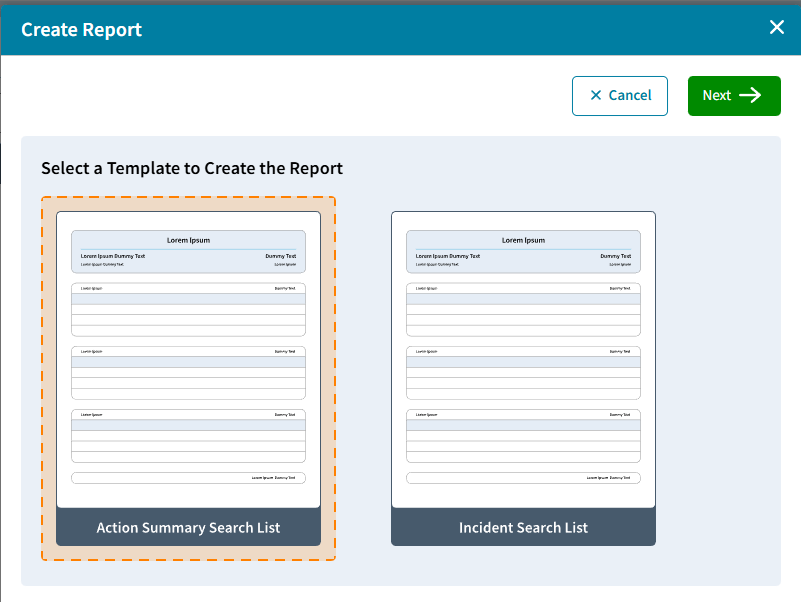
- Next select the Report Type: List or List with Details

- Select the Date Range for the Search.
From a selected Date To Today or To a selected Date. The date range default is the first day in the Calendar to Today.
- Search Criteria.
Select Outstanding Actions or Total Actions.
Specify Search Limit for selection Action Summary.
Include Blank Sort Categories - Yes or No
- Select Fields (Columns)
Column Header Set Font defaults to Sergoe UI 14 Bold but can be edited.
APID, FULL NAME, and Outstanding Amount appear by default, however, these can be edited or re-arranged.
Click Add Column to add additional Demographic Fields or Amount.
Note: Page margins are fixed at .5 inches so the total Column Width for all fields when printing Landscape is 10 inches and the total Column Width when printing Portrait is 7.5 inches.
- Group & Sort
Group By defaults to Do Not Group but a demographic field such as Grade Level or Homeroom can be selected, and the Order can be either Ascending or Descending. There is also an option to Start Each Group in New Page.
Sort By defaults to FULL NAME Ascending but can be edited.
- Page Orientation
Defaults to Landscape but can be set to Portrait. - Internal Note can be used to include any information or instructions concerning the report.
- Share can be used to select Co-owners of the report so they can edit, rename, copy, and run the report. Note: Only the Owner can delete a report.
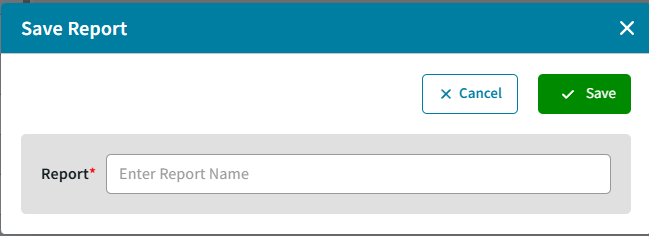
- Save & Next to Enter Report Name and Save
- Select Students includes several methods to select students to be included in the report.

- Generate will open the preview screen so you can
 Print,
  Download, or
  E-Mail a pdf to Staff or Admin Users.
Create Report: Incident Search List
- Create Report select the Incident Search List template.
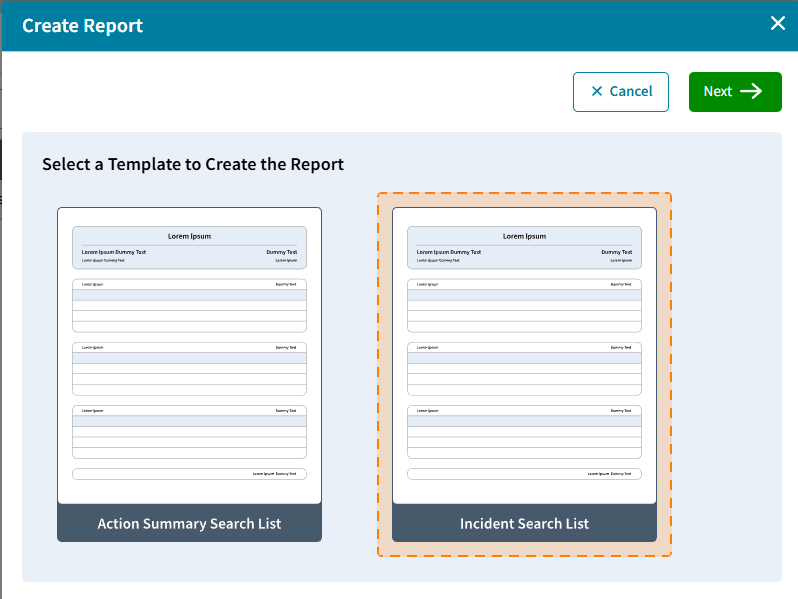
- Next select the Report Type: List or List with Details
List with Details allows you to select which details should be included.
- Select the Date Range for the Incident Search
From a selected date To Today or To a selected date. The date range default is the first day in the Calendar to Today.
- Search Criteria
Can be based on Incidents (regardless of Incident Code), Incident Code to select a specific code.
- Select Fields (Columns)
Column Header Set Font defaults to Segoe UI 14 Bold but can be edited.
The default fields are APID, FULL NAME, and a Count (if Search for is Incident or Incident Code) or Amount (if Search for is Outstanding Actions or Total Actions), however, these can be edited or re-arranged.
Click Add Column to add additional Demographic Fields.
Note: Page margins are fixed at .5 inches so the total Column Width for all fields when printing Landscape is 10 inches and the total Column Width when printing Portrait is 7.5 inches.
- Group & Sort
Group By defaults to Do Not Group but a demographic field such as Grade Level or Homeroom can be selected, and the Order can be either Ascending or Descending. There is also an option to Start Each Group in New Page.
Sort By defaults to FULL NAME Ascending but can be edited. - Page Orientation
Defaults to Landscape but can be set to Portrait. - Internal Note can be used to include any information or instructions concerning the report.
- Share can be used to select Co-owners of the report so they can edit, rename, copy, and run the report. Note: Only the Owner can delete a report.
- Save & Next to Enter Report Name and Save
- Select Students includes several methods to select students to be included in the report.
- Generate will open the preview screen so you can Print, Download, or E-Mail a pdf to Staff or Admin Users.
Run a Report
Once you have created some reports or reports are shared to you School > Incidents > Run a Report will bring you to the Reports table.
All Reports on the Reports table includes reports you created and those that have been shared to you.
My Reports can be selected to see only the reports that you created.
To the left of the Report are 3 action icons: Generate, Edit, and Copy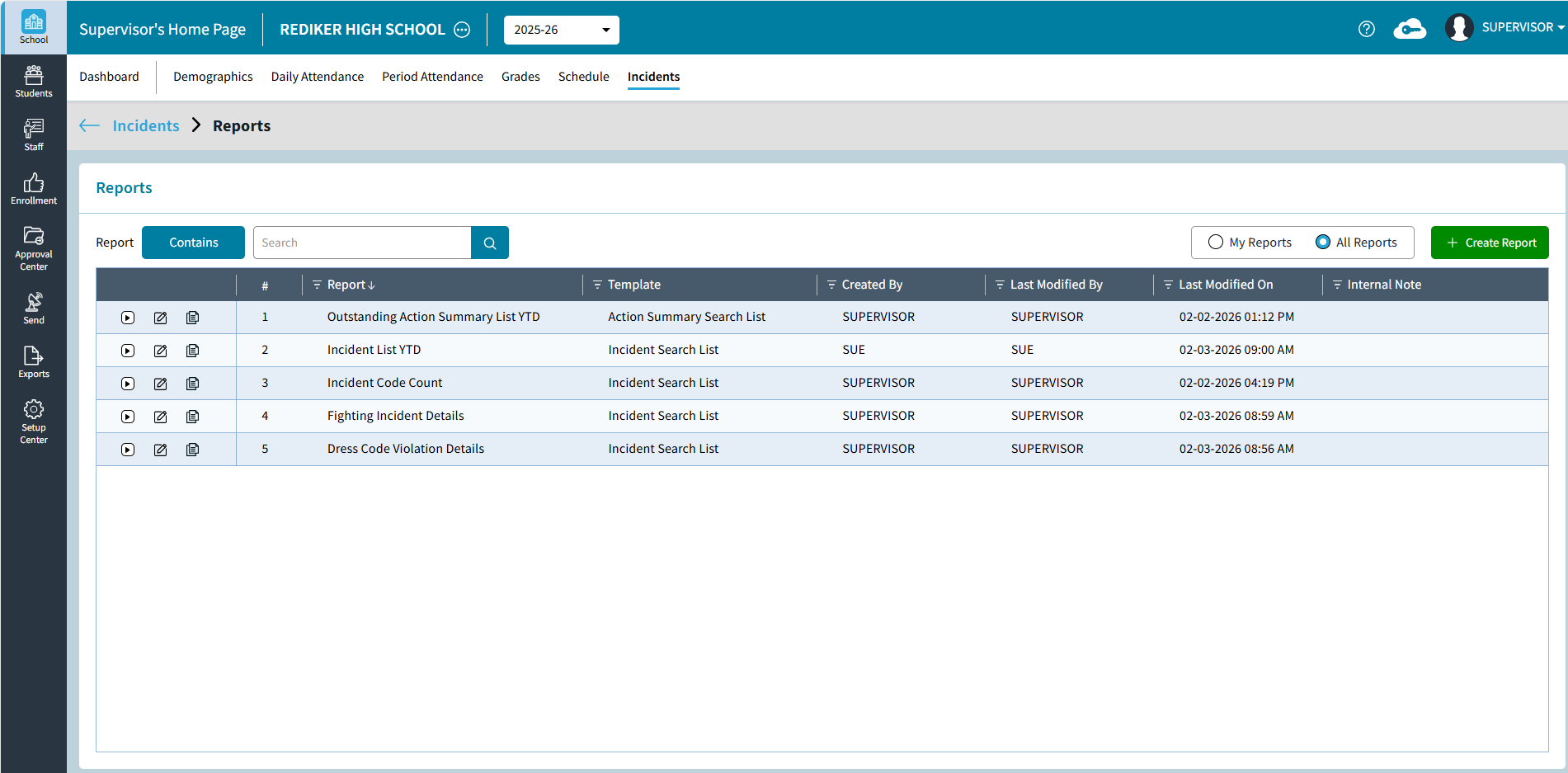
- Generate will open the Report Settings saved previously, click Save & Next to Select Students.
Students can be selected using Saved Views, Grade Levels, DB Field(s), Individual Students, Homerooms, or Course/Section. - Edit will allow you to return to edit any settings. There are also options to Delete or Rename the Report. Save As will save a copy of the report.
- Copy is the same as Save As. You can copy the settings and then go back to make edits. You become the owner of the copy of the report.