
TABLE OF CONTENTS
Setup Center > Libraries > Block Rotations can be used by the AdminPlus Supervisor or an Assistant Supervisor to add and edit Rotation definitions.
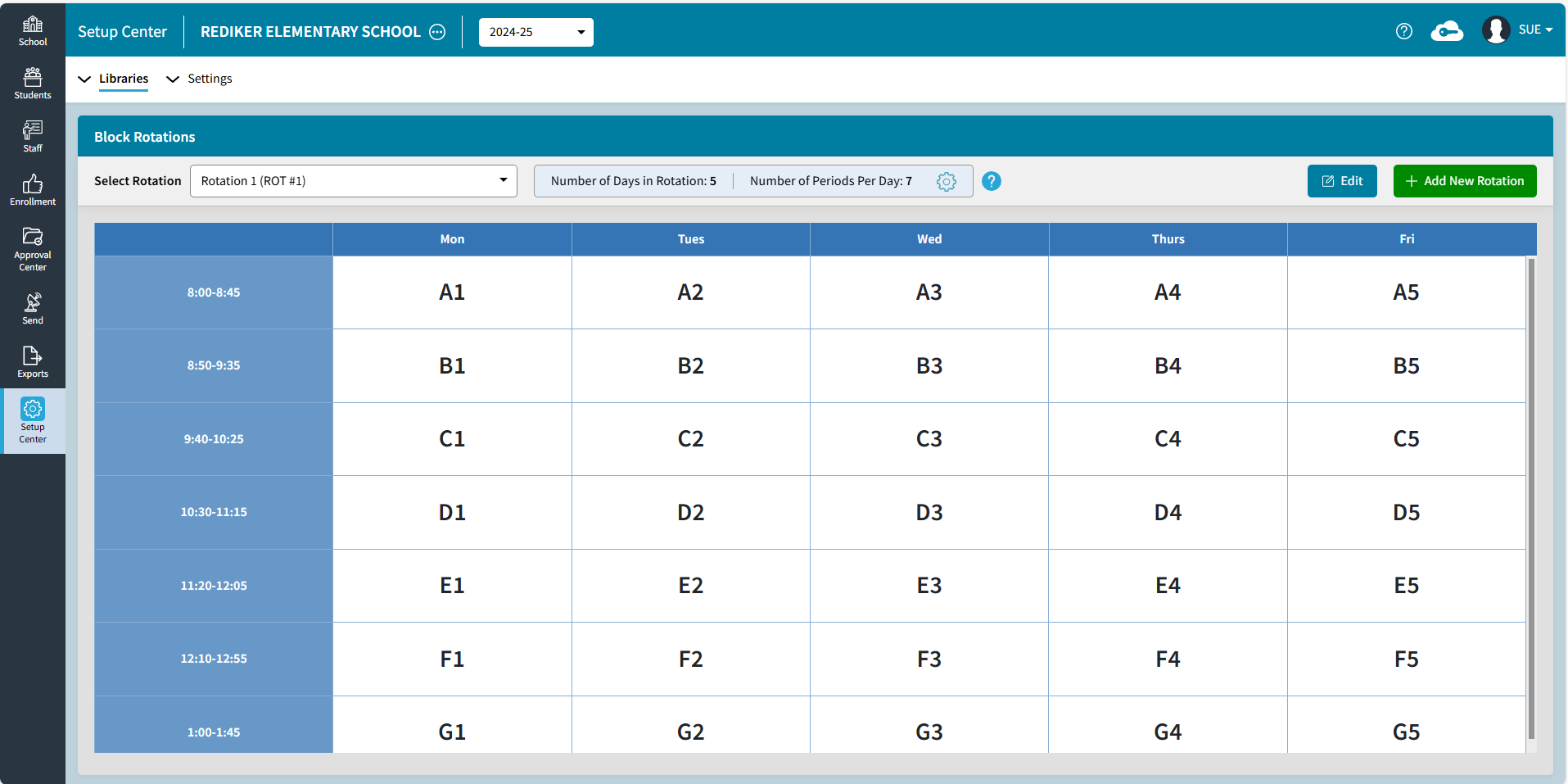
Add New Rotation
- Click Add New Rotation to fill out the settings
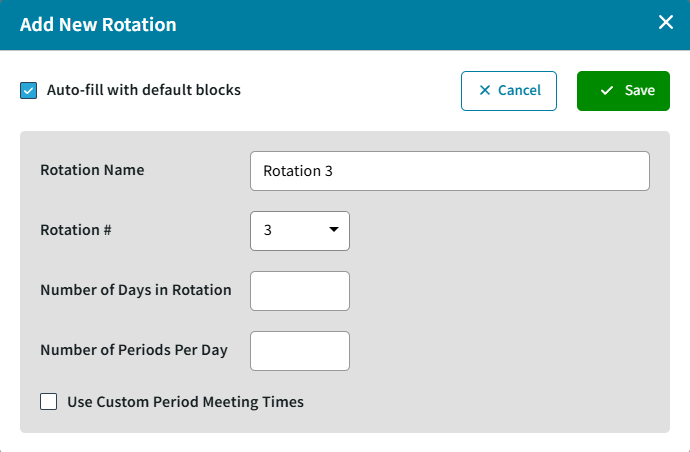
- If your periods meet in the same order every day, then leave Auto-fill with default blocks checked.
- Enter a Rotation Name
- Select the Rotation #, up to 9 Rotations can be defined.
- Enter the Number of Days in Rotation. The maximum is 10 (0-9)
- Enter the Number of Periods Per Day. The maximum is 24 (A-X).
- If meeting times are different from one day to another, then check Use Custom Period Meeting Times.
- Save then Edit Rotation to enter Day labels, Meeting Times, and Period order.
Edit Rotation
- Click Edit to put the table in edit mode.
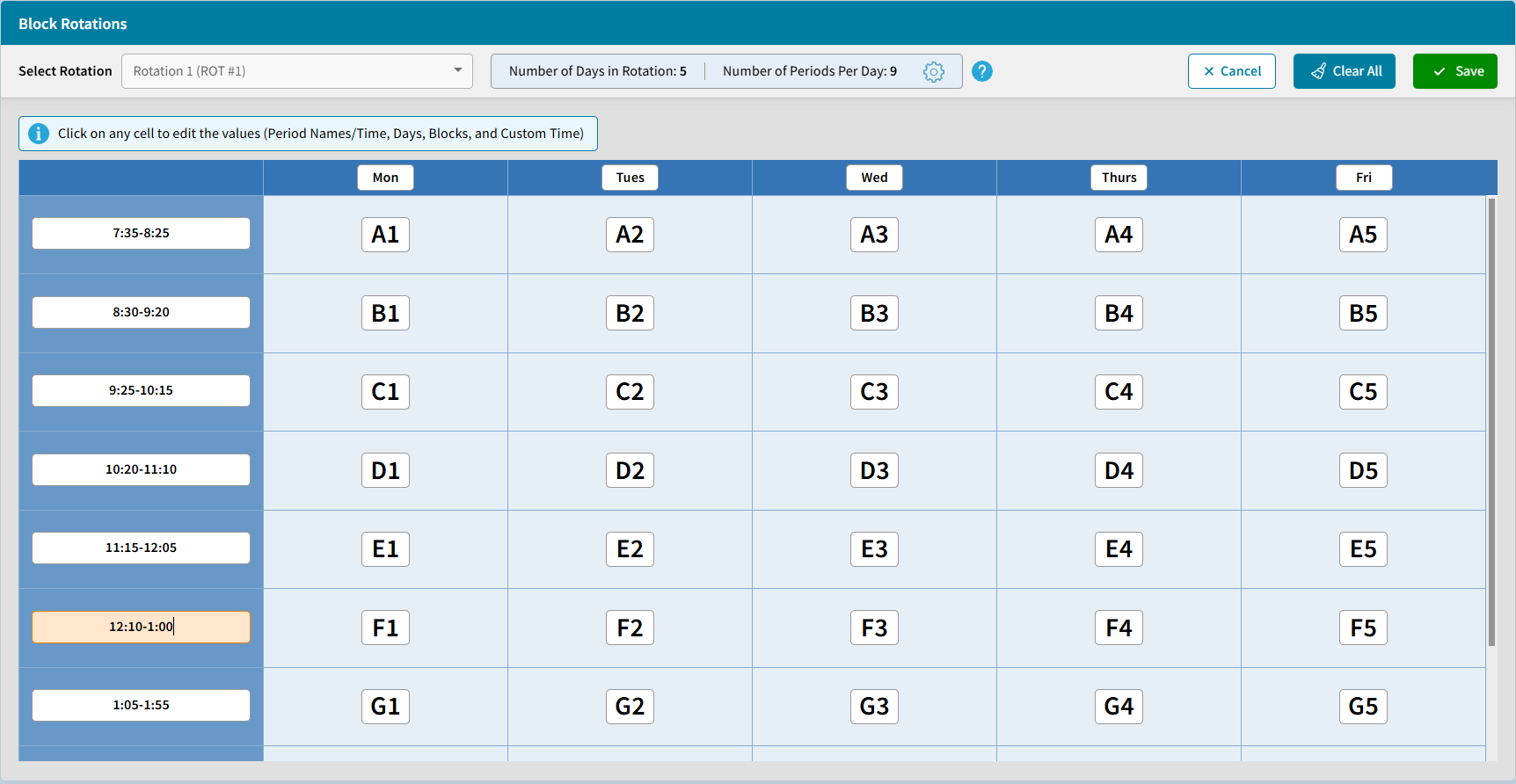
- The Days will be pre-numbered Day 1, Day 2 etc. but those can be edited.
- The Periods will be pre-numbered Period 1, Period 2, etc. but those can be edited with the meeting time
If Use Custom Period Meeting Times is selected then a time input will appear over each block.
- The blocks will be prefilled if Auto-Fill is enabled but those can be edited. If Auto-Fill is not enabled then enter a Period (A-X) and Day (0-9) in each block.
- Select Clear All to clear all the blocks. This will not clear the days of the week or the meeting times.