
We've released several new features, improvements, and feature fixes for Organization Manager. Highlights of this update include:
| New Features | ||
|---|---|---|
| Side Panel | Users can now view Student and Staff data quickly from the Search screen! View Student Demographic, associated Contacts and Attendances Data as well as Staff Demographic Data. | |
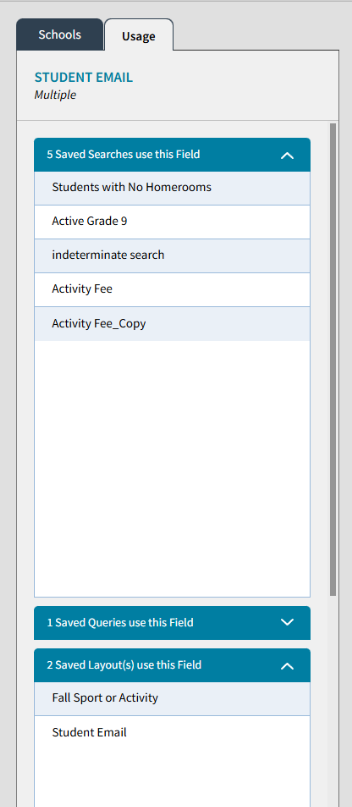
| Demographic Field Usage Panel | A new Usage Panel has been added to Setup > Demographic Fields. This panel displays which Saved Searches, Queries, and Layouts where the Demographic field is currently being used. | |
| Contact Field Usage Panel | A Usage Panel has has been added to Setup > Demographic Fields for Contact Fields. This panel displays which Saved Searches, Queries, and Layouts where the Contact field is currently being used. | |
| Private, Shared, or System: Saved Searches, Queries, and Layout Visibility Enhancements | This update introduces a new classification system for Saved Searches, Queries, and Layouts. By categorizing these items as Private, Shared, or System, you can control exactly who sees which objects and how they are used. Standard users can manage their own Private items, while those with elevated permissions can promote and demote objects to and from Shared Status. | |
| Change Ownership | A Change Ownership option is now available on the Saved Searches, Queries, and Layouts screens. Users with the proper permissions can reassign ownership of items they own or change ownership of another user’s item to themselves or another user. | |
| Bulk Transfer Functionality | A Bulk Transfer option has been introduced to streamline the reassignment of user-owned items. Users with the Change Object Owner Permission can now transfer all Saved Searches, Queries, and Layouts from one user to another directly from the User screen. | |
| Update Visibility | As part of the Layout Visibility Enhancements, a Change Visibility option has been added to the ellipsis menu on the Saved Searches, Saved Queries, and Saved Layouts screens. Users with the appropriate permissions can use this option to change an item’s visibility from Private to Shared, or from Shared to Private. | |
| Password Requirement for User Settings and Users Module | To enhance overall security, additional authentication is now required when accessing certain sensitive areas within the system. When a user navigates to these areas, a pop-up prompt will require them to re-enter their Organization Manager password before proceeding. The two areas where users will be required to re-enter their password are User Settings, where users can update their password and two-factor authentication (2FA) options, as well as within the Users module, where user accounts can be created or modified. | |
| Rediker Unified Login (RUL): Direct Login from AdminPlus.com to Organization Manager | The necessary work has been completed for Users in schools that are part of an organization currently using the new AdminPlus Organization Manager so they will see AdminPlus Organization Manager under Rediker Unified Login while logged in to AdminPlus.com. Users with access can click on the link and AdminPlus Organization Manager will open in a new browser tab. | |
| Improvements | ||
|---|---|---|
| Notifications for Inactive Collections, Schools, or Organization Years | When running a Saved Search, users will now be notified if the associated Collection, School, or ORM Year has been inactivated. Users can select Edit to update the search criteria before proceeding. | |
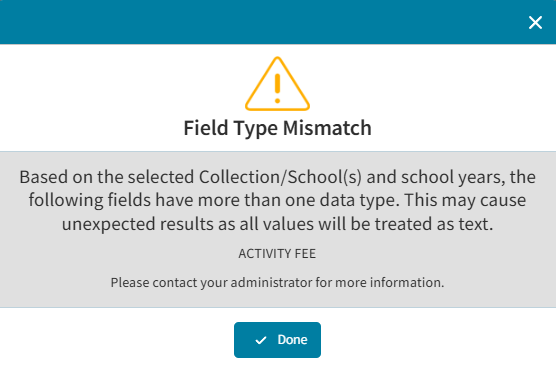
| Field Type Mismatch Notification | If fields across selected Collections or Schools contain multiple data types, a Field Type Mismatch message will appear identifying the affected fields. | |
| Demographic Field Deletion Warning Popup | When removing a Demographic Field from Setup > Demographic Fields, a popup will now notify users if the field is currently used in any Saved Searches, Queries, or Layouts. Users may review the Usage Panel for details. | |
| Grayed-Out Columns in Saved Search Results | If a Demographic Field is deleted but still exists in a Saved Search layout, the column will now be grayed out. | |
| Pop-up for Deleted Fields in Saved Searches | Saved Searches containing deleted or non-searchable demographic fields will now notify users with a pop-up and require the fields to be removed before the search can run. | |
| Show Demographic Field Change | A new checkbox on the Saved Queries and Layouts screen allows users to filter items that contain removed Demographic Fields. These items will display in a different color for easier identification. | |
| Rows Per Page Selector Updated | The default value of the Rows per Page selector was previously 10. This has been updated to default to 20. | |
New Features
Side Panel
Users can now quickly view Student and Staff data from the Search > Run a Saved Search, or a Student/Staff Search, then select the launch icon to open the Side Panel. Is an easy way to quickly view additional Demographic Student and Contact Data or Attendance Data about a selected student. If running a Staff search, only Demographic Data is visible. In the upper right, select the gear icon to choose to display up to Four (4) Demographic Fields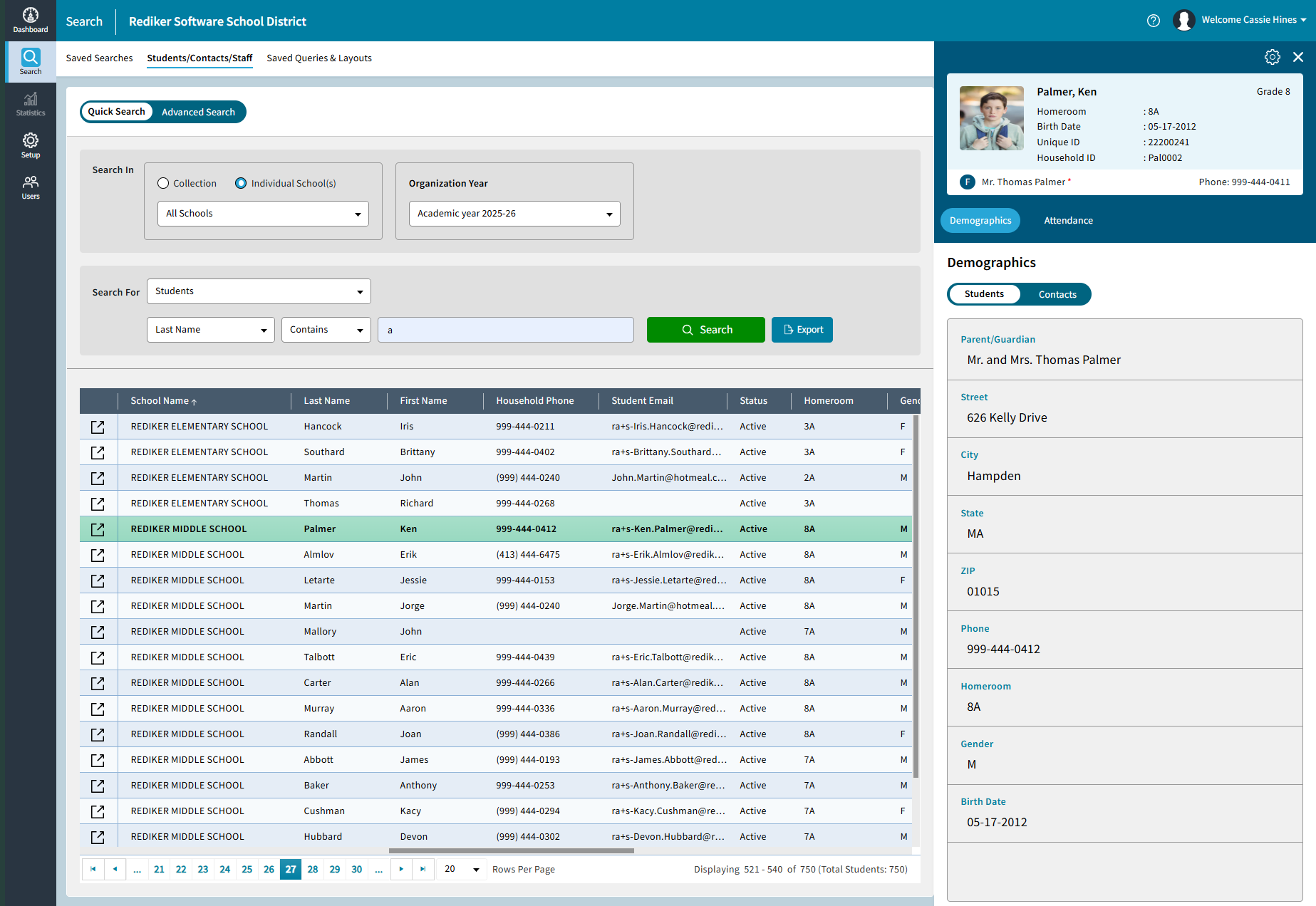
Demographic Field Usage Panel
A new Usage Panel has been added to Setup > Demographic Fields. This panel displays where a demographic field is currently being used, including:
- Saved Searches
- Saved Queries
- Saved Layouts
This will provide greater visibility before modifying or deleting a field.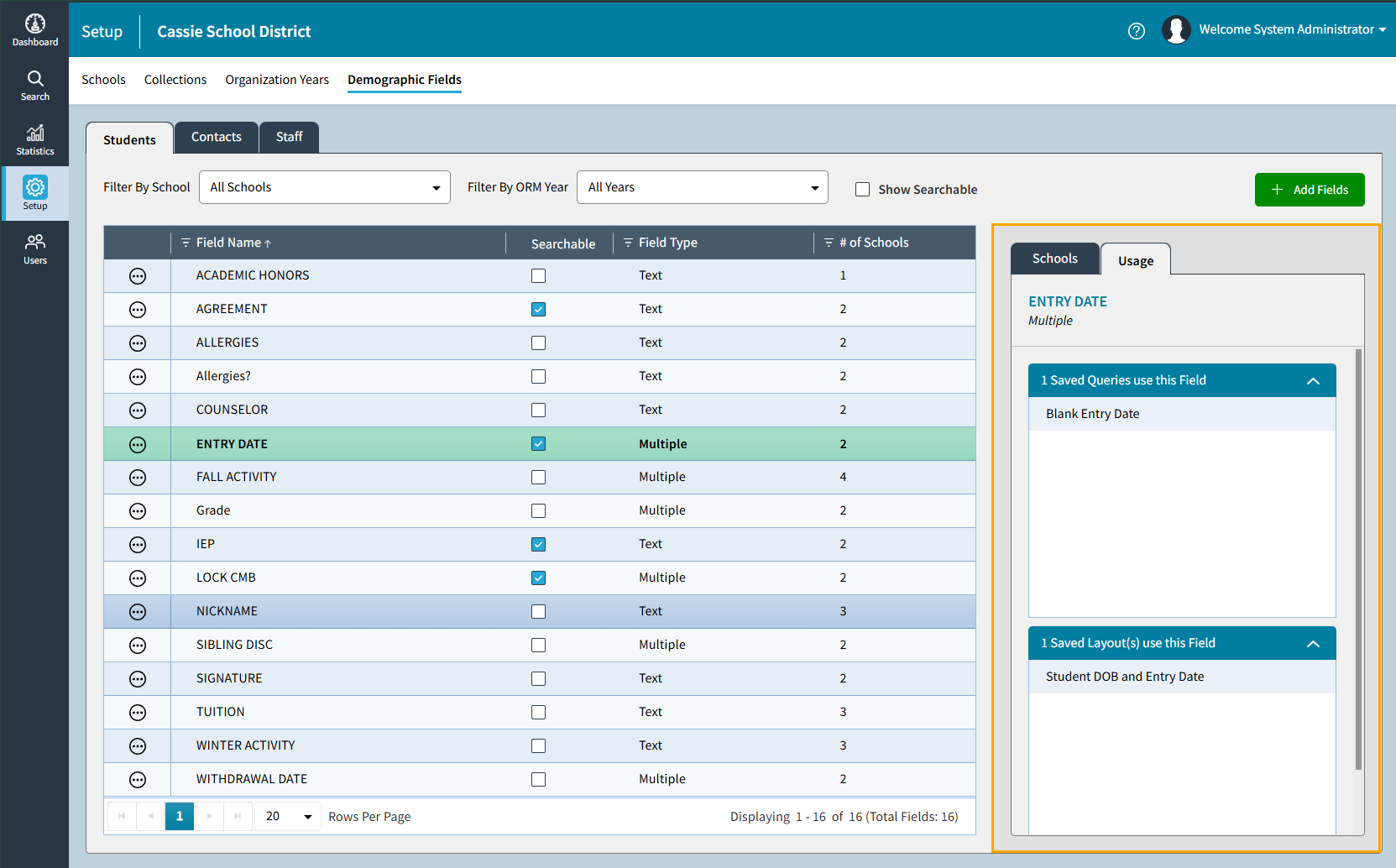
Contact Field Usage Panel
A Usage Panel has has been added to Setup > Demographic Fields for Contact Fields. This panel displays which Saved Searches, Queries, and Layouts where the Contact field is currently being used.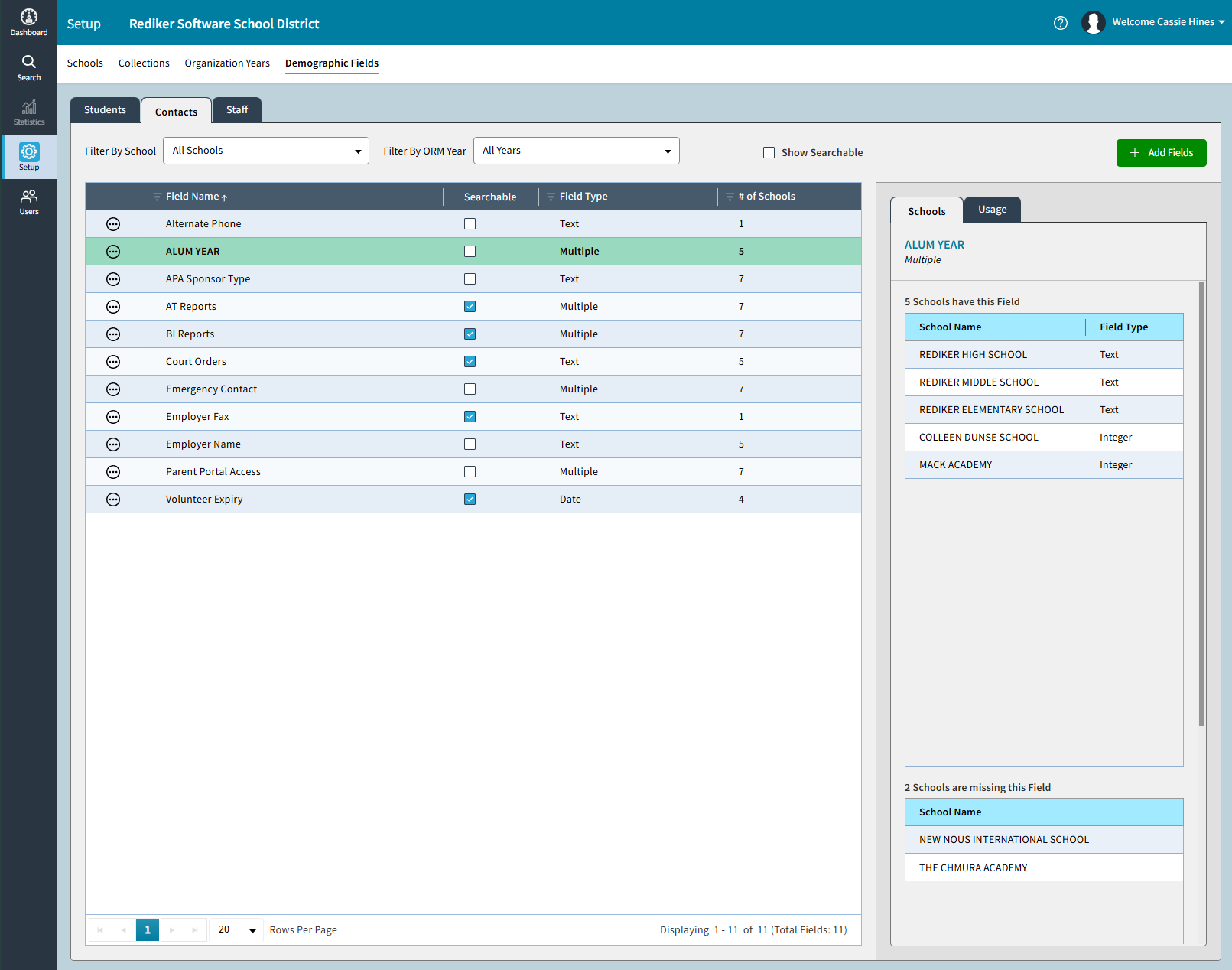
Private, Shared, or System: Saved Searches, Queries, and Layout Visibility Enhancements
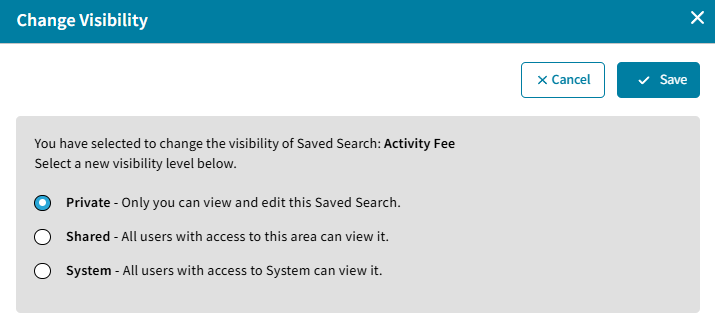
This update introduces a new classification system for Saved Searches, Queries, and Layouts. By categorizing these items as Private, Shared, or System, you can control exactly who sees which objects and how they are used. Standard users can manage their own Private items, while those with elevated permissions can promote objects to Shared status for everyone to use. We have also added robust security controls to the Add/Edit User screens, allowing users with the rights to the Users Module to precisely manage who can view, edit, or reassign these data objects. For more information about the user permissions that have been updated for these enhancements, see Managing User Accounts and Visibility Permissions.
Saved Searches, Queries, and Layouts now support three visibility levels:
- Private – Visible only to the user who created the item. Users can be given the permission to view Private Searches, Queries and Layouts of other users as well.
- Shared – Visible to all users.
- System – Restricted to users with system-level permissions. System items are typically used for background processes such as exports and automated tasks.
Change Ownership
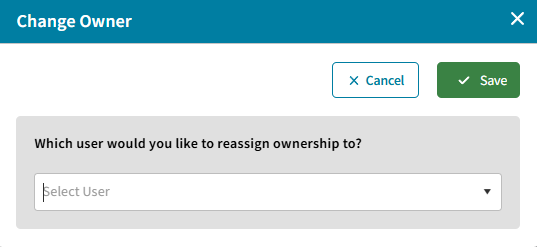
A Change Ownership option is now available on the Saved Searches, Queries, and Layouts screens. Users with the proper permissions can reassign ownership of items they own or change ownership of another user’s item to themselves or another user. Since only the owner of a Saved Search, Query, or Layout can edit it, this feature allows authorized users to take ownership when updates are required. If the selected item is marked as Private, a copy of the item will be created and assigned to the new owner. The original Saved Search, Query, or Layout will remain unchanged and continue to be owned by the original creator. To change the owner, select the 3 dots for the item you would like to change the owner of > Change Owner > Choose the user you would like to reassign ownership to > select Save.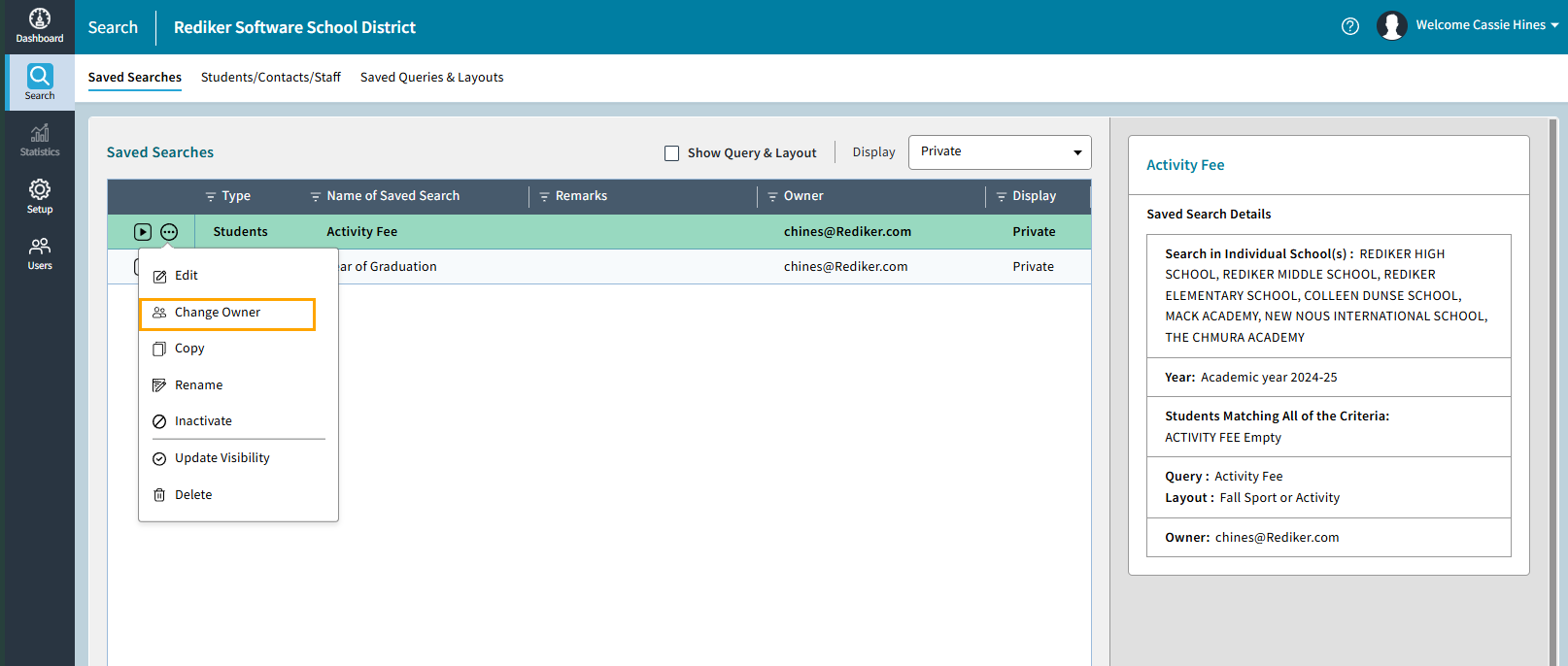
Bulk Transfer Functionality
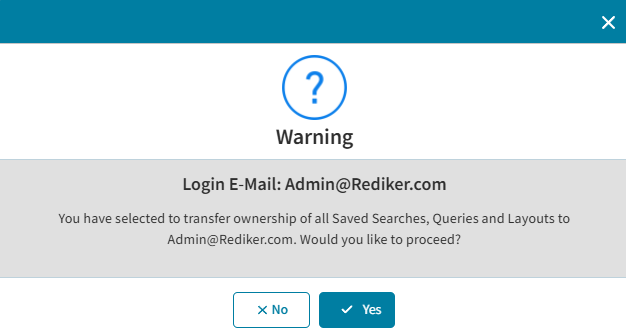
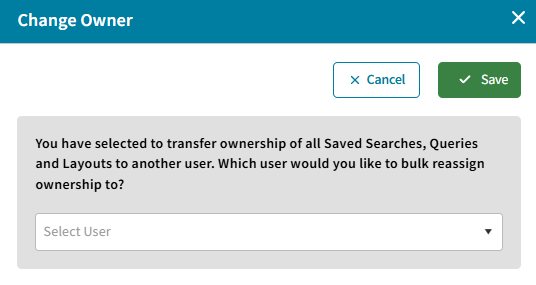
A Bulk Transfer option has been introduced to streamline the reassignment of user-owned items. Users with the Change Object Owner Permission can now transfer all Saved Searches, Queries, and Layouts from one user to another directly from the User screen. This option is available both when deleting a user and as a standalone action accessible from the top of the User screen. Bulk Transfer is an all-or-nothing action. If only specific items need to be reassigned, they must be transferred individually using the standard Change Ownership option. Additionally, if a user being deleted has items assigned to them, those items must be reassigned before the deletion can be finalized. To transfer ownership, select the 3 dots for the user you would like to all items for > Transfer All > Choose the user you would like to transfer ownership to > select Save.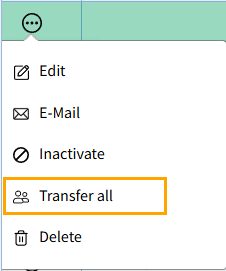
Update Visibility
As part of the Layout Visibility Enhancements, a Change Visibility option has been added to the ellipsis menu on the Saved Searches, Saved Queries, and Saved Layouts screens. Users with the appropriate permissions can use this option to change an item’s visibility from Private to Shared, or from Shared to Private.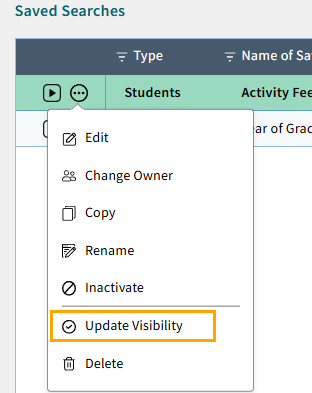
Password Requirement for User Settings and Users Module
To enhance overall security, additional authentication is now required when accessing certain sensitive areas within the system. When a user navigates to these areas, a pop-up prompt will require them to re-enter their Organization Manager password before proceeding. The two areas where users will be required to re-enter their password are User Settings, where users can update their password and two-factor authentication (2FA) options, as well as within the Users module, where user accounts can be created or modified.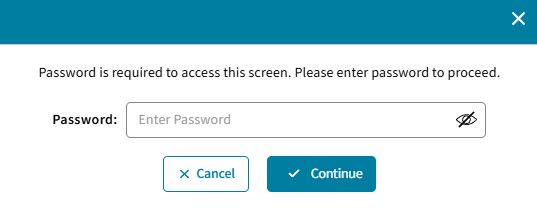
Rediker Unified Login (RUL): Direct Login from AdminPlus.com to Organization Manager
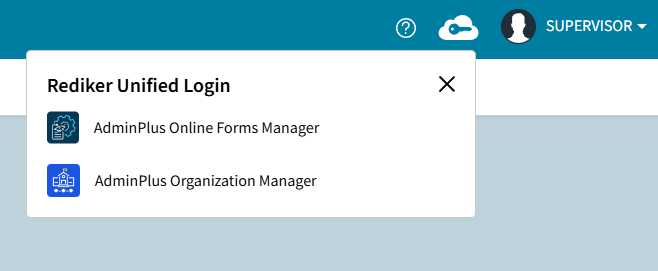
The necessary work has been completed for Users in schools that are part of an organization currently using the new AdminPlus Organization Manager so they will see AdminPlus Organization Manager under Rediker Unified Login while logged in to AdminPlus.com. Users with access can click on the link and AdminPlus Organization Manager will open in a new browser tab.
Improvements
Notifications for Inactive Collections, Schools, or Organization Years
When running a Saved Search, users will now be notified if the associated Collection, School, or ORM Year has been inactivated. Users can select Edit to update the search criteria before proceeding.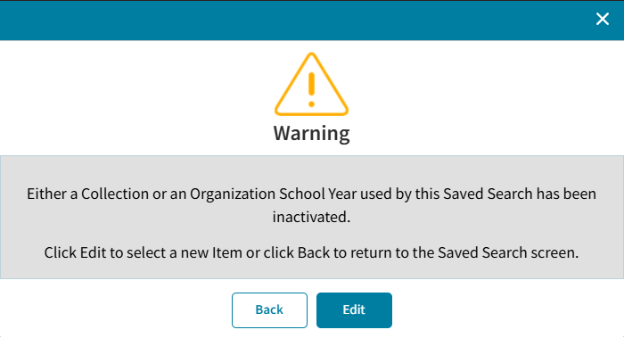
Field Type Mismatch Notification
If fields across selected Collections or Schools contain multiple data types, a Field Type Mismatch message will appear identifying the affected fields. When this occurs:
- All values will be treated as text.
- Users may choose to continue running the search.
Demographic Field Deletion Warning Popup
When removing a Demographic Field from Setup > Demographic Fields, a popup will now notify users if the field is currently used in any Saved Searches, Queries, or Layouts. Users may review the Usage Panel for details.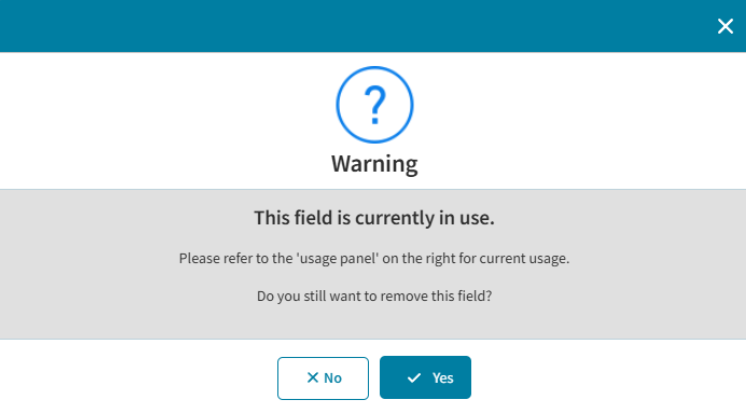
Grayed-Out Columns in Saved Search Results
If a Demographic Field is deleted but still exists in a Saved Search layout. The column will be grayed out, but will remain visible. No data will be displayed in the column anymore.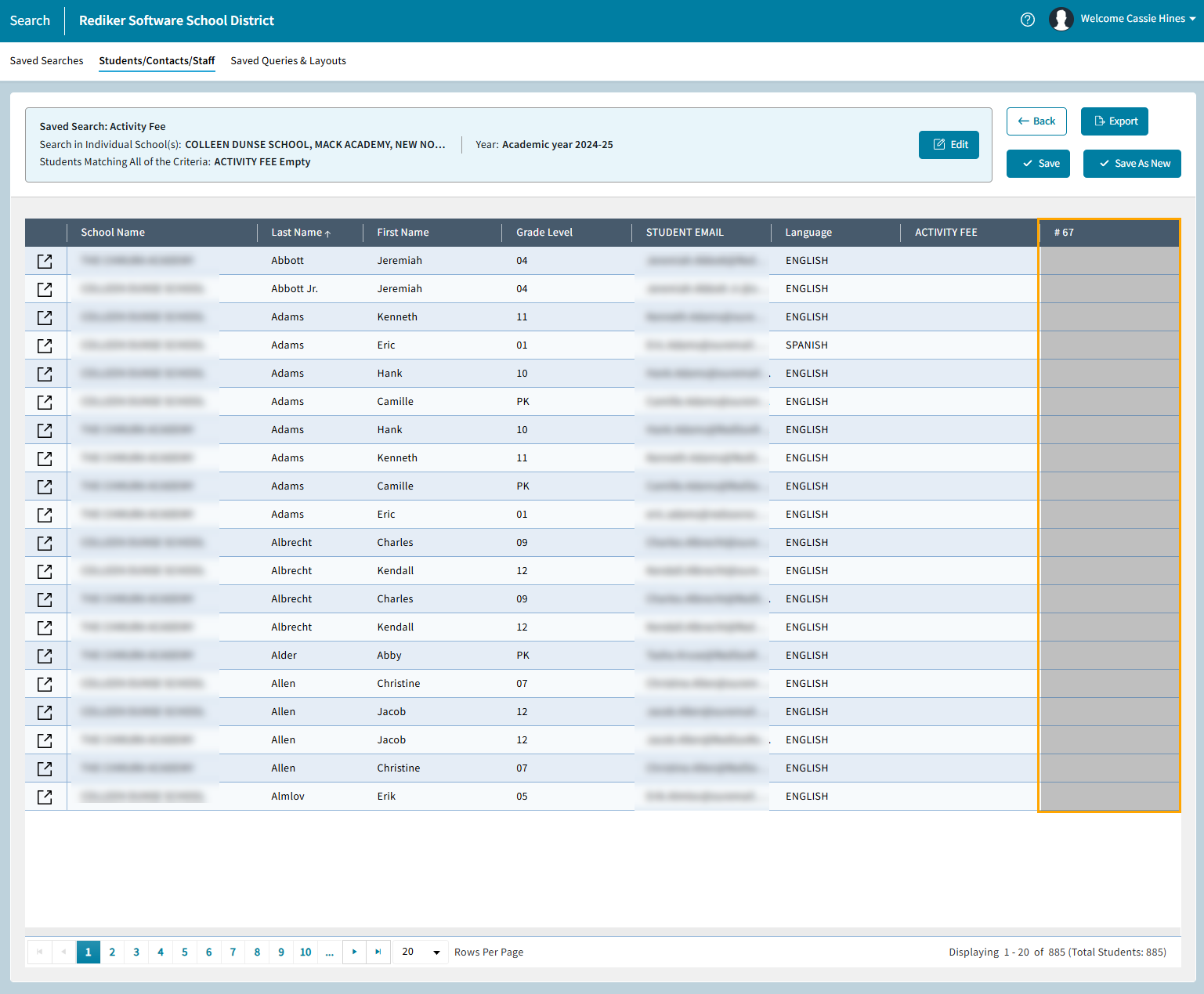
Deleted Fields in Saved Searches
If a Saved Query contains a deleted Demographic Field, or a field that is no longer marked as Searchable:
- Users will be notified when executing the Saved Search.
- The Query must be edited to remove the field before the search can run.
When running from Advanced Search, if a selected Query or Layout includes a deleted field:
- The Search button will be disabled.
- The affected field will be highlighted.
- A message will indicate that the highlighted field must be removed.
- If previously marked as Searchable and later removed, the deleted Field will no longer be available to select in a Query or a Layout.
Show Demographic Field Change
A new checkbox on the Saved Queries and Layouts screen allows users to filter items that contain removed Demographic Fields. These items will display in a different color for easier identification.
Rows Per Page Selector Updated
The default value of the Rows per Page selector was previously 10. This has been updated to default to 20.