
Manage Study Halls
The School > Schedule > Manage Study Halls tile displays the number of Study Halls.
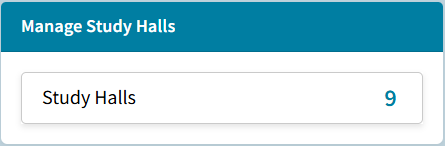
Study Hall List
Click the number of Study Halls to see the Study Hall table.
The table can be sorted by clicking on the column header or filtered by clicking the filter icon.
Send to Excel to export the filtered list with all columns.
Print includes the filtered list with all columns.
Add New Study Hall requires all rights to Scheduling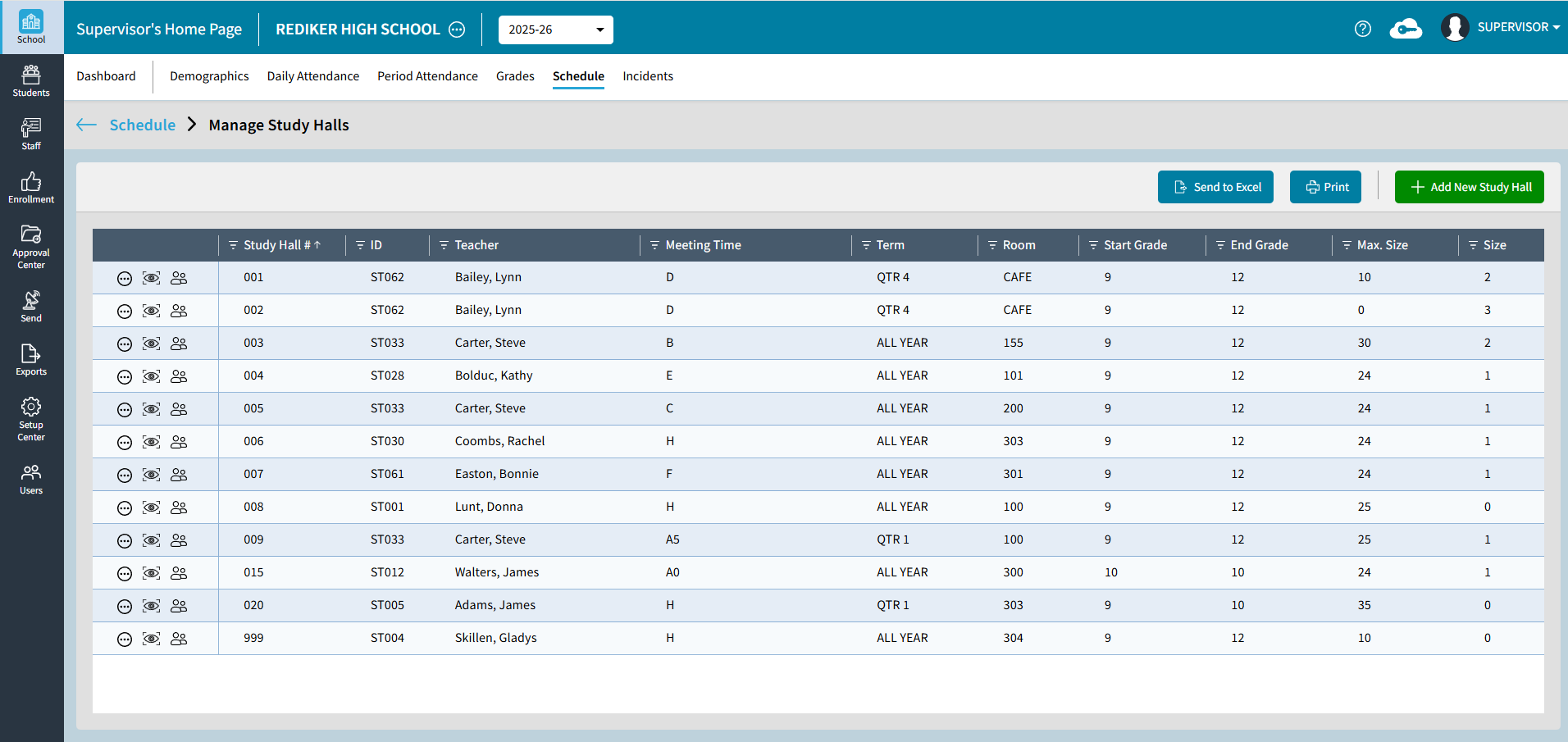
The following actions are available for individual Study Halls.
 ellipsis icon to Edit or Unschedule a Study Hall
 view icon to View Study Hall information that can be Printed.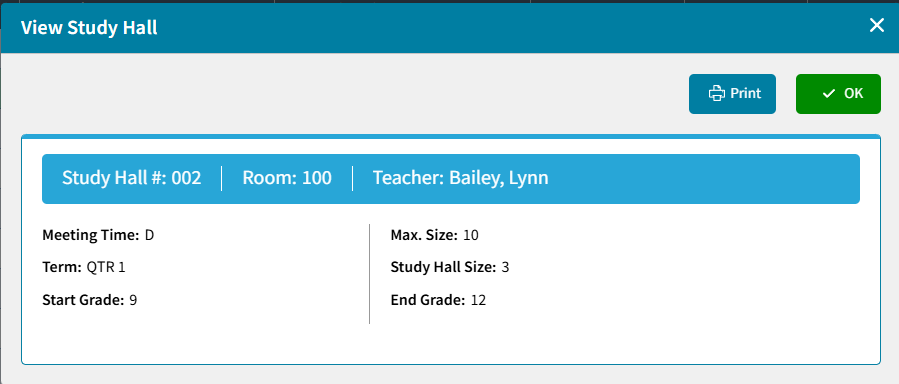
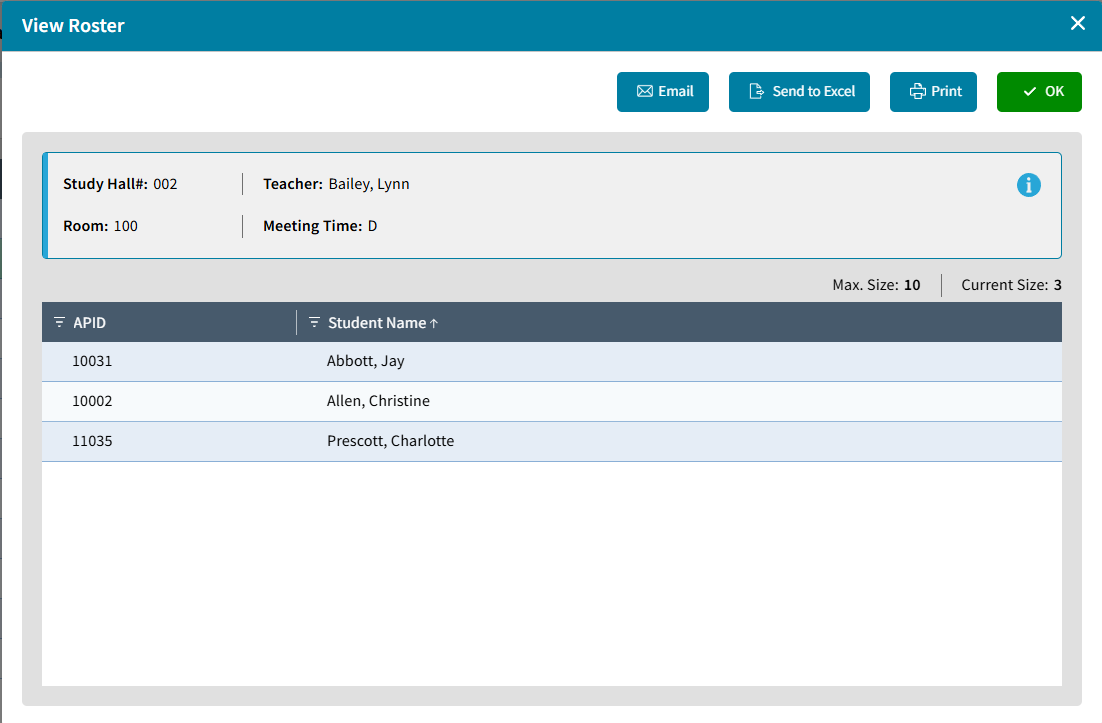
 roster icon to view, Email, Send to Excel, or Print the Study Hall Roster.
Add New Study Hall
Select Add New Study Hall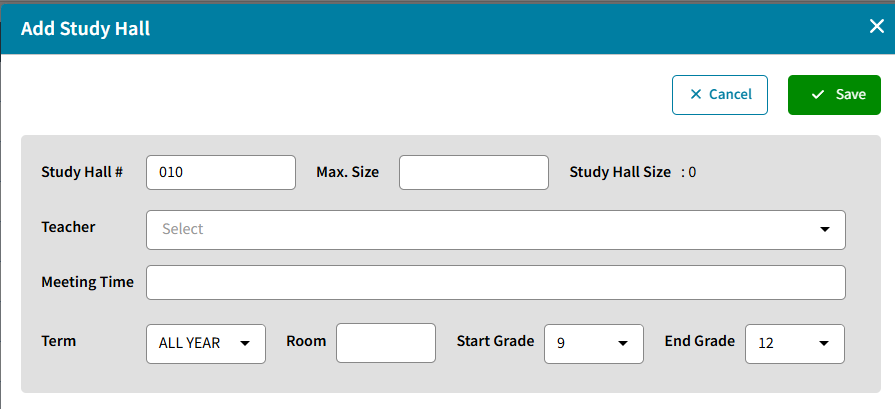
- Study Hall #: On default, the next study hall number is entered, however, you can choose to enter another section number. Section numbers are three-digit including leading zeroes.
- Max. Size:
- Teacher: Manually type the Teacher Name or Staff ID and select from the dropdown.
- Meeting Time: Enter an alphanumeric Meeting Time. Letters from A-X can be used to indicate a meeting time that meets every day. A letter followed by numbers 0-9 indicates a meeting time that meets on specific days.
- Term: select the Term the Study Hall will meet.
- Room: enter the room the Study Hall will meet.
- Start Grade / End Grade: Select which grades can be added to this Study Hall.
- Click Save to Save the newly added Study Hall.