
Overview
Both the Receive Attendance tile on the School: Daily Attendance screen and the Receive Attendance screen, display the same information contained in the Approval Center. The tile displays numbers of gradebook homerooms or sections for the day's attendance date.
NOTE: Only schools that use Rediker's TeacherPlus Gradebooks and require teachers to submit daily attendance from their gradebooks, will use this feature. This feature is not for importing attendance data from another platform or for entering attendance entries.
Receive Attendance Tile
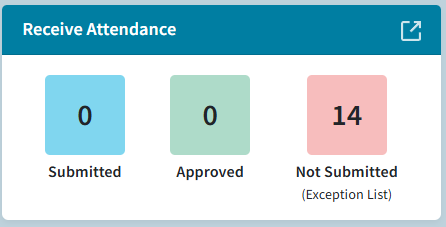
The typical process for Daily Attendance includes teachers submitting their attendance marks from their gradebook(s) for approval and reception by the office into AdminPlus. The Receive Attendance tile (School > Daily Attendance) actively displays the number of sections that have been Submitted, Approved, and Not Submitted (Exception List) for the Date and Submitted from the Homeroom or Period.
NOTE: No special manual sync is necessary, the data is live from the gradebooks.
Clicking on the number displayed will navigate you to the Receive Attendance screen. Also, clicking on the Navigate button (upper right corner) will take you to the same Receive Attendance screen.
Fig 1: Receive Attendance Tile
No Data Displayed
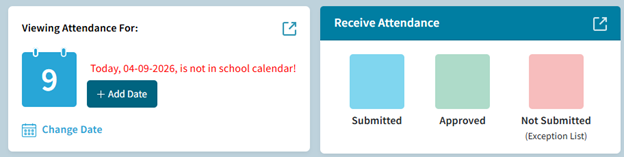
The displayed number of Submitted, Approved, and Not Submitted sections of attendance data is only available when viewing a day on the school calendar. If no data appears in the Receive Attendance tile, then you have likely not created today as a date in the school calendar. This would be indicated in the Viewing Attendance For tile.
Fig 2: Receive Attendance Tile – No Data Displayed
Not Submitted
The initially displayed number of Not Submitted sections is based on the Receive Daily Attendance From? which is a setting found on the Receive Attendance screen. If the number showing does not seem correct, please review the Receive Daily Attendance From? setting as well as your Homeroom Database field and or Section Meeting times.
Fig 3: Receive Attendance Tile – Not Submitted

Receive Attendance Screen
On the Receive Attendance screen, you will see the active date, receive settings, and tabs for the sections of attendance data from the teacher gradebooks (Submitted, Not Submitted, Approved).
Fig 4: Receive Attendance Screen
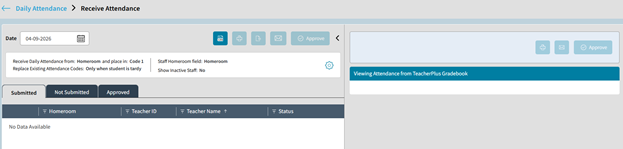
NOTE: During the process of receiving attendance from teachers you may come to this screen multiple times, and sections will move from Not Submitted to Submitted then on to Approved, as this process unfolds over the course of your school day. By selecting a section on the left, you will see any attendance entries made by that teacher on the right.
IMPORTANT: You cannot Approve (Receive) attendance data from Not Submitted sections. While you can select and view the marks made (if any) in that Not Submitted section, a teacher is required to click submit to receive the data.
Receive Date
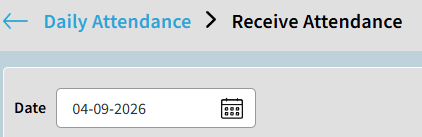
In the upper right corner of the Receive Attendance screen, the currently active date will be displayed with a calendar icon. This will also match and be the same date as is selected and displayed on the Daily Attendance screen in the Viewing Attendance For tile. You can click anywhere in the date box to change the active date you are viewing.
Fig 5: Receive Attendance Screen – Receive Date
NOTE: If you need to retroactively receive missed or re-submitted data from sections, you can do it on this screen by changing to a previous day. For example, several teachers forgot to submit attendance yesterday and have since submitted the attendance data. Changing the date to yesterday's date would allow you to then review, approve, and receive the now submitted sections.
Daily Attendance Settings
Under the active date will be displayed the receive settings. Please take note of these settings as they will impact the data you receive.
Fig 6: Receive Attendance Screen – Daily Attendance Settings

NOTE: See separate article for full breakdown of the Receive Daily Attendance Settings
Section Tabs
Displays the Submitted, Not Submitted, and Approved attendance. Depending on whether teachers have submitted or not submitted attendance for the selected date, will cause sections to show under either the Submitted or Not Submitted tabs.
IMPORTANT: That these tabs are referencing the Receive Daily Attendance From setting, it is imperative that teachers mark and submit their attendance from the proper gradebook. For example, if the setting for Receive Daily Attendance From is set to Homeroom, and a teacher submits from another Gradebook like period A, it will not show as submitted.
Fig 7: Receive Attendance Screen – Section Tabs

Submitted
Displays the Homerooms or Sections for which the teacher has submitted their Daily Attendance marks. This tab can be used to review and Approve teacher attendance submissions. This tab will also display any Resubmitted Attendance marks. If a teacher changes and resubmits their attendance after the office has already Approved it, the section will be moved from Approved back to Submitted displaying with a status of Resubmitted.
Not Submitted
Displays the Homerooms or Section for which the teacher has NOT submitted their Daily Attendance marks. These are sections that the system is expecting to receive Daily Attendance from, but the teacher did NOT click submit. You may select a Not Submitted section and preview marks a teacher has made in that gradebook, however, you cannot approve attendance from a Not Submitted gradebook.
Approved
Displays the Homerooms or Sections for which the office has already approved the submitted attendance. You can select and review any of the already submitted attendance marks.
Approving Submitted Attendance
The process of approving attendance may vary by school. In general, the process includes:
- Teachers making marks and submitting from Gradebooks
- Office reviews submitted/not submitted marks in AdminPlus
- Office Approves submissions
- Office Edits attendance as needed
Teacher Gradebooks
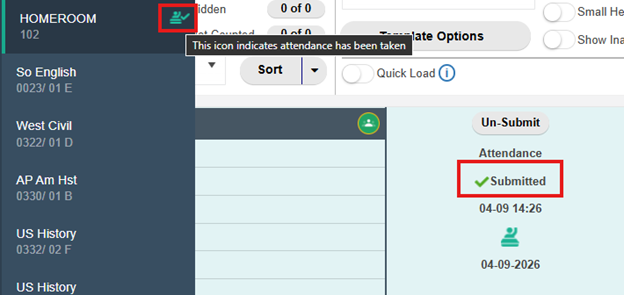
Initially all homerooms or sections of attendance data will appear under either Submitted or Not Submitted based on whether the teacher has clicked Submit in the appropriate Gradebook for the day's attendance. In the teacher's gradebook the displayed attendance column would show as Submitted as well as an icon in the Gradebooks menu to indicate attendance has been taken and submitted.
Fig 8: Approving Submitted Attendance – Teacher Gradebooks
Receive Attendance Tile
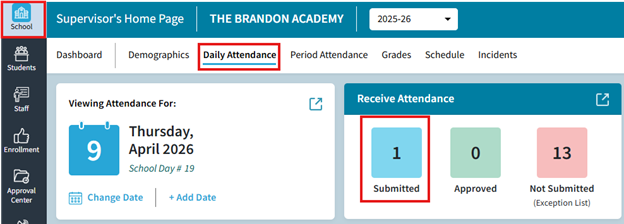
In AdminPlus, the Submitted attendance should be indicated on the Receive Attendance tile on the Daily Attendance screen (under School). Click on the number or the navigate button to open the Receive Attendance Screen.
Fig 9: Approving Submitted Attendance – Receive Attendance Tile
Receive Attendance Screen
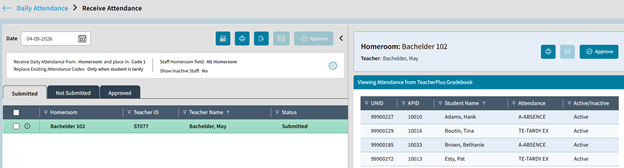
On the Receive Attendance screen the submitted attendance is displayed under the Submitted tab. The first submission should be selected already. Submitted attendance displays the Homeroom or Section (depending on Receive From setting), Teacher ID and Name along with Status.
Fig 10: Approving Submitted Attendance – Receive Attendance Screen
Approving Individual Homerooms/Sections
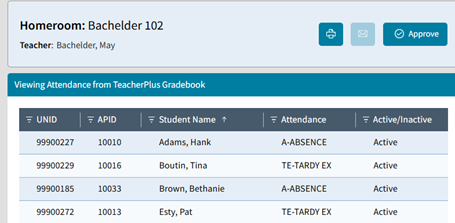
On the right-hand side of the Receive Attendance screen, the currently selected Homeroom or Section will display the submitted attendance marks (if any) from the gradebook.
On that right hand side, you can click the Approve button to approve the submitted teacher Homeroom or Section. This allows you to individually review and approve Homerooms or Sections.
Fig 11: Approving Submitted Attendance – Approving Individual Homerooms/Sections
Approving Multiple Homerooms/Sections
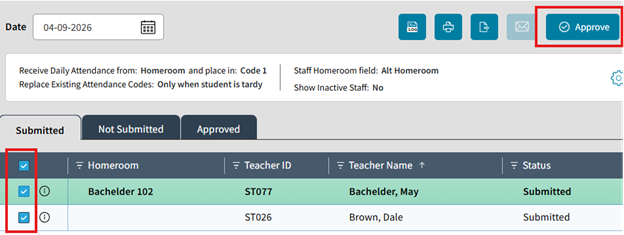
On the left side of the Receive Attendance screen on the Submitted tab you can use the checkboxes to select multiple Homerooms/Sections you wish to approve or use the top check mark in the column header to select all. Then click the Approve Button to approve all selected Homerooms or Sections at once.
Fig 12: Approving Submitted Attendance – Approving Multiple Homerooms/Sections
NOTE: Please note that once you have Approved a Submitted Homeroom or Section there is no way to un-approve it. Teachers may choose to re-submit from their gradebooks, or you may review and manually edit marks on the Enter Student Daily Attendance screen. When teacher re-submits their gradebook attendance, it moves the homeroom or section from the Approved to the Submitted tab with a status of Resubmitted, the Receive Attendance tile will also display this as a number under the Submitted totals.
Edit Student Attendance
Once you have Approved the submitted attendance from your teacher's gradebooks, those received marks will appear on the Enter Student Daily Attendance screen (accessed from School > Daily Attendance > Edit Student Attendance tile) for you to review and edit. Depending on your school's policies and procedures you may find yourself accessing the Receive Daily Attendance and the Enter Daily Attendance screens multiple times each day. You can also add any marks for students that teacher may have missed.
Fig 13: Approving Submitted Attendance – Edit Student Attendance

NOTE: Marks added to or updated on the Enter Student Daily Attendance screen of AdminPlus can be displayed to teachers in the Office Daily column (if enabled)