
The Enter Student Daily Attendance screen can be used to edit existing attendance entries or add a new entry. You can also access the Batch and Quick Entry options from this screen. You may also delete entries for the currently viewed date.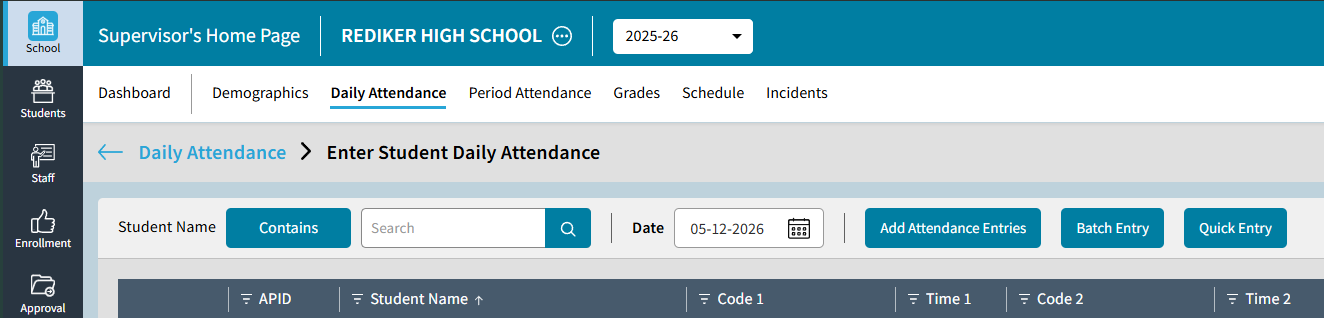
If you need to correct attendance entries from a previous date it can be done on this screen. Simply click on the Date (upper left) and choose a previous day. The entries appearing will be the attendance marks from the date chosen. You can then edit or delete attendance entries as needed.
Daily Attendance: Enter Students Daily Attendance
Edit Attendance
The steps are the same for both Students and Staff. Please note that before editing Student Attendance for today, you first need to have created the day on your calendar. For more information, please see how to Add a Day to the Calendar.
- On the Daily Attendance Screen (under School) in the Edit Student Attendance tile, click the navigate icon
 to navigate to the Enter Student Daily Attendance screen.
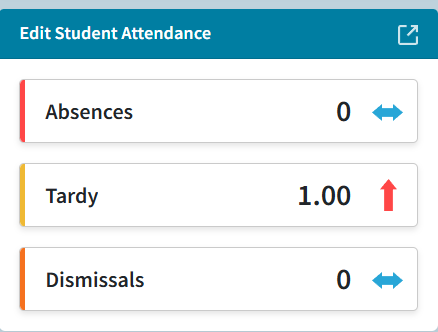 Please note, that if you have not created today on the calendar the Edit Student Attendance tile will be blank (no numbers) and a popup indicating that today is not in the calendar will appear.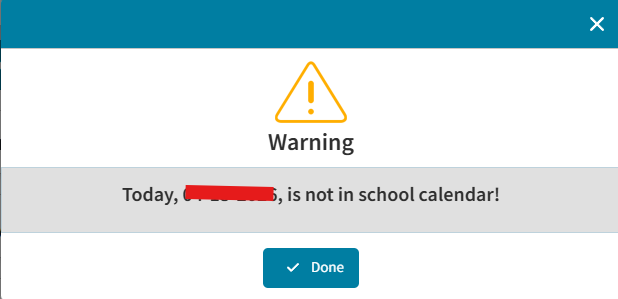
- On Enter Student Daily Attendance screen you will see any attendance previously entered or received from the TeacherPlus Gradebooks. If no attendance marks have been entered for the active date, it will be empty.
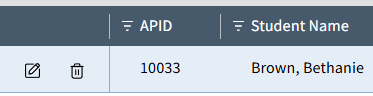
- To Edit an existing entry on the screen, select the Edit Icon on the far left (in front of the Student entry), and an Edit window will appear allowing you to change the Attendance Code(s) and edit the Comments. Reference diagram and notes below.
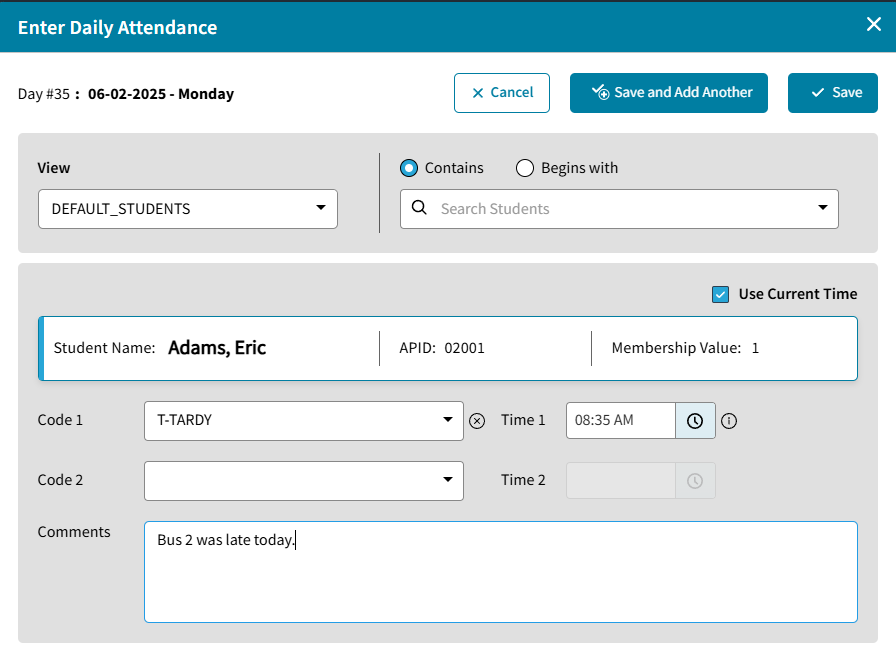
- To Add a new Attendance entry, click the Add Attendance Entries button. This will allow you search for a student, enter the Attendance code(s), and add a comment. See diagram and notes below. If you need to enter another student. Choose Save and Add Another.

For Batch and Quick Entry see related articles
School: Daily Attendance Batch Entry
School: Daily Attendance Quick Entry
Diagram and Notes
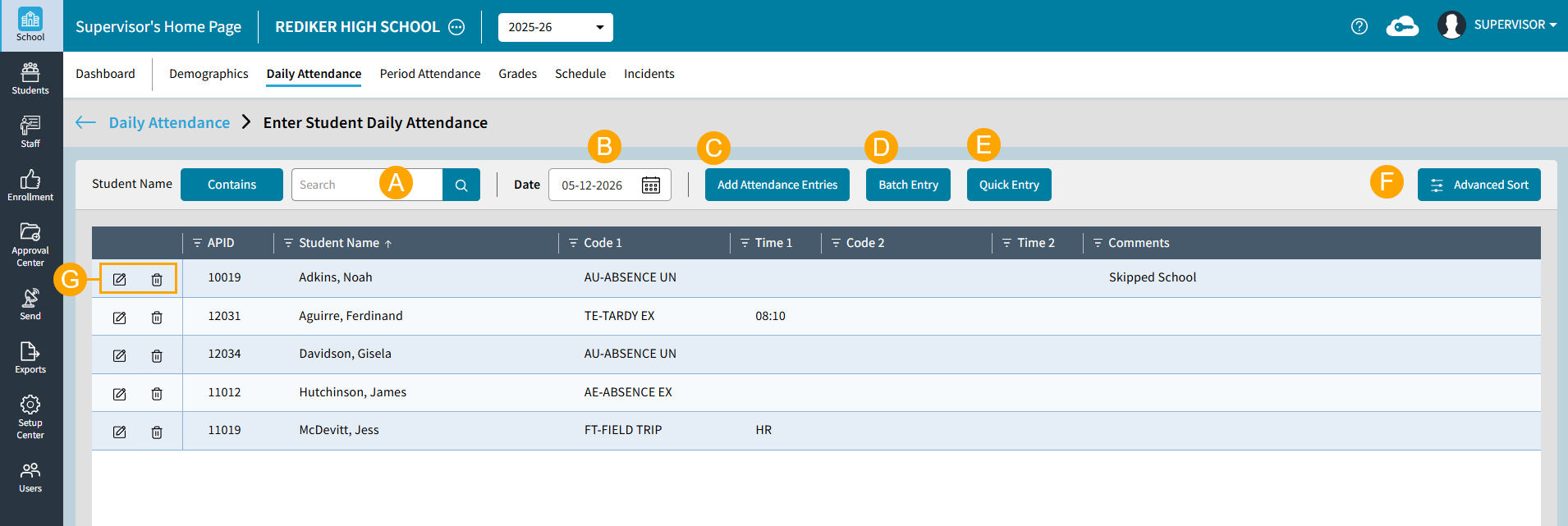
See the Diagram and Table below for more information on Editing or Adding a new attendance entry.
| Edit Student Daily Attendance | |
|---|---|
A | Click on a column header to choose which column to search on. On default, APID is selected. Click in the Search Box to search for data in the selected column |
B | Click in the Date box to select change to a past date in the calendar. This will allow you to view past attendance entries, as well as add or update existing attendance entries. |
C |
|
D | Select Batch Entry to batch enter attendance data for students. See Batch Entry for more information. |
E | Quick Entry allows you to enter attendance by Student Name or Student ID. The same code and time will be entered for each student added.
To update the code and time entered for each student, select the gear icon |
F | Select Advanced Sort to select up to 3 levels of sort from the options for Grade, Code and Name.
|
G | To edit an existing entry, select Edit To delete and existing entry, select Delete |

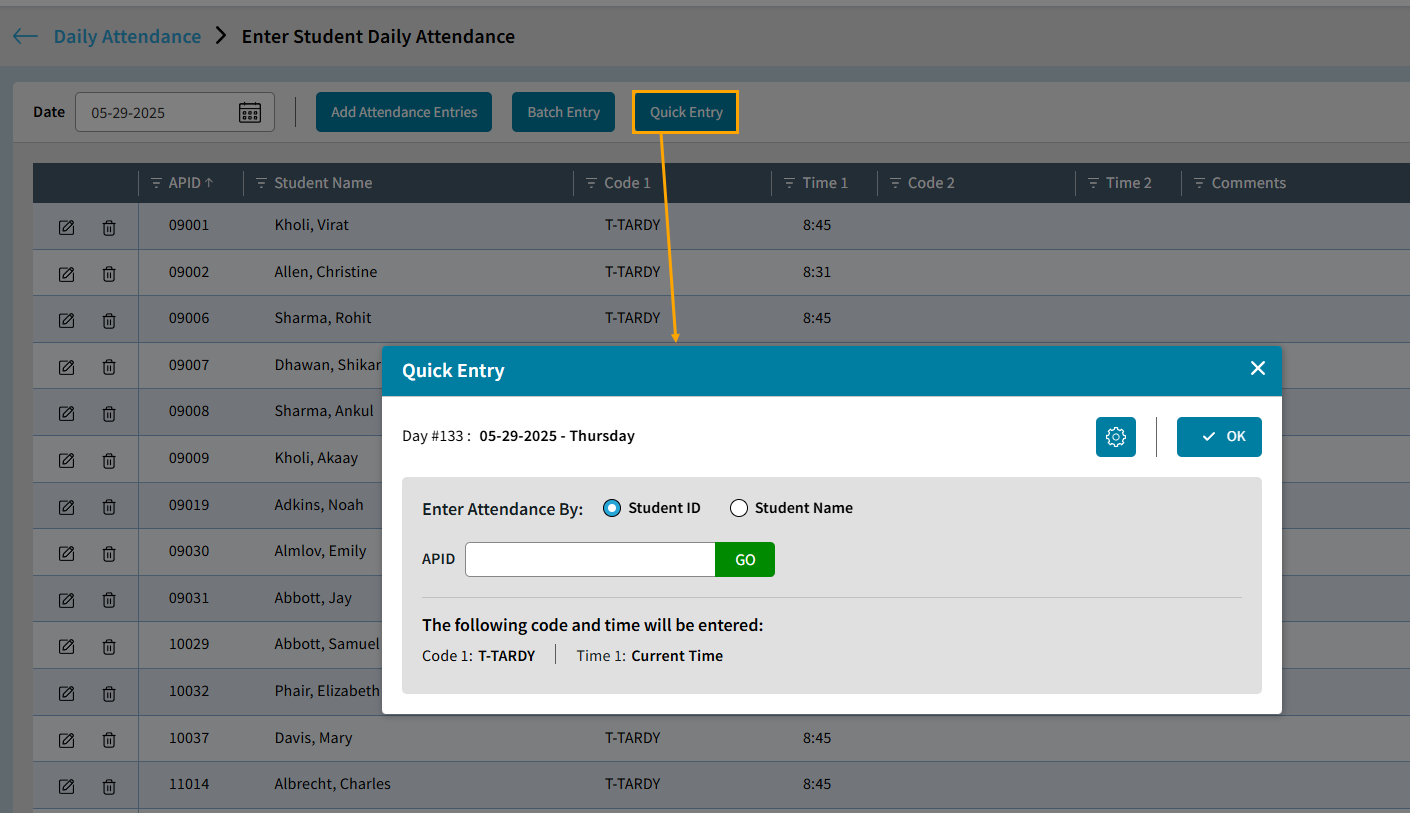
 . The Student Daily Attendance Settings window will open. The Attendance Code, type of Student ID can and Tardy Slip Settings be updated.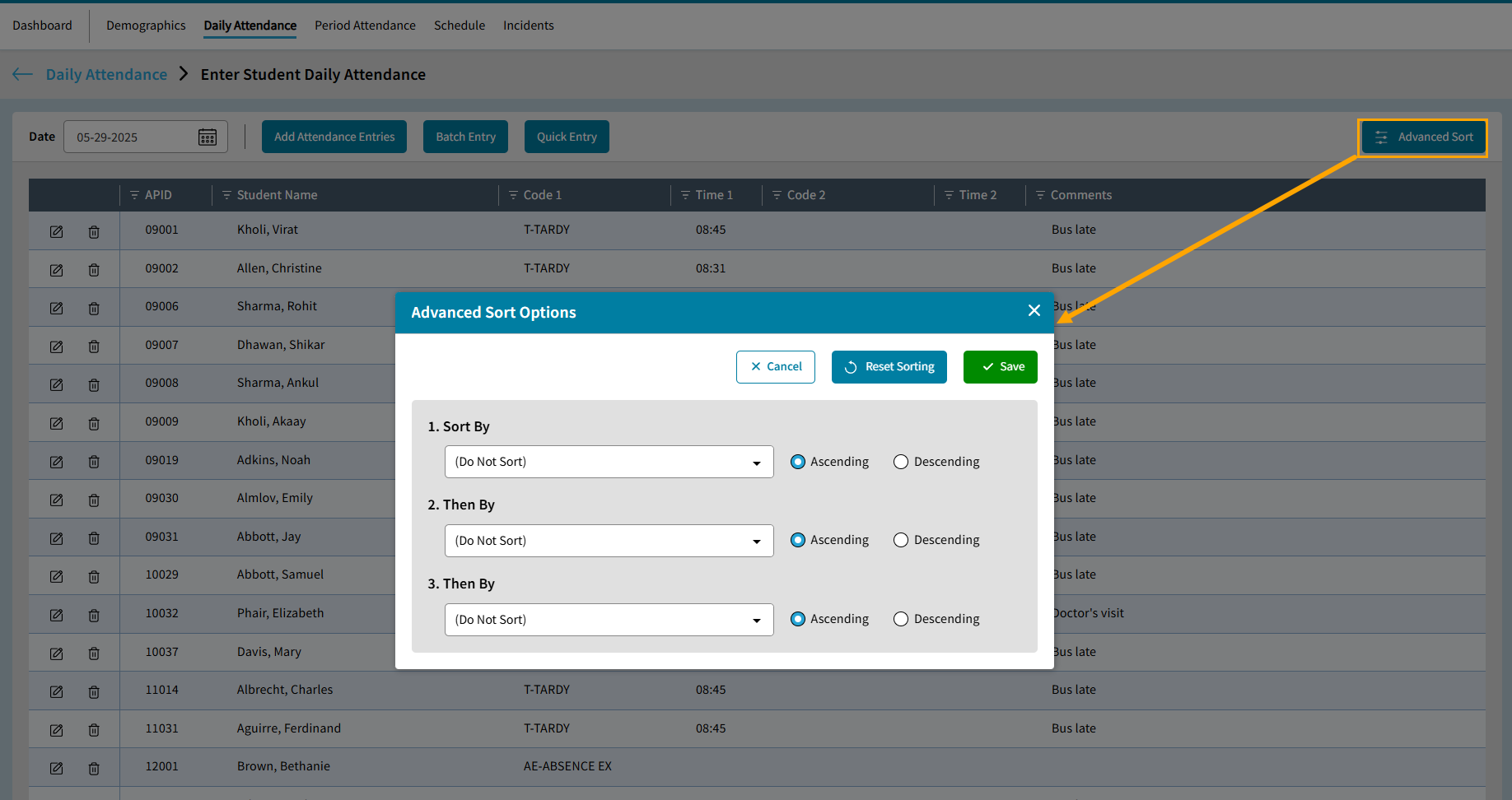
 . The Edit Daily Attendance window opens. Here you can select a new code in Code 1, add an additional code in Code 2, and update the comments. To save your changes click Save.
 .
.