
Generic E-mail is used to send the same email to all selected recipients, such as a newsletter. To send a Generic E-Mail, do the following:
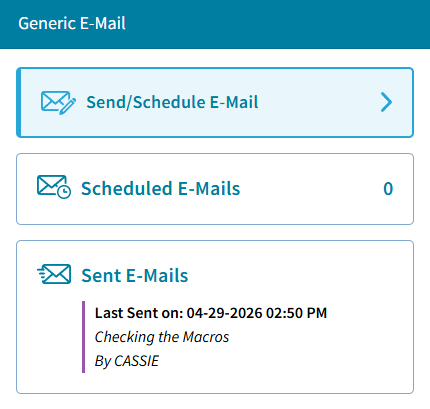
- Select Send/Schedule E-Mail:
- The Compose E-Mail window opens:
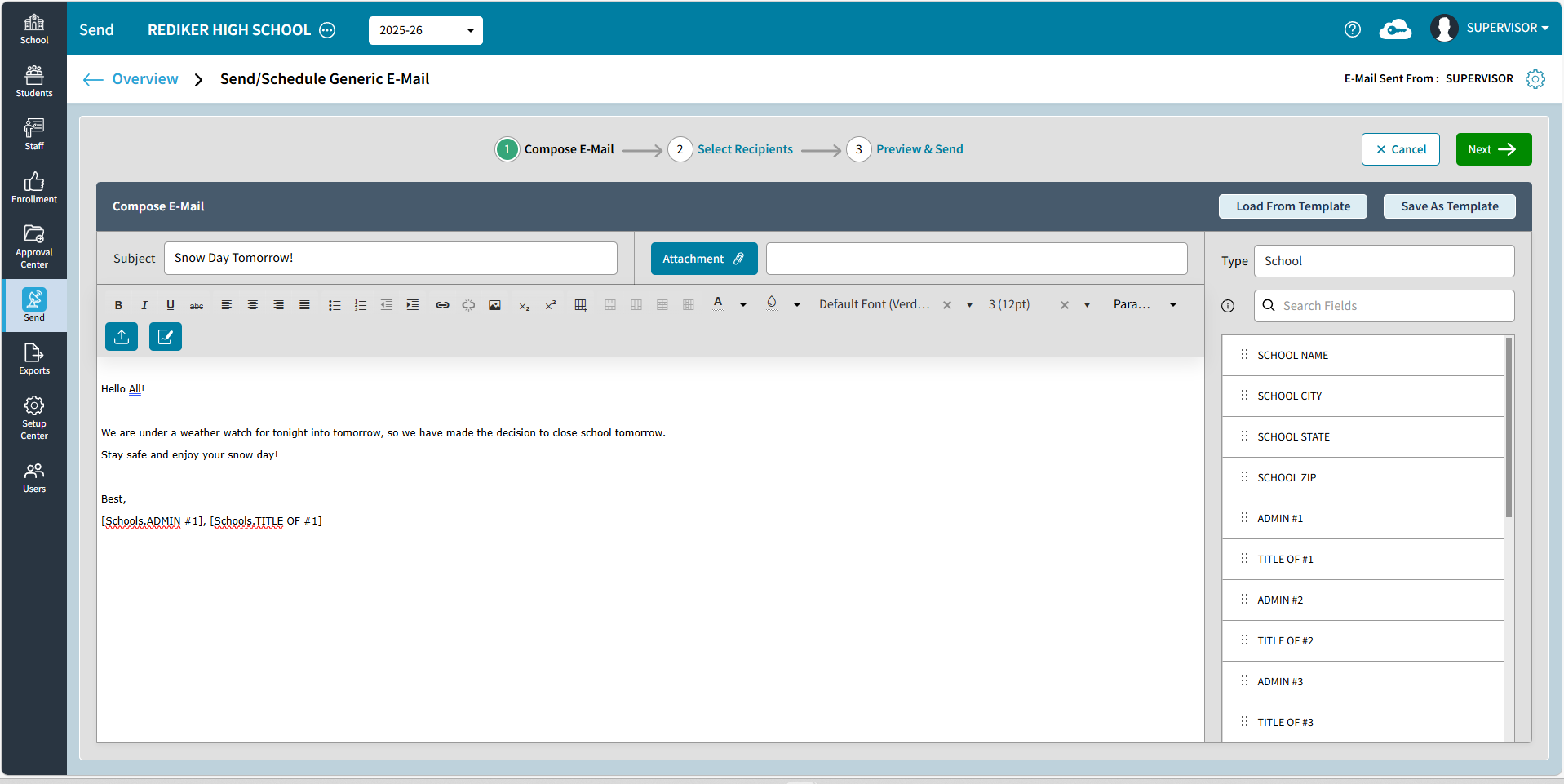
- Enter in a Subject.
- Select Attachment to add a newsletter or another file.
This is limited to 50 MB or less. If you attach a file larger than that, the following message will display:

- Enter in any text to the body of the email. This is customizable:

- Text can be edited
- Links and Tables can be inserted
- Select
 to upload an image
 - Select
 to Insert Signature
For more information about creating an E-Mail Signature, see Send: Add Signature Block in E-Mail Settings .
- To add School Info fields to the email, you can drag and drop them into the email.
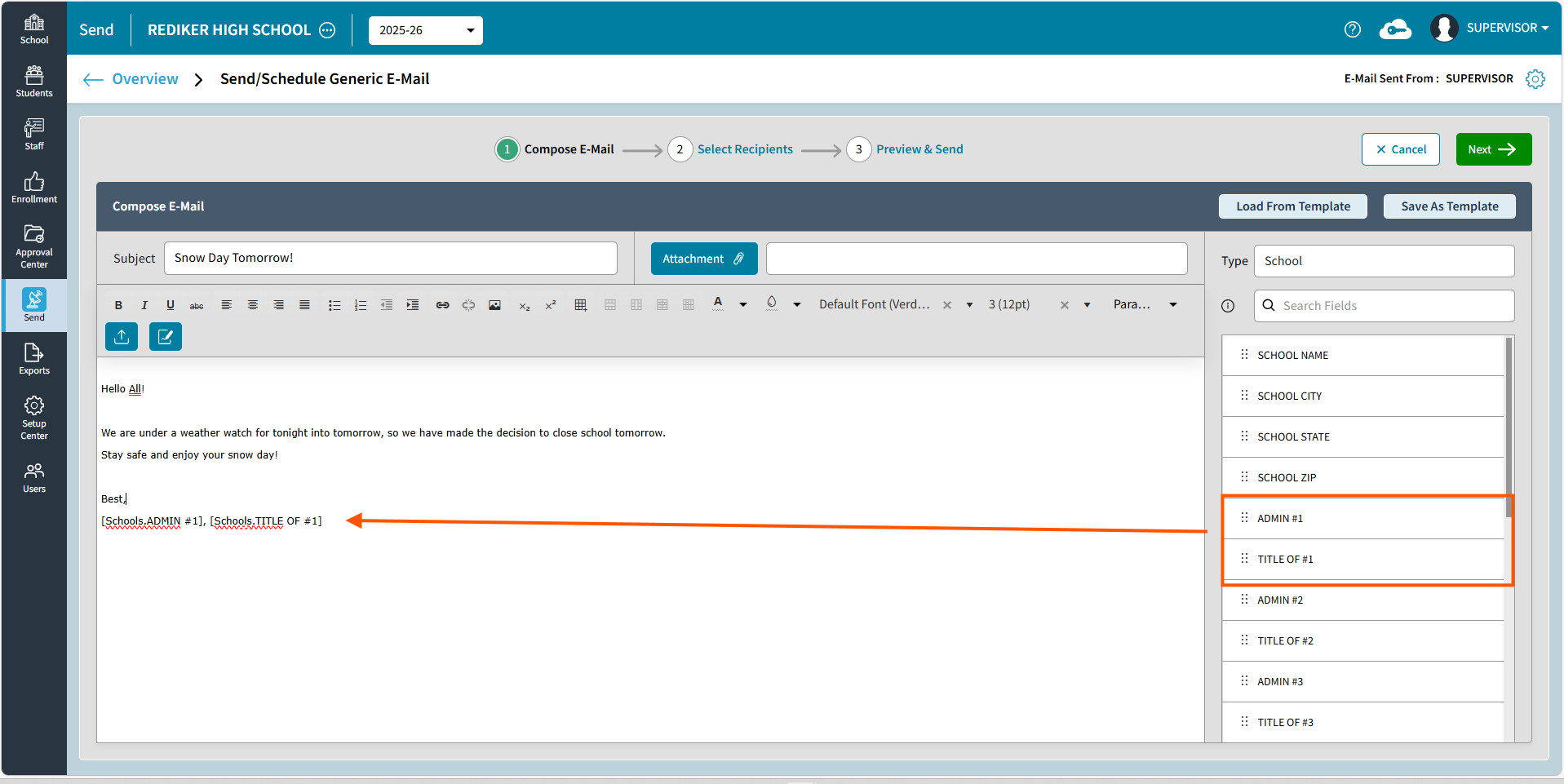
- Once the e-mail is all set up, you can choose
 if you would like to use this again for a future e-mail. When selected, the Save Template window opens. Enter a name and click Save.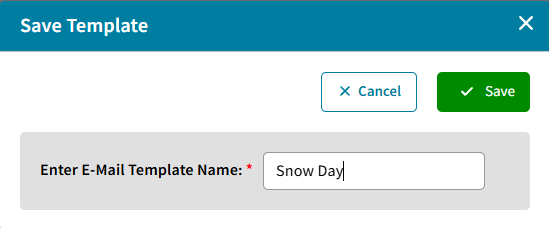
- Click Next to Select Recipients
- Students and Contacts: Click+ Select to select students by Saved Views, Grade Levels, DB Field(s), Individual Students.
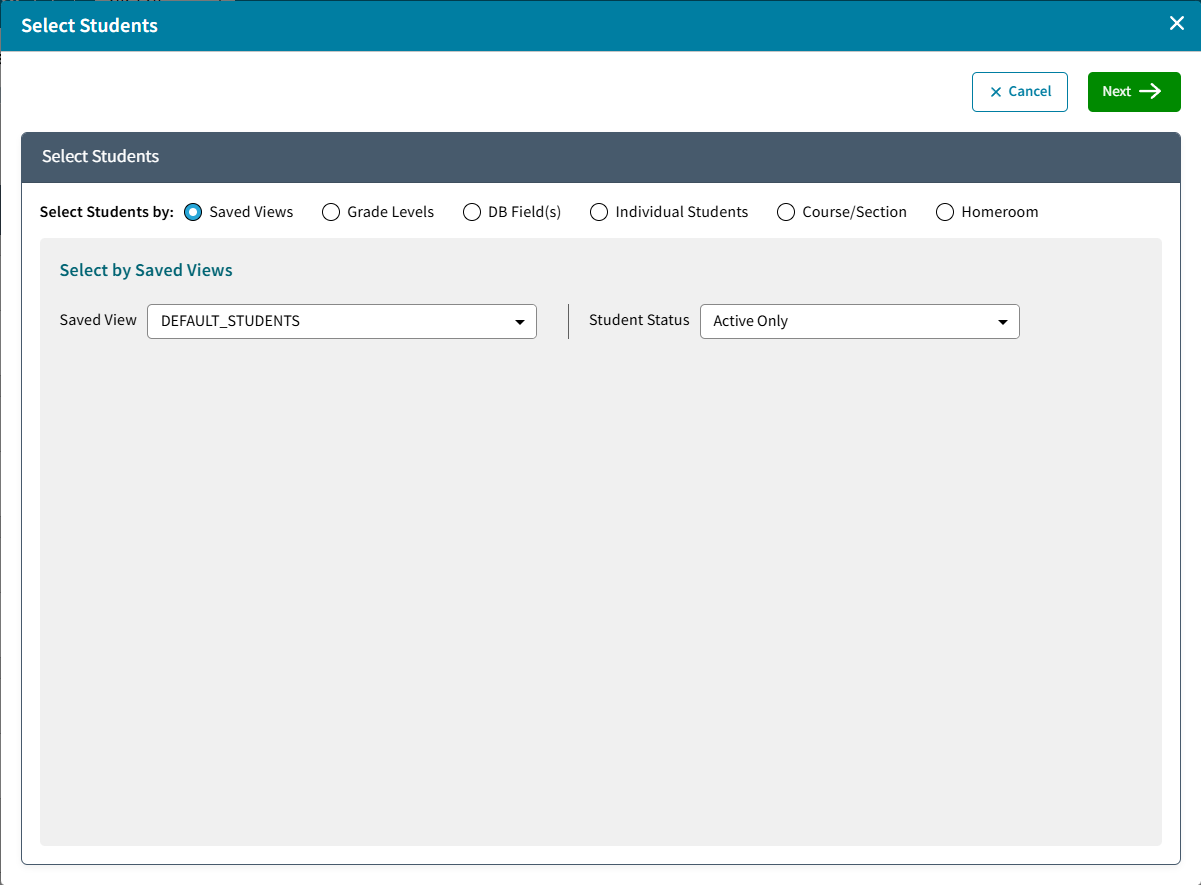
Click Next to choose Contacts, Which Contacts and select Students if a separate email should be sent to the student. Done will return to the Select Recipients screen.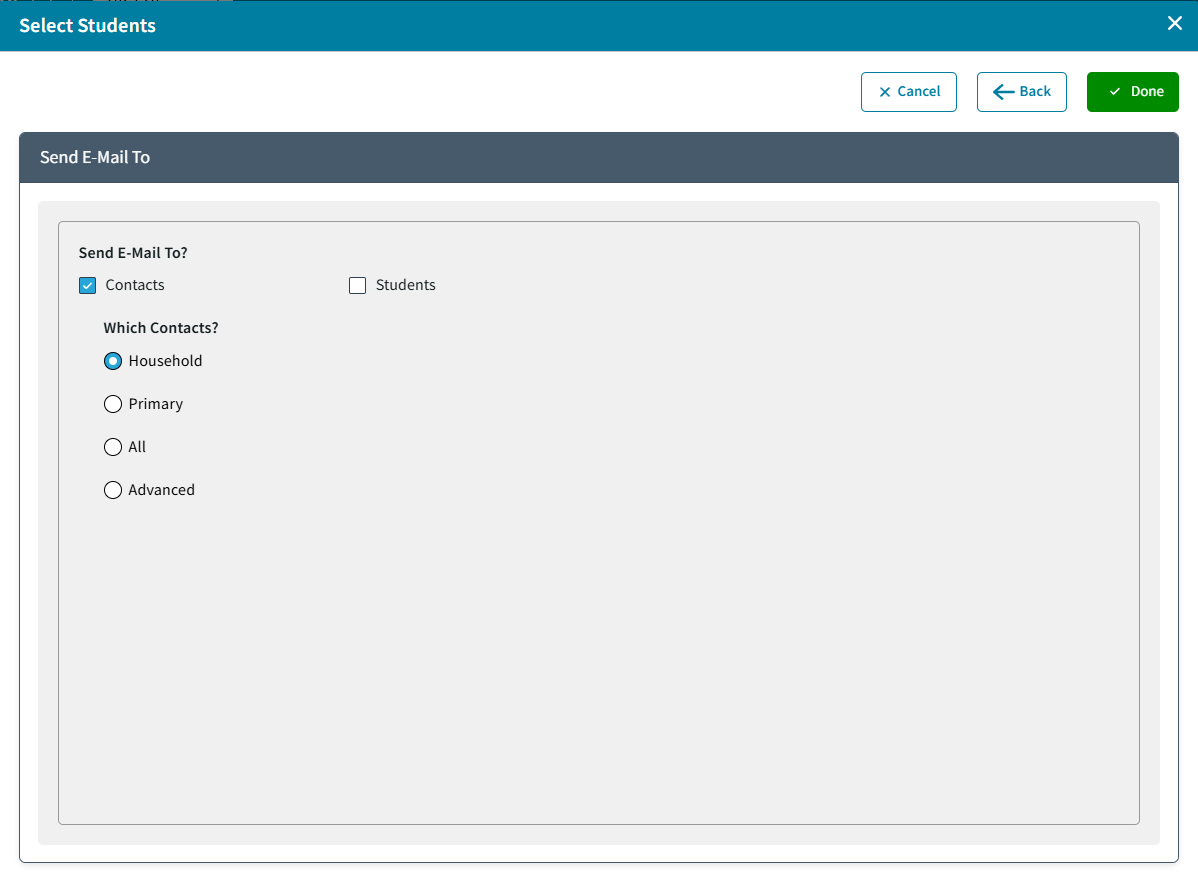
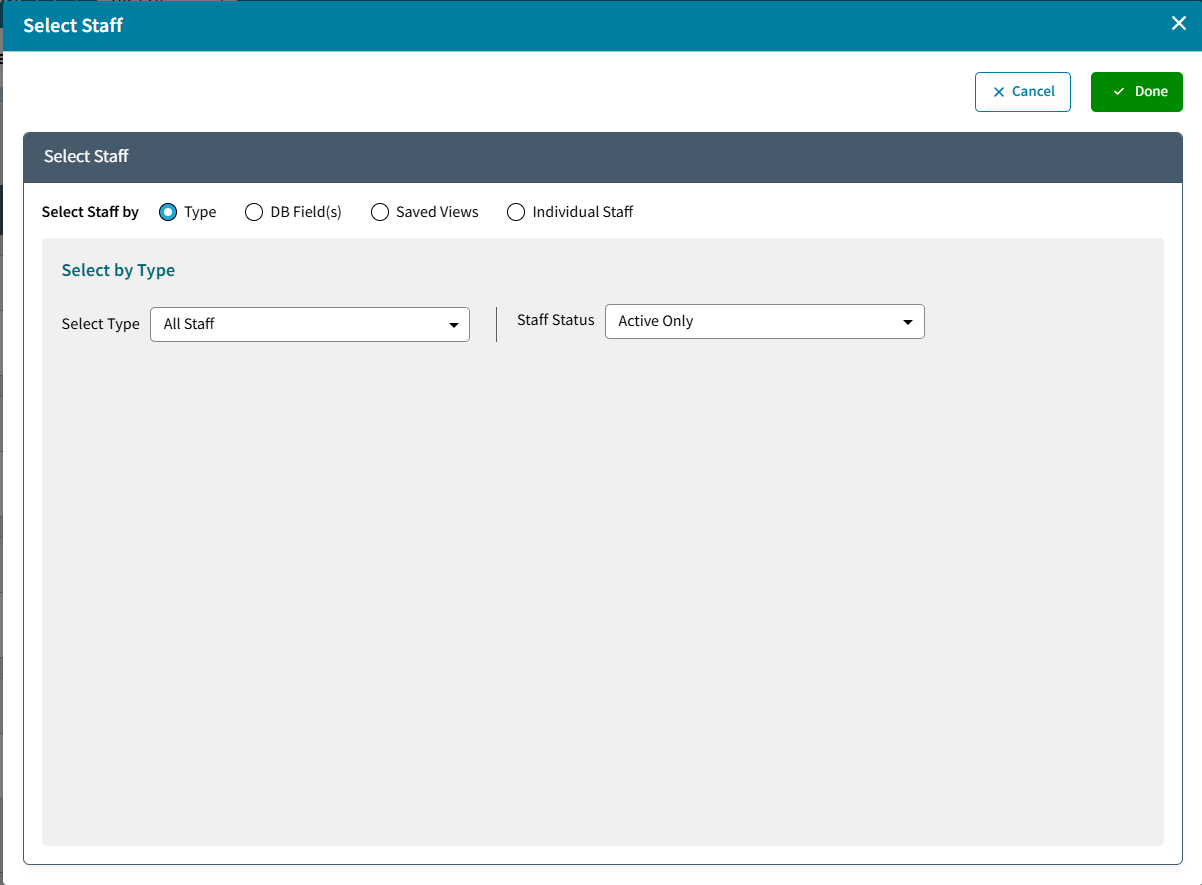
- Staff: Click + Select to choose staff by Type, DB Field(s), Saved Views, or Individual Staff
- Admin Users: Click +Select to choose individual AdminPlus Users.
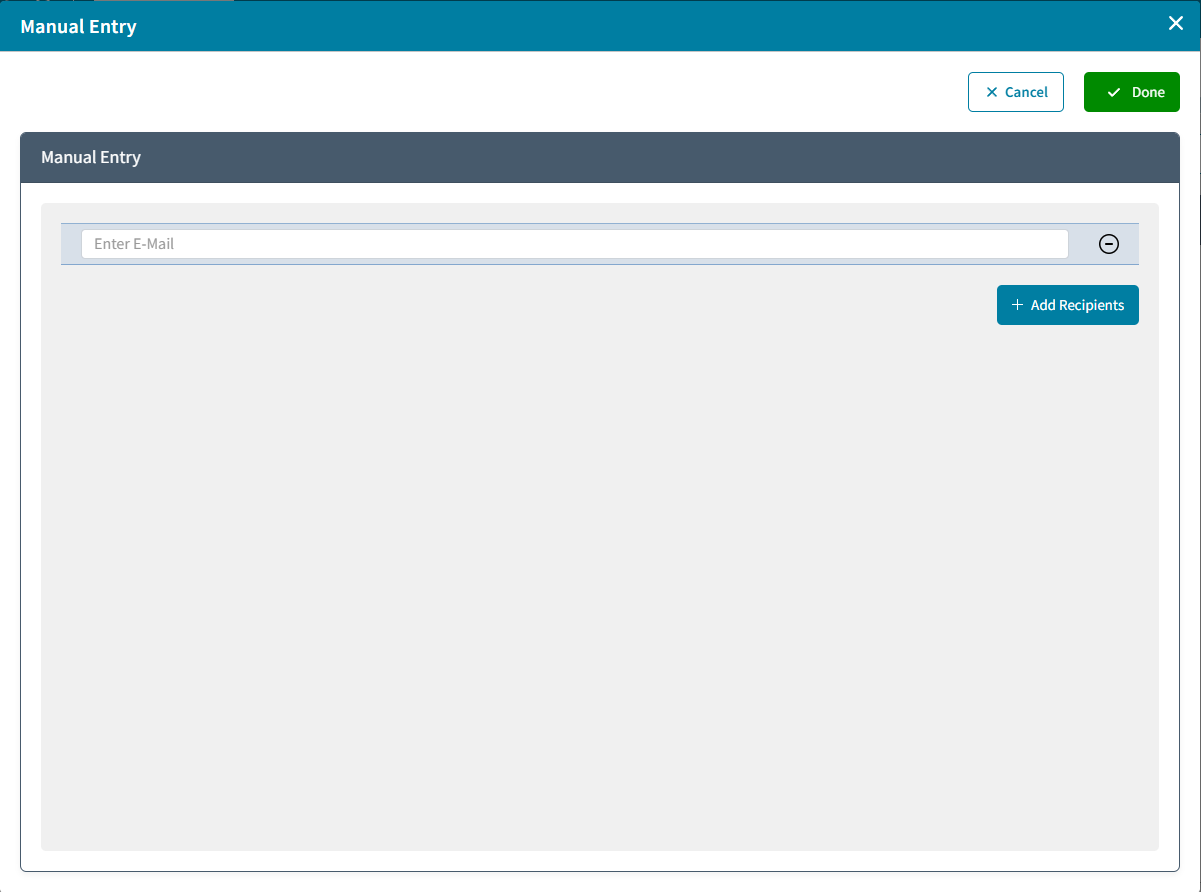
- Manual Entry: Click +Select to Add Recipient emails manually
- Students and Contacts: Click+ Select to select students by Saved Views, Grade Levels, DB Field(s), Individual Students.
- Review the Select Recipients Overview. Use Edit to change the selection or Remove to remove that group entirely.
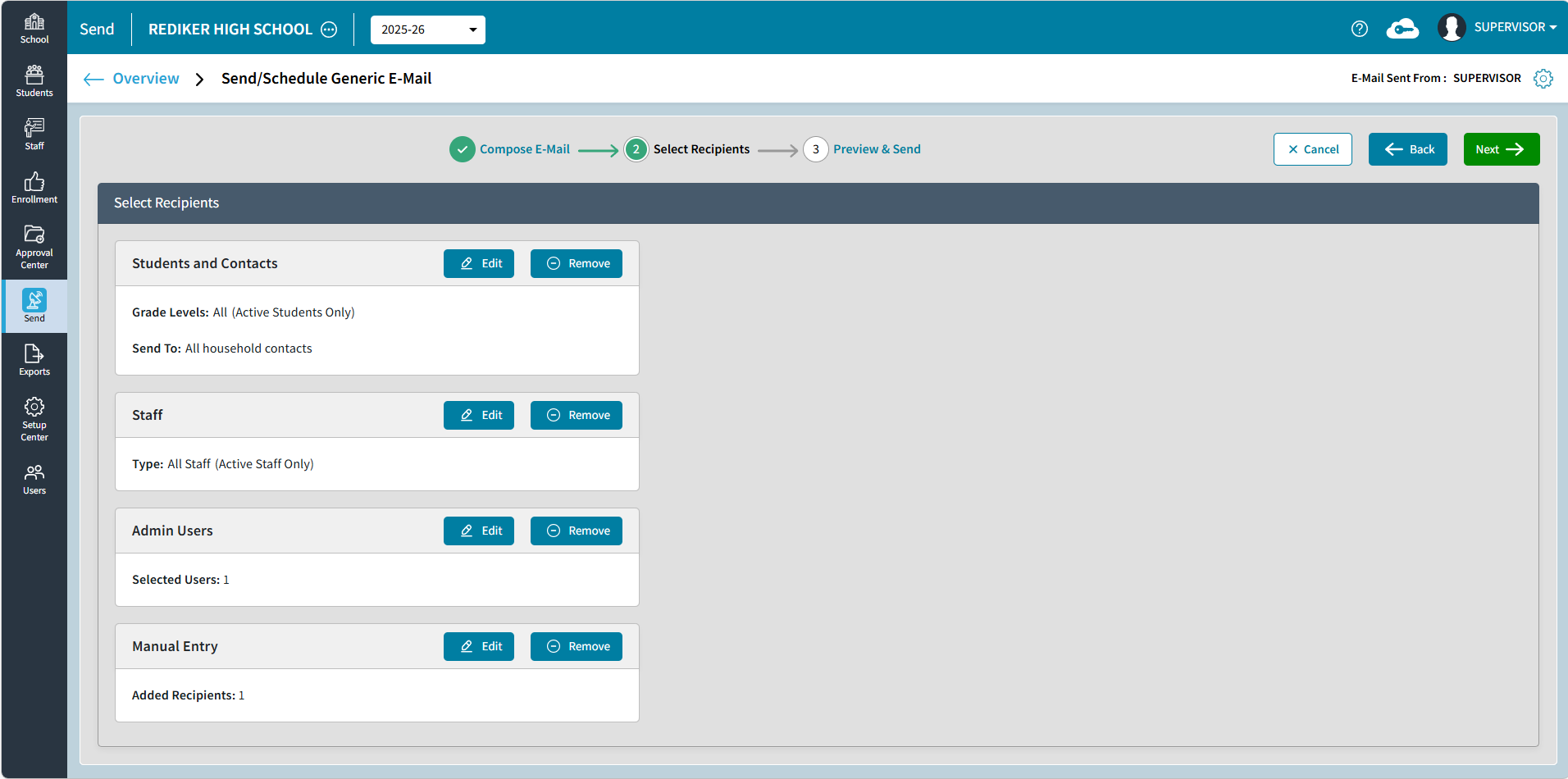
- Click Next. A preview of your email will be displayed. See the diagram and table below for more information:
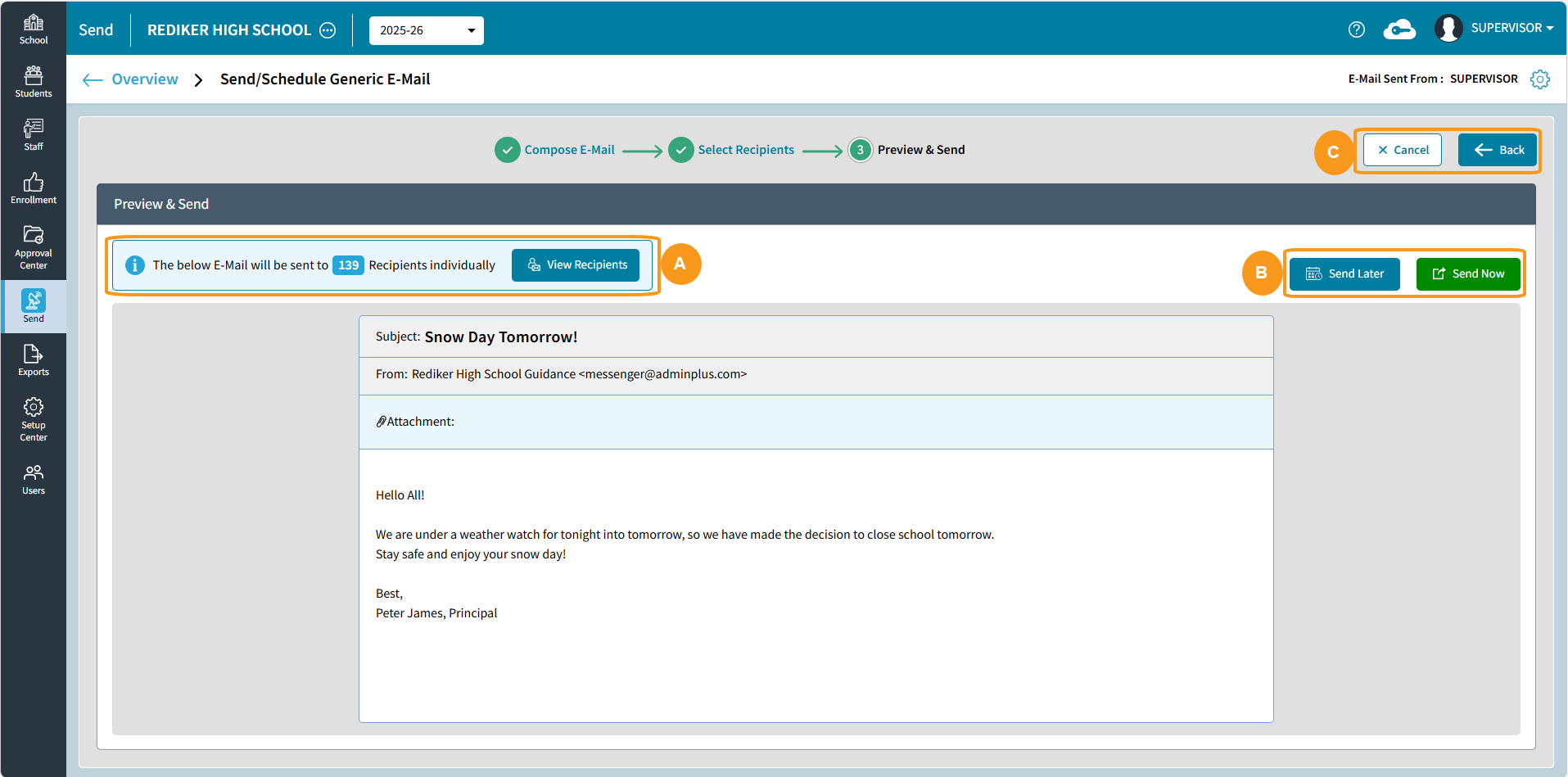
| Preview & Send | |
|---|---|
A | View Recipients: States the number of recipients. Click View Recipients to view the list of recipients: |
B |
|
C |
|
 to send all emails immediately .
 to schedule the e-mail to be sent at a later time.
