
Overview
Editing student incidents means adding, updating, or deleting one incident at a time for a single student. In AdminPlus.com, you can manage incidents from either the Edit Student Incident screen (School > Incidents > Edit Student Incidents) or a student’s record (Students > Incidents screen). Incidents can also be added in the AdminPlus Mobile app. This document covers the Edit Student Incidents screen under School.
Fig 1: Overview
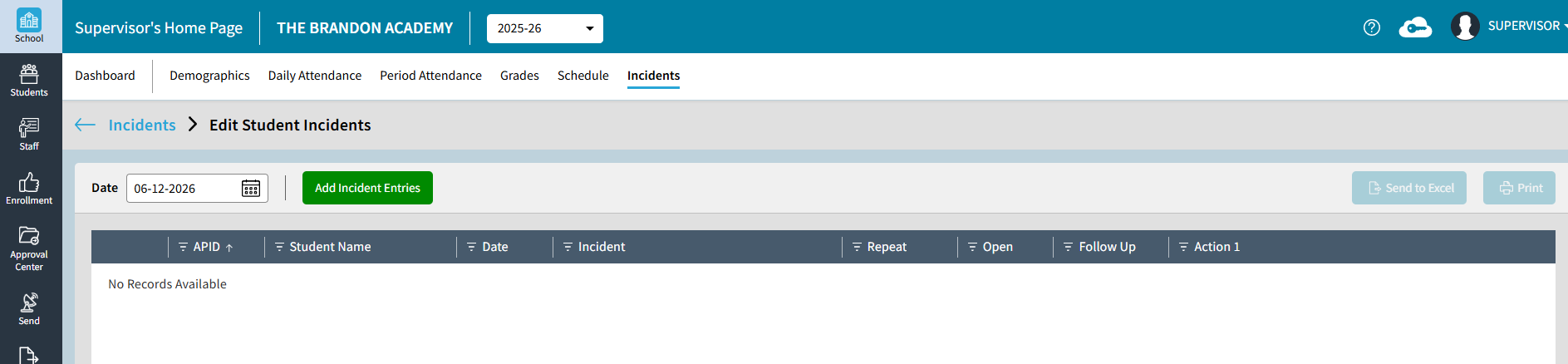
On the Edit Student Incidents screen:
- Incidents are displayed by the Selected Date
- Incidents can be added, edited, or deleted
- Each entry is one line per incident listed with APID, Student Name, Date, Incident Description, Repeat, Open, Follow-Up and Action 1.
- Repeat indicates if this student has previously had the same incident (code) reported.
- Open indicates if the Action on the incident has been Served (i.e. countermarked with a Served Code)
Edit Student Incidents Screen
To edit an existing incident entry, or add a new entry via the Edit Student Incident tile and screen:
- Navigate to the Incidents screen under School (School > Incidents)
- Then on the Edit Student Incidents tile, click the Navigate icon
Fig 2: Edit Student Incidents – Step 2 Navigate Icon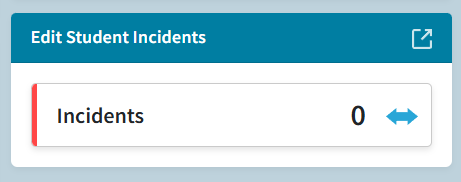
- The Edit Student Incidents screen opens with today's date active. If there are already any existing incidents they will be displayed.
Fig 3: Edit Student Incidents – Step 3 Edit Student Incidents screen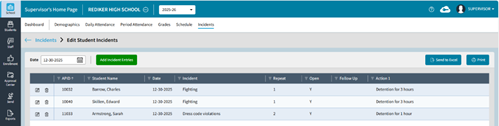
- From this screen you can Add, Edit, or Delete entries for the selected date.
NOTE: The date picker can be used to change dates and display, add, and or edit incidents from a different date.
IMPORTANT: This screen shows incidents by date, so you must know the incident date to edit it here. If you know the student’s name but not the date, open the incident from the student record (Students (One Student) > Incidents).
Add Incident Entries
Please note you can also add incidents via the AdminPlus mobile app or directly via the Student: Incidents screen (One Student)
- While on the Edit Student Incidents screen, click on the Add Incident Entries button (upper left next to the Date)
Fig 4: Add Incident Entries – Step 1 Click Add Incident Entries
- Search for and select a single student and click Next
Fig 5: Add Incident Entries – Step 2 Click Next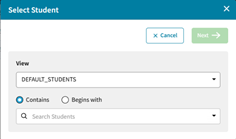
NOTE: Incident entry is limited to one student at a time. Batch entry for incidents or actions is not currently supported. To facilitate entry for multiple students, use Save and Add Another. - On the Add New Incident screen enter the incident details (incident code, location, staff, action, etc.). If necessary, please see notes about Incident Details found later in this document.
Fig 6: Add Incident Entries – Step 3 Incident Details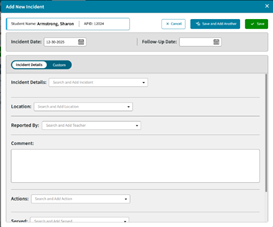
- Once the details are entered click Save to save this incident and return to the Edit Student Incidents screen. Alternatively, you can choose Save and Add Another to save this incident and begin adding another by selecting a student.
Edit an Existing Entry
- Select a student on Edit Student Incident screen. Note that you may need to change the date on this screen in order to see a specific incident that you wish to edit.
- Click on the Edit Icon (on the left end of the student incident row)
Fig 7: Edit an Existing Entry– Step 2 Click Edit Icon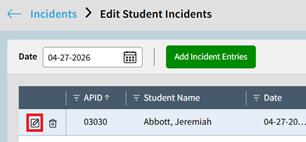
- The Edit Incident window opens.
- On this screen, you can update and change the incident details like date, or remove/add selections such as incident, action, staff, location, etc. as well as update the comment. See notes about incident details.
- To save your changes click Save (upper right corner)
Delete an Existing Entry
- Choose the date on Edit Student Incident screen
- Choose the Incident you want to delete
- Click the Delete icon (trash can icon left of APID)
Fig 8: Delete an Existing Entry– Step 3 Click Delete icon - Then select Yes on the confirmation pop-up.
Fig 9: Delete an Existing Entry– Step 4 Select Yes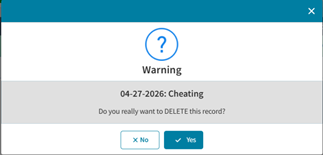
IMPORTANT: Please note that this is a permanent deletion from the student's record. There is no undo for this action.