
Overview
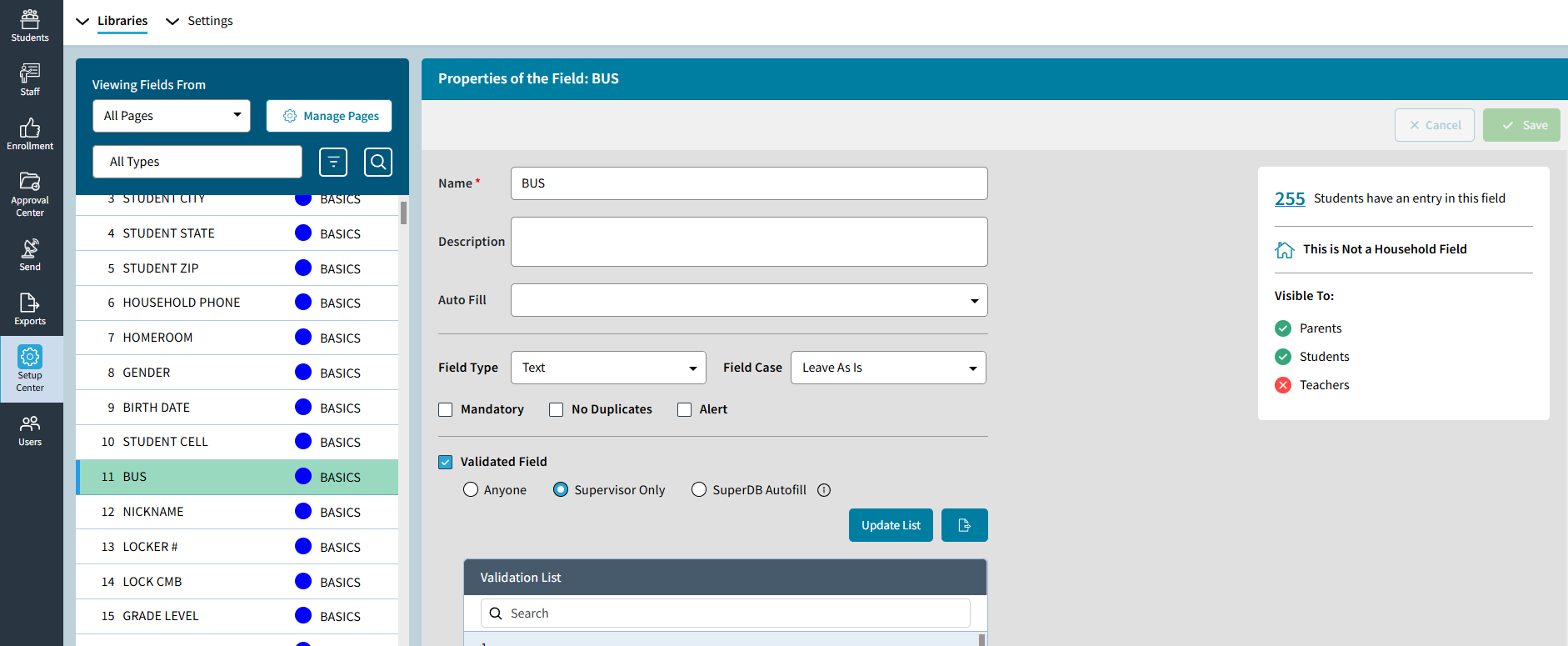
Field Properties define a field and control how it behaves, including its Name, Description, Field Type, validated values, and alert status. On the Setup Center screen (Setup Center > Libraries > Student or Staff Demographic Fields), the fields will be listed on the left of the screen. When you select a field number on the left panel you will see the field properties displayed on the right. Student and Staff demographic fields properties function the same way but are configured separately. This article covers basic principles of field properties regardless of if they are Staff or Student.
NOTE: Field properties can be edited in AdminPlus.com if editing of Demographics has been set to AdminPlus.com.
Fig 1: Overview
Name
Field Names are limited to 50 Characters and will be displayed as the label to the left of the field value on your pages. It is highly recommended that you use simple and specific field names. If necessary, use abbreviations.
Fig 2: Name
Description
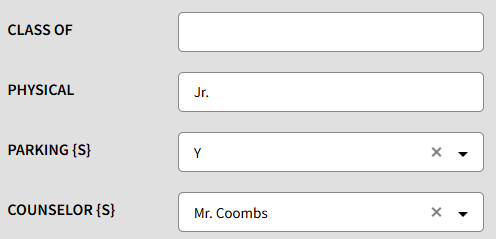
The Description allows for additional 50 characters of descriptive text to be added. This text is not visible on your Demographic screen (which uses the field Name), however, there are settings for reports where you can choose to use the Description instead of the Name. This text typically helps by adding further details or explanations about the field.
Auto Fill
This allows for a default value that will be automatically placed in the field (when editing the student's record).
Auto Fill values are NOT saved in a student's record until ANY field for the student is edited and saved.
Field Type
Sets the data type that the field will be configured to use and contain. Text is the default field type. Other field types include Date, Numeric, Email, and more. Setting a field type helps to ensure proper data entry and formatting, for example, the Birth Date field is typically set to Date, which enforces date formatting.
NOTE: A field can have only one type, but it can be combined with other properties. For example, Email type and No Duplicates, or a Validated list and Alert.
Date {D}
Sets the field to allow for a date with proper formatting. The date formatting will adhere to the chosen system format
Numeric {N}
Sets the field to only allow numeric characters.
Text
The default field type, allowing for any character (up to 50 characters max).
Custom {C}
Allows you to set custom formatting on the field. For example, a phone formatting (###)###-####.
Email {E}
Sets the field to be formatted and recognized as an email. This formatting requires and detects if the entry contains an "@" symbol and a dot ".".
Fig 3: Email {E}
Field Case
This setting controls capitalization for the field to help keep data consistent and properly formatted. By default, Field Case is set to Leave As Is, which means no capitalization rules are applied.
NOTE: Using Field Case is strongly recommended, especially when importing or collecting data from Online Forms, where entries by parents/contacts may use inconsistent capitalization.
Mandatory
Marks the field as required for data entry. When this setting is enabled, the user must enter and save a value before continuing after editing any field for the current student.
This setting should remain off unless it is specifically needed.
NOTE: This does not apply to Online Forms, which use a separate setting to control required fields.
No Duplicates
Prevents duplicate values from being entered for this field across all student records.
This setting is especially important when the field is used as a unique identifier. For example, email fields should typically be configured to disallow duplicates.
In User Preferences, the Student ID Number setting can only be assigned to fields configured as No Duplicate.
Alert
Sets the field to be an Alert Field. When toggled on, if the field is not blank it will display an alert on the Student Snapshot.
Fig 4: Alert
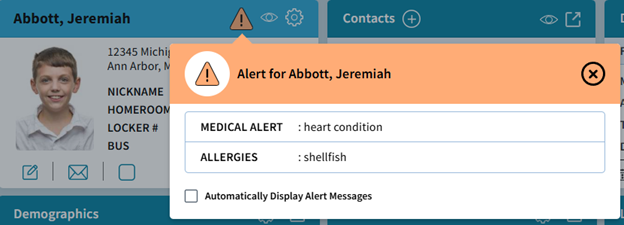
NOTE: Alert Type fields only use “Is Not Blank” as its logic. If a student has data in more than one alert field, then they will all be displayed. Alert fields can also be visible in the teacher’s gradebooks if desired (via the Gradebook Management site settings).
Validated Field
Data validation provides an input list with which to choose from when entering data. There are two types of Validation Anyone and Supervisor Only.
Fig 5: Validated Field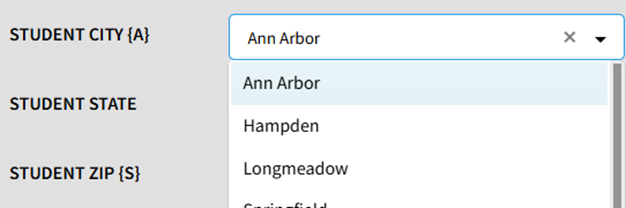
Supervisor Only {S}
As the Label implies, Supervisor Only restricts the input to only values provided on the list.
Anyone
Anyone validated provides a prepopulated list, and the user can add an input as needed.
Note: Validation helps keep data accurate and consistent. For example, setting States and Cities as Supervisor Only ensures users can select only approved values, reducing typos and inconsistencies. Validation also applies to Online Forms for Parents, making it a valuable tool for maintaining clean data.