Overview
A few settings directly affect how attendance data is collected and displayed. These settings will vary by school depending on the policies and procedures followed. For example, whether your school uses Homeroom or Period A for your daily attendance.
Receive Attendance Settings
On the Receive Attendance screen (School > Daily Attendance > Receive Attendance) under the active date will be displayed the receive settings. Please take note of these settings as they will directly impact the data you receive.
Fig 1: Receive Attendance Settings
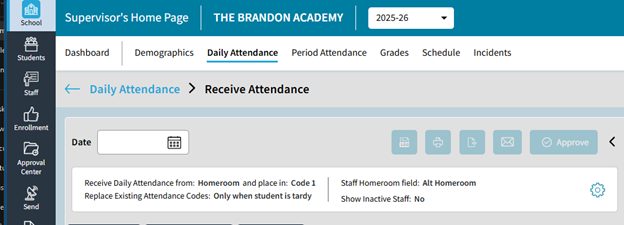
Click on the Gear icon on the right side to access and change these settings. That will open the Approval Center: Daily Attendance Settings (please note, Daily Attendance is a shared screen with Approval Center and displays the same data and settings).
Fig 2: Receive Attendance Settings - Click on Gear icon
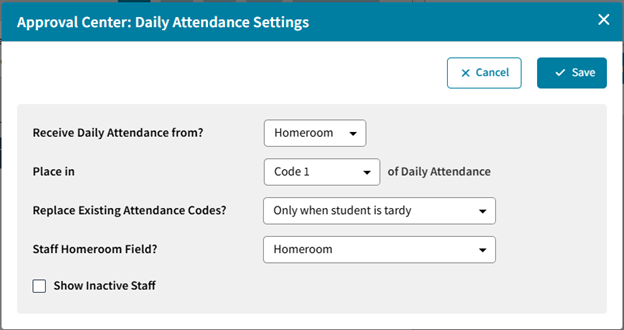
Receive Daily Attendance From?
This is a very important setting, as it dictates the source of your Daily Attendance. You can choose either Homeroom (default) or a section meeting time (A-X). You would have to know your school's process and policies in order to set this correctly. For example, choosing Homeroom means that AdminPlus is looking to the designated Homeroom gradebooks for the incoming submitted attendance data as the source. This also means the number of "sections" (not submitted) is dictated by the number of unique Homeroom entries in the designated field for your staff.
Fig 3: Receive Attendance Settings - Receive Daily Attendance From?

Place In (Code)
This determines in which Code (1 or 2) the incoming attendance mark from the teacher gradebook will be placed on the given day for the student in AdminPlus. Typically, this should always be set to Code 1 of Daily Attendance. There would be very few extenuating circumstances that would require this to be set to Code 2. Code 2 is used for special circumstances and additional marks, for example the student was Tardy to school, thus a T Code is placed in Code 1. However, the student had then also been picked up early, resulting in a Dismissed - D code in Code 2.
Fig 4: Receive Attendance Settings - Place In

Replace Existing Attendance Codes?
This setting determines how AdminPlus handles incoming attendance marks when a student already has an attendance mark for that day. It indicates whether the received marks overwrite existing marks. For example, the school already received communication from a Parent about a student being absent for medical reasons. The office already went in and marked the student as Absent Medical with a code like AMED. If this setting is set to Yes, then if the Teacher marked the student with a plain Absent - A code, that would overwrite the existing code, which is not preferred. If set to No, then the existing code from the teacher would not overwrite an existing code. Only when student is tardy, means that in a situation where the student is marked Tardy by the teacher it would overwrite an existing code.
Fig 4: Receive Attendance Settings - Replace Existing Attendance Codes?

It is recommended that this be set to No. If the office already placed marks into the Daily Attendance, they likely did so with codes that teacher may not even have access to, and the Office is the official/authority mark for attendance. Again, you need to know your process and policies, which will help dictate the best setting for your school when using this tool.
Staff Homeroom Field?
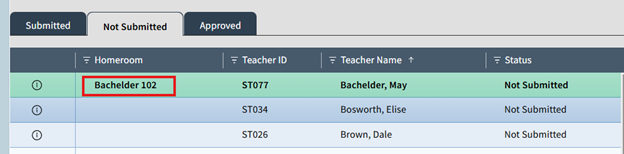
This field is only used to allow for an alternative field name for the Homeroom "label," or the name displayed on the Receive Attendance screen. The standard Homeroom Field (Field #9) is and remains the only field that creates a Gradebook for the staff to take daily attendance. Using this option simply changes the Homeroom Title that the Receive Attendance screen displays. If you set the Receive Daily Attendance From option to Homeroom, then you can use this setting to choose a new field, and the value in this field will be used as the displayed homeroom name.
IMPORTANT: It does NOT change the source of the data (Homeroom Field and Homeroom Gradebook).
Fig 5: Receive Attendance Settings - Staff Homeroom Field?
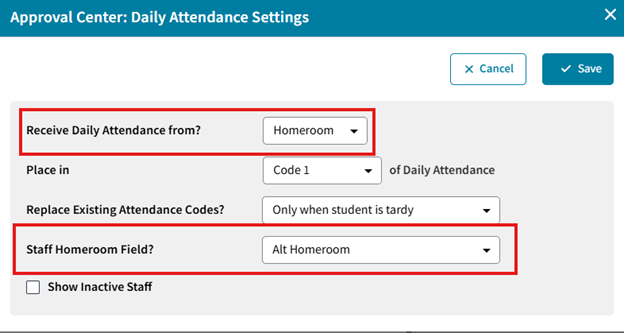
Fig 6: Receive Attendance Settings - Staff Homeroom Field?
Show Inactive Staff
Displays inactive staff in the Receive Attendance screen. For example, you have an inactive staff still assigned to valid section they would appear here.
Fig 7: Receive Attendance Settings - Show Inactive Staff