Overview
When adding or editing an incident, you will be prompted to fill in the necessary incident details like Date, Incident, Action, Location, and more. Most of these details are optional and based on the Incident Codes (Setup Center > Libraries > Incident Codes). Below we will explain each of the Incident Detail items.
NOTE: For accurate record keeping and reporting it is recommended that, when possible, you add appropriate details like Staff and Location, even though those items are considered optional details.
Fig 1: Overview
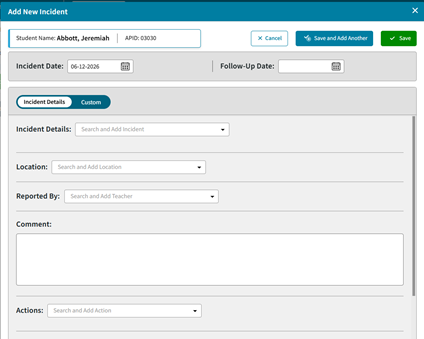
Incident Date
The Incident Date is required and defaults to the date currently selected on the Edit Student Incidents screen (usually today). You can change and update it when entering an incident that occurred on a different day.
Fig 2: Incident Date

IMPORTANT: Many of the incident dashboards and lists use the Incident Date. Always verify that you are entering accurate dates for reporting.
NOTE: The Edit Student Incidents screen is date-based. If you save an incident with a different Incident Date than the date currently selected, it will not appear in the list until you switch the selected date to match.
Follow-Up Date
Follow-Up Date is optional. Use it if your school documents a follow-up meeting date (scheduled or completed) related to the incident.
Fig 3: Follow-up Date

For Example, if the incident occurred today and you plan to meet with the student next week, enter the expected meeting date as the Follow-Up Date.
NOTE: Please note that currently, there is no Follow-Up Date Report, List, or Data displaying on screens or tiles. That is expected in future releases.
Incident Details
Incident Details represent the Incident Code(s), which is required. This represents the behavior policy for which the student writeup is happening.
Fig 4: Incident Details
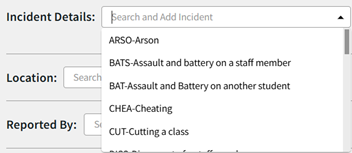
You must select at least one Incident Code. If there is no incident code that represents the incident being entered, the Supervisor will need to update your school's Incident Codes in the Setup Center.
NOTE: You can select up to five Incident Codes per incident, but it is recommended that you use one primary code per write-up. If you use multiple codes, make sure the first code reflects the primary reason, since many reports and screens treat it as the main incident.
Location
This represents the place (and time) that an incident took place. Adding a Location is optional but strongly recommended for trend tracking (where/when incidents occur). You can select up to five Location Codes.
Fig 5: Location
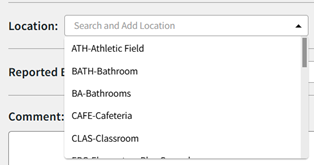
Adding additional locations is a great way to capture both time and place, for example, “Before School” + “Parking Lot”.
If a needed location is missing, a supervisor must add it in the Location Codes (Setup Center > Library > Incident Codes).
Reported By
The Reported By option lets you record which staff member(s) reported or witnessed the incident. You can select up to five staff members. If you list multiple, make sure the first name is the primary reporter.
Fig 6: Reported By
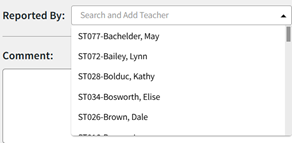
This is considered optional; however, it is recommended you Include at least one reporting staff member so administrators can follow up if questions arise. Add additional staff if they witnessed or responded to the incident.
Comment
This is a plain text box and is an optional narrative field for incident details.
Fig 7: Comment
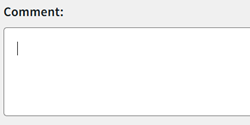
IMPORTANT: This comment field is often included in reports and can be visible in PlusPortals when sharing incidents. Keep comments factual and school-appropriate. If you need to store internal-only notes, consider using a Custom Incident Category Table instead of or in addition to the Comment field.
Actions
Actions are optional and record the school’s response to an incident, such as assigning detention hours. They often link to an Action Summary code (though this is not required), creating an outstanding action until it is served. Select the appropriate Action Code(s) and enter the correct Action Date.
When you add an action, it defaults to the Incident Date. Update the Action Date to the date the action is intended to occur (or occurred).
As is the case with other incident detail items you can add up to 5 action items on a single incident. However, again, the primary action should be the first action added. Most screens will display the incident with Action 1 showing.
If a needed action is missing or a new action is required, a supervisor must add it in the Action Codes.
Fig 8: Actions
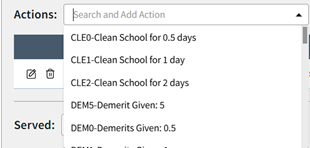
Action Summary and Amount
Take note of the Action Summary and Amount that the action has been configured with. When you add an action it will display the Action Summary Code that it links to as well as the Amount.
Fig 9: Actions - Action Summary and Amount

Default Actions
If an Incident Code is configured with Default Action Codes, AdminPlus may automatically add actions when you select an incident. You can remove auto-added default actions or add different ones as needed. Default Actions occur because the Incident Code(s) selected were configured with them.
Default actions are recommended; they save both data entry time as well as ensure fair and uniform policy application.
Served
Served codes are added when the student completes an assigned action. Select the appropriate Served Code and Served Date to credit the student (for example, after they attend detention). Served codes will subtract from the outstanding actions owed for this student.
Fig 10: Served
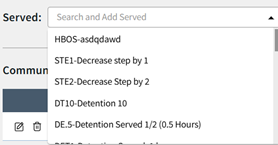
Served Amount
If an assigned action of “1 Detention” is used on an incident, but because the student already served it, we also add a served code for 1 Detention to the incident, this now means the student has no outstanding actions for this incident. However, the action would still increase (accumulate) total detention actions for the year.
Fig 11: Served – Served Amount
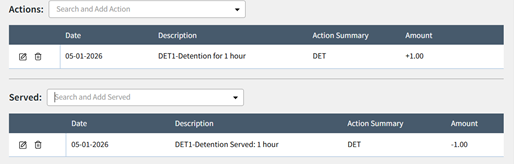
Served codes are usually added later (after the action is completed), not during initial incident entry. Served Codes can also be added as a batch entry via the Fast Served feature.
Communication
This field appears in AdminPlus.com, but it is currently tied to and only used in AdminPlus Classic report-writing workflows. It displays a list of Discipline Report Codes from Classic; however, it is not currently used for generating letters within AdminPlus.com.
Fig 12: Communication
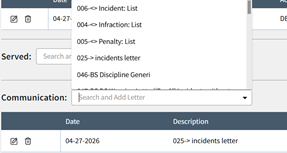
If you are generating a specific Discipline Letter in AdminPlus Classic, whether you add the letter code in AdminPlus.com or allow the report writer to add the code from AdminPlus Classic depends on your process.
Custom
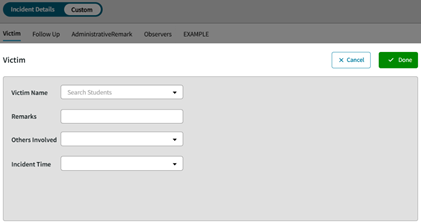
When you toggle the switch to "Custom" it lets you access and enter additional fields from your school’s Custom Incident Category Tables (if configured).
Fig 13: Custom
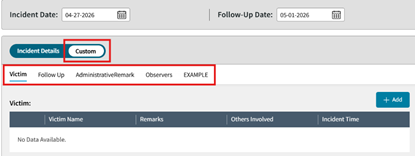 Use these tables to capture extra data that doesn’t belong in or cannot be entered via the standard Incident fields. Select the appropriate Custom Table, then complete the fields that appear for that table.
A custom table for Administrative Remarks would be a better place for internal remarks instead of the default Comment box.
Victim Table
For example, the included Victim table allows for fields like another student to be named as a victim as well as remarks.
Fig 14: Custom (Victim Table)