Do you need to add content from another provider, for example, embedding a Google calendar or donation form? It is possible to embed third-party widgets and code using the HTML widget. Common examples include form builder platforms that provide a code snippet to embed a form on a website or calendar applications like Google Calendar.
TABLE OF CONTENTS
- Important Notes
- Embedding Code on a Specific Page
- Single Page Head HTML Code
- Site Head HTML or End Body HTML (All Pages)
- Code Issues: Modifications and Warnings
Important Notes
Before proceeding, please note the following:
- Use of third-party code is self-serve and at your own risk.
- It is highly recommended you create a hidden draft page to first test your content.
- It is advisable to republish your site prior to embedding content as republishing a site creates a backup which can be used to restore your site.
- Be advised this is an advanced feature and topic, only users with some knowledge of HTML, CSS, and or Javascript should attempt to embed coding from a third-party.
- Rediker does not guarantee that all third-party widgets or code will work on the RediSite platform.
- Rediker is not responsible for fixing, updating, editing, or troubleshooting third-party widgets or code.
- Rediker is not responsible for the security of or impact said third-party code may have on your website,
- Some widgets or codes require multiple parts/steps to make it work, please check with your provider and follow their directions carefully.
- Not all code or widgets are supported due to performance, security issues, technical methods, outdated third-party code, and or may interfere with the website content management system.
- Not all third-party code is responsive or adaptive in nature and may not render correctly on all device sizes. Always preview the embedded content on mobile.
If you send the source code and directions from the provider to Rediker, we would be happy to test it and or place it on a page for you. Please email support@rediker.com with the directions and code supplied from the third-party provider. As noted above we do not guarantee it will work, nor are we responsible for correcting, editing, or updating the code provided. Any issues with the code would need to be resolved with the provider of that code. Believe it or not, some code from third-party vendors is just not done correctly and it may be best not to use it.
Embedding Code on a Specific Page
To embed third-party coding on to a specific page (for example, a Flipbook, Google Calendar, or other widget type codes) you can use the standard HTML widget provided in the editor. In the example below we will use a Google Calendar Embed code. Check with the provider for how to obtain embed code for their specific platform. Rediker is not responsible for obtaining third-party code.
Note that this method only places the code onto the specific page loaded as content onto that page. Some applications may require additional page header HTML code or site wide code. Be sure to check with the code provider.
- Copy the provided embed code from the provider/source.
In this example, we are copying a Google Calendar Embed Code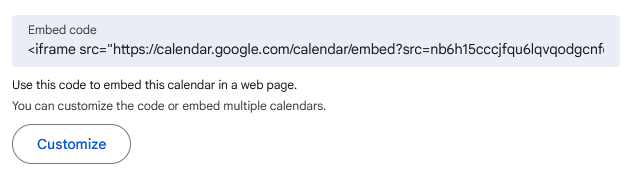
- On your website, in the Editor go to the page you want this third-party widget/code to appear
- Open the Element/Widgets Menu to +Add to your site, search for the HTML widget, then drag and drop it on the page where desired.
- Remove/Delete the default text.
- Paste the provided third-party code into the widget
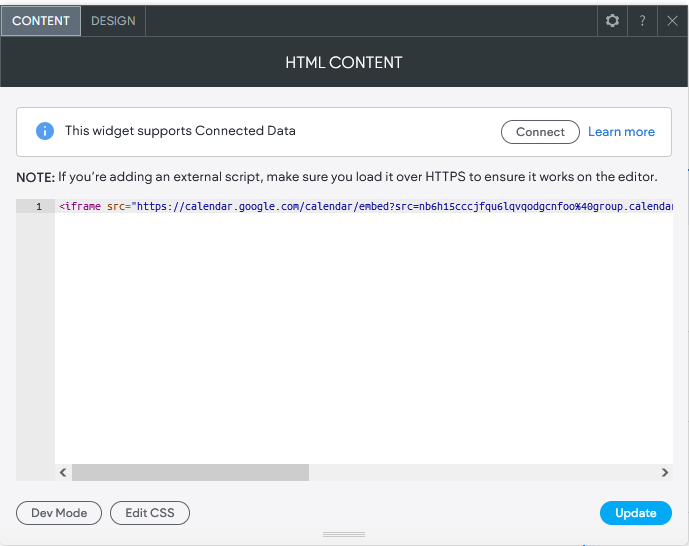
- Click Update.
Note most embedded content will appear as soon as you click update. Though for some content, you may have to close the Widget Editor and refresh the editor in the browser. Some content may require more than one piece of code to work.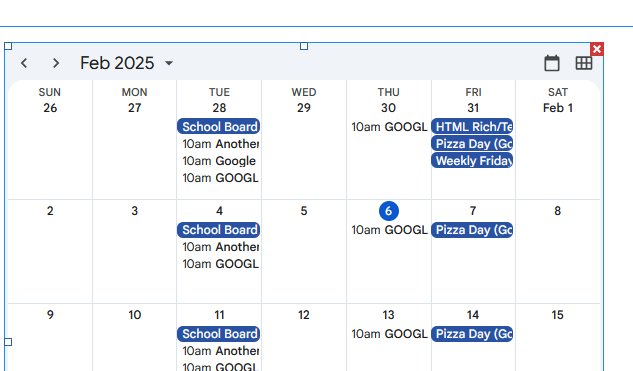
- Review and Preview the content especially in mobile view
- Republish the site.
- Go visit the live page on the website to ensure the embedded content appears and functions. We also recommend bringing it up on a mobile device.
Single Page Head HTML Code
Some embedded content requires the code be placed in the Head HTML of the specific page, or even multiple pieces of code working in tandem to correctly render. Providers of the code would have to specify in their directions if this is the case. If a piece of code is needed in the specific/single page's Head HTML to work, you can use the following method:
- Open the Pages Panel
- Open the Page Settings for the specific page in question.
- Click the 3-dots next to the page name
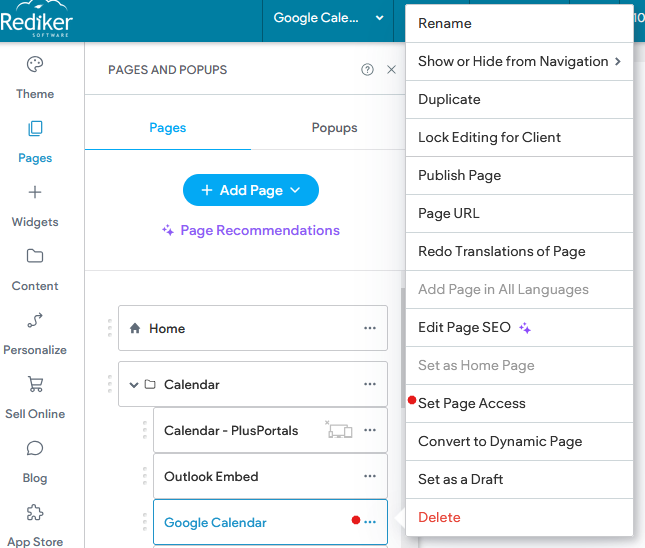
- Choose Set Page Access (you can also go through, Page URL, and Edit Page SEO, as all 3 options take you to the same page of options).
- Scroll to the bottom of the options, at the bottom will be a section titled Header HTML
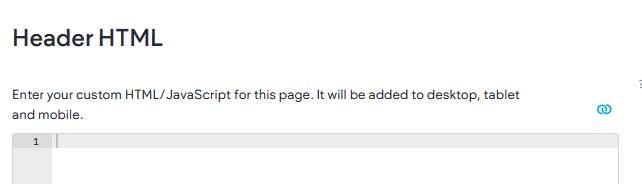
- As noted on the page, this text box provided is for custom HTML/JavaScript. If your third-party content provider requires a piece of code in the Head section of the site/page, this would be the place to put it.
- Once you paste in the custom code there will be a Save button in the lower right, be sure to Save, then close the Pages/Options panel.
- If necessary, refresh the browser to reload the page with the HTML widget on it.
- The embedded code should be rendering now. Please note that some script may only render on the Live Site, you may need to visit the live site in order to see your cor
- Review and preview the content, including in mobile preview.
- Republish the website to view the embedded content on your live site
Site Head HTML or End Body HTML (All Pages)
In some cases, the third-party application will require a code snippet to be placed either at the bottom of the body of the site (just below the end body tag </body>) or in the website Header. What that code is and where it needs to be placed depends on the directions provided by the third-party vendor. However, on the RediSite, it is easily done, you can email support with the directions and code snippet provided, or you can review the directions below.
Keep in mind this method affects the entire website; it is essentially loading this third-party code into the entire site and onto every page. In some cases it could affect the load time and performance of the website, so again, do so at your own risk.
To place a code snippet either in the bottom of the body HTML or in head HTML of the website (all pages):
- Access the Site Settings, under ... More in the left panel of the editor.

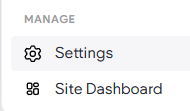
- Choose Head HTML
- Then based on the directions and needs you will paste the code snippeteither into:
- Body End HTML
- Head HTML
If you are unsure, please contact the third-party provider for clarification.
- Body End HTML
- Be sure to click Save under the respective text box.

- Republish the website.
- Visit your lives website.
Code Issues: Modifications and Warnings
It is very important to reiterate not all third-party content will work on all platforms. It is also possible that adding third-party code could affect the website's load time, performance, mobile responsiveness, and possibly may even affect accessibility. In some cases, it may even require knowledge of coding to modify the provider's code. All of which are reasons why this is considered a DIY option and that is be used at your own discretion.
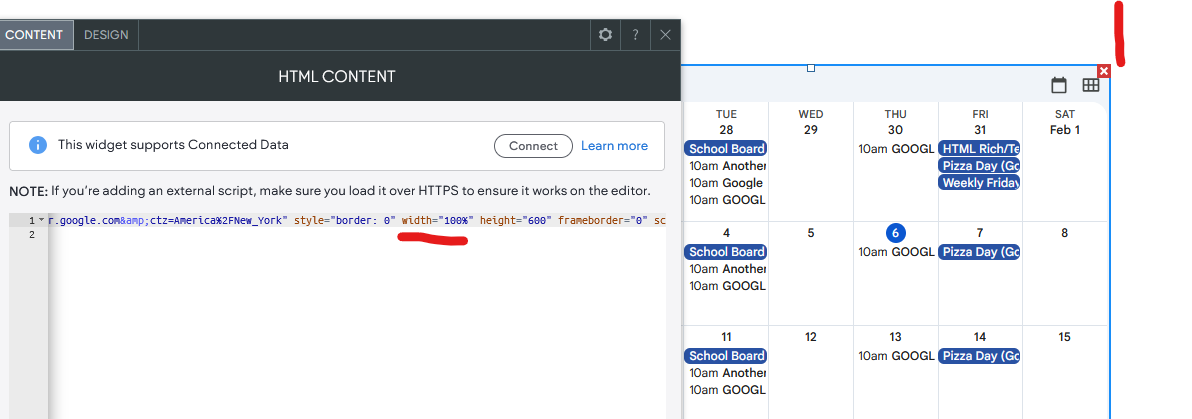
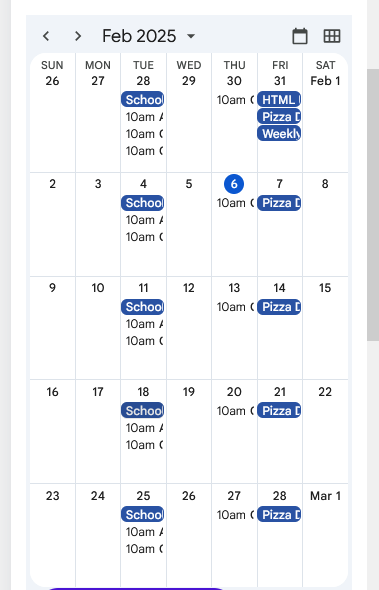
For example, not all provided code is responsive and may require modifications to render properly in mobile. For example, Google's Calendar embed code is provided with a standard width in pixels, changing the width to 100% makes the widget more responsive especially in mobile. Rediker is not responsible for correcting third-party code. Though in most cases we will make a simple best effort to assist.
Below is an example of how the original provided code rendered with issues, note it went outside the given column or space. And it would be cut off on a mobile device.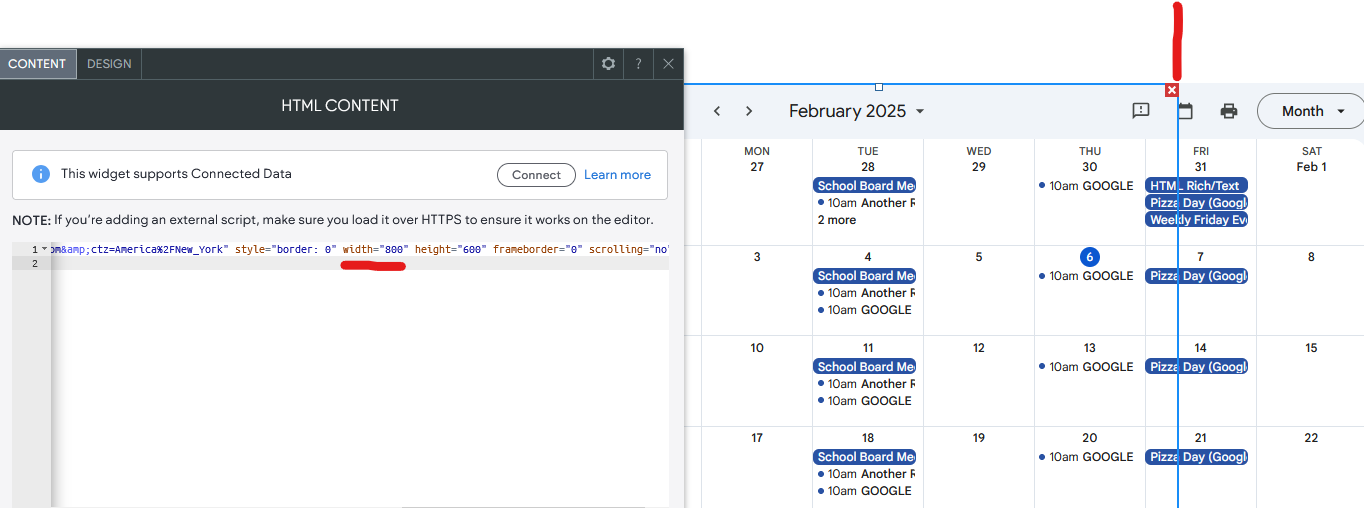
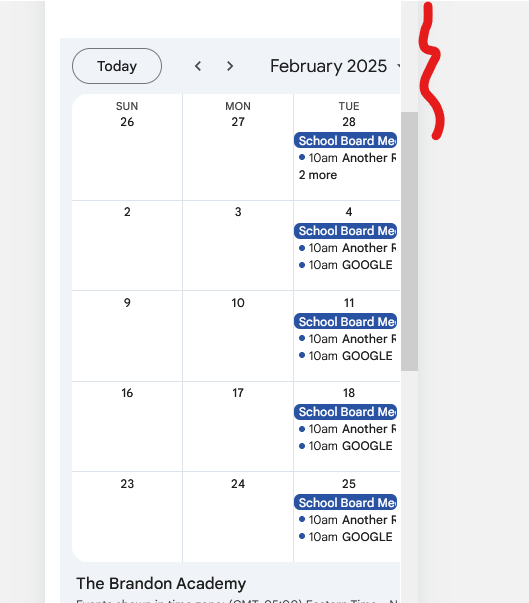
After changing/fixing the provided code, the content renders better in the space both in the editor and on mobile devices. In this case, modifying the width to be set as 100% allowed the embedded content to be more responsive.