
Google offers free tools to help schools track and manage statistics about their website and visitor's actions. While the RediSite platform offers built-in Statistics, also connecting with Google's free tools allows a school with serious marketing campaigns to delve even deeper. Google Analytics and Google Tag Manager can easily be connected to your RediSite. You need to first have a Google Analytics account.
Creating a Google Analytics Account and Retrieving GA ID
Rediker does not create or manage your school's Google account for you, and in most cases, schools already have an account created and need to simply log into it.
If you have not already, you need to create a Google Analytics account, create a property, add a data stream, and set up data collection within your Google Analytics account. To learn how to do this, see [GA4] Set up Analytics for a CMS-hosted website.
You can then retrieve your Analytics ID from your GA Account, from the data stream, see [GA4] Find your Google tag ID
Other Google Tools
The integration into Google Analytics is based upon Google’s Global Site Tag technology, also known as gtags. This supports several Google-owned tracking technologies. This means you can include your ID for the following Google properties:
- AdWords Conversion ID (AW-*)
- Flood Light / Double Click Tracking ID (DC-*)
- Google Global Measurement ID (G-*)
- Google Analytics Property ID (UA-*)
How to Connect Your RediSite with Google Tools
- Log into the website editor
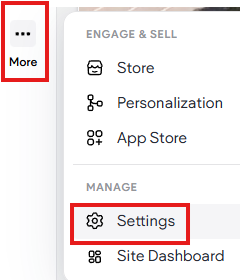
- While editing the site, from the left panel click More, then Settings
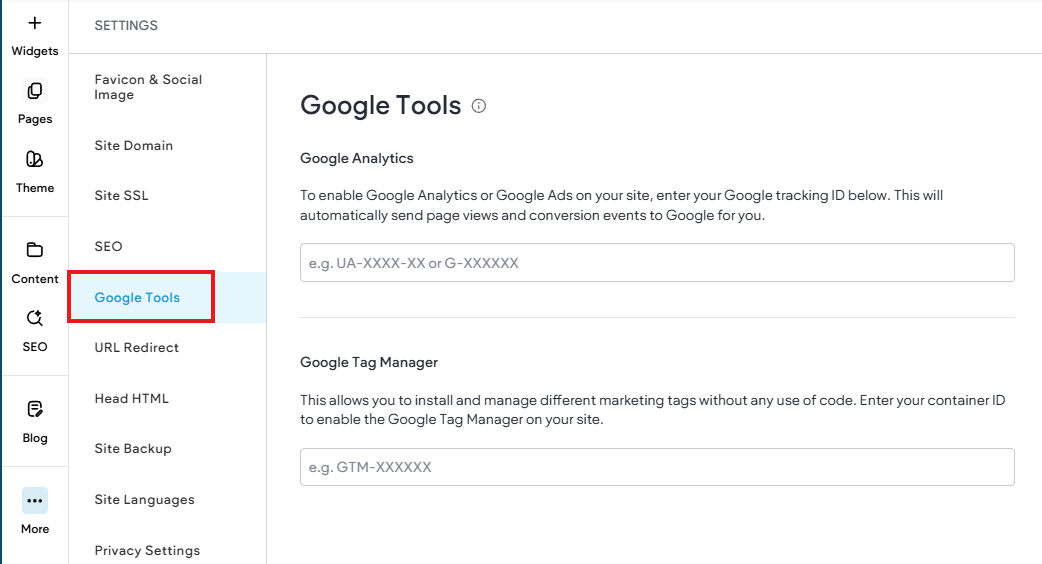
- Choose Google Tools
- Paste in your Google Analytics ID and or your Google Tag Manager ID
- Republish the website.
Please note that it may take time for your analytics data to start showing up (up to 24 hours). Also, if you need more control over your tracking code, you can add the tracking code directly through custom HTML. In the side panel click More, then click Settings. Add your code in either the Header HTML or Body-End HTML sections. It is important that you only add the tracking code in one place on the site; having the same code in multiple locations can cause verification to fail. Republish your site for the changes to take effect.
Troubleshooting: Why are site visits not being recorded?
The following are a few reasons your analytics might not be working properly:
- You have entered the wrong ID on the site. Double check that you entered your Analytics ID correctly on to the site.
- Your site is not published/republished. Google Analytics only tracks on live sites. If you recently added your Analytics code, be sure you have republished the site.
- You (or your visitors) are using an ad blocker that is preventing Google Analytics from recording your visit.
- It has been less than 24 hours since you set up the integration. Sometimes it takes Google Analytics up to 24 hours to start tracking.