
Using a tracking platform such as Google Analytics and/or Meta Pixel is considered a DIY (do-it-yourself) option. Our support team can help you add the tracking code—or point you to where it should be added—within RediSite; however, using these platforms is your choice and responsibility. If you need help with the platforms themselves, please refer to the support resources provided by your selected platform. Google Analytics and Meta Pixel both offer extensive documentation (they are popular, free tools), and there are many online videos available as well. Typically, schools that use Google Analytics or Meta Pixel either have a knowledgeable marketing staff member or work with a marketing agency. If you would like marketing assistance, please contact your account manager or our sales team to discuss a marketing project or package.
TABLE OF CONTENTS
- Tracking Codes Overview
- Google Tools
- Meta Pixel (& Others)
- Troubleshooting: Why are site visits not being recorded?
Tracking Codes Overview
RediSite already offers built-in site statistics that include page views. For most schools, this provides the basic data you need. However, schools may choose to use a third-party tracking platform. Tracking codes are small snippets of code (or scripts) generated by another platform (Google, Facebook, etc.) and installed on your website to track activity and report data back to that platform—typically for marketing purposes. Depending on your goals, you may install a tracking code on all pages or only on specific pages, based on the instructions from your chosen platform or tool. In either case, RediSite supports the use of these tools.
In this article, we’ll provide basic information about the two most common tracking tools: Google Analytics and Meta Pixel (Facebook). The same approach generally applies to other platforms as well. For Google, we only need your GA ID because the Google code snippet is already integrated. For other platforms, follow similar steps to those shown for Meta Pixel below to place the tracking code in the Head HTML.
Google Tools
Google offers free tools to help schools track and manage statistics about their website and visitor's actions. While the RediSite platform offers built-in Statistics, also connecting with Google's free tools allows a school with serious marketing campaigns to delve even deeper. Google Analytics and Google Tag Manager can easily be connected to your RediSite. You need to first have a Google Analytics account.
Creating a Google Analytics Account and Retrieving GA ID
Rediker does not create or manage your school's Google account for you, and in most cases, schools already have an account created and need to simply log into it.
If you have not already, you need to create a Google Analytics account, create a property, add a data stream, and set up data collection within your Google Analytics account. To learn how to do this, see [GA4] Set up Analytics for a CMS-hosted website.
You can then retrieve your Analytics ID from your GA Account, from the data stream, see [GA4] Find your Google tag ID
Other Google Tools
The integration into Google Analytics is based upon Google’s Global Site Tag technology, also known as gtags. This supports several Google-owned tracking technologies. This means you can include your ID for the following Google properties:
- AdWords Conversion ID (AW-*)
- Flood Light / Double Click Tracking ID (DC-*)
- Google Global Measurement ID (G-*)
- Google Analytics Property ID (UA-*)
How to Connect Your RediSite with Google Tools
The Google code snippet is already integrated with the platform, thus all that is needed is the ID placed in the proper location. The RediSite already has the code snippet in place and only needs your GA ID. IF you are instead looking to install a code snippet for a specific page you can see directions provide later on in this article.
- Log into the website editor
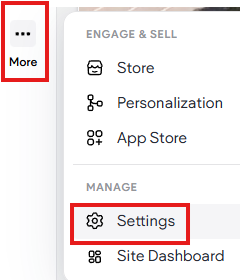
- While editing the site, from the left panel click More, then Settings
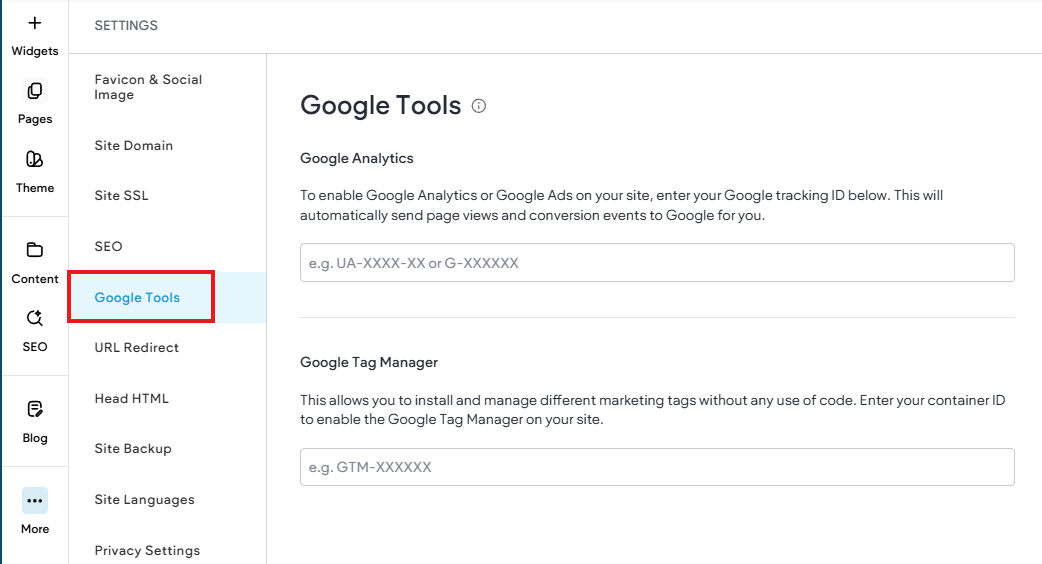
- Choose Google Tools
- Paste in your Google Analytics ID and or your Google Tag Manager ID
- Republish the website.
Please note that it may take time for your analytics data to start showing up (up to 24 hours). Also, if you need more control over your tracking code, you can add the tracking code directly through custom HTML. In the side panel click More, then click Settings. Add your code in either the Header HTML or Body-End HTML sections. It is important that you only add the tracking code in one place on the site; having the same code in multiple locations can cause verification to fail. Republish your site for the changes to take effect.
Meta Pixel (& Others)
Meta Pixel (formerly Facebook Pixel) is a free analytics tool similar to Google Analytics that monitors user interactions on your website. Like other tracking tools, its goal is to collect data so you can make data-driven decisions about your website content, marketing, and ad spending. To use Meta Pixel with your RediSite (or any website), you’ll first need to create an account and install the base code.
For more about Meta Pixel read help articles like this provided by Meta - Learn about Meta Pixel | Meta Business Help Center
Create a Meta Pixel Account and Base Code
Rediker does not create or manage your school's Facebook account for you, and in most cases, schools already have an account created and need to simply log into it. If you already have a "Business" account and page on Facebook, then you just need to login with that account - https://business.facebook.com/business/loginpage
This article walks you through creating the Meta Pixel base code that we need to install on your Redisite - Set up and install the Meta Pixel | Meta Business Help Center it really is just 2 steps:
- Create your pixel in Events Manager and set up the base code on your website. Which we will be using to add the code manually to your website.
- Set up events on your website to measure actions like filling out a Contact Form.
Below are the steps to add the Pixel code to either the entire website (all pages) or to a specific page.
Adding a Pixel (or Other) Tracking Code to the Website (All Pages)
Once you create the pixel in the event manager you can either email the base code to support@rediker.com or you can add it yourself.
Typically, you would install the base code in the "Head" section of the website, as this will place it on every page automatically. These directions would be similar if needing to install a tracking code from another platform as well.
To add the code to the website yourself:
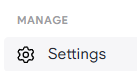
- While logged into the Editor, access the site Settings under More in the left panel

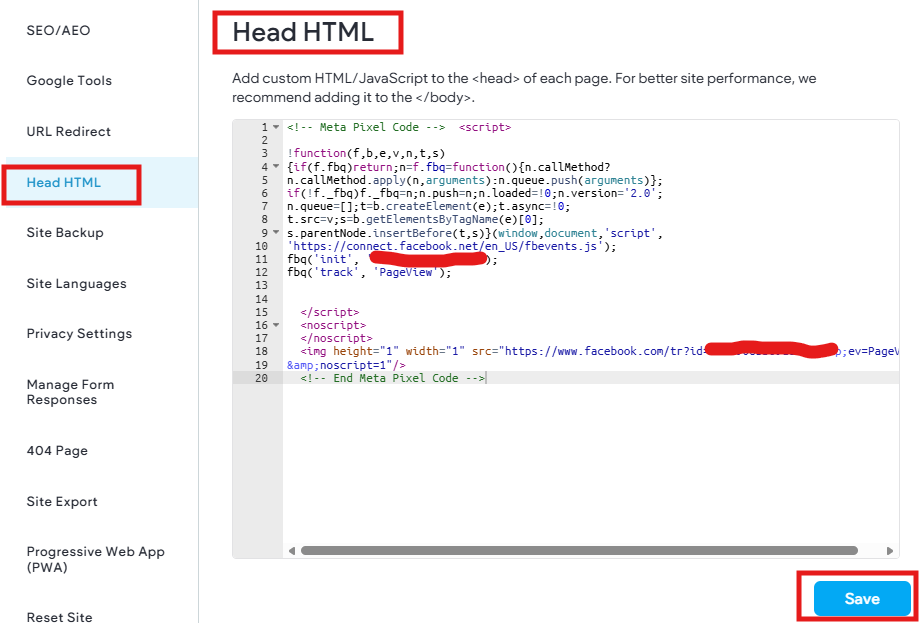
- Choose Head HTML from the options in the Settings Panel

- There will be a Head HTML area with a text box; here is where you paste the Pixel Base Code provided by Meta.
If you would prefer us to paste in the code, please simply email it to support@rediker.com and we can do so for you. - Be sure to click save, then republish the website.
- Follow direction in Meta Pixel to test your website and ensure it is working properly.
Meta offers a Meta Pixel Helper, which is a Chrome Browser extension that automatically reviews a website for the Meta Pixel Code. This helps to verify and troubleshoot your Pixel.
Please note that it may take time for page view data to being to show up in Meta Pixel.
Adding a Pixel (or Other) Tracking Code to a Specific Page
In some cases, if you have page or event specific code that you only want on a single page you can add the code to the Head Section of just that page. For example, if you have created event codes for specific pages like a special event page and want to collect that data specifically and se.
We recommend that you instead use the event setup tool in Meta to create events that do not require more code.
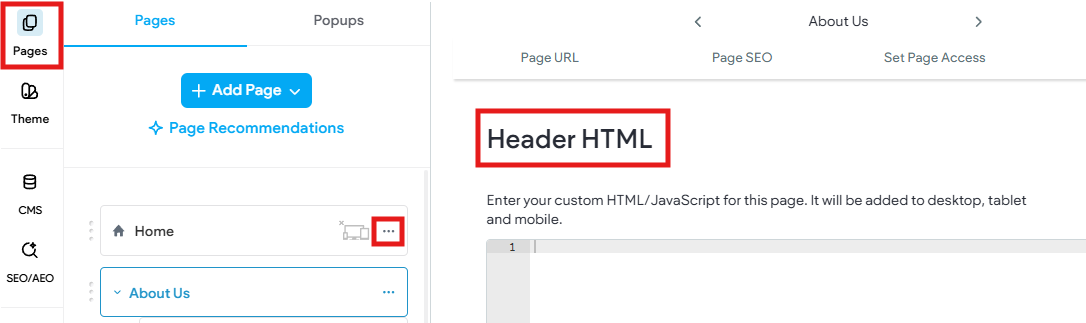
- In the Pages Panel find the page you want to add the code to.
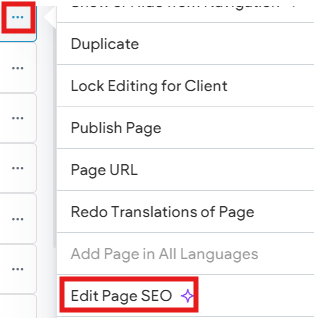
- Access the Page settings by clicking the page settings icon (3-dots)
- Choose Edit Page SEO
- Scroll down to the Head HTML
- Paste in your code
- Be sure to click Save and then Republish the site
Pixel Events & Conversions
By default, installing the base code will only get basic Page View data being sent to Facebook (Meta). For more specific data points triggered by events like specific button clicks on specific pages, then you need to setup events in your Meta Event Setup Tool in the Events Manager. For example, you want to track the number of submissions made via the Contact Form on your Contact Us page. This requires that your based code is already properly installed on your website (all pages via site head section). This does not require any further code on specific pages as you already have the base code installed. This is then done by creating an event within Meta to track the specific event. The trick is, when the event tool asks for the URL give the specific page URL like your contact page URL.
This is not something that Rediker or our support team can aid you with. This is something you can do and manage only via your Meta Events Manager. You need to review Meta's relevant support documentation like- Specifications for Meta Pixel Standard Events | Meta Business Help Center that will provide step by step platform specific instructions.
Troubleshooting: Why are site visits not being recorded?
The following are a few reasons your analytics or events might not be working properly:
- You have entered the wrong ID on the site. Double check that you entered your Analytics ID correctly on to the site. Whether that is Google ID or the Pixel installed in the Head HTML.
- Your site is not published/republished. Google Analytics and Pixel, only track data on live sites. If you recently added your analytics code (Google ID or Pixel), be sure you have republished the site.
- You (or your visitors) are using an ad blocker that is preventing Google Analytics from recording your visit.
- It has been less than 24 hours since you set up the integration. Sometimes it takes time for Google or Pixel to recieve date. Google Analytics can take up to 24 hours to start tracking.
- For Meta Pixel, you can use the Meta Pixel Helper, which is a Chrome Browser extension that automatically reviews a website for the Meta Pixel Code. This helps to verify and troubleshoot your Pixel.