
The Special Effects rule can be used to add animations to your site, great for seasonal or temporary design elements. For example, floating hearts, falling leaves, or snowflakes flakes. Use these special effects to celebrate events or add a touch of color. It can also be combined with other rules like popups, rows, or notification bars to really grab people's attention.
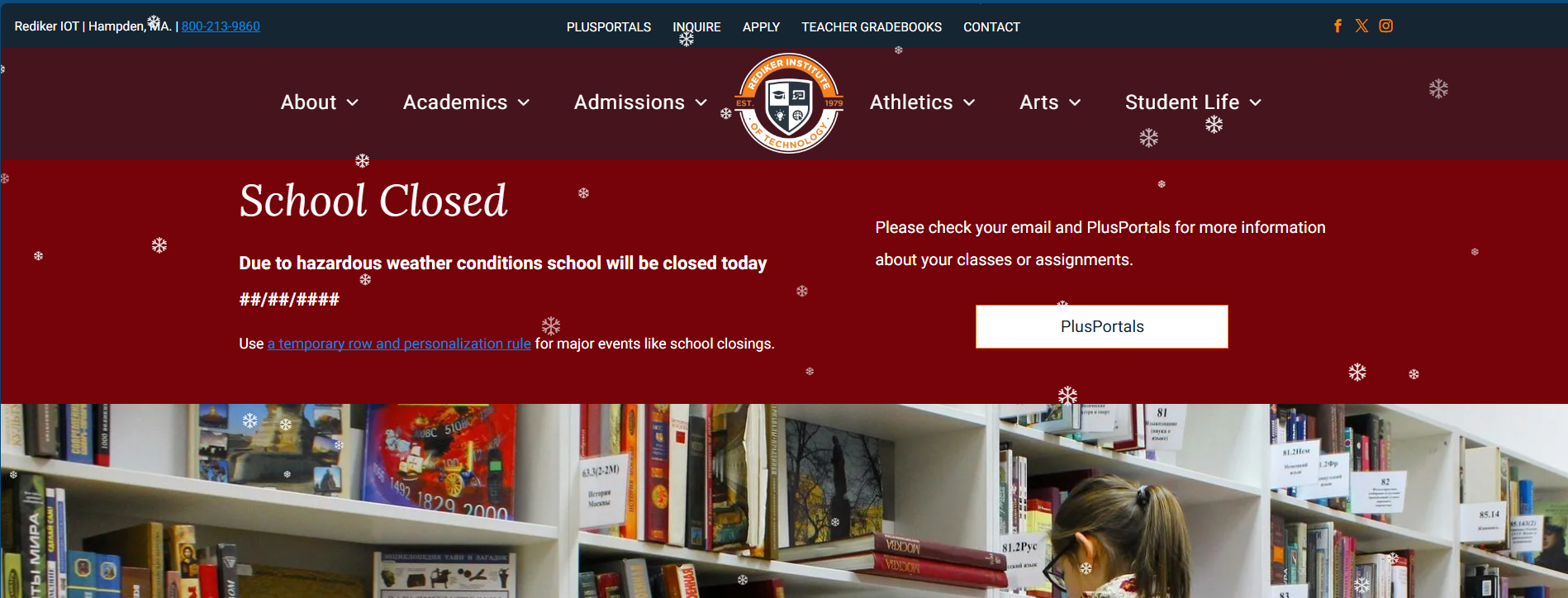
Before choosing to use Special Effects on your website please review the following. Please note that if you choose to add animation to your website that it may impact your accessibility! Below are some key points about animations on websites and accessibility:
- Pause, Stop, Hide (WCAG SC 2.2.2): If an animation starts automatically and lasts more than 5 seconds, users must have a way to pause, stop, or hide it. Therefor it would be a good idea to set the special effect to not last more than 5 seconds as these special effects will be automatic.
- Flashing (WCAG SC 2.3.1): Avoid content that flashes more than three times per second, as this can cause seizures; if unavoidable, provide warnings.
- Color Contrast (WCAG SC 1.4.3): Ensure text has at least a 4.5:1 contrast ratio against moving backgrounds to be readable.
To select and configure a special effect:
- In the side panel under More choose Personalization.
- Choose Build Your Own Rule
- Select and Set your Trigger. Typically, we recommend Time.
- For the Action choose Special Effect
- Choose Special Effect. Click on the special effect you would like to select. There are currently 12 pre-created special effects covering most of the seasons and holidays.
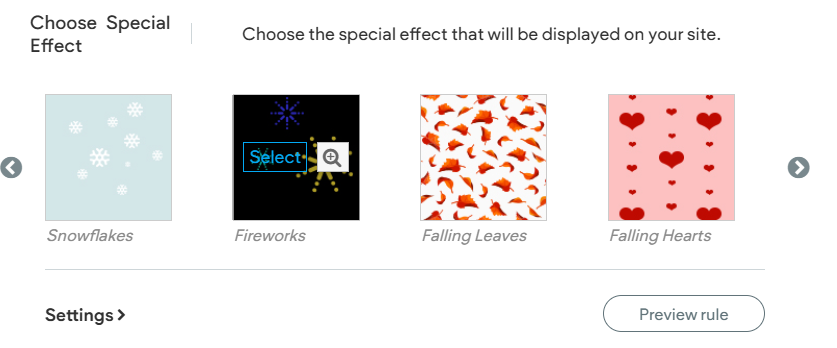
- Click the magnifying glass icon to get a quick preview of what the effect looks like.
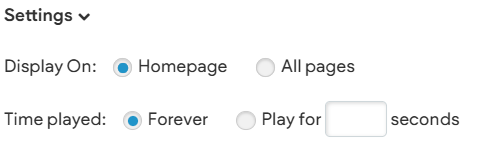
- Under Settings (beneath the effects), chose and toggle whether the effect displays on the home page or all pages. You can also set the Time Played.
- Name and save the rule. Make sure it is obvious and unique for example, Snow Animation or Fireworks Animation.
- Preview the rule by either:
- Putting the Site in Preview Mode and selecting the Rule
- Clicking the Play Button in the Personalization panel.
- Republish your site.
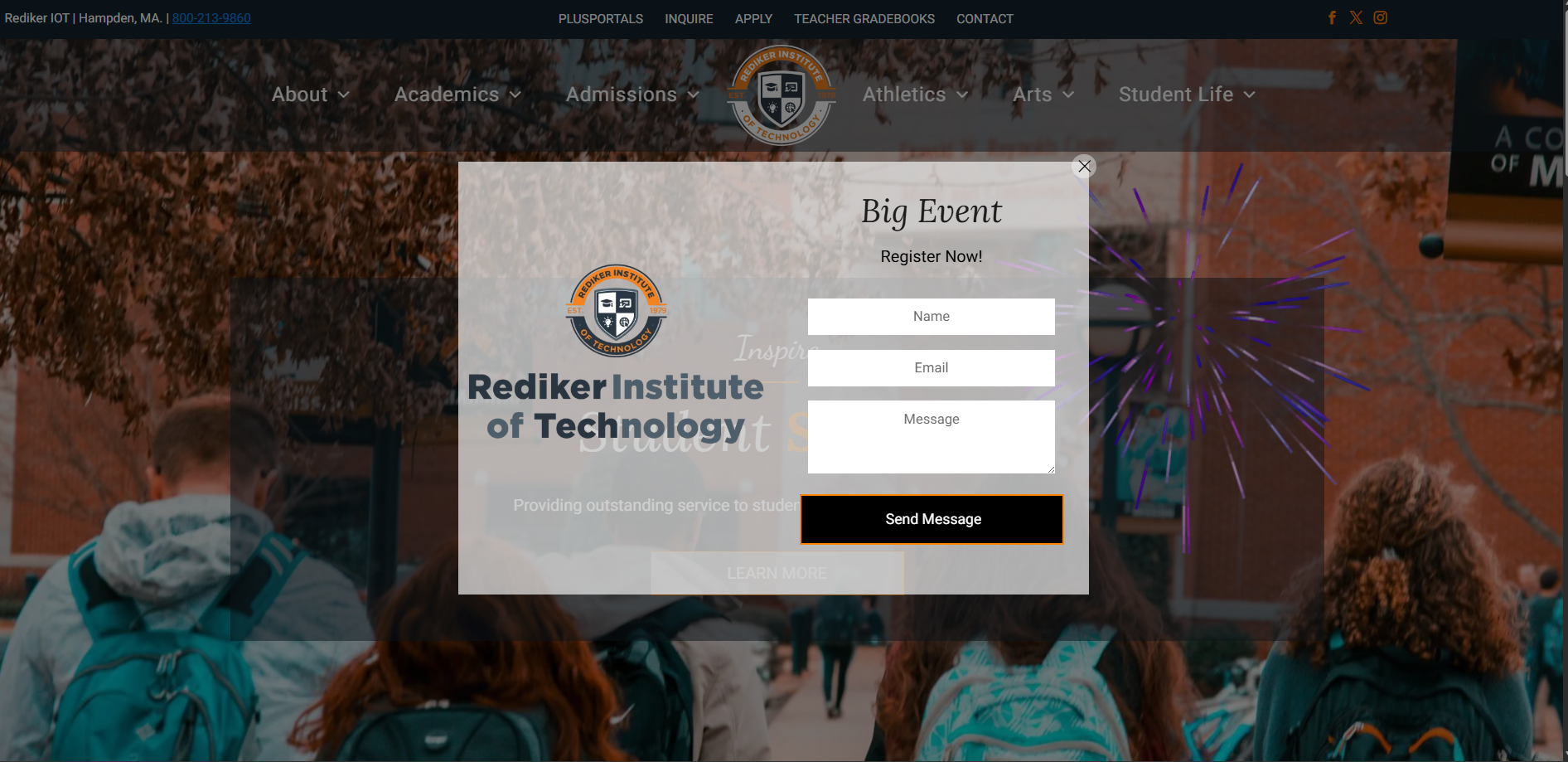
Example
Fireworks animation is happening while also showing a popup!
See in action: