
Call attention to special announcements on your website for items coming from your Rediker PlusPortals! The Alert Icon+ widget allows you to display an icon badge to help notify your visitors of important announcements. It can either be set to show all current active announcements, or it can be filtered to only show those announcements that meet a specific criterion, for example, ones that have "Alert" in their title. It offers tons of Content and Design controls to make it highly visible and to match your site theme. Including the ability to float the widget on every page.

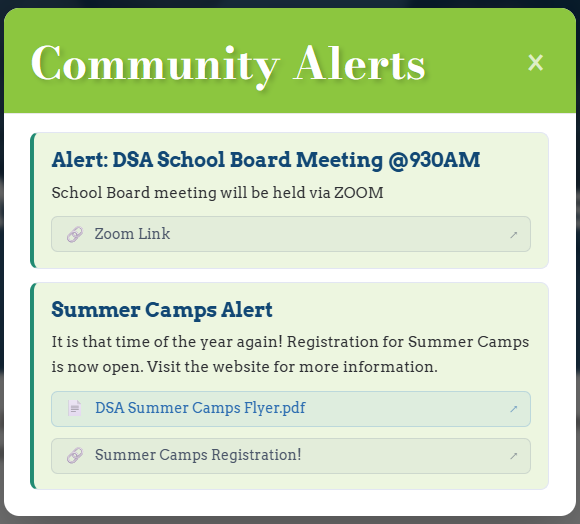
See the widget in action at DeSales Academy | Hampden, MA.
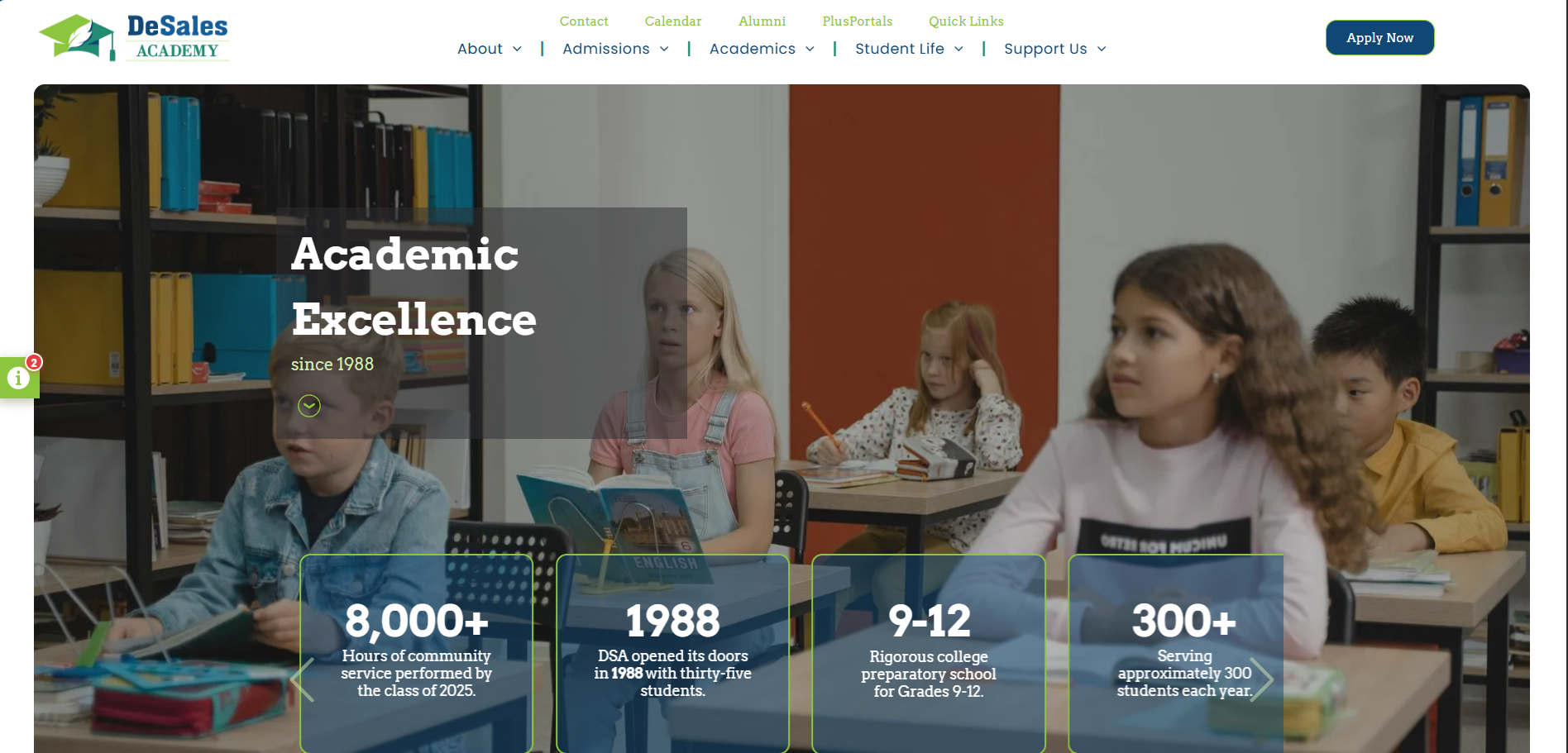
TABLE OF CONTENTS
Special Note
Please note that the widget can work as a manually edited widget or connected to an internal collection, however it was specifically designed to work with your Rediker PlusPortals School Announcements. Also, certain areas of your website like the header or footer may be locked, restricting you from placing a widget in those areas. If you need help setting up and connecting this widget to your PlusPortals Announcements, just email support@rediker.com.
To add an Alert Icon+ Widget to a page
- Open the widgets Panel from the left side of the editor by clicking + Add
- Locate the Alert Icon+ widget. Using the search is the quickest method.
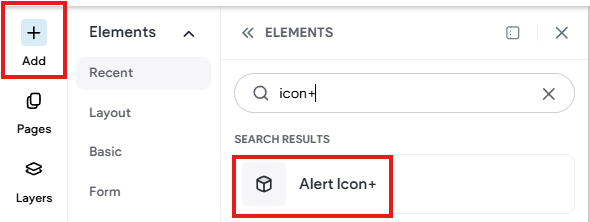
- Drag and Drop the widget on to the page
- If connecting the widget to your PlusPortals Announcements right click the widget and choose Connect to Data

- Choose the PlusPortals Announcements option from the collection list. If you do not see your PlusPortals Announcements as an option, please contact support.
- The field mappings should automatically map the necessary options for Title, Description, Start Date, files, and links. Do not change these options.
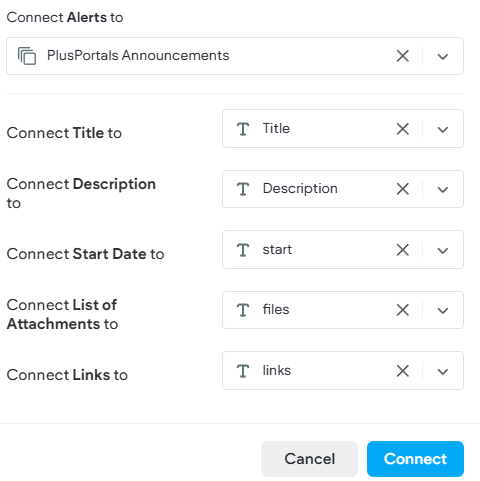
- Click Connect
- Please Note that by default, the widget is set to Filter By Title Contains Alert. If you currently have no public announcements with Alert in the title, then nothing will be showing. See notes below about Filter by Title Contains.
Content Options
Content options and setting typically dictate what content is to be displayed like which icon, or which text like start date.
Click on the Widget and access the Content options.
Choose Icon
Choose an Icon (color will be set under Design). Click on the default icon or choose Change Icon. Select from All icons or search. It is possible to upload a "custom" icon (.svg), this is considered advanced and not recommended.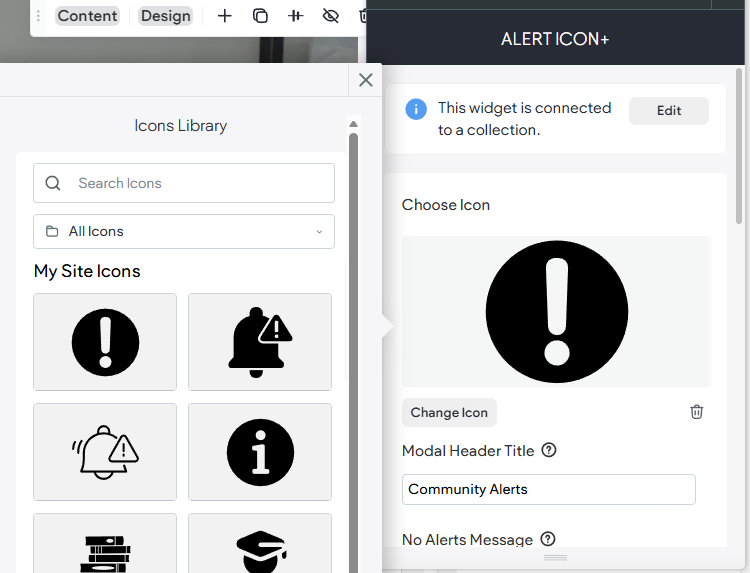
Show Modal Title
When toggle is on (true) you have the option display a Text Title on the modal popup.
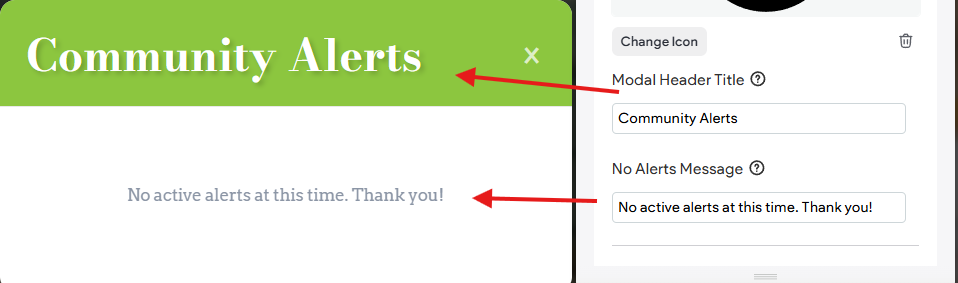
Modal Header Title
This is optional, it can be left blank. This will be text that appears on top of the popup that appears when the icon is clicked. Note that if Show Modal Title is not toggled on (false), the option to edit the Modal Header Title will not be visible.
No Alerts Message
Is the text that will appear when no active announcements are detected in your announcements feed.
Filter By Title Contains
As noted, the widget is filtering for the word "Alert" contained in the Title of the Announcement. Optionally, you can change the widget to be filtered for some other specific keyword like "Attention" or "Athletics" in the Title of the announcement. You can also leave it blank to show all Announcements.
Tip- The widget is not intended to show ALL announcements, it is intended to call special attention to items of high importance; thus, it is recommended you choose a keyword to filter by. Other widgets already exist to show all announcements.

Sort By
Default, Title, Severity, Start Date. Allows you to choose a sort of option for the Announcements being displayed. By default, the data from PlusPortals is ordered by "Start Date" meaning the newest, most recent start date is displayed on top. This is intentional to keep the freshest more recent and relevant items on top. Thus, Default and Start Date will essentially do the same thing.
Tip- If there is an announcement you want on top then set its start date to be a very recent date like today's date.
Show Severity
At this time toggling this on shows "Info" as a badge on the Alert Item Card. At this time PlusPortals does not yet, allow a "severity" or importance level. This option is currently for when using the widget as a standalone and manually adding items. Future support will be updated when PlusPortals also allows this.
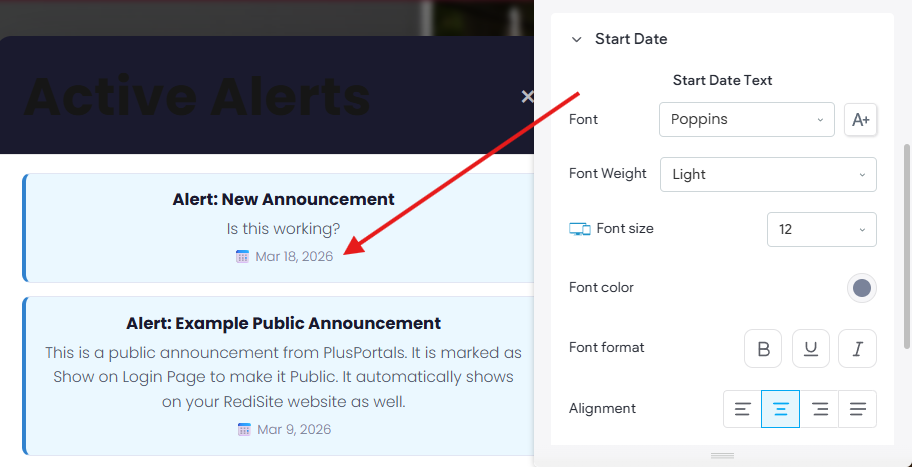
Show Start Date
Toggles the display of the Start date of the announcement on the Alert Card item.
Design Options
Design options control the display setting of content items. For example, the text size and color of the Alert (Announcement) Title.
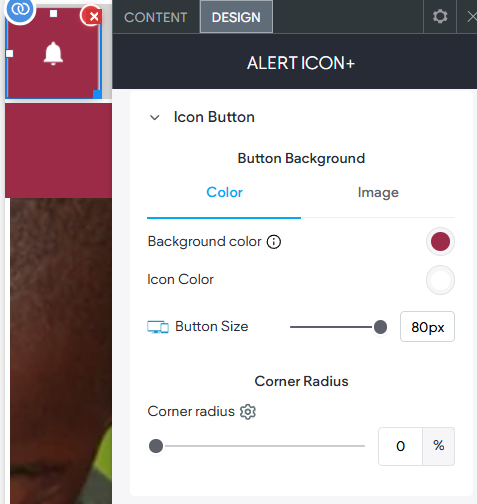
Icon Button
Settings impacting the visible Icon button.
- Color- This controls the colors of the Icon Button, both for the background and the icon itself.
- Button Size- Controls the size of the Button (36px min. to 80px max.).
- Corner Radius- Set a corner radius which is 50% by default to make it round. Setting the radius to 0% makes the button square.
Alert Badge
Setting impacting the "active" number badge appearing on the button.
- Badge Color- Sets the background color of the number indicator badge
- Badge Text Color- Sets the text color of the number of active announcements.
Tips- Be sure to choose high contrast colors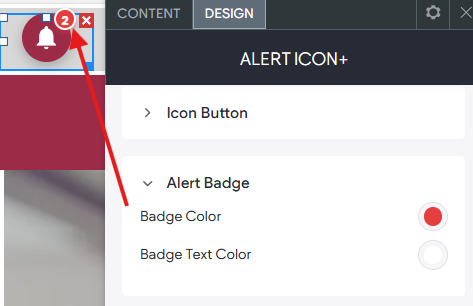
Modal Header & Title
The modal header and title appear in the top portion of the popup.
- Color / Image- Sets the properties of the background header are where the title appears in the popup
- Title Typography- Sets the Font properties for the Modal Title.
Note that IF Show Modal Title is not enabled on the Content Panel the Title Typography will not show.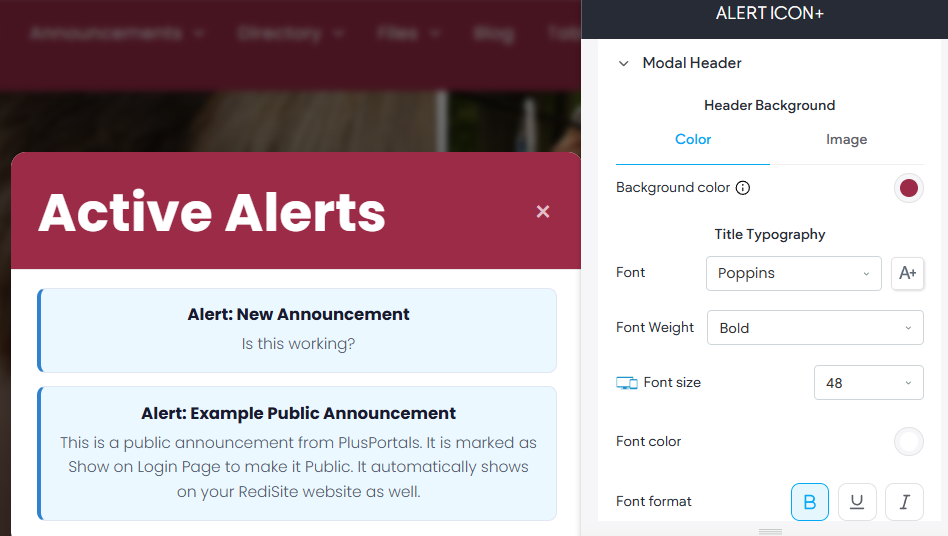
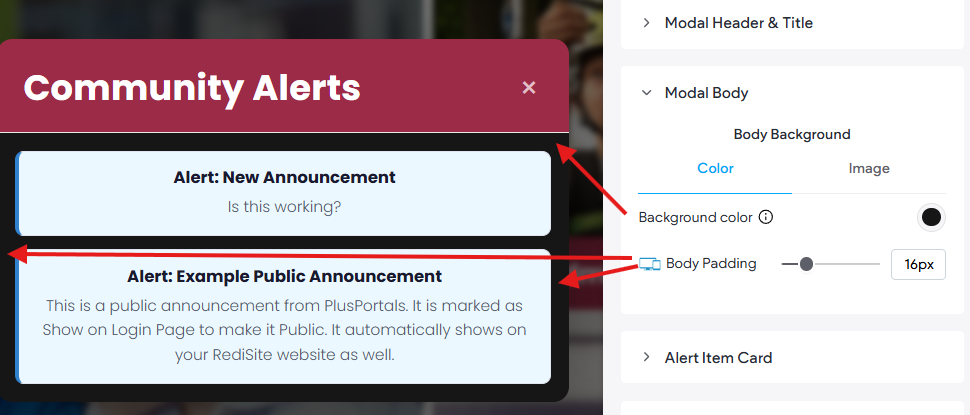
Modal Body
- Body Background- Sets the background color (or image) for the modal popup.
- Body Padding- Sets padding of the modal popup (the space between the popups edge and the alert item card.)
Alert Item Card
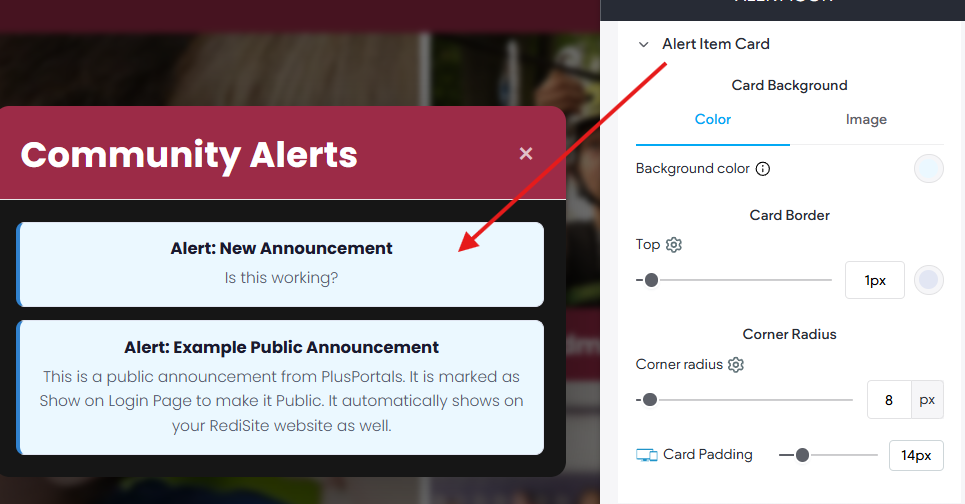
These setting impact the design of the actual announcement items themselves from the background to the title and description font settings.
- Card Background- Sets the background color of the Alert Item Cards
- Card Border- Sets a pixel border on the cards. You can set the widget as well as color.
Tip- by default we set the Left border a little larger. - Corner Radius- Gives a rounder corner to the card (high number = more rounded)
- Card Padding- Adds spacing on the interior of the card (to all; top/bottom and left/right)
- Alert Title- Controls the font styles of the Alert Title
- Alert Description- Controls the font styles of the Alert Description text.
Start Date
Multiple settings that directly impact the Start Date. Note IF the toggle for Show Start Date is set to off (false) these design settings will not show.
Float
An option identical to that on a standard button widget, that allows for the button to be a floating button. The float option allows the button to appear on every page, or only the current page.