
A responsive table with a convenient search option, perfect for large sets of data. A great way to show a list or directory of people, for example, connecting the widget to a collection for displaying a sports team roster. If you are looking for a Staff Directory solution this widget would work for that purpose, we can also recommend the Staff Directory Widget for that as well.
See the widget in action here- Faculty & Staff | DeSales Academy | Hampden, MA.
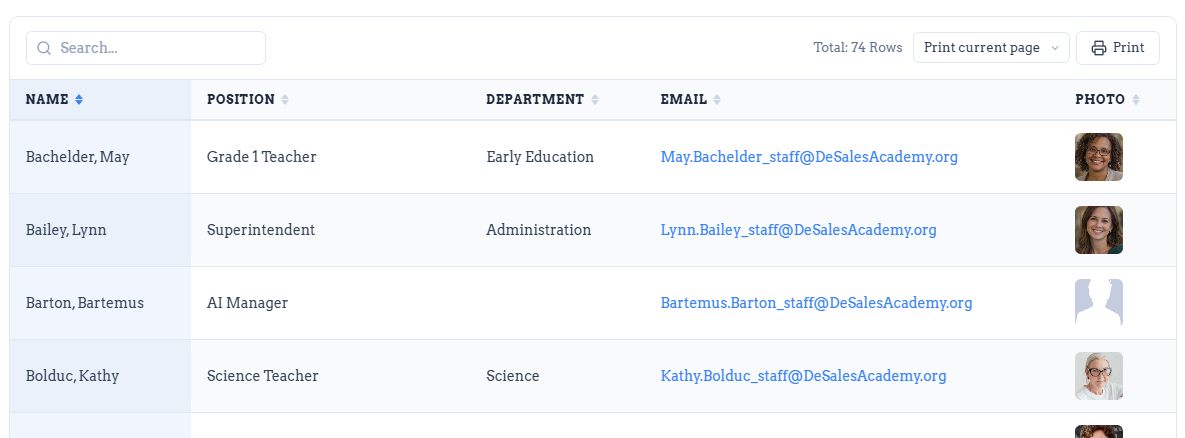
TABLE OF CONTENTS
- Special Note
- Adding the Widget and Connecting to a Collection
- Content Settings and Options
- Design Options
Special Note
This widget is specifically designed to be connected to a Collection, and was specially designed to be used with your AdminPlus Staff Directory. It can be connected to any internal or external collection like your AdminPlus Staff directory but must be connected to a collection to function. This is because it was designed to work with and display large amounts (of data up to 500 rows), and managing the data is best done via a collection. This is considered an advanced widget with many settings and options, if you need help setting it up, please email support@rediker.com.
Adding the Widget and Connecting to a Collection
This widget does not work as a standalone widget it requires that your data first be setup in a collection.
- Open the widgets panel by click +Add
- Locate the RediDataTable+ widget (using the search is the quickest way)
- Drag and drop it on to the page in the desired location
- Connect the widget to a collection by entering the required Collection Name.
This widget provides the settings for the connecting to a collection right in the Content Panel.
Please note that it will default to the Collection Name of "AdminPlus Staff Directory," this was done as a convenience and because it was specially designed for that purpose, simply enter the name of a different collection as needed.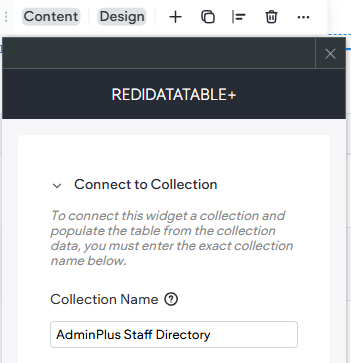
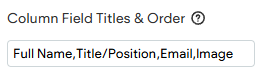
- Set the Column Field Titles and Order by entering the exact matching column headings from your collection separated by a comma. This controls which columns (fields) you want your widget to display and the order you want them to be in on the table. These come from the connected collection. Leaving this blank will show all fields in the collection (not recommended).
Note it will default to "Name,Position,Email,PhotoUrl" as those matching key fields setup as part of the AdminPlus directory feed by default. Please change them if connecting to another collection. In the example below, you can see that "Category" is intentionally skipped, by simply not entering the title in the comma-separated values.
- Just setting the Collection Name and Content Field Titles & Order are the minimum to allow the table to render your data.
- There are other optional content and collect settings that only apply if your data collection required mapping for special field types. Please the corresponding section of this document for more details on these special field settings.
- There are also additional/optional Content Settings as well as plenty of Design Settings to further customize the widget. Please see the rest of this article for further details.
- Preview your page and widget
- Republish to make your changes live.
Content Settings and Options
Special and Optional Fields (Connect to Collection)
Settings that allow you to control special aspect of your table like Column Header Titles and more. Like most tables, this widget is designed by default to work with plain text data contained within the fields. However, there are special settings to help properly display and render specialty data contained in your table like email, links, images, and or rich text. When your data set contains special fields (columns) that have specific data types you need to use the optional key fields to identify them by title.
Column Headers Display Name
Used for overriding the column header titles in your collection. For example, if the column titles of the Collection we "Name," but we want to override it to display as "Last Name First Name."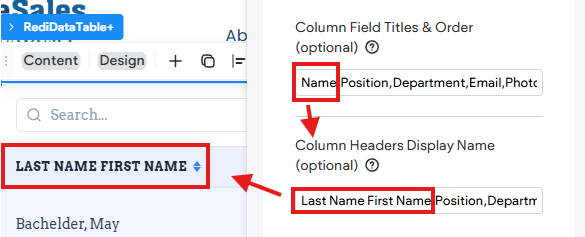
Email Field Title
Used for identifying key fields from your collection that contain an email and should render as a clickable email)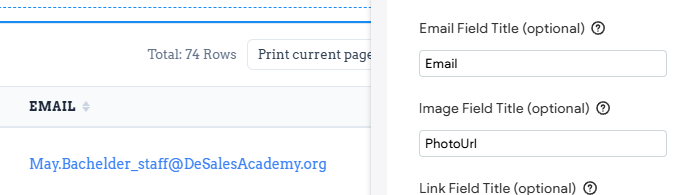
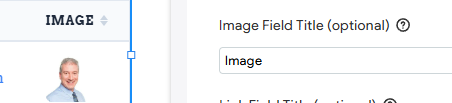
Image Field Title
Identifies image fields in your collection.
Link Field Title
Allows you to identify a link type field from your collection so that the table renders it as a clickable link to the URL provided in the collection. The URL must be entered in your collection properly formatting like this "https://www.domain.com"
Rich Text Field Title
If there are any fields set to Rich Text, you will need to place their titles here. This ensures the table treats the data in that field as rich text so that it properly renders things like line breaks <br>, bold <b>, etc. It is recommended that most fields be set to Plain Text and only use Rich Text for special fields.
Column Widths
Control how wide each column is.
Auto- The default 'Auto' mode attempts to distribute columns as evenly as is possible.
Fixed- Applies the same pixel width to every column.
Custom- lets you set a different width for each column using a comma-separated list (e.g. 200,150,300; in the order of the columns).
Additionally, and or alternatively, you can leave this setting as set to auto and use Column Visibility.
Overflow Behaviour
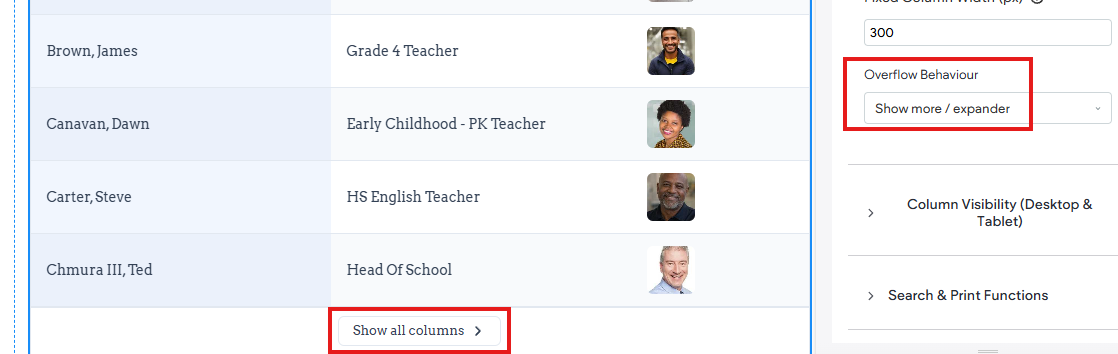
If the columns are wider than the table, choose how to handle the overflow below. Only available as an option if the Column Width Mode is set to Fixed or Custom.
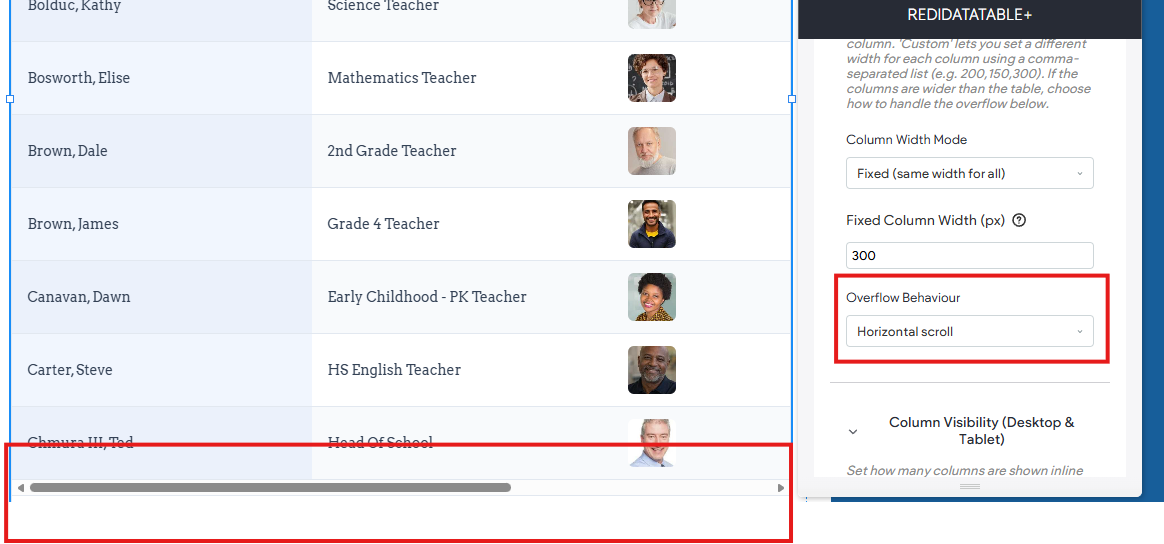
Horizontal Scroll (default) - If the table is wider than the space, a scroll bar is used to see the overflow data. For example, if we have a Fixed Column width of 300 pixels, which forces 1 or more columns to not fit within the space, the horizontal scroll bar would appear.
Show more / expander - Will place a button toggle at the bottom to indicate there are more columns that can be shown. When clicked it would then display the hidden/overflow columns.
Column Visibility (Desktop & Tablet)
This is a great option to help avoid the problem of either tricky column widths and or overflow.
Visible Columns (Desktop and Tablet) - Allows you to actively set the table to display specified number of columns (starting with the first/from the left). It will then place the remaining columns into an accordion style dropdown.
In the example below, by setting Visible Columns to 2, it the table will actively display just the data from the 2 columns (per each entry/row) and more the remaining columns into an expandable dropdown. Very useful for situations for when you either have many columns of data or a column that is lengthier text. For example, by having the longer email field and the end and not displayed in the table, it puts in the drop down where it has more space.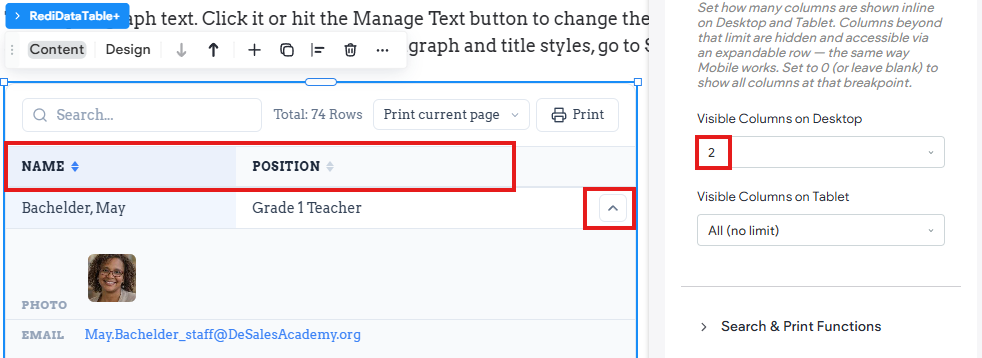
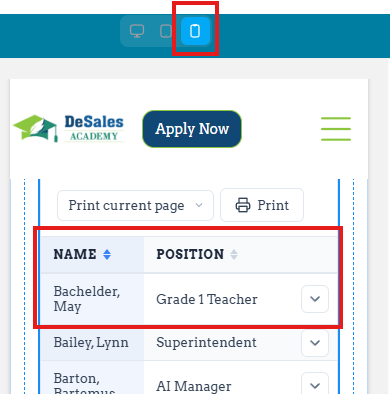
Please note that by default the table is already responsive and will automatically show only 2 columns and place others into a dropdown expander (no setting necessary). Ensuring the table always renders well in mobile.
Search & Print Function
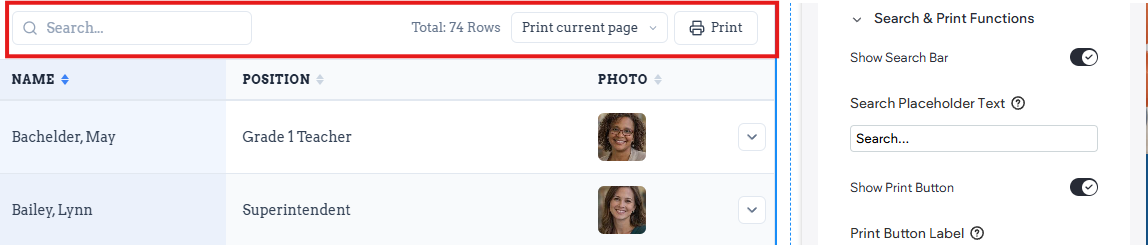
Control settings for these features. For example, you can choose to not show the search bar or print buttons.
Pagination
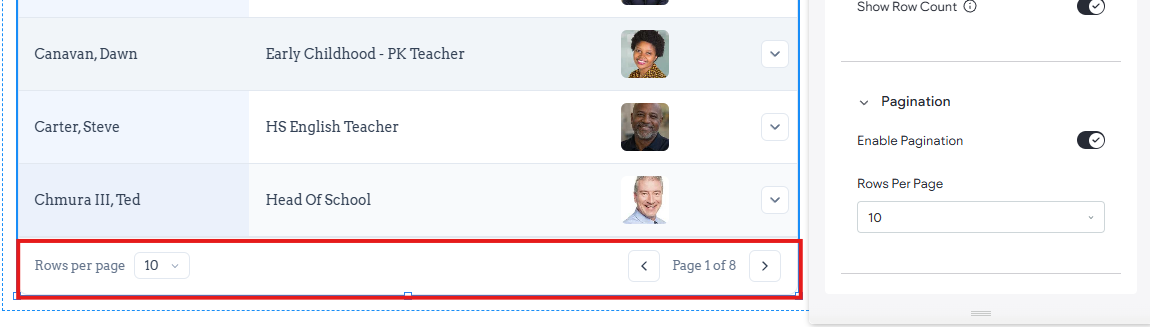
By default, this is enabled and makes it so the user is only getting a set number of rows at a time. Rows per page allows you to control the default number, which will default to 10, and the user can already choose to adjust it.
You can disable pagination, which not recommended for larger data sets as it will mean it renders every row making for a very long table in some case. This option is for shorter tables of 10-20 rows where you want the whole table without pagination.
Design Options
Please note that design options often use display logic which base available design options on content setting choices. This means some options may not display depending on your content settings.
Table Container
Controls the background of the entire widget (container) as well as give a border and corner radius options. These styles are most noticeable on the top and bottom areas of the table.


Table Header
Various style options impacting the table header area (first row where you column headings are). This also includes the Active Sort Column.

Table Rows
Style controls of the rows of data. For example, the default colors of the Rows, Alternate Rows, Hover, etc.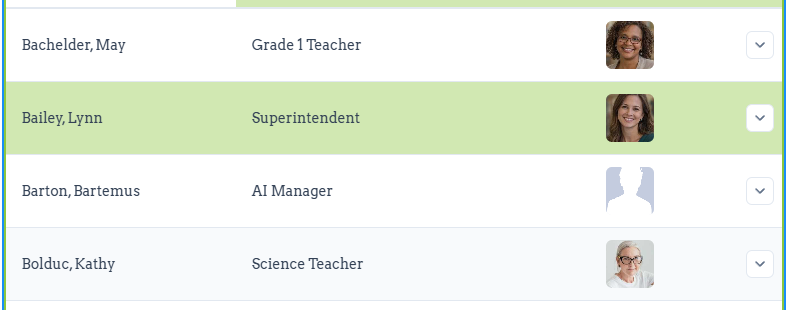
Tool Bar
Style settings for top section of the table (the area containing Search and Print Button). Includes a background color, and controls for the print button

Pagination
Various styles impacting the bottom area where the Rows Per page and Page controls are.
Accents & Borders
Controls the Row Divider Color
