The AnnouncementsList+ Widget is designed to showcase announcements from Rediker’s PlusPortals. This updated version of the Announcements+ widget offers significantly expanded content and design controls over its predecessor.
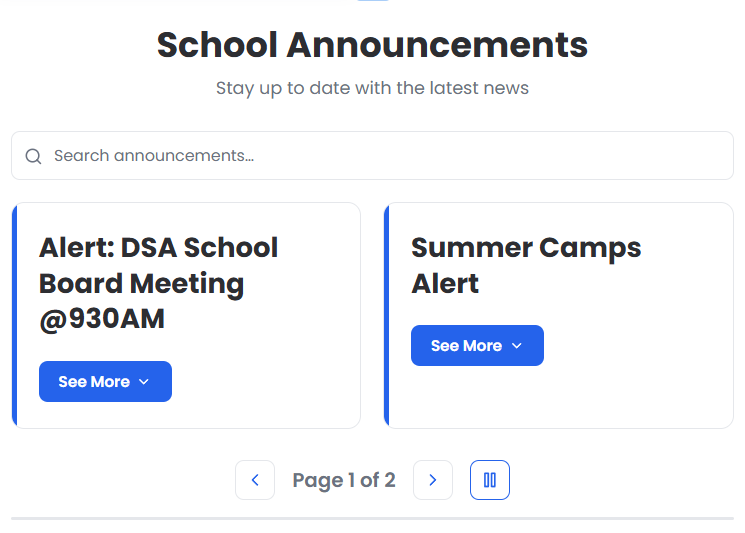
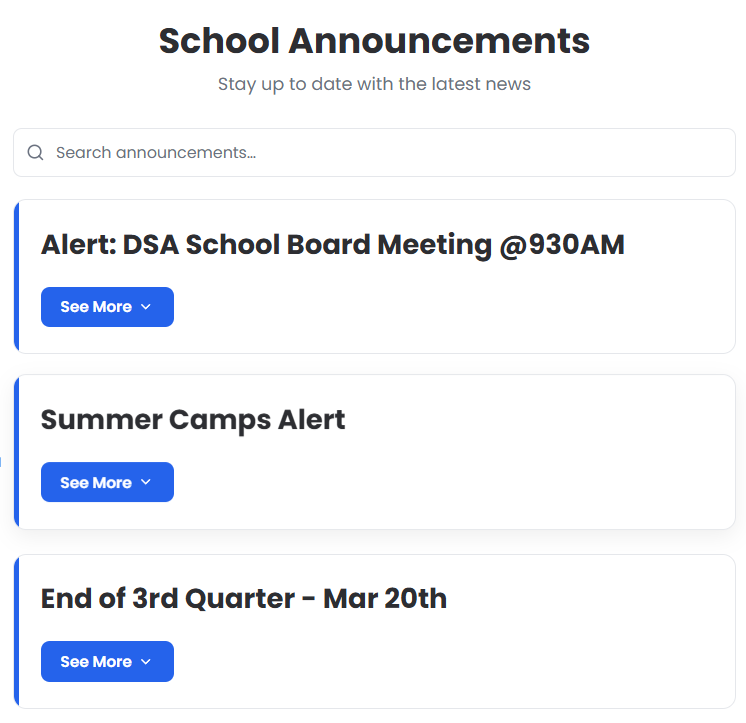
The widget supports both grid-based columns and a classic single-column layout, allowing for flexible presentation. You can also choose from three display modes—Expand, Modal, or Flip—to keep the widget compact while dynamically revealing contextual elements such as attachments. In addition, the AnnouncementsList+ Widget supports images within announcements and includes an autoplay feature that automatically cycles through pages of announcements as needed.
 |  |

Want help getting this widget setup on your site? Let us know support@rediker.com.
TABLE OF CONTENTS
- Adding the Widget
- Content
- Design
Adding the Widget
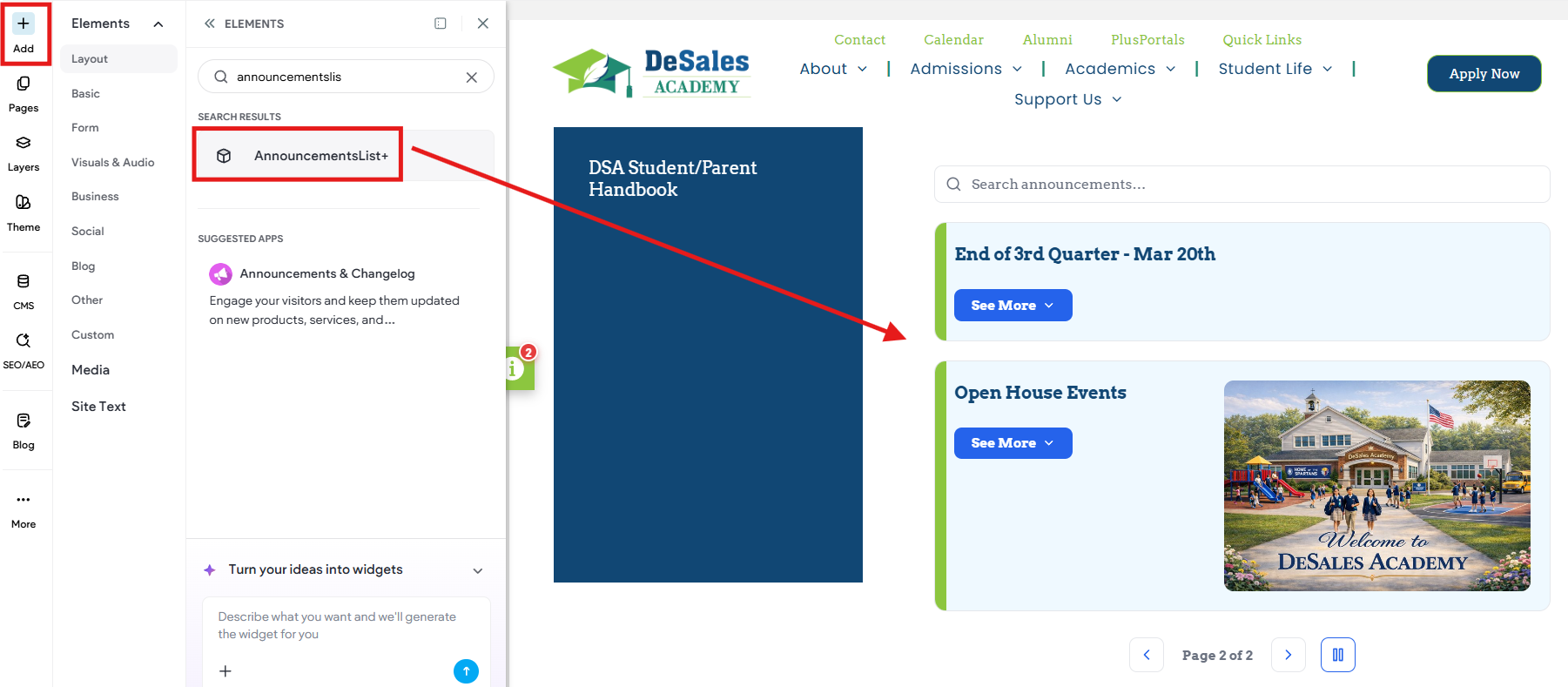
- On any page, click on +Add to open the Widgets Panel
- Locate the AnnouncementsList+ widget using the search function
- Drag and Drop the widget on to the page
- By default, the widget is designed to automatically connect to your Rediker PlusPortals Announcements.
- If needed review the Collection Information notes.
- Announcements in PlusPortals need to be active (valid start/end date) and be marked public.
- Review and set the Content and Design options provided as desired. See the provided notes below about the available settings and options for Content and Design.
- Be sure to preview the site.
- Republish the site to make the changes live.
Content
Collection Information
These settings control the connection to the source of content for the widget. There should be no need to edit this information. This widget is specifically designed to connect your Rediker PlusPortals Announcements. The widget will default to "PlusPortals Announcements" for the Collection Name. The other fields, representing the data field mappings coming from PlusPortals, should also already be named correctly and automatically connect as needed (title, description, start, end, links, and files). If the widget is not correctly connecting to your PlusPortals Announcements, please let us know.
Expand Mode & Preview
Expand Mode
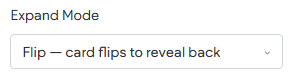
The widget is designed to present itself in a compact and streamlined way, by showing the announcements with a big title, while hiding the details until clicked. These settings control how the widget will display the contextual items like the Description, Links and Files. You can choose from 3 Modes: Expand, Modal, or Flip. By default, the Announcement Cards show the Title with a button to See More content. The mode selected determines the behavior of how the Description and Links/Files will display.
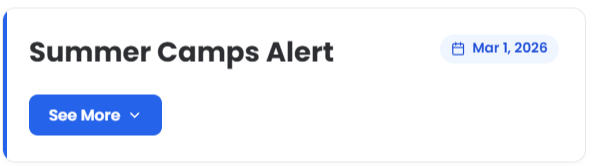
| Expand The card expands down to show the content.  | Modal A popup will appear as an overlay containing the additional content. 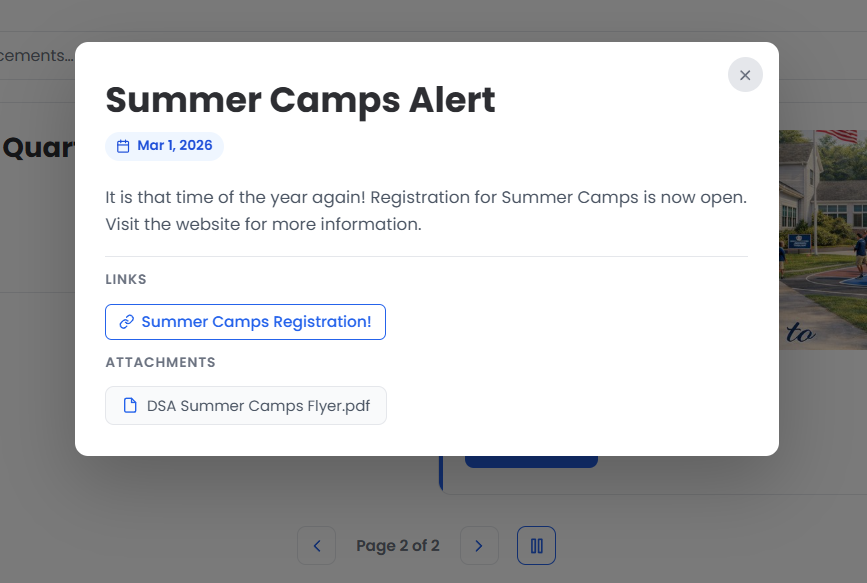 | Flip The card flips over reveling the additional content on the back. 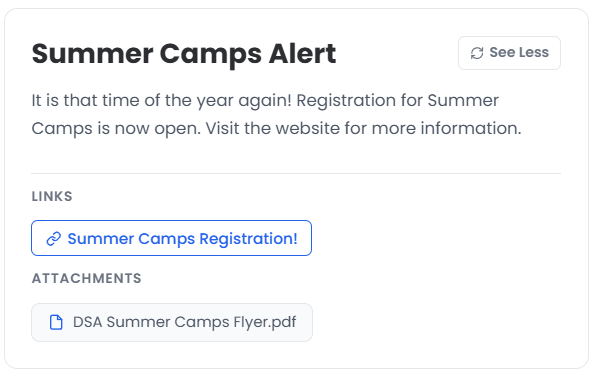 |
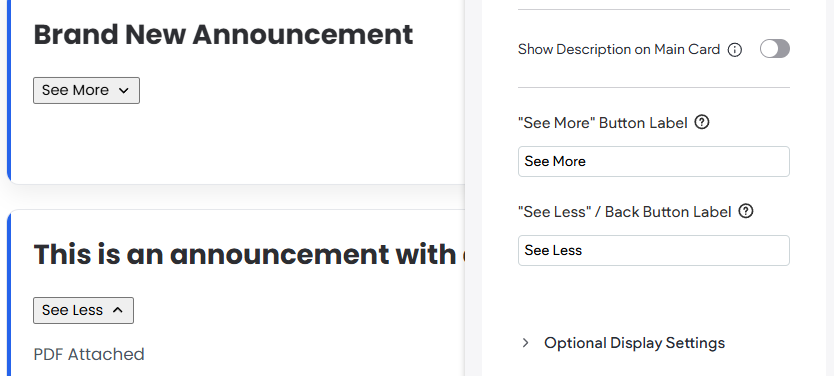
Show Description on Main Card
When on, the description appears on the main card with the title. When off, the description only appears in the expanded area (Expand/Modal/Flip) with links and files. The default is off, so that the description is shown in the expanded area for a cleaner look.

"See More"/"See Less" Button Labels
Allows you to control the text label on the buttons. The default label is See More/See Less, which can be overridden here.
Optional Display Settings
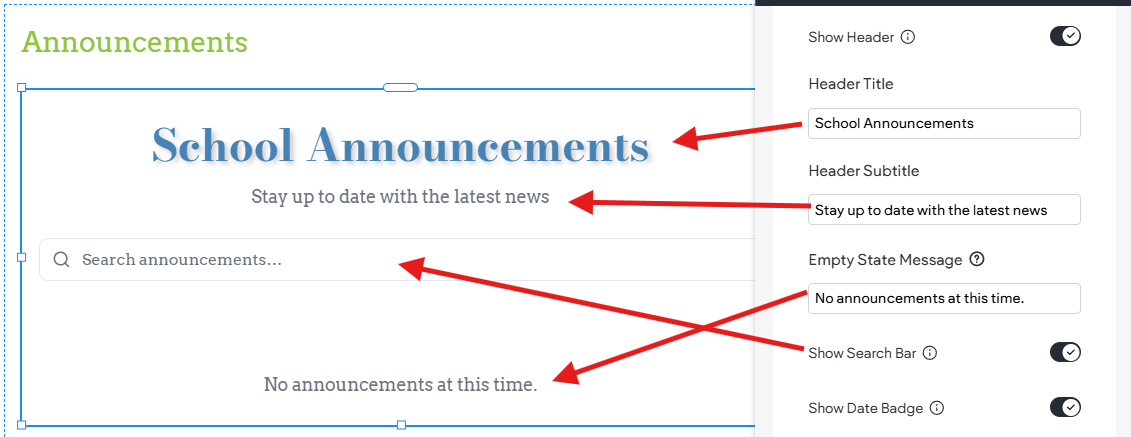
Show Header (Title and Subtitle)
The widget allows you to display an optional Title and Subtitle in the "Header." The title will display using the default Heading 2 theme settings from your Site Theme, which can also be overridden in the Design Options.
Empty State Message
This is the text that will display when no active announcements are present in the data feed from your PlusPortals collection.
Show Search Bar
By default, the widget provides a convenient search bar for your website visitors. This setting allows your turn it off if you wish (not recommended).
Show Date Badge and Which Date to Show
Announcements from PlusPortals come with two dates the start and end dates, which represent the time for which the announcement is actively visible. The optional date badge can be used to display the Start Date, End Date, or the Date Range (Start-End).

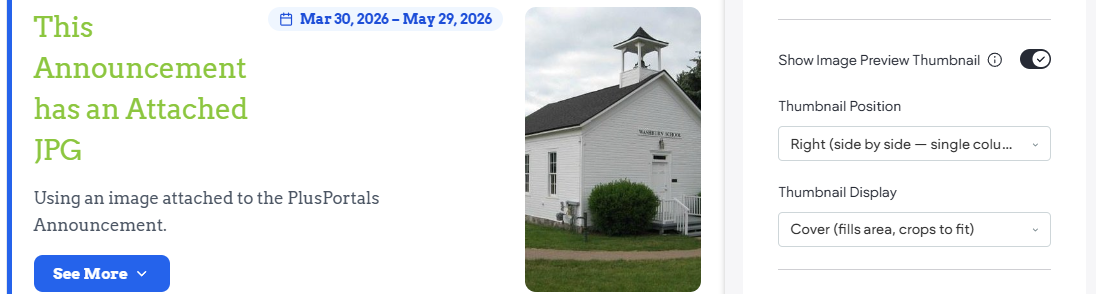
Show Image Preview Thumbnail
The widget can render an optional Thumbnail preview of an image attached to the Announcement. Please note this option only works if and when the first file attached to the Announcements in PlusPortals is a valid Image File Type (JPG and PNG). There are design settings for controlling the size of the thumbnails which may also need to be adjusted.
As is typically recommended, it is best to avoid images that contain text in them. This feature works best when in single column view.
Thumbnail Position and Thumbnail Display
Controls how the thumbnail image is displayed (if/when present). If choosing to display a thumbnail, be sure to also adjust the File Preview Thumbnail on the Design panel as well. The position gives choices for Right, Left, Top, and Bottom. Right and Left are only available choices when using a single column layout. The display choses whether the thumbnail will "cover" (or zoom) or be full image.
If you desire to display images, it is recommended you always use consistently sized images/ratios for example, always attach a square (1:1) or rectangle (16:9). That way the image settings can be set to work well with your images.
It is recommended that thumbnail images only be used in a Single Column List layout and not used in a multiple column layout view.
Desktop and Tablet Columns
Gives you the ability to show the announcements in a grid layout using multiple columns. Please note that in Mobile view it will always default to a single column layout. Don't forget to also set the Number of Announcements per page under Pagination and Sort.
Equal Card Height
Equal card height sets all the announcements cards to the same height (based on the largest card). This is very useful when using multiple columns to make a grid as it makes the cards appear cleaner and more equal. This can be set separately for Desktop/Tables and Mobile. When using single column list, it is recommended that equal card height be turned off.

Pagination & Sort
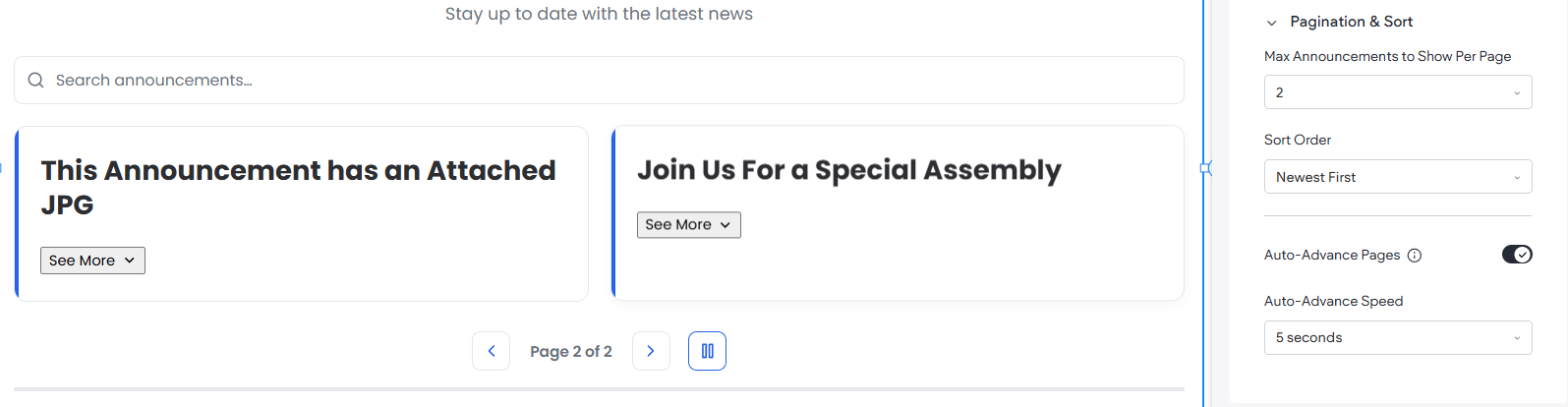
Max Announcements to Show Per Page
Used in conjunction with the column layout choices, it determines how many announcement show at a time then creates pages (pagination) for the announcements. If you have 6 active announcements and set the widget to show in a 2-Column layout with a max of 2 Announcements per page, you will have 3 pages of 2 announcements.
Sort Order
Determines which announcement shows first and how the list is ordered. The widget uses the Start Date to sort the announcements, thus when setting the widget to Newest First, the announcements with the most recent start date would appear first and the oldest start date would appear last.
Auto-Advance Pages
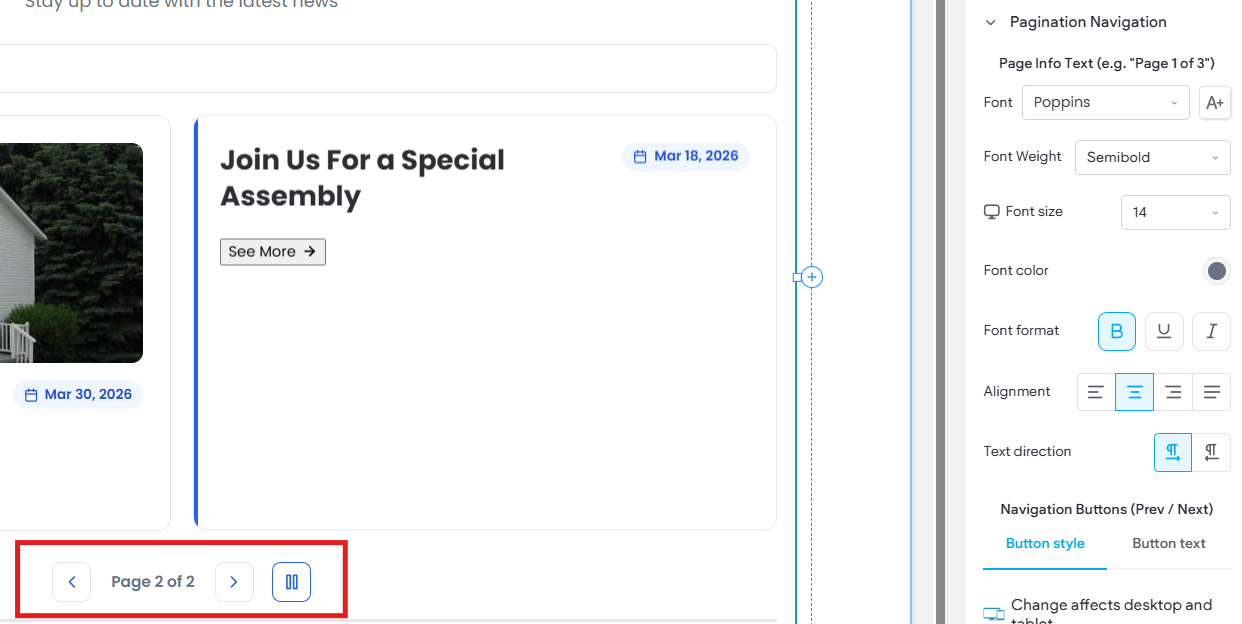
When there are multiple pages of announcements this engages and autoplay option that advanced the pages automatically and loops them. It also gives a speed control. Note that if Auto-Advance is toggled on, the user gets a manual pause/play button, and it also automatically pauses when the user is hovering or is actively clicking on an announcement.
Design
Header
Allows you to control the Title and Subtitle text (if showing) that will show above the announcements. Note that the Title (if showing) will automatically use the site theme heading 2 settings, this allows you to override the theme and customize the
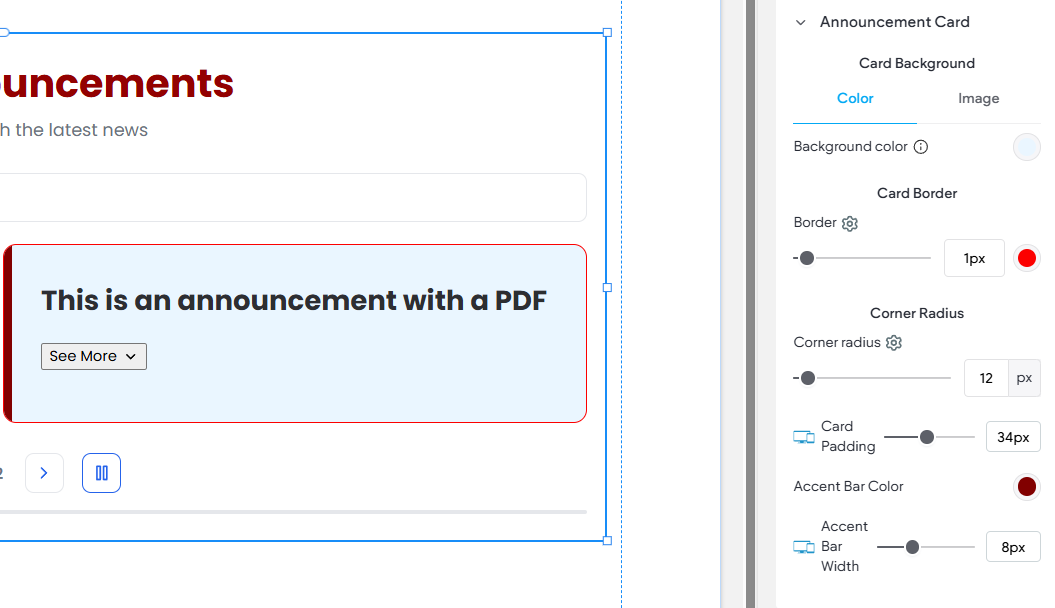
Announcement Card
Various design choices that customize the appearance of the Announcement Cards. This includes Card Background color, Border, Corner Radius, Card Padding, and Accent Bar.
Card Content
Controls contextual elements on the cards including the Card Title (which defaults to the site theme heading 3) and Description Text.
See More / See Less Button
Design items that control the See More and See Less buttons
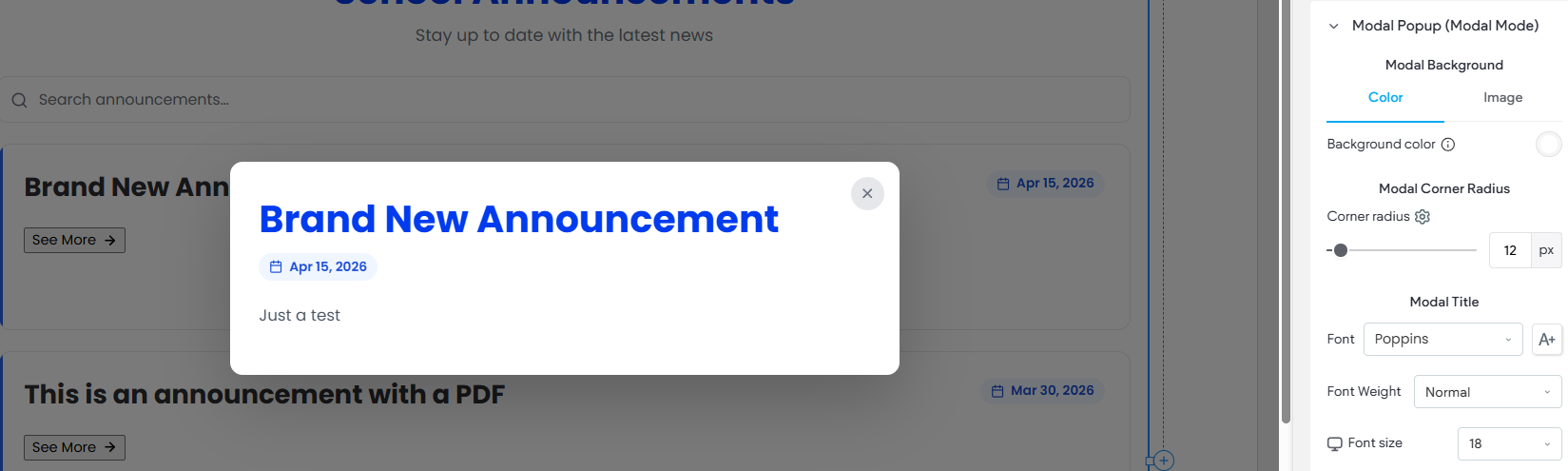
Modal Popup (Mode)
If the Expand Mode (Content) is set to Modal, these setting impact the Popup that appears in Modal Expand Mode.
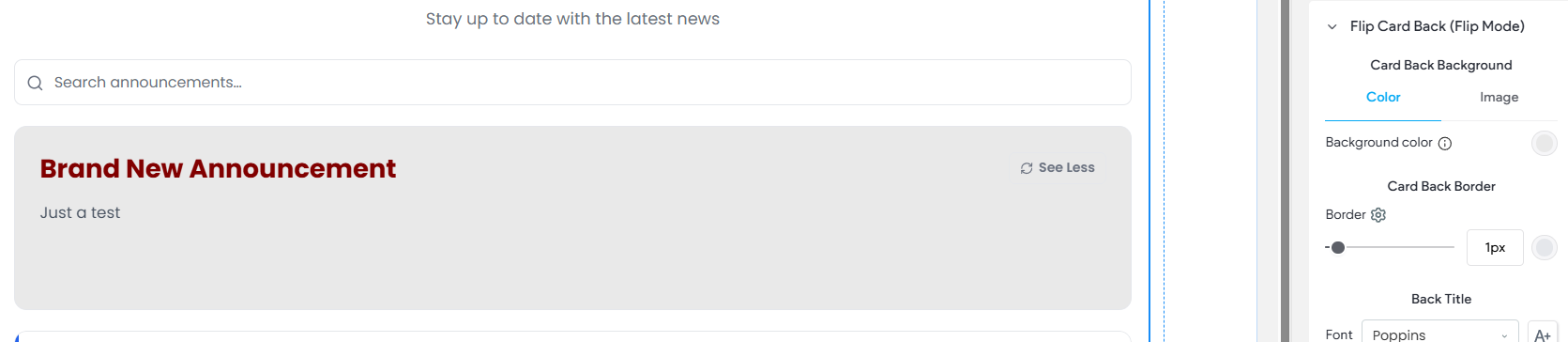
Flip Card Back (Mode)
If the Expand Mode (Content) is set to Flip. These setting impact the Back of the Card that appears in when using the Flip Card Mode.
Date Badge
If choosing to show the Date Badge these design options give you control over the look of the item.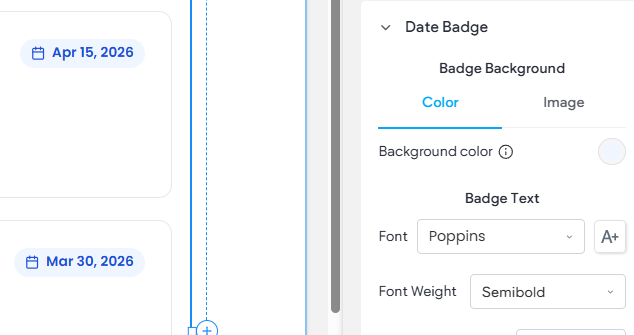
Thumbnail Size
Controls for adjusting the thumbnail image size. Note that the controls are labeled for controlling the "Side" or "Top/Bottom" sizing based on the content setting of where the image should display.
Links & Files
Controls design elements for the Links/Files that appear in the expanded area such a Link Button Border and Text etc.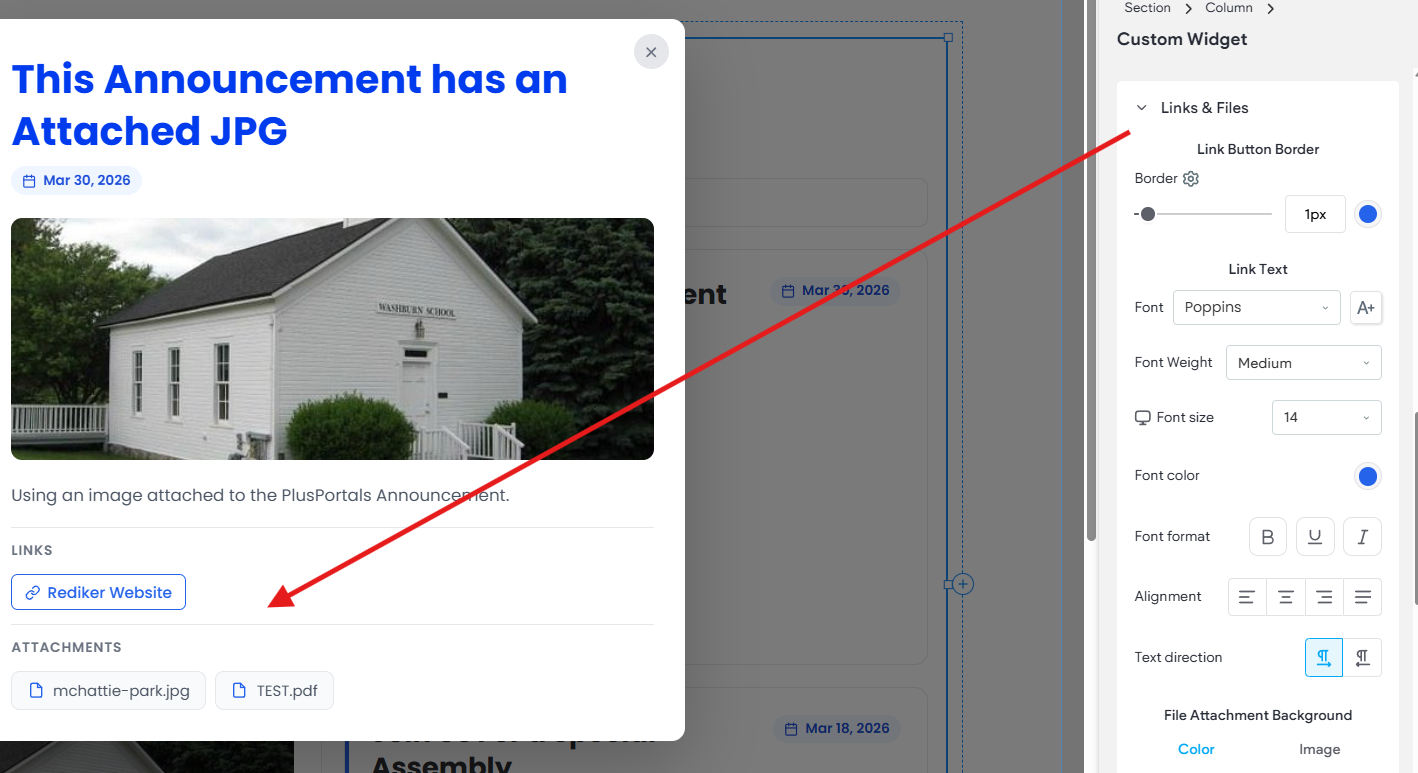
Pagination Navigation
Various designs controls that affect the pagination elements (if being used). For example, setting the Navigation button size and color.
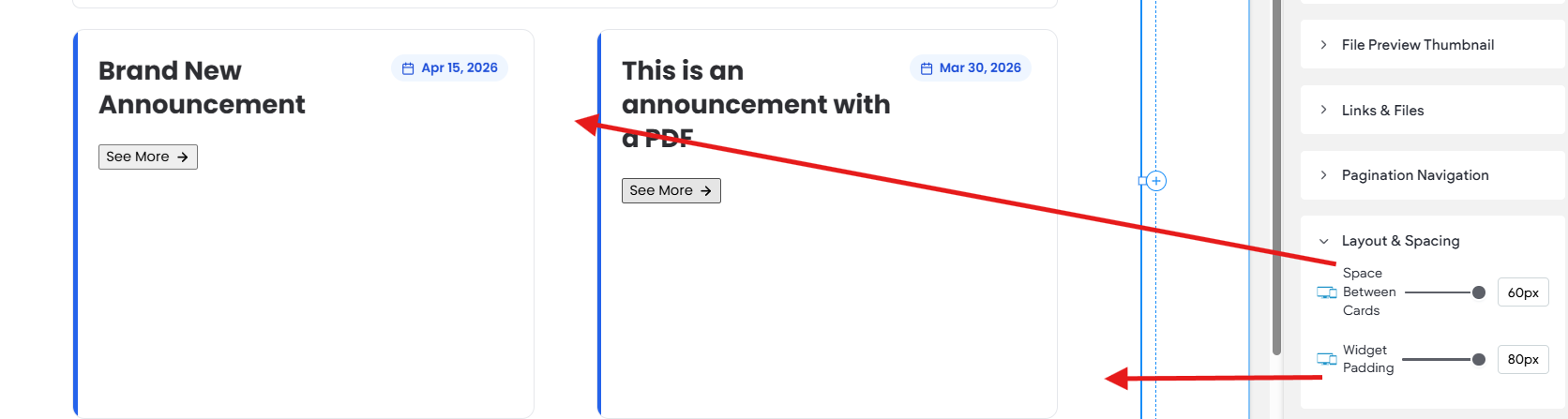
Layout & Spacing
Controls the spacing and padding of the Announcement Cards. There is the space between cards and the padding of the cards against the outside of the widget.