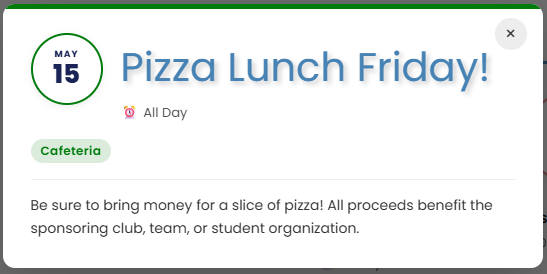
A widget designed to highlight and showcase upcoming events. This compact widget serves to display and call attention to upcoming events in a horizontal layout, making it a perfect addition to your home page. You can also link it to a page where your monthly calendar will be placed. Please note that this widget was designed and intended to connect and integrate with your PlusPortals calendar, it will not work as a standalone calendar.
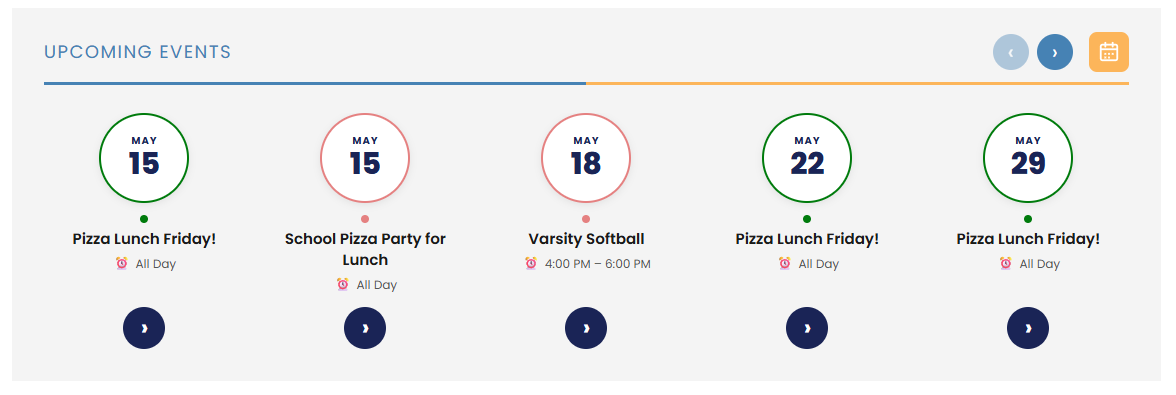
See the widget in action: School Admin Software | REDIKER IOT | Hampden, MA.
Note that this widget is NOT a full-calendar option. It does not and will not display all events. As the name implies, it is used to show a snapshot of upcoming events, then link to another page or location to display a full calendar.
TABLE OF CONTENTS
To Add the Upcoming Events Widget
- Click on +Elements to open the Widgets Panel
- Use the Search to quickly find the "Upcoming Events"
- Drag and Drop it on to the page
- Set your Content and Design elements as desired. See notes below detailing Content and Design options.
- The widget is designed to work with your PlusPortals Calendar. It will default to the collection name of "PlusPortals Calendar" (edit it only if necessary) and automatically show upcoming events.
- Preview your page with the widget, be sure to also view the widget in Mobile view.
- Republish your website.
Need assistance setting up this widget? Emails us at support@rediker.com.
Content
Display Mode (Card or List)
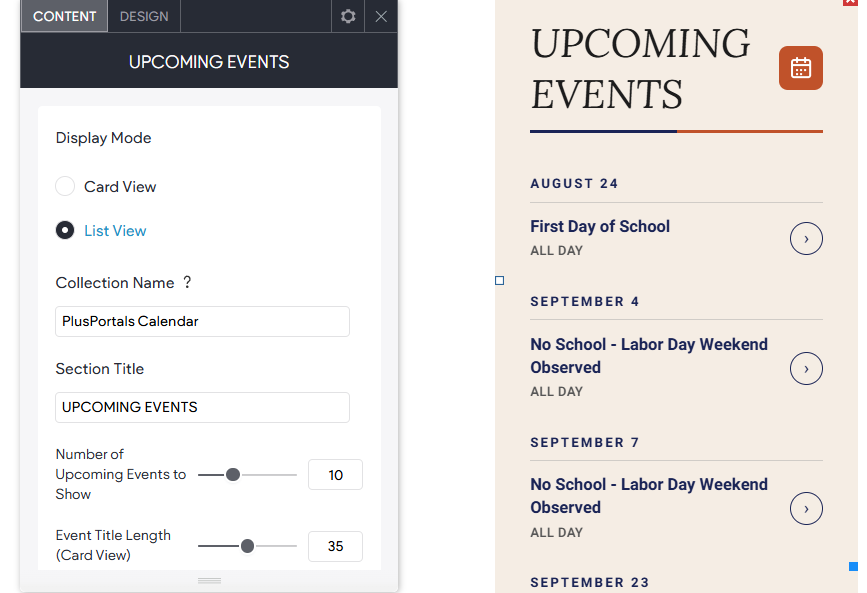
This allows you to set the widget to be a Card View (horizontal) or List View (vertical). The choice between the two would be dependent on the widget's placement on the site. Card View was intentionally designed to offer a horizontal layout taking up a whole row. Whereas the List View is intended for narrow column widths. This option makes the widget very versatile.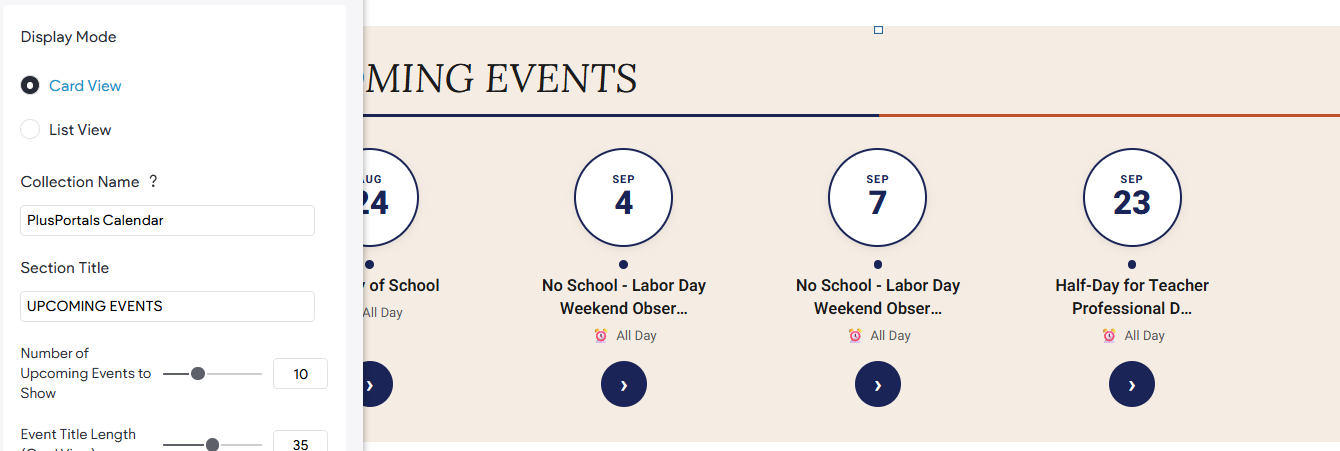
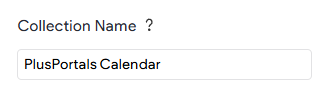
Collection Name
Used to connect the widget to an incoming source of data. By default, it will connect to "PlusPortals Calendar" and automatically pull in your events from PlusPortals. Only change this name IF your collection uses a different name.
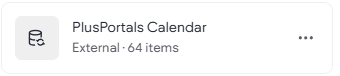
Events in your PlusPortals must be marked as "Show on Login Page (Public)" in order for the website to also show them.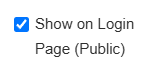
Section Title
Optional Title Text that will display in the widget header above your events. It will automatically use your site's heading 2 theme settings but can be overridden if desired.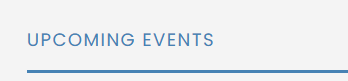
Number of Upcoming Events to Show
A number slider from 3 to 25 that sets how many events starting with today the widget will display. The widget will display a maximum of 5 across at a time (desktop) and uses navigation to allow the visitor to see more. Note that this widget is NOT a full-calendar option and it does not and will not display all events. As the name implies, it is used to show a snapshot of upcoming events, then link to another page or location to display a full-calendar.
Event Card Title Length
A number slider from 20 to 50 that sets the number characters to display for the event title. Titles that are longer than the set number will be truncated.
Calendar Icon & Link
Allows you to choose the Calendar Icon and destination link.
Design
Header
Offers design control settings for the header elements like the Title Text and Color Divider as well as background.
Navigation Buttons
Settings to change the Navigation Button color
Calendar Button
Controls the Calendar icon size and color.
Widget Background
Sets the background color for the entire widget as well as padding.
Date Circle
Controls the Date Circle appearing for the event. Including the month text and day number.
Event Card
Settings for the event title and time

Event Arrow Button
Design settings for the clickable arrow which opens the event details popup.

Detail Popup
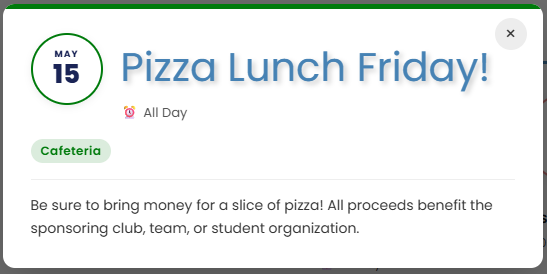
When an event is clicked, a popup will appear with the details including the location and description text for the event. These design settings