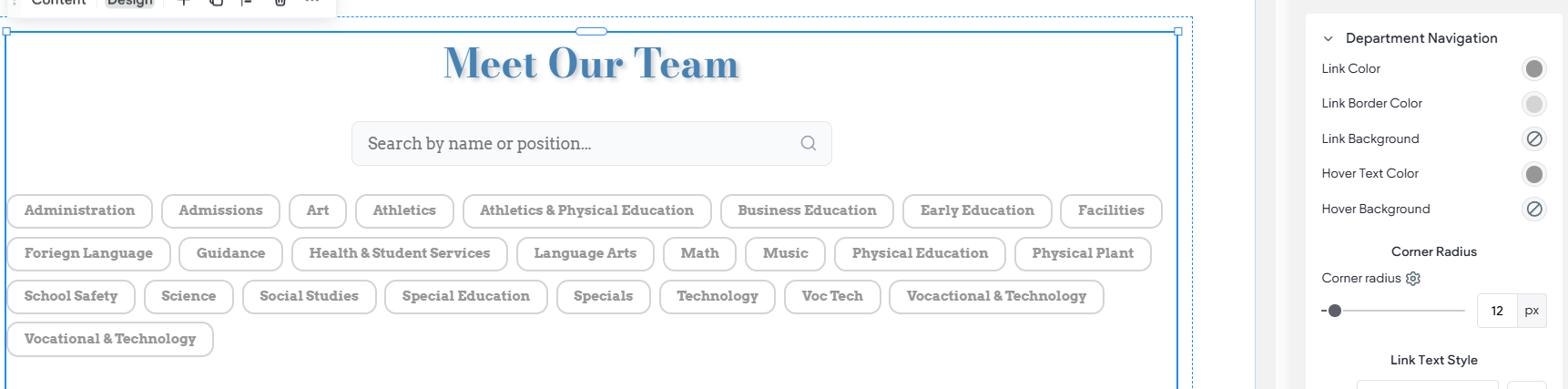
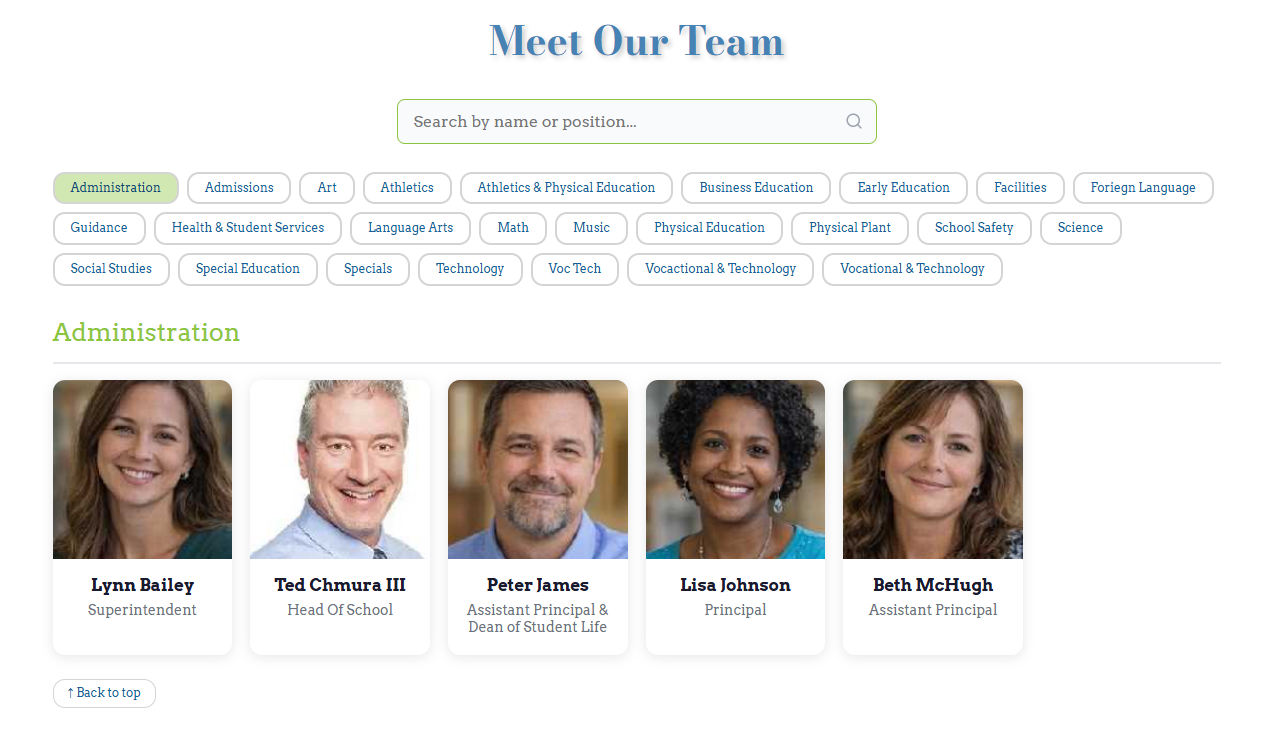
A widget specifically designed to connect to your AdminPlus Staff Directory and quickly display back a searchable list of school staff. Best of all it comes equipped with settings that are unique to a staff directory like Sort and Group by options for a Departmentally organized directory. It also can be optionally connected with two collections at once (that's right, you read that correctly), this option allows you to display additional information that is not stored in or coming from AdminPlus, for example, biography text and an alternate image from an internal collection.
Please note that this is a very robust and advanced widget. If you would like this widget deployed on your site, and you need help, please reach out to support@rediker.com or your account manager.
In order for this widget to work properly and effectively, you need to ensure that your Staff Data in AdminPlus is properly entered. It requires that staff have an email and that you have Positions entered. It is also highly recommended that you have setup a Department field with proper and consistent values as well.
TABLE OF CONTENTS
Adding the Widget to a Page
- Navigate to the page and location you want to add the widget to
- Open the Widgets Panel by Clicking +Add
- Use the search function to quickly find the Staff Directory
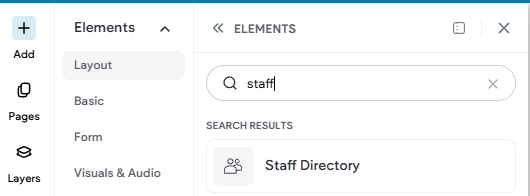
- Drag and drop it into the editor panel on the page
- The widget should automatically connect to and display staff from the "AdminPlus Staff Directory." If not, please let us know. Your collection may be called "PlusPortals Staff Directory" instead.
- Configure the Content and Design options as desired. See notes below for more information.
- Preview the content. It is highly recommended that you preview the content in the different device types including Tablet and Mobile.
- Republish your site.
Content
Card Interaction
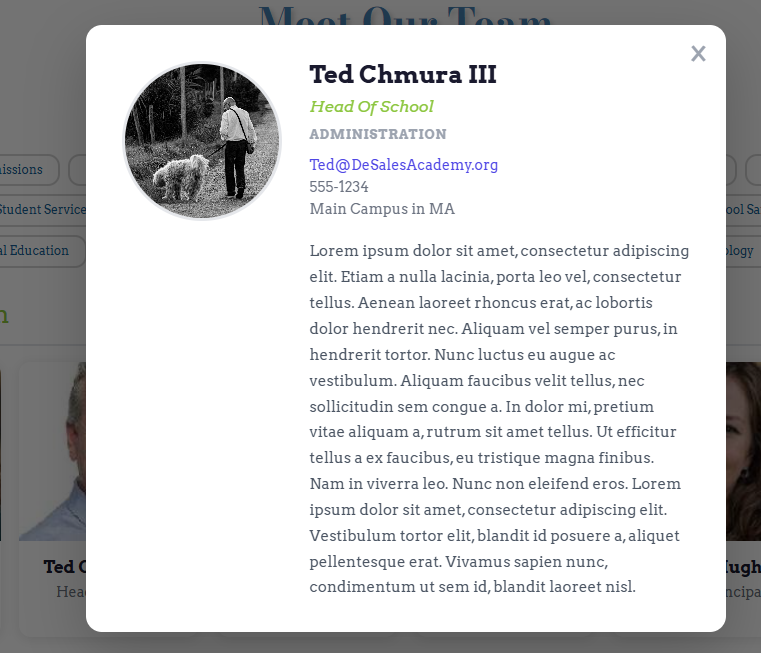
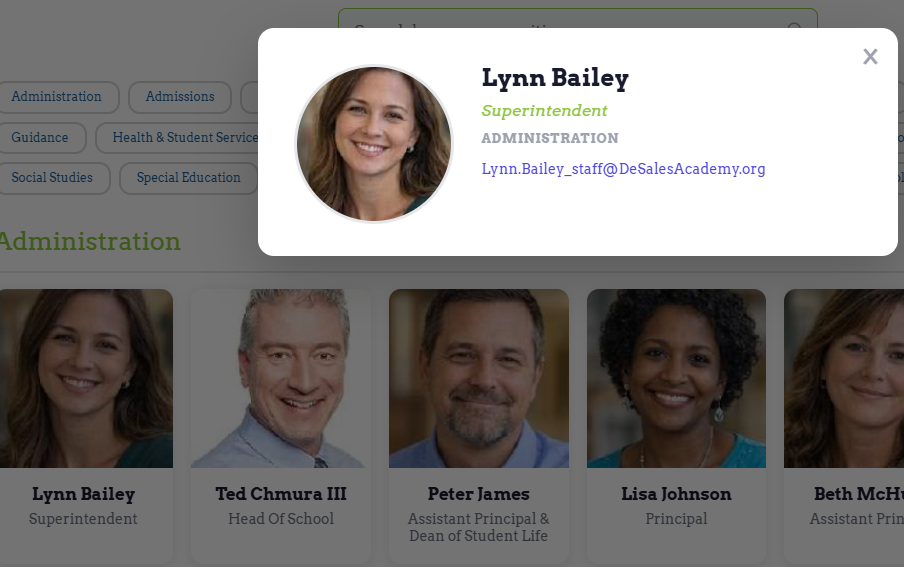
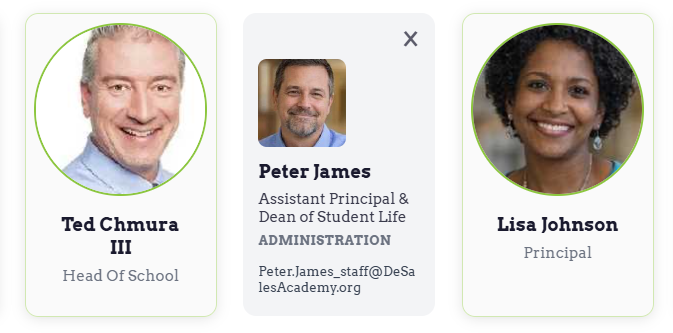
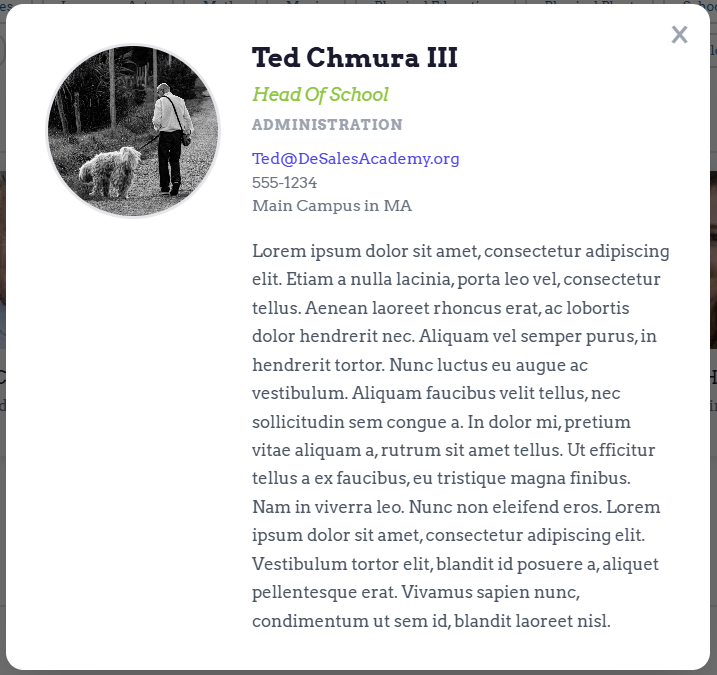
Choose between Modal Popup or Flip Card. This determines how the widget handles displaying items like email, department, etc. The main staff card will display Photo, Name, and Position, the additional information is displayed on either a modal popup or the back of the card.
| Modal Popup | Flip Card |
|---|---|
| When the staff card is clicked a modal overlay (popup) will appear with additional information like Department and Email (and optional Bio information if configured). | When the staff card is clicked the card will flip over displaying additional information like Department and Email (and optional Bio information if configured). |
 |  |
It is recommended if you are going to connect to an internal collection for Bios that you use the Modal Popup option. The flip card is a good choice when just displaying the basic information like department and email.
Title
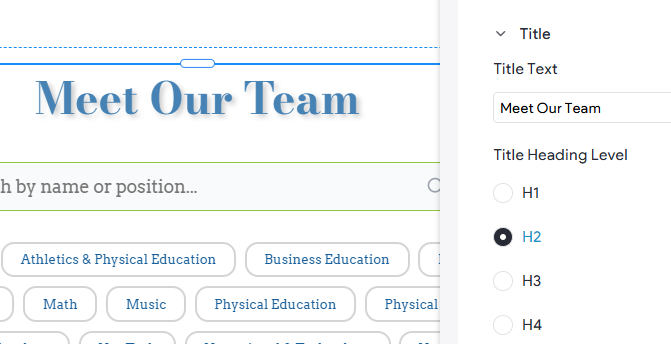
Heading text appearing at the top of the widget, above your staff. You can enter the text and choose the heading level. The style then matches whatever heading level styles are set in your site theme. You can also leave this blank.
Search & Grouping
Show Search Bar
Displays search box at the top of the widget with place holder text.

Group by Department
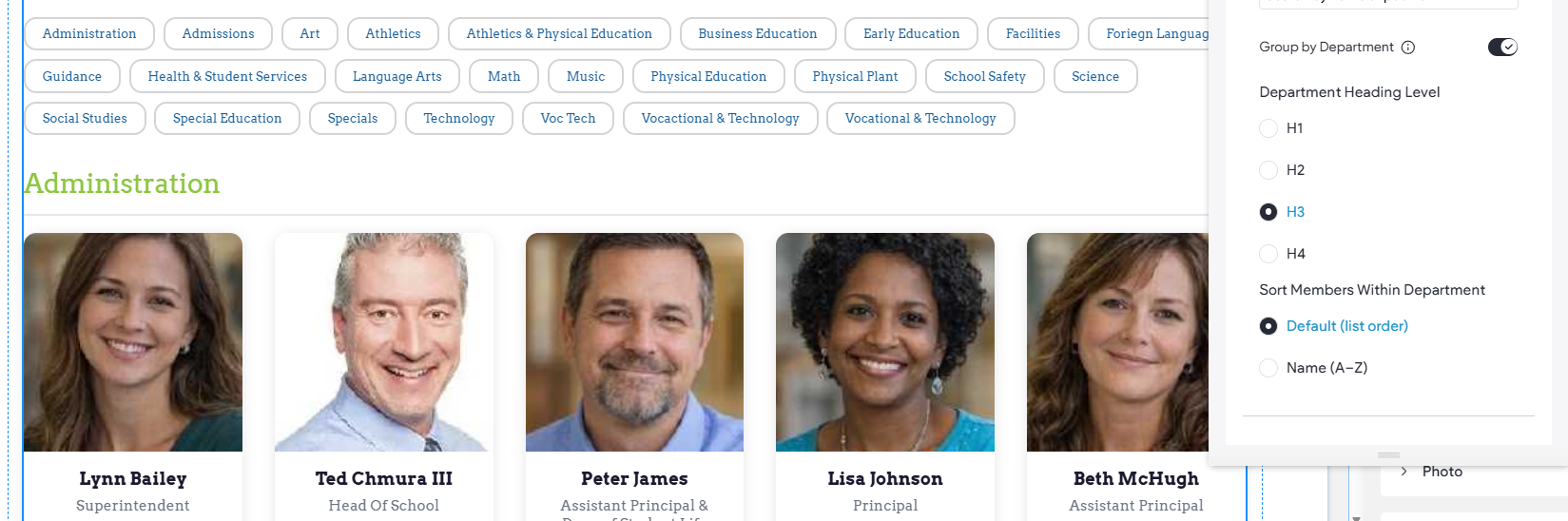
This turns off pagination and instead sets the widget to use the Department field values to organize and display the staff. As the tooltip notes, any staff without a department will not be shown. When grouping by department the widget will also create a navigation menu under the search assembling all of the Departments detected. This option should only be used when the school has clear and clean department value entries in their database.
Department Heading Level
When grouping by department the Department field values are displayed as section headings. This sets the level to use; the styles will automatically come from the site's theme.
Sort Members Within Department
When grouping by department this setting determines their sort order. Default is the order they appear in your collection or database. Name (A-Z), uses the Collection field Sort Name to determine order. For AdminPlus based staff directories this is the Last name (Last, First).
When using AdminPlus as the source it is NOT possible to set a specific order, e.g. we cannot make your Head of School display first in the department or directory. For that level of custom control, you would need to use an internal collection, where you can manually order the directory. Alternatively, we can use multiple widgets and filter for specific positions to give them special attention.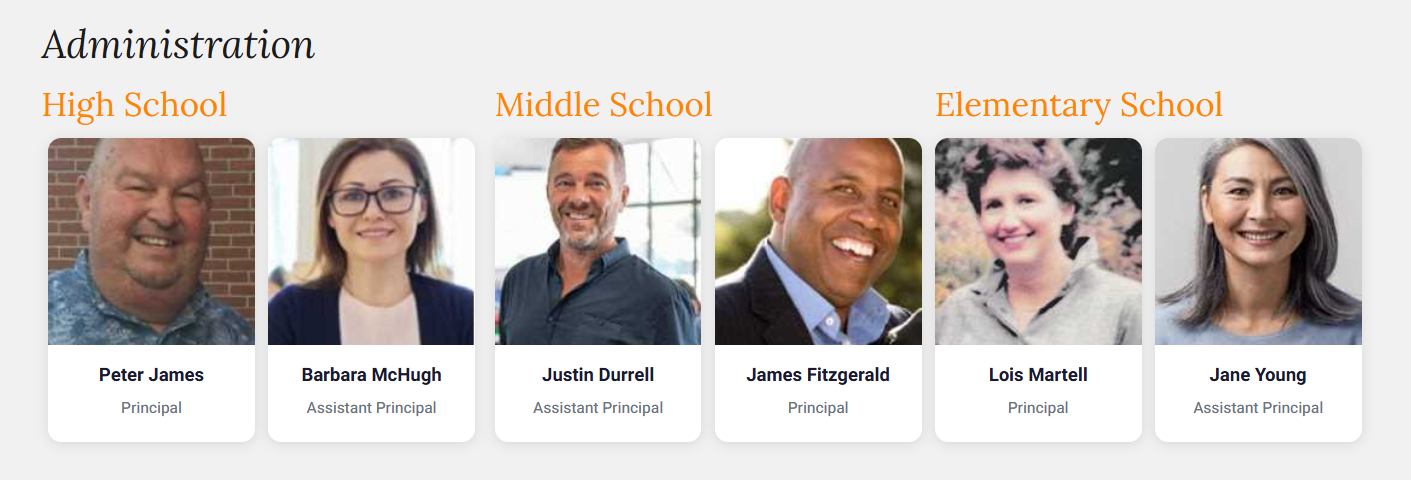
Collection
This sets up the connection to the incoming data feed from your AdminPlus SIS. It should already be properly configured as needed. When dropping the widget on the page it should already look for a collection called "AdminPlus Staff Directory" and automatically display staff. There should be no need to edit these settings unless opting to connect to an internal collection instead.
Filter By Position/Department
There are setting in the bottom portion of the Collection section for Filtering by Position and or Department. These are present for specific situations where you want to display only a segment of your team on the page. For example, Filtering for the "Athletics" as the Department would result in only staff members with that value displaying. This is great for Departmental pages like your Athletics page.
Exclude by Department/Position
These options are there so that you can choose to exclude specific people by either Position or Department. These settings are there typically for schools that have a large/combined database where we may need them to more specifically narrow down the staff being displayed. Typically, the Filter by Position or Department will be sued and would suffice. For example, if we want to show all the teachers, but exclude the Administration, these settings will allow us to achieve that.
Bio Collection (Optional)
This is a completely optional set of mapped data points that come from a second named collection. The purpose of this secondary collection is for supplementing the AdminPlus SIS Data and allow for data to be displayed that is NOT part of the database. For example, text for a staff biography, which has no place in the Rediker SIS. By setting up an internal collection and, then using a matching email a school can choose to additionally display extra data points like Bio, Phone, and Location, even a secondary image. These "Bio Collection Fields" would display on the expanded view (Modal Overlay or Back of Card).
Staff Members (List Items; Not Recommended)
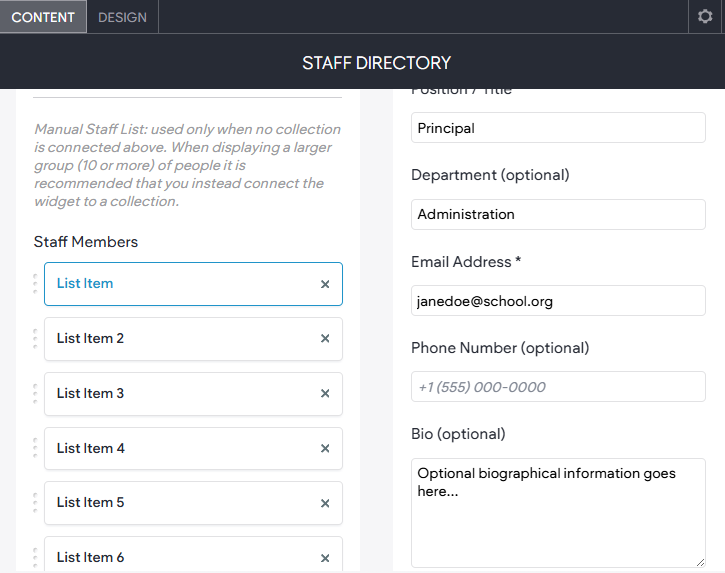
This is only if you want to manually create and display a small grouping of people. This is supplied as a convenience and only recommended for 10 or less staff members or where the other methods (AdminsPlus or internal collection) would actually be more work or effort. This widget is designed intentionally to handle larger numbers of staff coming from either an internal collection or your AdminPlus SIS, which is what is recommended.
Choosing this option requires that you then manually enter Staff Members as list items and enter their data one by one. It is a great option IF you only need to display a small group or a single person. Even then, it would be better to draw from a collection and filter by position(s).
Design
The design elements are used to style the contextual element if/when present. For example, if you choose to turn of the Search feature then the Search Bar styles will not be presented.
Layout
Allows you to set the number of columns (ie the number of staff) across. This is done by device type and choices are limited to ensure proper responsiveness.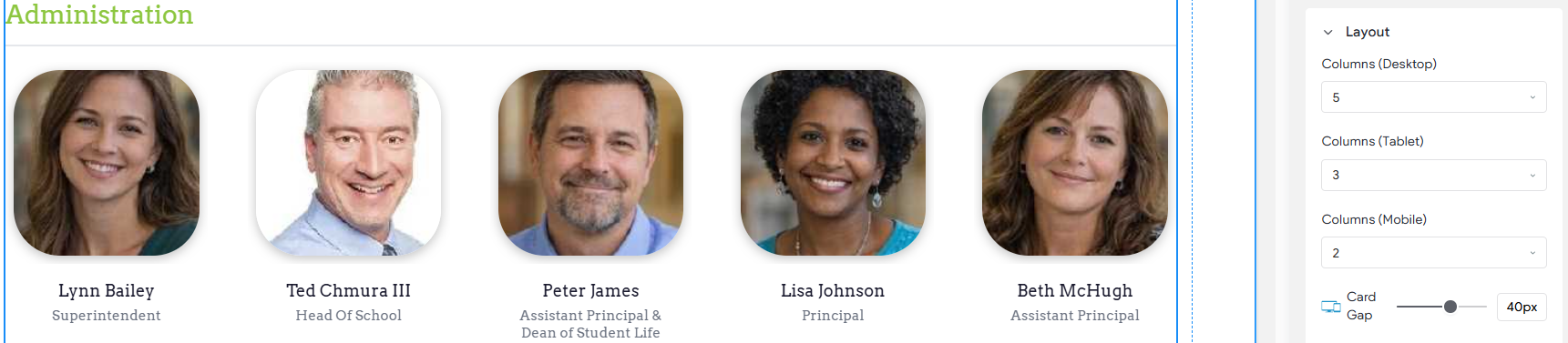
Section Title
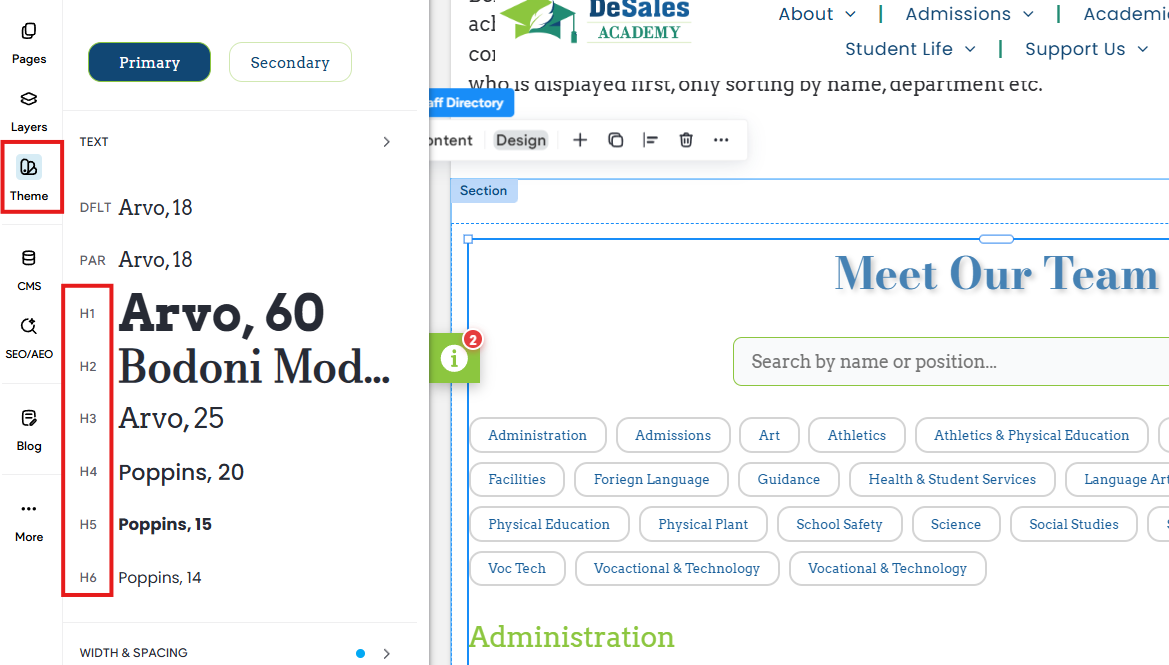
As noted, the title and department group headings inherit styles from the site theme. This is done intentionally to ensure consistency in appearance and design. You can review your Site Theme settings from the left panel.
Search Bar
Various styles that impact the search bar. You can turn the search bar off under Content Settings.
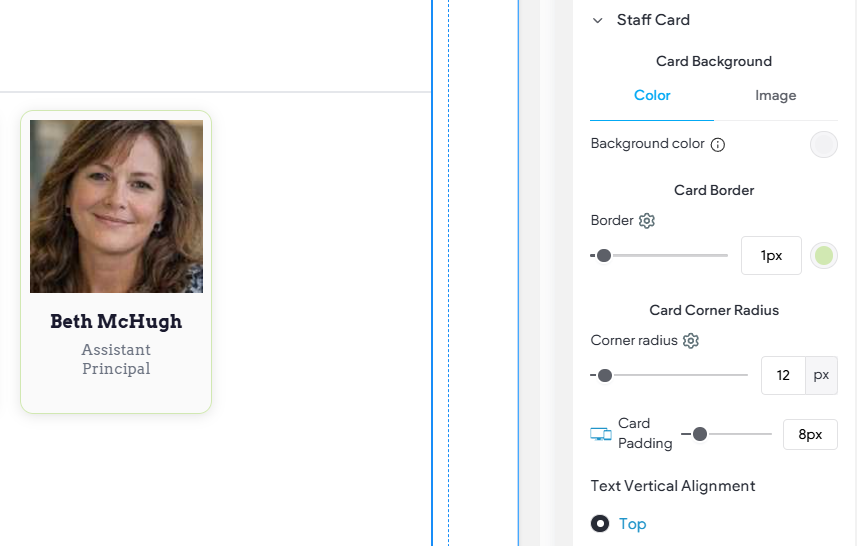
Staff Card
Various style that controls the displayed staff cards. This includes background color, alignment, border, corner radius, text, and card shadow. This impacts the front of the card for both interaction modes (Modal and Flip).
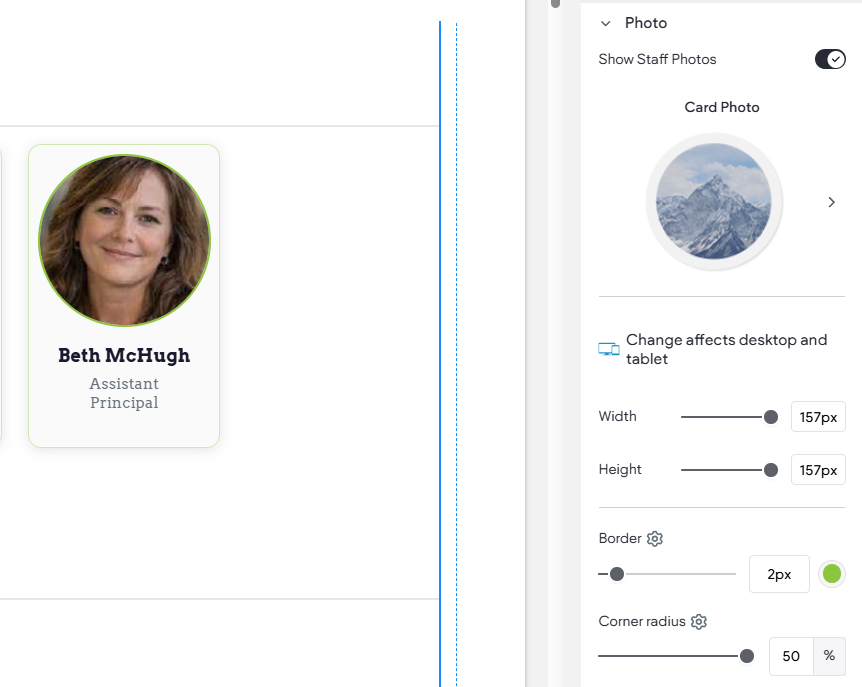
Photo
Various settings impacting the Staff photos. This even gives you the option to disable the photos, if you want a compact text-based directory. There are also layout options for rounded photos and more.
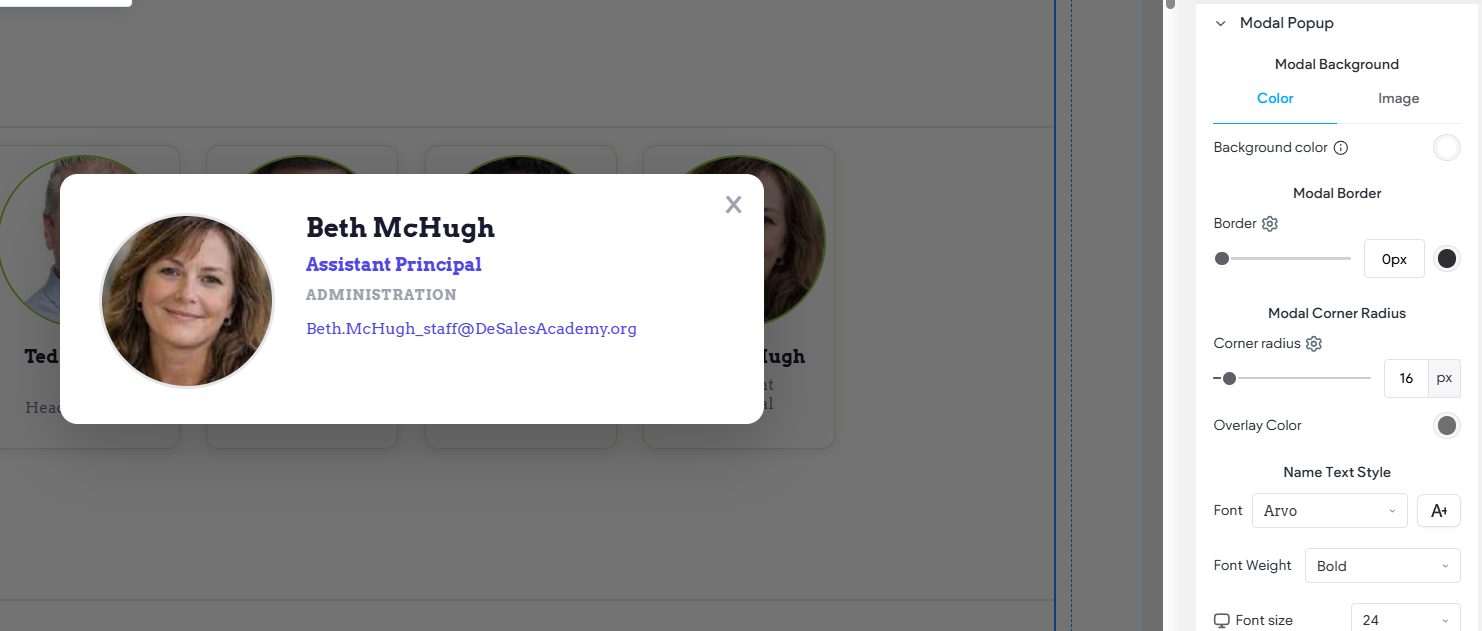
Modal Popup
Style options for the Modal Popup card interaction. Includes various adjustable styles from background color and various text element styles.
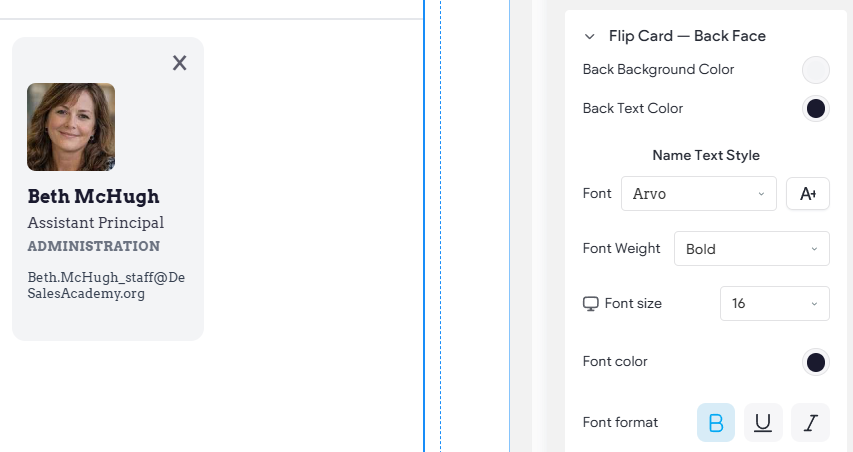
Flip Card - Back Face
Style options for the Fip Card interaction. Includes various adjustable styles from background color, border, and even overlay color. The various text elements can also be styles.
Department Navigation
When Group By Department is used, these styles let you control the navigation elements.